Catherine Hu
Table of Contents
- The Golden Standard: Best Mortal Shell 2 Steam Deck Settings for 60 FPS
- The Road Warrior: Maximum Battery Life Configuration (40 FPS / 40Hz)
- Beyond Vanilla: Break the Difficulty Barrier with XMODhub
- Advanced SteamOS Tweaks: Proton Compatibility and VRAM Allocation
- Frequently Asked Questions
- Final Verdict
Editor’s Note: Achieving the perfect harden or parry in Mortal Shell 2 requires absolute precision and flawless frame pacing. We have rigorously benchmarked these configurations across both the LCD and OLED Steam Deck models to guarantee that your invincibility frames are never compromised by unexpected stutters.
Mortal Shell 2 pushes modern rendering engines to their limits, delivering breathtaking dark fantasy vistas and punishing, deliberate combat. However, translating that immense visual fidelity to a handheld device requires strategic compromises. Whether you want a buttery-smooth 60 FPS for intense boss encounters or extended battery life for a long commute, we have crafted the ultimate optimization guide for your handheld.
The Golden Standard: Best Mortal Shell 2 Steam Deck Settings for 60 FPS
To achieve a stable 60 FPS, you need to balance the SteamOS overlay settings with the in-game graphics menu. This configuration prioritizes high framerates and responsive input latency, ensuring your dodges register exactly when you press the button.
In-Game Graphics Settings:
- Resolution: 1280×800 (Native)
- Display Mode: Fullscreen
- V-Sync: Off (Let SteamOS handle frame pacing)
- Anti-Aliasing: Low / TAA
- Shadow Quality: Low (Crucial for maintaining high FPS)
- Texture Quality: Medium
- Post-Processing: Low
- FSR / Upscaling: Quality or Balanced
SteamOS Performance Overlay (Quick Access Menu):
- Framerate Limit: 60 FPS
- Refresh Rate: 60 Hz
- TDP Limit: Off (Allow the APU to draw maximum power)
- Manual GPU Clock Control: Off
- Half Rate Shading: Off
The Road Warrior: Maximum Battery Life Configuration (40 FPS / 40Hz)
If you are playing away from a wall charger, the 60 FPS target will drain your battery in under 90 minutes. By utilizing the Steam Deck’s 40Hz sweet spot, you can drastically increase your playtime while maintaining a remarkably smooth and playable experience.
In-Game Graphics Settings:
- Resolution: 1152×720 (Use SteamOS FSR to upscale to native)
- Shadow Quality: Low
- Texture Quality: Low
- Global Illumination: Off
- Volumetric Fog: Low
SteamOS Performance Overlay:
- Framerate Limit: 40 FPS
- Refresh Rate: 40 Hz
- TDP Limit: On (Set to 9W – 11W depending on the environment)
- Scaling Filter: FSR (Sharpness set to 2 or 3)
Beyond Vanilla: Break the Difficulty Barrier with XMODhub
Let’s face it: playing a hardcore soulslike on a handheld screen can sometimes lead to frustrating deaths due to cramped controls or slight visual limitations. If you are stuck on a brutal boss phase, tired of the run-backs, or just want to explore the grim world without the constant threat of losing your hard-earned currency, we have the ultimate solution.
Take total control of your playthrough with the The Ultimate Guide to Mortal Shell 2 Trainer & Cheats: God Mode, Infinite Stamina & Beyond. Designed for seamless integration, this tool allows you to bypass the artificial grind and enjoy the lore on your own terms.
Here is how to dominate the game in three simple steps:
- Download XMODhub directly from our secure platform.

- Auto-Detect Mortal Shell 2 within your active game library.
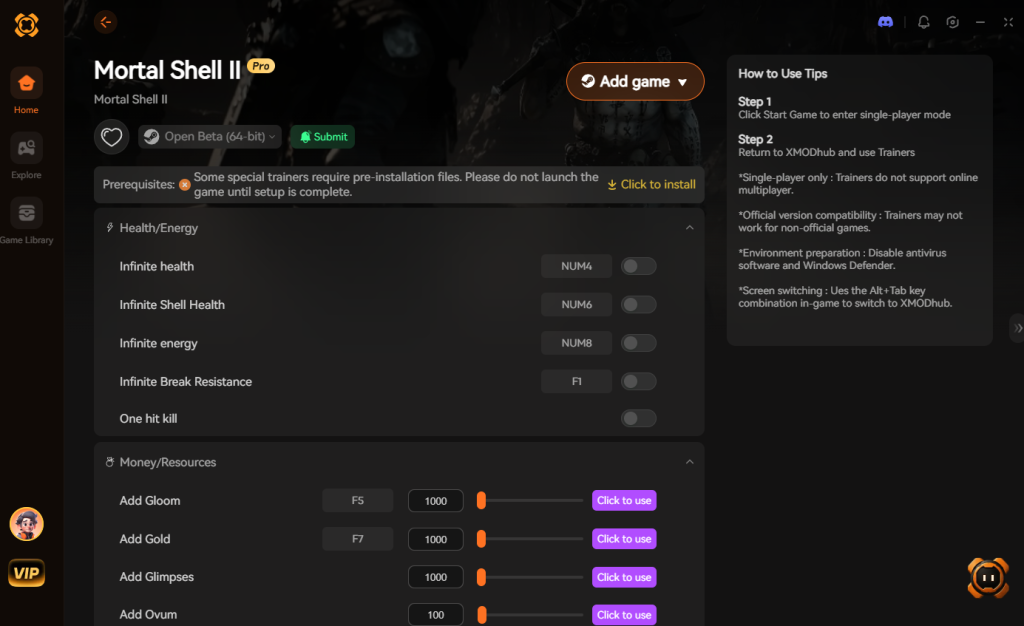
- Toggle cheats like God Mode and Infinite Stamina instantly via the overlay interface.
Download Mortal Shell II Trainer Now
Advanced SteamOS Tweaks: Proton Compatibility and VRAM Allocation
To truly squeeze every ounce of performance out of the Steam Deck, you need to look beyond the basic in-game menus. Mortal Shell 2 benefits heavily from custom Proton layers and optimized memory management.
Forcing GE-Proton for Better Shader Compilation
By default, Steam uses the standard Proton layer. However, switching to GE-Proton (downloadable via ProtonUp-Qt in Desktop Mode) can significantly reduce the micro-stutters caused by shader compilation during heavy combat sequences. Force compatibility in the game’s properties menu and select the latest GE-Proton version.
UMA Frame Buffer Size (VRAM Tweak)
Booting your Steam Deck into the BIOS and changing the UMA Frame Buffer Size from the default 1GB to 4GB ensures that the high-resolution textures of Mortal Shell 2 do not cause memory bottlenecks. This is especially vital when exploring large, open hub areas.
Performance Metrics Comparison: OLED vs LCD
Depending on your specific hardware, your results will vary. Here is a breakdown of what to expect when using our optimized 40Hz battery-saving settings across different Deck models:
| Hardware Model | Target FPS / Hz | Avg. TDP Draw | Est. Battery Life | Micro-Stutters |
|---|---|---|---|---|
| Steam Deck OLED | 40 FPS / 90Hz | 9W | 3.5 – 4.5 Hours | Minimal |
| Steam Deck LCD | 40 FPS / 40Hz | 11W | 2.0 – 2.5 Hours | Occasional |
Frequently Asked Questions
Does Mortal Shell 2 support Steam Cloud Saves?
Yes. Your progress will seamlessly sync between your primary gaming PC and your Steam Deck, allowing you to pick up exactly where you left off without manually transferring save files.
Why is my game stuttering during boss fights?
Sudden particle effects and heavy alpha transparencies can tank your framerate. Ensure that Shadow Quality and Post-Processing are set to Low, and verify that you have background shader pre-caching enabled in your Steam download settings.
Can I run the game at 90 FPS on the OLED model?
While the OLED screen supports a 90Hz refresh rate, the APU cannot maintain 90 FPS in a modern, graphically intensive title like this. We highly recommend locking the framerate to 45 FPS (at 90Hz) or 60 FPS (at 60Hz) for the most stable frame pacing.
Final Verdict
Optimizing Mortal Shell 2 for the Steam Deck transforms a grueling, hardware-intensive title into a portable masterpiece. By utilizing our 60 FPS configuration for docked play or the 40Hz setup for travel, you ensure that every dodge, parry, and strike feels perfectly responsive. Don’t let hardware limitations ruin your run—adjust your settings, master the mechanics, and if the darkness becomes too overwhelming, remember that XMODhub is always there to tip the scales in your favor.
Stop Grinding, Start Enjoying.
Bypass the tedious resource gathering and unlock your full potential instantly.

I am a passionate gamer and writer at XMODhub, dedicated to bringing you the latest gaming news, tips, and insights.
Connect with me:
LinkedIn Profile ↗