Catherine Hu
If you have spent more than ten minutes inside the claustrophobic, diesel-choked cabin of the 5,000-ton war machine in IRON NEST: Heavy Turret Simulator, you already know the struggle. You are desperately trying to monitor hundreds of hydraulic gauges, adjust massive levers, and track incoming coordinates, but the default Field of View (FOV) makes it feel like you are looking through a periscope with blinders on. Not being able to see your tactical map and your gunlaying controls at the same time is not just annoying; it is a rapid path to mission failure and genuine motion sickness.
Editor’s Note: During my first few hours with the Steam Next Fest demo of IRON NEST: Heavy Turret Simulator, the restricted FOV was my biggest hurdle. When you are managing a procedurally generated mission that requires constant pivoting between the measurement board and the firing mechanism, a narrow FOV is a death sentence. I dug into the configuration files and the settings menus to find the exact methods to widen that perspective, ensuring you can manage this behemoth without getting a headache.
TL;DR: The Short Answer
To quickly change the FOV in IRON NEST: Heavy Turret Simulator and increase your cabin visibility, follow these immediate steps:
- In-Game Settings (If Available): Open the pause menu -> Navigate to Options -> Select Video/Graphics -> Locate the Field of View (FOV) slider -> Increase the value from the default (usually 75 or 80) to your desired width (90 to 105 is recommended for optimal visibility without extreme fish-eye distortion).
- Configuration File Edit (For Forced FOV Changes):
- Press
Win + R, type%localappdata%, and hit Enter. - Navigate to the
IronNestfolder ->Saved->Config->WindowsNoEditor. - Open
Engine.iniorGameUserSettings.iniwith Notepad. - Look for the
[/Script/Engine.LocalPlayer]header. - Add or modify the line:
AspectRatioAxisConstraint=AspectRatio_MaintainYFOV. - Save and set the file to Read-Only.
- Important Note: Pushing the FOV past 110 in this specific dieselpunk artillery simulator may cause significant UI clipping around the tactical map and the manual tracking dials.
Table of Contents
- TL;DR: The Short Answer
- Why FOV Matters in Heavy Artillery Simulation
- Method 1: Adjusting FOV via the In-Game Menu
- Method 2: Modifying Configuration Files for Custom FOV
- The Performance Impact of a Higher FOV
- Optimizing Your Setup for Portable Dominance
- Skip the Grind: The XMODhub Shortcut
- Optimal FOV Settings Based on Monitor Aspect Ratio
- Frequently Asked Questions
- Final Verdict: Expanding Your Horizons
Why FOV Matters in Heavy Artillery Simulation
IRON NEST: Heavy Turret Simulator is not your standard first-person shooter where you run and gun across open battlefields. It is a highly intricate, single-player heavy-artillery simulator where you are locked inside a stationary, mechanical beast. The gameplay relies heavily on your ability to interact with a massive physical space filled with dials, levers, and a giant interactive tactical map.
The Problem with Narrow FOV
A low Field of View artificially zooms your perspective in. While this might be fine for a linear narrative game, in an environment where you must quickly glance from the spotter coordinate board on your left to the hydraulic pressure gauges on your right, a narrow FOV forces you to physically drag your mouse constantly. This repetitive, jerky camera movement is a primary trigger for simulation sickness. Furthermore, missing a critical gauge reading because it was just outside your peripheral vision can lead to a catastrophic misfire or failure to complete the dynamic mission objectives.
The Sweet Spot for Dieselpunk Machinery
Increasing the FOV pulls the camera back, mimicking human peripheral vision. For a game focused on complex war-machine management, an FOV between 90 and 100 is generally the sweet spot. It allows you to see the overarching control panel while keeping the crucial text on the map measurements legible. Anything higher than 110 might start to distort the edges of your screen (the “fish-eye” effect), making it difficult to accurately interact with the precise switches needed to gunlay the cannons.
Method 1: Adjusting FOV via the In-Game Menu
The most straightforward way to change your perspective is through the game’s built-in options. As the game transitions from its Next Fest demo phase toward its scheduled Early August 2026 release, the development team has been actively updating the accessibility features.
Step-by-Step Execution
- Launch the Game: Boot up IRON NEST: Heavy Turret Simulator from your Steam library.
- Access the Menu: Press
ESCduring a mission or navigate to Settings from the main menu. - Locate the Video Tab: Click on the Graphics or Video section.
- Find the Slider: Scroll down until you see the Field of View (FOV) option.
- Adjust and Apply: Drag the slider to the right. I highly recommend starting at 95. Hit Apply or Save Changes.
- Test in the Cabin: Return to the game and look around the turret interior. Ensure you can comfortably see the main firing mechanism and the tactical board without straining.
Method 2: Modifying Configuration Files for Custom FOV
If you find that the in-game slider is locked, does not go high enough, or keeps resetting after a patch, you will need to manually edit the game’s configuration files. This method forces the game engine to render a wider aspect ratio and FOV, which is particularly useful for ultrawide monitor users who want to maximize their heavy-artillery experience.
Detailed Configuration Edit
Before proceeding, always make a backup of your .ini files in case you make a typographical error.
- Locate the AppData Folder: Press the Windows Key and
Rsimultaneously to open the Run dialog box. - Enter the Path: Type
%localappdata%and click OK. - Navigate to the Game Directory: Scroll down and find the folder named
IronNest. - Drill Down to Configs: Go to
Saved->Config->WindowsNoEditor. - Edit the Engine File: Find
Engine.ini. Right-click it and select Open with Notepad. - Insert the Override Code: Scroll to the very bottom of the text document. If you do not see the heading
[/Script/Engine.LocalPlayer], create it on a new line. Directly underneath that heading, paste the following command:
AspectRatioAxisConstraint=AspectRatio_MaintainYFOV
- Save and Lock: Click File -> Save. To prevent the game from overwriting your custom FOV upon the next launch, right-click
Engine.ini, select Properties, check the box for Read-only, and click Apply.
This specific tweak forces the Unreal Engine (which powers many modern simulation games) to scale the horizontal FOV based on your vertical resolution, preventing the claustrophobic cropping effect on standard 16:9 or 21:9 monitors.
The Performance Impact of a Higher FOV
It is crucial to understand that increasing your Field of View in IRON NEST: Heavy Turret Simulator is not a “free” graphical change. By widening your perspective, you are forcing your GPU to render more objects, textures, and lighting effects simultaneously.
Why the Framerate Might Drop
Inside the 5,000-ton turret, the environment is incredibly dense. There are volumetric lighting effects from the diesel engines, highly detailed textures on the hydraulic pipes, and complex physics calculations tied to the hundreds of interactive dials. When you increase the FOV from 80 to 100, the game engine must render approximately 25% more of this high-fidelity cabin at any given moment.
If you are running the game on mid-range hardware, you might notice a dip of 5 to 10 frames per second when expanding the FOV. To counteract this, consider slightly lowering your Shadow Quality or Volumetric Fog settings. The dieselpunk aesthetic will still look fantastic, and the increased situational awareness from the wider FOV is well worth the minor reduction in shadow crispness.
Optimizing Your Setup for Portable Dominance
If you are trying to manage these colossal war machines on the go, the default FOV can be particularly punishing on a smaller screen. A wider FOV is essential to ensure you aren’t constantly swiping the thumbsticks just to read a coordinate. However, balancing this increased visual rendering with the battery life of a handheld device requires specific tweaks. If you want to ensure your portable session runs flawlessly while maintaining that wider perspective, you should definitely check out our comprehensive Best Iron Nest Steam Deck Settings (TDP & 60 FPS Guide) to perfectly balance battery drain, thermal limits, and buttery-smooth turret operation.
Skip the Grind: The XMODhub Shortcut
Let’s be brutally honest: IRON NEST: Heavy Turret Simulator is a brutal game. Taking map measurements, straining hydraulics, and gunlaying cannons based on vague coordinates from High Command takes immense patience. If you just want to experience the sheer destructive power of the 5,000-ton turret without spending thirty minutes doing vector math for a single shot, there is a better way.
You don’t need to struggle with complex calculations or fail missions because you misread a single gauge. XMODhub offers the ultimate shortcut to dominate the battlefield immediately.
How to Dominate with XMODhub
- Download XMODhub: Install the secure, lightweight client from the official XMODhub website.
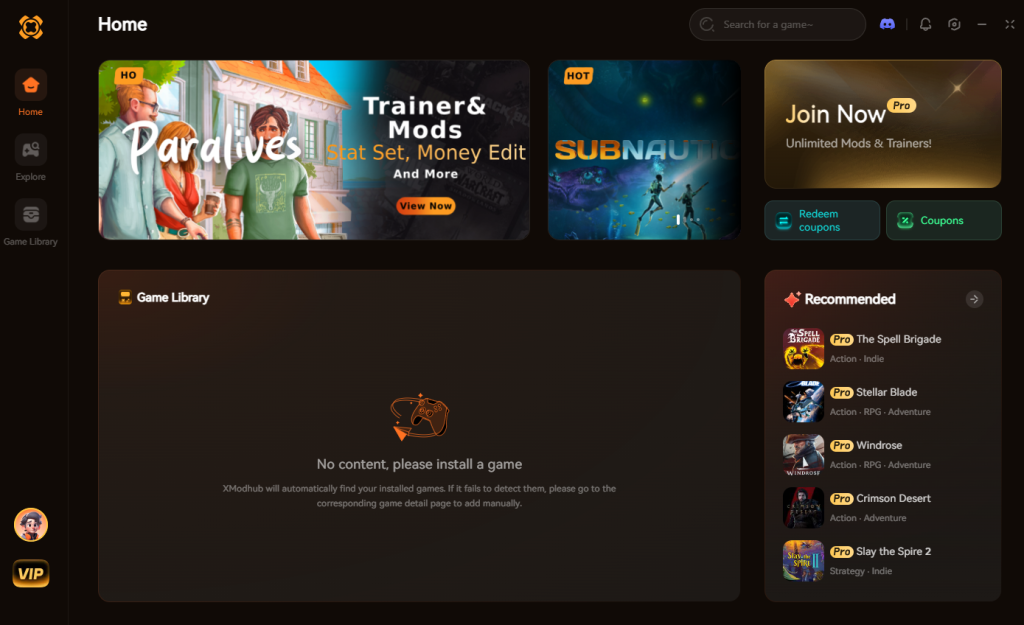
- Auto-Detect IRON NEST: Heavy Turret Simulator: Launch the game. XMODhub will automatically recognize the active process and load the dedicated trainer profile.
- Toggle Cheats: Use the sleek overlay or custom hotkeys to activate game-changing features. Enable “Instant Reload,” “Perfect Accuracy Coordinates,” or “Infinite Hydraulic Pressure” to bypass the tedious management mechanics and focus purely on obliterating the enemy.
Download IRON NEST: Heavy Turret Simulator Trainer Now
Optimal FOV Settings Based on Monitor Aspect Ratio
Finding the perfect balance between peripheral visibility and visual distortion depends heavily on your hardware. If you are playing IRON NEST: Heavy Turret Simulator on a standard display versus an ultrawide monitor, your ideal Field of View will differ significantly. Below is a definitive data breakdown to help you match your FOV to your specific screen size, ensuring maximum efficiency when operating the gunlaying controls.
| Monitor Setup & Aspect Ratio | Recommended FOV Range | Visual Impact & Clarity | Motion Sickness Risk |
|---|---|---|---|
| Standard (16:9) | 90 – 95 | Excellent clarity on hydraulic pressure gauges; minimal edge distortion. | Low |
| Ultrawide (21:9) | 95 – 105 | Wide peripheral vision for the tactical map; slight stretching at far edges. | Very Low |
| Super Ultrawide (32:9) | 100 – 110 | Maximum cabin visibility; noticeable fish-eye effect requires getting used to. | Moderate |
| Steam Deck (16:10) | 85 – 90 | Keeps text on the spotter coordinate board highly legible on a compact screen. | Low |
How FOV Impacts Core Gameplay Mechanics
In a hardcore simulation environment, your camera perspective directly influences your mechanical execution. When adjusting the FOV slider, you are actively altering how you interact with the 5,000-ton machine:
- Tactical Map Readability: A wider FOV allows you to keep the tactical map in your peripheral vision while manually adjusting the firing mechanism. However, pushing it past 105 on standard monitors can make the tiny grid coordinates too small to read without leaning in.
- Gunlaying Precision: The gunlaying controls require micro-adjustments to hit distant targets. An extremely high FOV creates a spatial distortion that can make the rotation speed of your turret feel artificially faster, potentially throwing off your aiming muscle memory.
- Hydraulic Management: Keeping the hydraulic pressure gauges in your immediate sightline prevents catastrophic system failures. An optimized FOV ensures these critical warning lights remain visible without sacrificing focus on your primary external viewport.
Frequently Asked Questions
Will changing the FOV disable Steam achievements?
No. Adjusting the Field of View, whether through the in-game menus or via the Engine.ini configuration file, is considered a standard graphical preference. It will not flag your account or disable any achievements in IRON NEST: Heavy Turret Simulator.
Why does my game look stretched after increasing the FOV?
If you push the FOV past 110, you will likely experience a “fish-eye” effect, where the edges of the screen become distorted and stretched. To fix this, lower the FOV back down to a more manageable number, such as 95 or 100.
Does IRON NEST: Heavy Turret Simulator support ultrawide monitors?
Yes, the game generally supports 21:9 resolutions. However, to ensure the UI elements like the tactical map and the coordinate board are properly positioned on an ultrawide setup, you may need to apply the AspectRatio_MaintainYFOV fix detailed in Method 2 of this guide.
Can I adjust the FOV on the Steam Deck?
Yes. The in-game settings menu is fully accessible on the Steam Deck. Adjusting the FOV slider works exactly the same as it does on a desktop PC, though you should monitor your framerate closely as a wider FOV demands more processing power from the handheld device.
Final Verdict: Expanding Your Horizons
Mastering the claustrophobic, intense environment of IRON NEST: Heavy Turret Simulator requires every advantage you can get. By taking the time to properly change your FOV, you drastically increase your situational awareness, reduce simulation sickness, and make managing the hundreds of machine mechanisms significantly more intuitive. Whether you use the in-game sliders or dig into the .ini files, finding your perfect perspective is the first step to obeying High Command effectively.
But when the manual labor of dieselpunk warfare becomes too much of a grind, remember that you have options. XMODhub is the premier solution for players who want to reclaim their time and dictate how they play. With a massive ecosystem supporting over 5,000 single-player titles, XMODhub isn’t just for this artillery simulator. If you enjoy the complex mechanical management of games like Frostpunk or the intense atmosphere of They Are Billions, XMODhub provides the exact same high-quality trainers and mods for those titles, ensuring you always play on your own terms. Optimize your FOV, load your cannons, and let the machinery answer your call.
Stop Grinding, Start Enjoying.
Bypass the tedious resource gathering and unlock your full potential instantly.

I am a passionate gamer and writer at XMODhub, dedicated to bringing you the latest gaming news, tips, and insights.
Connect with me:
LinkedIn Profile ↗
 Nancy Miller