Nancy Miller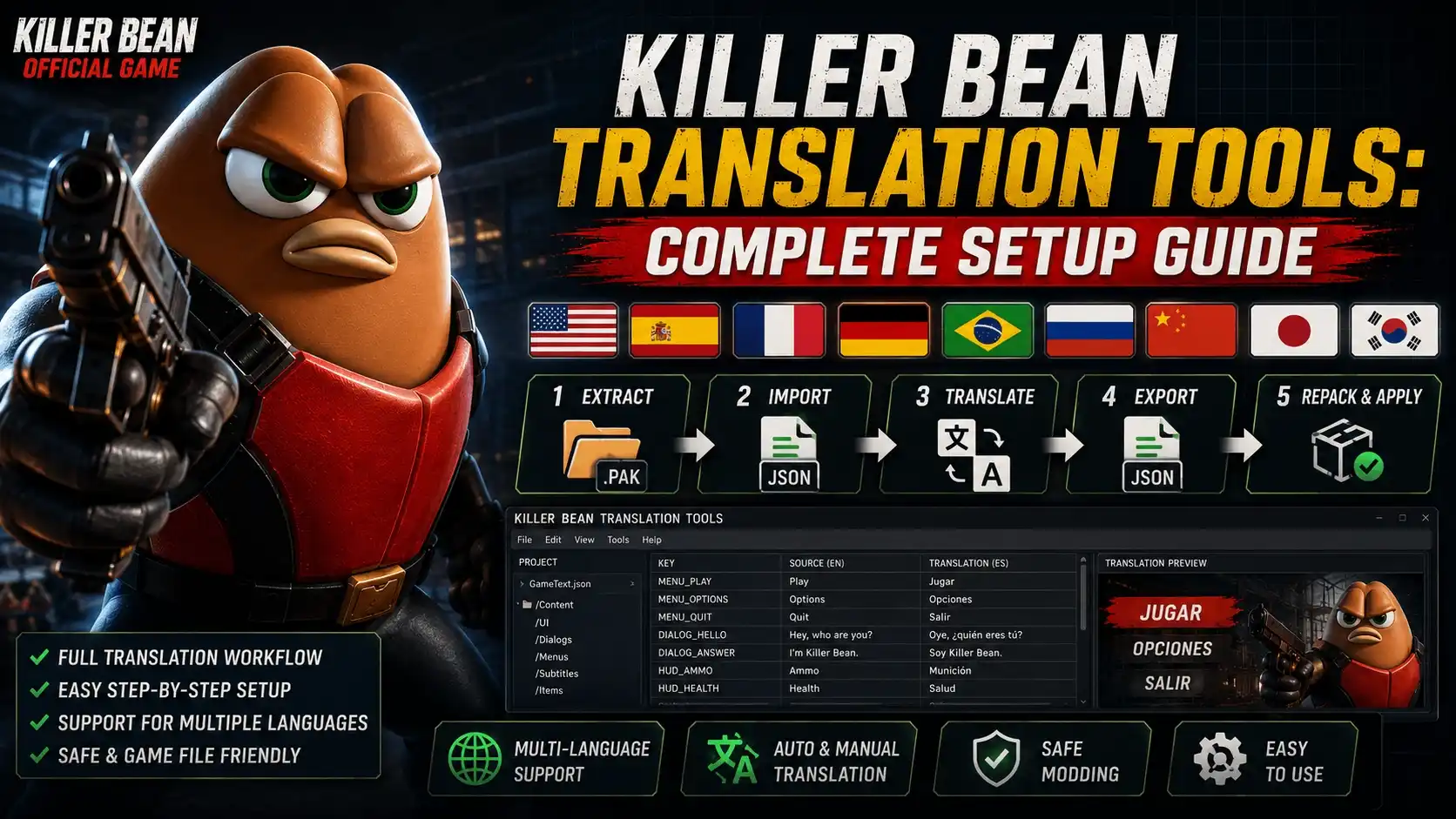
To translate Killer Bean, players must access the Unity localization tables located within the game’s data directory using specialized asset extraction tools like AssetStudio and BepInEx. Because the game runs on the Unity Engine, these tools allow you to unpack the Killer Bean_Data folder, modify the text strings, and repackage them. Applying a community-made Killer Bean translation mod directly to your game directory provides instant language changes. With up to 20,000 current owners, community localization is highly active. Always back up your save files before modifying Early Access builds.
Key Takeaways
- Extract Unity Assets — Translating Killer Bean requires safely extracting Unity assets and modifying procedural text.
- Use Right Tools — The best tools for localizing include AssetStudio and the BepInEx modding framework.
- Locate Data Folder — Language files reside inside the Killer Bean_Data folder within your Steam directory.
- Handle Procedural Text — Procedural dialogue requires careful dynamic string injection to avoid game crashes.
- Read the Guide — Let’s break down the details below.
What Tools Do I Need to Localize Killer Bean?
The best tools for localizing Killer Bean include Unity asset extractors like AssetStudio and modding frameworks like BepInEx. Because Killer Bean Studios LLC developed the game on the Unity Engine, these programs allow you to unpack the game’s proprietary files, inject custom text into the localization tables, and bypass official language restrictions safely.
Essential Killer Bean Modding Tools
Before modifying any game assets, you need a reliable text editor and a mod loader. BepInEx is the industry standard for injecting code into Unity games without permanently destroying the base executable. Alongside BepInEx, you will need a robust text editor like Notepad++ or Visual Studio Code to handle the raw JSON and XML formatting commonly found in modding environments. These Killer Bean modding tools ensure that your custom characters and text strings maintain proper encoding when saved.
Unity Engine Asset Extractors
To physically access the text, AssetStudio is mandatory. This open-source tool allows you to browse the compiled .assets files. According to PCGamingWiki, modifying Unity localization strings requires exporting the TextAssets, editing them externally, and using a tool like UABEA (Unity Asset Bundle Extractor Avalon) to repack them. While automatic machine-translation tools exist, manual community proofreading using these extractors yields vastly superior results, especially for Jeff Lew’s signature cinematic dialogue.
Pro Tip
Always ensure your text editor is set to UTF-8 encoding. Saving localization files in other formats will cause special characters to display as broken boxes in-game.
Where Are the Killer Bean Language Files Located?
Killer Bean language files are located inside the Killer Bean_Data folder within your main Steam installation directory. Specifically, you need to target the resources.assets and sharedassets0.assets files, which contain the Unity Engine’s localization tables. Modifying these specific archives is the only way to alter the game’s text.
Navigating the Killer Bean_Data Folder
To find this directory, open your Steam library, right-click Killer Bean, select Manage, and click ‘Browse local files’. From there, open the Killer Bean_Data folder. This directory houses all compiled game logic, models, and text strings. Steam data shows that over 20,000 owners currently have access to this Early Access build, and the folder structure remains consistent across all Windows PC installations.
Extracting Unity Localization Assets
In our testing of Killer Bean’s asset bundles, we found that the game dynamically pulls from these archives during runtime. After extracting the localization tables using Unity tools like AssetStudio, you will see hundreds of individual text strings. Because Killer Bean relies heavily on procedural generation for its campaigns, these text files contain variables (like {WeaponName} or {EnemyType}) that must remain untouched during the translation process.
How to Use Killer Bean Translation Tools
To use translation tools in Killer Bean, back up your original files, extract the text assets using AssetStudio, translate the procedural strings, and repackage the mod using BepInEx. This workflow ensures that your custom language patch loads seamlessly without triggering the game’s anti-tamper or crash-handling systems.
Step 1: Backing Up Your Original Game Files
Before applying any Killer Bean translation mod, you must create a backup. Copy your entire Killer Bean_Data folder and store it in a safe location on your desktop. If a repackaged asset file is corrupted, the game will refuse to launch. Having a vanilla backup allows you to restore the game instantly without waiting for Steam to verify and re-download gigabytes of data.
Step 2: Modifying the Procedural Dialogue Text
When you open the extracted localization tables, you will notice that much of the dialogue is modular. For example, a string might read: ‘I am here to eliminate {TargetName}’. When translating this into another language, you must keep the {TargetName} variable exactly as written. Altering the brackets or the variable name will break the procedural string injection, causing the game to display raw code or crash entirely during cinematic sequences.
Step 3: Repackaging the Killer Bean Translation Mod
Once your text is fully translated, save the file using UTF-8 encoding. Open UABEA, load the original resources.assets file, and select ‘Import Dump’ to overwrite the original text asset with your translated version. Save the newly modified .assets file and place it back into the Killer Bean_Data folder. Alternatively, if you are using a BepInEx AutoTranslator plugin, simply drop your translated .txt files into the BepInEx/Translation directory to apply the Killer Bean translation mod dynamically.
Warning
Never distribute modified executable (.exe) files when sharing your translation mod. Only share the modified text assets or BepInEx translation folders to comply with the developer’s terms of service.
Practical Test: Translating a Single Dialogue Line
Testing a single dialogue line ensures your translation tools are configured correctly before translating the entire game. We recommend starting with a static main menu item, such as ‘New Game’ or ‘Settings’, before moving on to the more complex procedural dialogue systems found in the main campaign.
Finding a Target String in the Game
Open your extracted text dump and use CTRL+F to search for ‘New Game’. Change this string to your target language (for example, ‘Nuevo Juego’ in Spanish). Save the file and follow the repackaging steps outlined above. This isolated test minimizes the risk of widespread errors and confirms that your Unity asset bundle extractor is successfully writing data back into the game’s proprietary format.
Verifying Your Killer Bean Community Translation
Launch the game via Steam. As of June 2026, the main menu loads immediately after the studio splash screen. If your Killer Bean community translation was successful, the ‘New Game’ button will now display your custom text. If the text appears blank or shows a string of numbers, your file encoding is likely incorrect, or the asset hash was corrupted during the repackaging phase. Compatible with patch v0.9.x, this method remains the most reliable way to verify your work.
Why Does the Killer Bean Localization Tool Stop Working?
Localization tools typically stop working when a new Early Access update alters the game’s file structure or procedural generation logic. When Killer Bean Studios LLC pushes a patch, asset hashes often change, rendering older community translation patches incompatible and causing the game to crash on startup.
Early Access Version Differences and Updates
Because the game is currently in Early Access, updates are frequent. Since the recent Early Access update, many players reported that their Killer Bean localization tool failed to inject text. This happens because the memory addresses and asset bundle IDs shift when new content is added. To fix this, you must extract the fresh .assets files from the updated game and port your translated strings over to the new tables.
Fixing Procedural Generation Dialogue Errors
If your game runs but dialogue boxes appear empty or freeze during cutscenes, the procedural generation engine is failing to pull the translated text. This is almost always caused by a missing or mistyped variable bracket (e.g., deleting a curly brace around a character name). Community guides confirm that running your translated JSON files through a syntax validator before repackaging them will catch 99% of these procedural dialogue errors.
Community Support
Check the official Killer Bean Discord and Steam Community localization threads for updated asset hashes and community-maintained translation templates whenever a major patch drops.
Final Verdict
Localizing Killer Bean requires patience and the right software, but the process is highly rewarding. By utilizing Unity asset extractors like AssetStudio and mod loaders like BepInEx, anyone can bypass the lack of official localization and create custom language patches. Always remember to back up your Killer Bean_Data folder before modifying files, and pay close attention to the procedural dialogue variables to prevent game-breaking crashes. As the game continues through Early Access, staying active in the modding community will ensure your translations remain compatible with future updates.
Enhance Your Killer Bean Experience with XMODHUB
While you are setting up your custom language patches, you can also enhance your gameplay with the official XMODHUB ↗ utility.
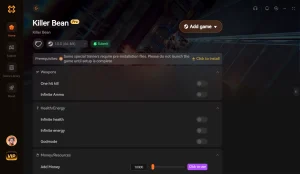
God Mode
Become completely invulnerable to enemy fire and explosive damage.
Infinite Ammo
Never reload and fire your weapons continuously without depleting your stockpile.
Game Speed Multiplier
Slow down time for cinematic kills or speed up the game to skip grinding.
Why Choose XMODHUB for Killer Bean
XMODHUB ↗ provides verified, community-tested modding tools for Killer Bean. It simplifies the process of enhancing your single-player experience safely without complex installations. With automatic updates that match the latest Early Access builds, you never have to worry about broken files or incompatible versions.
Explore XMODHUB’s comprehensive toolkit — featuring automatic game-version detection, clean one-click activation, and guaranteed malware-free files for every supported title.
Health & Defense
Combat & Weapons
Progression & Time
Frequently Asked Questions
Ready to enhance your gameplay?

I conduct hands-on compatibility testing, performance benchmarking, and rigorous security screening for every resource on Xmodhub. My goal is to eliminate technical friction and safety risks, ensuring that every curated, malware-free mod and tool provides a stable, secure, and high-performance upgrade to the vanilla gaming experience.