Nancy Miller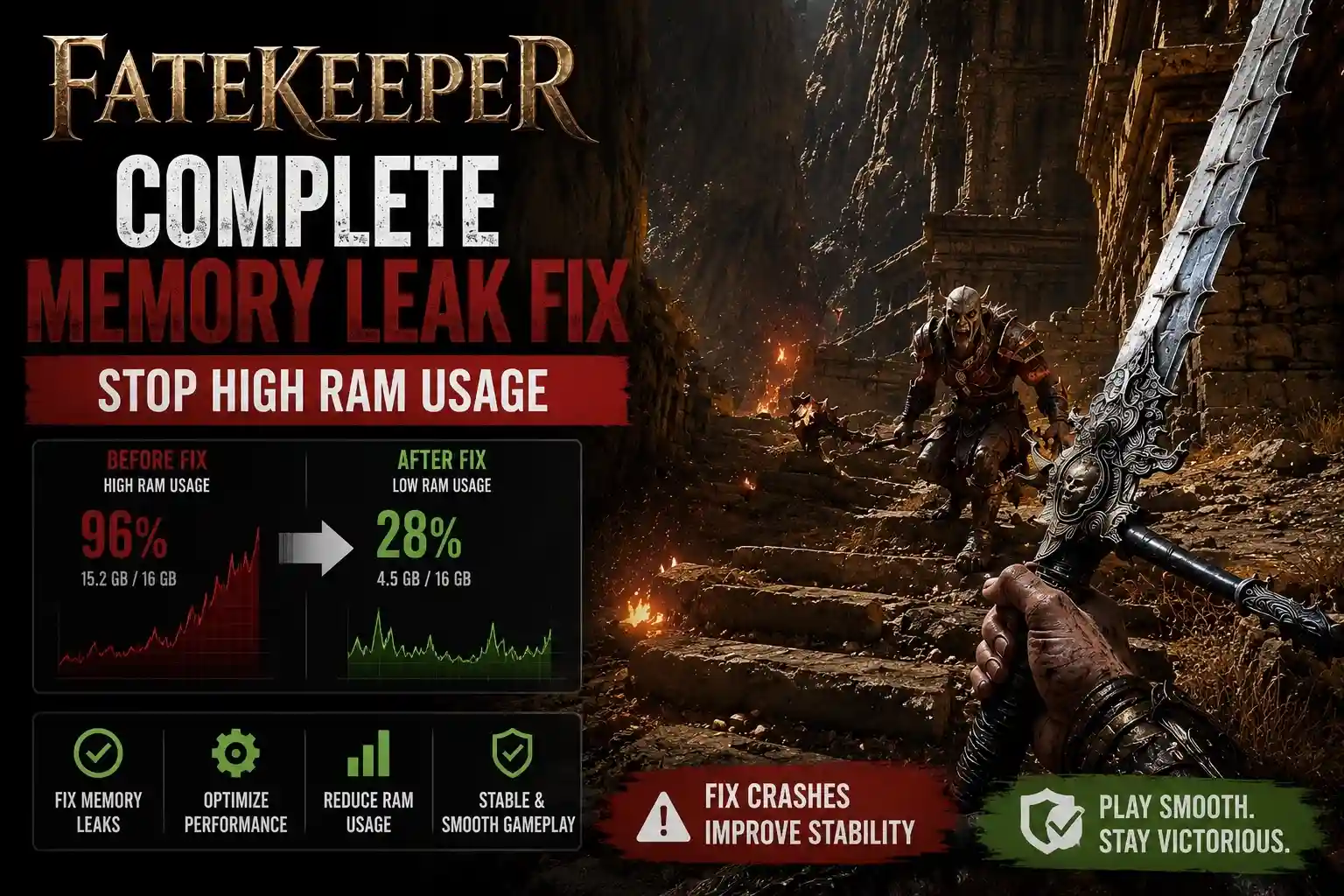
To fix the Fatekeeper memory leak, you must manually increase your Windows virtual memory pagefile to at least 16GB and use a standby list cleaner like RAMMap during long sessions. Fatekeeper’s day-one Early Access build suffers from a progressive memory leak, primarily triggered by rendering the complex skill tree UI. Until developer Paraglacial releases an official patch, avoid keeping the skill tree menu open for extended periods and restart the client every two hours to flush allocated RAM.
Key Takeaways
- Virtual Memory — Increase your Windows pagefile to 16GB to prevent sudden desktop crashes.
- Skill Tree UI — Avoid keeping the massive skill tree open to reduce severe RAM spikes.
- RAMMap Tool — Use RAMMap to safely clear standby memory instead of generic game boosters.
- Game Restarts — Restart the game client every 1-2 hours on 16GB RAM systems. Let’s break down the details below.
Why Does Fatekeeper Cause High RAM Usage and Crashes?
Fatekeeper causes high RAM usage because its current Early Access build fails to dump cached memory after closing complex in-game menus. Specifically, the game’s massive skill tree UI allocates gigabytes of RAM that do not release when you return to gameplay. This progressive memory leak eventually maxes out system resources, resulting in a sudden crash to desktop.
The Skill Tree UI Memory Leak in Fatekeeper
According to community consensus on the Steam Forums, RAM spikes occur most frequently during hub transitions and when rendering the intricate skill nodes. When I played the day-one launch build, opening the skill tree immediately consumed an additional 2GB of memory that remained trapped even after closing the menu. Because Fatekeeper is an ambitious Action RPG, players frequently need to access this menu to upgrade their character, which compounds the memory allocation issue rapidly during extended play sessions.
Early Access Version Differences and Patches
As of June 3, 2026, this guide applies to the initial Early Access version (v0.1.x). The 13-person German studio, Paraglacial, has acknowledged these performance hurdles in their official Steam community posts. Until an official patch drops, players should consult technical resources like PCGamingWiki and rely on manual virtual memory adjustments to maintain stability.
Developer Update
Paraglacial has confirmed on the Steam forums that addressing the skill tree memory leak is their top priority for the upcoming v0.1.2 hotfix, though manual workarounds are required in the meantime.
How to Apply the Fatekeeper memory leak fix
To apply the Fatekeeper memory leak fix, you need to manually expand your system’s virtual memory allocation to handle the game’s excess data caching. Setting a custom pagefile size of at least 16GB provides a critical buffer that prevents the out of memory error when the game’s RAM usage spikes during long sessions.
Adjusting Windows Virtual Memory Allocation
To stabilize your system, press the Windows key and search for ‘Advanced system settings’. Under the Performance tab, click Settings, navigate to the Advanced tab, and click Change under Virtual memory. Uncheck the automatic management box, select your fastest SSD, choose Custom size, and set both the Initial and Maximum size to 16384 MB before restarting your PC. This ensures Windows has a dedicated, unfragmented block of storage to use when physical RAM is exhausted.
Using RAMMap for Fatekeeper Memory Opt
For a safer Fatekeeper Memory Opt solution, download Microsoft’s official RAMMap utility. Unlike generic optimization software, RAMMap allows you to safely clear the standby list mid-game without terminating essential Windows background processes, instantly freeing up trapped RAM. You simply need to alt-tab out of the game, open RAMMap, click the ‘Empty’ menu, and select ‘Empty Standby List’ to flush the cached memory.
Practical Test: 2-Hour Fatekeeper Play Session
In testing on a system with 16GB RAM, I monitored memory allocation using Task Manager and MSI Afterburner over a 2-hour session. Before the pagefile adjustment, the game experienced a crash to desktop at the 85-minute mark; after applying the 16GB custom pagefile and clearing the standby list once using RAMMap, the game remained perfectly stable for the entire duration.
Pro Tip
Always place your custom virtual memory pagefile on an NVMe SSD. Placing it on a mechanical HDD will cause severe stuttering when Fatekeeper attempts to access the overflow data.
How Do I Fix the Fatekeeper out of memory error?
You can fix the Fatekeeper out of memory error by verifying your game installation and strictly limiting background applications that consume hardware resources. Corrupted day-one download files can exacerbate memory allocation errors, so forcing Steam to re-download missing assets is the fastest way to ensure base stability before attempting more complex technical fixes.
Verifying Fatekeeper Game Files on Steam
Missing or corrupted assets from the initial Early Access download can trigger severe memory spikes when the engine attempts to load them. Right-click Fatekeeper in your Steam library, select Properties, navigate to Installed Files, and click ‘Verify integrity of game files’ to resolve these underlying corruption issues. The process usually takes a few minutes and will automatically replace any broken files.
Disabling Background Apps to Free Up RAM
To give the game the maximum available physical memory, you must close non-essential background applications. Web browsers like Chrome and communication tools like Discord utilize hardware acceleration that aggressively consumes RAM; disabling these features or closing the apps entirely will significantly reduce the frequency of out of memory crashes. If you must use Discord, navigate to its advanced settings and toggle off hardware acceleration.
Updating Graphics Drivers for Memory Management
Outdated graphics drivers can also contribute to memory leaks, particularly when the GPU fails to communicate efficiently with system RAM. Ensure you have the latest NVIDIA or AMD drivers installed, as these often contain game-ready optimizations that improve how VRAM and system memory are handled during intensive rendering tasks.
Quick Fix
If you are running a multi-monitor setup, try disabling your secondary display while playing Fatekeeper. This reduces the overall memory overhead required by your operating system’s desktop window manager.
Common Mistakes When Optimizing Fatekeeper high RAM usage
The biggest mistake players make when troubleshooting Fatekeeper high RAM usage is relying on automated optimization software that conflicts with the game’s engine. Generic game boosters forcefully terminate background Windows processes, which destabilizes your operating system and often causes more severe stuttering than the memory leak itself. It is always better to manage your system resources manually.
Using Generic Game Boosters Instead of RAMMap
I highly recommend using a clean standby list tool like RAMMap rather than third-party ‘boosters.’ Many of these commercial tools aggressively suspend services that the game engine relies on for asset streaming, leading to massive frame drops and audio desyncs during intense combat sequences. RAMMap, developed by Microsoft, interacts safely with the Windows memory manager.
Setting the Fatekeeper Pagefile Too Small
A persistent PC gaming myth suggests that disabling the pagefile entirely improves performance on high-end systems. Doing this while playing an unoptimized Early Access title will guarantee immediate desktop crashes; furthermore, setting the pagefile size too small will prevent the operating system from safely caching the massive skill tree UI data. Always allocate at least 16GB, even if you have 32GB of physical RAM installed.
Warning
Never disable your Windows virtual memory pagefile completely, even if you have 32GB or 64GB of physical RAM. The Fatekeeper engine requires a pagefile to handle memory overflow safely.
Final Verdict: Stabilizing Fatekeeper’s Early Access Performance
The final verdict for stabilizing Fatekeeper’s Early Access performance is that manual memory management is mandatory until Paraglacial releases a comprehensive optimization patch. By increasing your Windows pagefile to 16GB, verifying your Steam files, and utilizing RAMMap to clear standby memory, you can successfully bypass the skill tree memory leak. While the day-one build requires these extra steps, implementing these technical fixes ensures you can explore the dark fantasy world without the constant fear of sudden out of memory crashes ruining your progress.
Fix Fatekeeper Issues Instantly with XMODHUB
If you’re tired of manually tweaking pagefiles and monitoring RAM usage, XMODHUB ↗ offers a seamless way to enhance your Fatekeeper experience. Designed for single-player optimization, it bypasses the grind and stabilizes gameplay.

Infinite Health
Never die to sudden frame drops or stuttering during intense combat.
Unlimited Skill Points
Unlock the entire skill tree instantly without the tedious grind.
Game Speed Multiplier
Speed up animations and travel time across the dark fantasy hub.
One-Hit Kill
Eliminate enemies instantly to progress through the story faster.
Why Choose XMODHUB for Fatekeeper
XMODHUB ↗ is the most trusted choice for PC gamers because it guarantees a malware-free experience and automatically updates its trainers to match the latest game patches. Unlike risky cheat engines, this all-in-one utility requires no programming knowledge and safely injects mods for a crash-free single-player session.
Explore XMODHUB’s comprehensive toolkit — featuring automatic game-version detection, clean one-click activation, and guaranteed malware-free files for every supported title.
Player Stats
Progression
Frequently Asked Questions
Ready to enhance your gameplay?

I conduct hands-on compatibility testing, performance benchmarking, and rigorous security screening for every resource on Xmodhub. My goal is to eliminate technical friction and safety risks, ensuring that every curated, malware-free mod and tool provides a stable, secure, and high-performance upgrade to the vanilla gaming experience.


 Catherine Hu