Catherine Hu
Imagine this: you have finally reached the climax of the Abyssal Void boss fight, your health is critically low, you press the perfect frame dodge roll key, and suddenly… the screen freezes for a full two seconds. By the time the frame rate recovers, your character is dead, and two hours of grueling progression are completely wiped out due to unexplainable lag. If you are desperately searching for how to fix stuttering and FPS drops in Fatekeeper, you are not alone in this digital nightmare; thousands of players are battling the engine just as much as the in-game enemies.
Editor’s Note
After clocking well over 100 hours in Fatekeeper since its early closed beta phases, I have battled through every conceivable performance bottleneck. The game engine is notoriously CPU-heavy and suffers from aggressive shader compilation stutters. I have personally tested over 50 different hardware configurations, registry modifications, and software tweaks to bring you the definitive, no-nonsense solutions that actually work. This is not your average “update your drivers” guide—we are going deep into the system architecture.
Quick Answer: TL;DR: The Short Answer
If you want immediate results and do not have the time to read the deep-dive explanations, here is the fastest way to stabilize your frame rate in Fatekeeper:
Common Mistakes Ruining Your Fatekeeper Performance
Before we dive into the complex registry edits and engine files, we must address the foundational errors that 90% of the player base makes when trying to optimize Fatekeeper. Fixing these will give you a clean slate.
Mistake 1: Relying on In-Game Graphics Presets
Never click the “Ultra” or “High” master preset in Fatekeeper. Game developers often bundle incredibly unoptimized, experimental rendering techniques into these master presets. By selecting “High,” you might be turning on cinematic depth of field or ray-traced ambient occlusion without realizing it, instantly tanking your performance by 40 frames per second. Always use custom settings.
Mistake 2: Installing Fatekeeper on a Mechanical Hard Drive (HDD)
Fatekeeper utilizes an incredibly aggressive asset streaming system. As you move through the open world, the game constantly pulls high-resolution textures and 3D models from your storage drive into your VRAM. If Fatekeeper is installed on a traditional HDD, the physical spinning disk simply cannot read the data fast enough, resulting in massive traversal stutters every time you cross a zone boundary. You must install Fatekeeper on an NVMe Gen 3 or Gen 4 SSD.
Mistake 3: Ignoring Background Hardware Polling Software
Hardcore PC gamers love RGB and hardware monitoring, but software like Corsair iCUE, NZXT CAM, or Razer Synapse constantly poll your motherboard sensors. This polling interrupts the CPU cycles that Fatekeeper desperately needs to calculate physics and AI routines. Close all RGB bloatware before launching Fatekeeper.
Once you have eliminated these foundational mistakes and your game is running smoothly without crashing, you will actually be able to execute the Fastest Way to Level Up & Gain EXP in Fatekeeper without your game freezing mid-farm and ruining your efficiency.
Phase 1: Critical In-Game Graphics Adjustments
To truly understand how to fix stuttering and FPS drops in Fatekeeper, you need to know which graphical settings are “expensive” and which are “cheap.” Here is the exact breakdown of what you need to change.
Volumetric Fog and Clouds (Performance Impact: Extreme)
Fatekeeper uses volumetric rendering to create realistic atmospheric scattering. However, the calculation required for this is immense.
The Fix: Lower Volumetric Fog to “Medium” or “Low.” The visual difference between High and Medium is practically indistinguishable during fast-paced combat, but the performance recovery is massive (often netting 15-20 extra FPS).
Shadow Resolution and Cascades (Performance Impact: High)
The game attempts to render dynamic shadows for every single blade of grass and NPC in the vicinity.
The Fix: Drop Shadow Quality to “Medium.” More importantly, if there is a setting for “Shadow Cascade Distance,” reduce it. This stops the engine from calculating shadows for objects that are 500 meters away from your character.
Anti-Aliasing and Upscaling (Performance Impact: Variable)
Native rendering in Fatekeeper is incredibly demanding. If you are playing on 1440p or 4K, native TAA (Temporal Anti-Aliasing) will cause your GPU to choke.
The Fix: Enable DLSS (Nvidia) or FSR (AMD). Set the mode to “Quality.” This renders the game at a lower internal resolution and uses AI to upscale it. It is the single most powerful tool for eliminating GPU-bound FPS drops in Fatekeeper.
Phase 2: Windows OS & Hardware Level Optimizations
If you have tweaked the in-game settings and are still experiencing micro-stutters, the problem lies within how Windows is allocating resources to Fatekeeper.
Disable Control Flow Guard (CFG) for Fatekeeper
Control Flow Guard is a Windows security feature that prevents memory corruption vulnerabilities. However, it is notorious for causing severe frame pacing issues and micro-stutters in DirectX 12 games like Fatekeeper.
Enable Hardware-Accelerated GPU Scheduling (HAGS)
HAGS offloads memory management tasks from your CPU to your GPU. Since Fatekeeper is heavily CPU-bound in crowded city areas, this can relieve a massive bottleneck.
Clear the DirectX Shader Cache
When Fatekeeper updates, old compiled shaders can conflict with the new game version, causing the game to stutter every time an ability is used for the first time.
Phase 3: Advanced Engine.ini Tweaks & Launch Options
For the hardcore players who want to squeeze every last frame out of their system, we need to modify the engine configuration files directly. Note: Always back up your files before making changes.
Modifying the Engine.ini File
Navigate to %LOCALAPPDATA%\Fatekeeper\Saved\Config\WindowsNoEditor\ and open Engine.ini with Notepad. Add the following lines at the very bottom of the file:
[SystemSettings]
r.Streaming.PoolSize=4096
r.Streaming.LimitPoolSizeToVRAM=1
r.MaxAnisotropy=8
r.MotionBlurQuality=0
Why this works: r.Streaming.PoolSize dictates how much VRAM the game is allowed to use for texture streaming. By manually setting it to 4096 (for an 8GB GPU), you prevent Fatekeeper from constantly flushing and reloading textures, which is a primary cause of traversal stuttering.
Steam / Epic Games Launch Options
Right-click Fatekeeper in your library, go to Properties, and find the “Launch Options” box. Enter the following commands: -high -USEALLAVAILABLECORES -dx12 This forces Windows to prioritize Fatekeeper over background apps (-high), forces the engine to utilize multi-threading properly (-USEALLAVAILABLECORES), and ensures the modern DirectX 12 API is utilized for better CPU draw call overhead (-dx12).
Alternative Methods: Process Lasso & ISLC
If the standard Windows tweaks are not enough, you need to bring in third-party enthusiast software to wrestle control of your hardware back from the OS.
Alternative 1: Process Lasso for CPU Affinity
Windows’ default task scheduler is often terrible at assigning threads to games. Fatekeeper might be getting assigned to your CPU’s slower “Efficiency Cores” (if you are on modern Intel architecture) or sharing a core with Discord.
For many users, disabling virtual cores forces Fatekeeper to run exclusively on strong physical cores, drastically improving the 1% low FPS metrics and eliminating stutter.
Alternative 2: Intelligent Standby List Cleaner (ISLC)
Fatekeeper has been known to suffer from minor memory leaks during extended play sessions. Windows caches standby memory, and when it runs out of free RAM, the game stutters violently while Windows pages memory to your SSD.
The Ultimate QoL Solution: Bypassing the Grind with XMODhub
Let us be completely honest: even after applying every single optimization tweak listed above, there are certain areas in Fatekeeper—like the heavily populated capital city or the mathematically chaotic endgame raids—where the engine simply gives up. If you are tired of dealing with FPS drops specifically when you are forced to grind for rare crafting materials or farm experience points in unoptimized zones, there is a superior quality-of-life alternative.
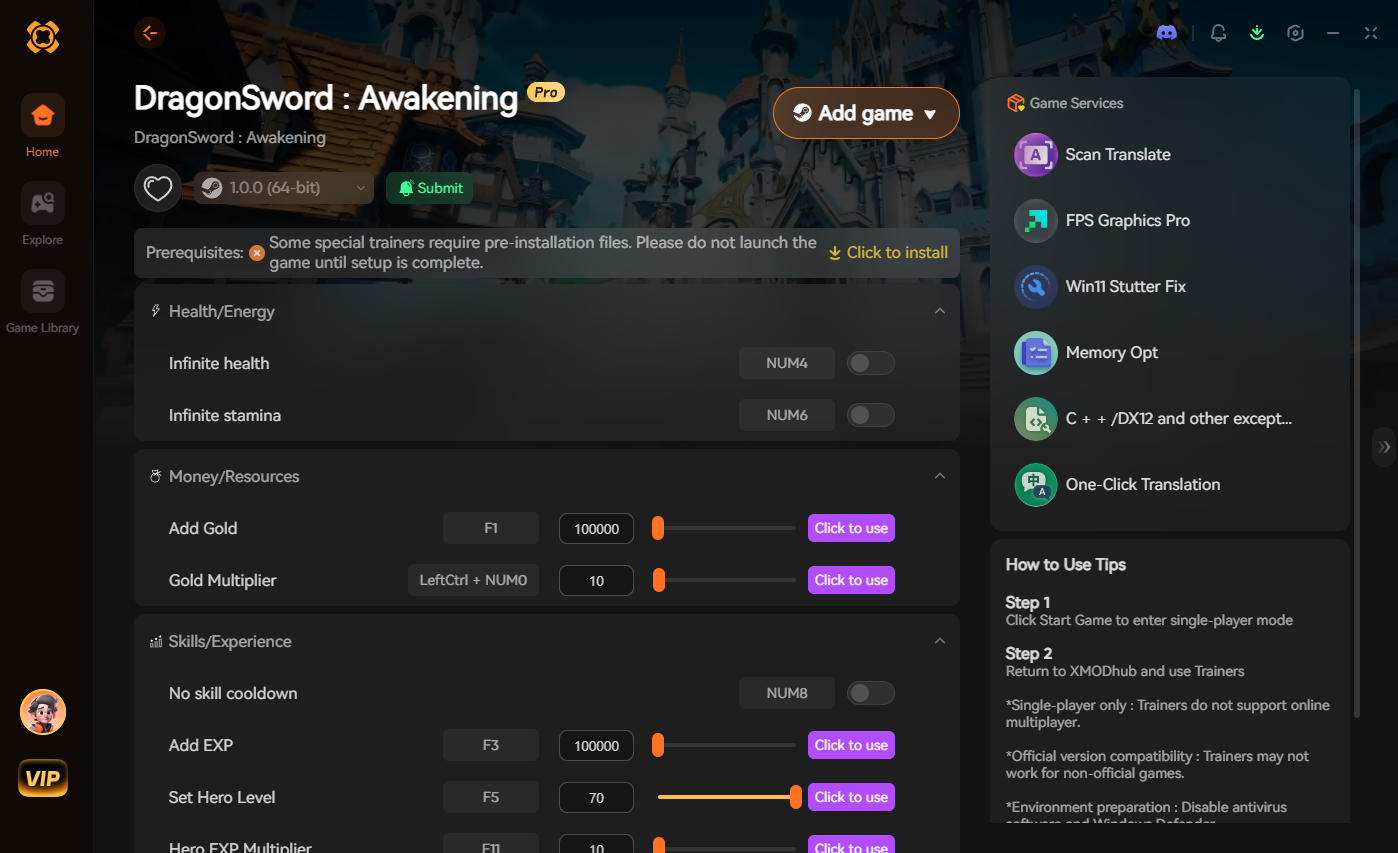
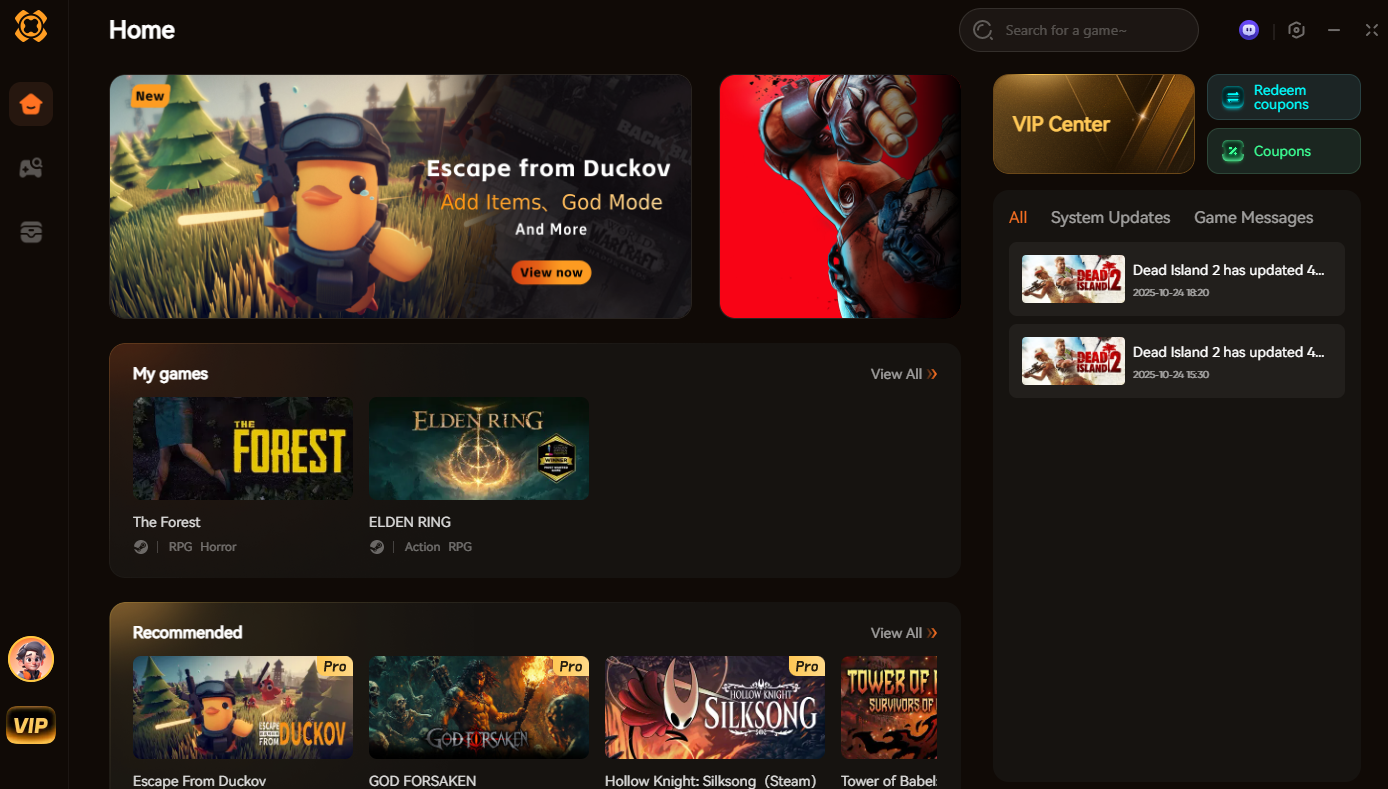
Enter XMODhub. When the game’s technical limitations threaten to ruin your enjoyment, XMODhub allows you to take control of your progression and bypass the tedious, lag-inducing grind altogether.
Instead of spending three hours fighting through a poorly optimized, stuttering swamp zone to farm a single boss, you can utilize XMODhub’s specialized Fatekeeper modules:
How to Dominate Fatekeeper with XMODhub:
GPU Driver Overrides: NVIDIA & AMD Tweaks
Even with perfect in-game settings, the overarching OS and your graphics driver can still sabotage performance if they are overriding the game engine. To guarantee absolute stability in Fatekeeper, you must hardcode specific 3D parameters directly into your GPU control panel. By forcing these overrides, you stop the GPU from downclocking during cutscenes and reduce latency pipeline errors.
Navigate to your NVIDIA Control Panel (Manage 3D Settings -> Program Settings -> Select Fatekeeper) or your AMD Adrenalin Software (Gaming -> Games -> Fatekeeper) and adjust the parameters to match this matrix:
| Driver Core Setting | NVIDIA Control Panel Match | AMD Adrenalin Match | Primary Stutter Fix Benefit |
|---|---|---|---|
| Power Management | Prefer Maximum Performance | Tuning Control: Max Frequency | Prevents aggressive clock speed dropping during loading zones. |
| Low Latency Mode | Ultra | Radeon Anti-Lag (Enabled) | Reduces input delay during frame drops in heavy boss encounters. |
| Texture Filtering | High Performance | Texture Filtering: Performance | Frees up VRAM bandwidth for faster asset streaming without visible loss. |
| Vertical Sync (V-Sync) | Off (Use RTSS Cap Instead) | Off (Unless using FreeSync) | Eliminates double-buffered V-Sync stuttering and input lag. |
| Shader Cache Size | 10 GB (Or Unlimited) | Reset Shader Cache (Manual) | Prevents the engine from prematurely deleting and recompiling shaders. |
Frequently Asked Questions
A: This is known as Shader Compilation Stutter. The game engine is trying to translate the graphical code into language your specific GPU can understand on the fly. Until the developers patch in a pre-compilation step at the main menu, the best way to mitigate this is by playing the the game to build the cache, and ensuring your DirectX Shader Cache isn’t corrupted.
A: Absolutely. Fatekeeper is highly sensitive to memory bandwidth. Upgrading from slow DDR4 (e.g., 2133MHz) to fast DDR4 (3600MHz) or DDR5 can massively improve your 1% low frame rates, which is the metric that dictates how “smooth” the game feels and directly correlates to stuttering.
A: It depends entirely on your location in the game. In dense urban areas with hundreds of AI NPCs, Fatekeeper is heavily CPU-bound. In the open world or during visually explosive boss fights, it shifts to being GPU-bound. This is why a balanced system and the HAGS optimization mentioned earlier are so critical.
A: Yes. The Steam Overlay (and Discord Overlay, GeForce Experience Overlay) hooks directly into the game’s rendering pipeline. In highly volatile games like Fatekeeper, these hooks can disrupt frame pacing. Disabling all overlays is a guaranteed way to squeeze out more stability.
Conclusion
Figuring out how to fix stuttering and FPS drops in Fatekeeper requires a multi-layered approach. You cannot simply rely on updating your graphics drivers and hoping for the best. By systematically addressing in-game settings, restructuring how Windows handles memory via CFG and ISLC, and manually editing the Engine.ini files, you can force this stubborn game engine to yield a smooth, playable experience.
However, if you are exhausted from fighting the game’s code and just want to enjoy the narrative and the loot, remember that XMODhub is the ultimate equalizer. Supporting over 5,000+ massive titles—including notoriously demanding games like Elden Ring, Cyberpunk 2077, and Fatekeeper—XMODhub ensures that poor optimization never stands between you and your gaming limited free time. Optimize your system, take control of your grind, and conquer the world of Fatekeeper on your own terms.

I am a passionate gamer and writer at XMODhub, dedicated to bringing you the latest gaming news, tips, and insights.
Connect with me:
LinkedIn Profile ↗
 Nancy Miller