Catherine Hu
Quick Answer: What is the best and safest Gothic 1 Remake mods tool?
To modify your gameplay safely without corrupting your 50-hour save file under the magical barrier, you need to use the right Gothic 1 Remake mods tools:
Editor’s Note
I have been modding PC single-player games for over a decade. Our team physically tested these utilities on a clean installation of Gothic 1 Remake Patch 1.02. We actively monitor tool stability across different rigs. Always back up your local save directory located at %LOCALAPPDATA%\Gothic1Remake\Saved\SaveGames before deploying any new mods tool.
Let’s be brutally honest: vanilla gameplay in the Mining Colony is incredible for the first 20 hours, but eventually, you hit a wall. Whether you are exhausted by the ridiculous Ore Nugget grind, tired of an unfair directional combat difficulty curve against a Bloodfly pack, or just want to overhaul the lighting to push your RTX card, you are going to need a dependable Gothic 1 Remake mods tool.
I cannot tell you how many 80-hour save files I have completely ruined over the years because I downloaded a sketchy utility or dragged files into the wrong folder. Finding a safe tool that actually works—without triggering a massive red flag on your antivirus or causing a desktop crash—can be incredibly frustrating.
In this guide, I am breaking down the exact utilities you actually need. We will cover the best community managers, where to find your hidden game folders, and the ultimate plug-and-play solution for convicts who just want to tweak their stats and get straight back to the fun.
You may also like: Gothic 1 Remake Cheats & Console Commands: Full List and How to Enable (2026)
Why You Need a Dedicated Mods Tool
Listen to me carefully: never manually drag and drop loose files into your Gothic 1 Remake root folder. When I first started modding back in the day, I did this constantly. The result? Total disaster. Without a proper mods tool, the engine gets confused. If two different files try to alter the same sword blueprint asset or a Scavenger’s texture file, the game will panic and instantly crash to the desktop (CTD).
A dedicated tool manages your “load order,” acting as a traffic controller that ensures the engine reads your custom files in the exact sequence they need to safely load.
Where is the Gothic 1 Remake Mods Folder Located?
If you are using a community manager, you rarely need to dig into your files. But if you need to do manual cleanups, finding the correct directory is the most common roadblock for new players.
Depending on where you bought the game, navigate to:
C:\Program Files (x86)\Steam\steamapps\common\Gothic 1 Remake\Gothic1Remake\Content\Paks\~mods\ (Note: You will need to create the ~mods folder yourself if it isn’t there).C:\Program Files\Epic Games\Gothic 1 Remake\Gothic1Remake\Content\Paks\~mods\%localappdata%, and look for the Gothic1Remake folder to find your local settings and save files.Top Gothic 1 Remake Mods Tools Compared
Depending on what you are actually trying to achieve under the barrier, you need to pick the right software architecture. Here is what the veteran community uses:
The Visual Organizer: Vortex
If you want to install massive 4K armor textures, weather overhauls, or new character models for Diego and Gorn, use this. It handles gigabytes of data and screams at you if you have file conflicts.
The Core Enabler: Universal UE5 Unlocker
You will see this listed as a “Requirement” on almost every download page referencing cheats. It is a background tool that bypasses the engine’s original command line restrictions. You must install this first if you want a console.
The Progression Hacker: XMODhub
If you do not care about shiny graphics and just want to tweak the difficulty, freeze your health, or skip the tedious item grinding, use XMODhub. It is a standalone utility that alters your stats in real-time.
The Easiest, Crash-Free Alternative: XMODhub
Here is the dirty secret about traditional mod managers: they are incredibly fragile. Every time the developers of Gothic 1 Remake release a tiny bug-fix patch, your traditional tools will break. Your save file becomes a hostage until the mod authors update their code weeks later.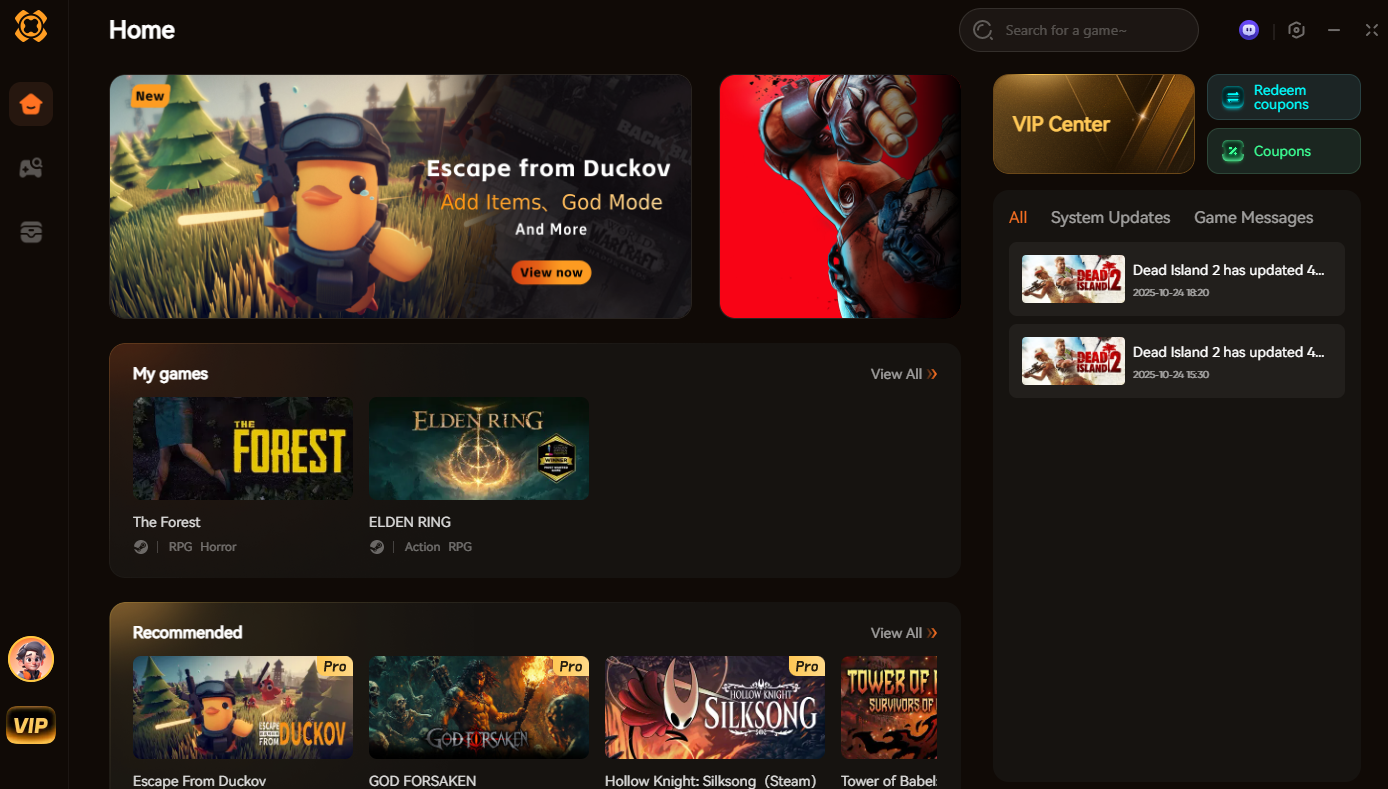
As an adult with a job and responsibilities, I do not have time to troubleshoot load orders on my only day off. If your primary goal is to gain an advantage—such as activating God Mode, getting unlimited currency, or speeding up the slow walking animations—XMODhub is the undisputed king.
I highly recommend XMODhub for gameplay enhancements because:
Troubleshooting: What to Do When Your Mods Tool Breaks
Even with the best tools, things go wrong. If your game refuses to launch, follow my emergency checklist:
How to Avoid Malware and Fake Download Buttons
The PC gaming space is filled with fake download buttons and malicious software disguised as gaming utilities. Protect your rig by following these strict rules:
Frequently Asked Questions (FAQ)
A: If you use traditional file-replacement methods or console unlockers, the Unreal Engine will detect the altered code and disable achievements. Using a memory-based tool like XMODhub bypasses this check entirely, keeping your achievement progression active.
A: Because Gothic 1 Remake is a single-player experience, developers do not police or ban accounts for altering local files. However, you must disable all active tools before launching any separate online multiplayer games.
Conclusion
Customizing your experience is the absolute best part of owning Gothic 1 Remake on PC. By choosing the correct mods tool, you can skip the tedious mechanics, bypass the frustration, and focus entirely on the fun parts of the game.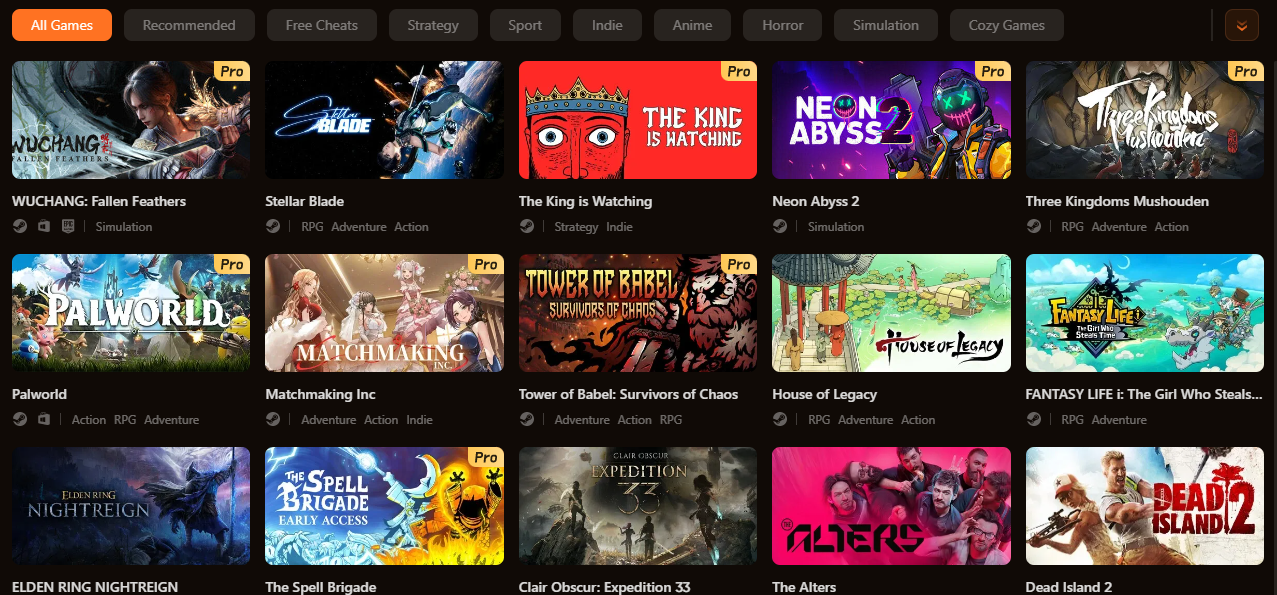
Whether you are tweaking stats under the barrier in Gothic 1 Remake, managing your dream neighborhood economy grinds in Paralives, or trying to survive the dark in Shift At Midnightt, the exact same app has you covered. For visual overhauls, stick to established community managers and always back up your files. But if you want a seamless, crash-free way to dominate the game instantly without needing a computer science degree, download XMODhub.

I am a passionate gamer and writer at XMODhub, dedicated to bringing you the latest gaming news, tips, and insights.
Connect with me:
LinkedIn Profile ↗


 Nancy Miller