
 Catherine Hu
The Inventory Management Nightmare
You have just spent forty minutes clearing out the Sun-Bleached Outpost, dodging snipers and managing your ammo reserves. You finally reach the boss chest, pry it open, and see it: the legendary Desert Hawk Revolver. Your pulse races. You click to grab it, but the game hits you with that familiar, soul-crushing notification: Inventory Full. You are over-encumbered. Suddenly, your character moves at a glacial pace, forcing you to drop precious scrap metal or health kits just to crawl back to the nearest fast-travel point.
If this scenario sounds painfully familiar, you are not alone. The weight limit in Far Far West is designed to create realism, but for many, it simply creates frustration. You are here because you want to play the game, not play Inventory Tetris.
The Short Answer: How to Bypass Weight Limits
If you need an immediate fix, there are three primary ways to handle the carry weight limit in Far Far West. Choose the method that best fits your technical comfort level below:
| Method | Difficulty | Effectiveness |
|---|---|---|
| XMODhub | Easy (One-Click) | Instant & Dynamic |
| Modding | Medium | Permanent Changes |
| Config Editing | Hard (Risky) | File-Level Override |
For the vast majority of players, using a specialized tool like XMODhub is the most efficient route. It bypasses the need for manual file manipulation, prevents save corruption, and allows you to toggle the weight limit on or off whenever you desire.
The Psychology of Weight in Far Far West
To truly understand why the weight limit exists, we have to look at the game design philosophy. Developers implement carry capacity as a “soft constraint.” It is intended to force players to make meaningful choices about what gear to bring into the field. By limiting your inventory, the game forces you to prioritize survival gear over loot, or mobility over firepower. However, in an open-world RPG like Far Far West, this mechanic often conflicts with the “hoarder” playstyle that many players enjoy.
When you hit that ceiling, the game shifts from an exploration adventure to a management simulator. This is where the friction occurs. If you find yourself spending 20% of your total playtime managing your inventory screen, you are no longer playing the game you bought. Bypassing this limit is not “cheating” in the eyes of many; it is a Quality of Life (QoL) improvement that restores the fun factor. Whether you want to roleplay as a nomad with a massive arsenal or simply want to loot every single item in a dungeon without walking back to town ten times, removing this barrier is the single most impactful change you can make to your gameplay loop.
Method 1: Editing Configuration Files
For the purists who prefer not to use external software, editing the game’s configuration files is the manual way to handle carry capacity. This method requires a text editor (like Notepad++) and a basic understanding of file structures.
Step-by-Step Configuration Edit
- ✦Locate the Save Directory: Navigate to your Far Far West installation folder, usually found in your Documents or AppData folder.
- ✦Find the Settings File: Look for a file named
user_settings.iniorgame_config.json. Always create a backup of this file before making any changes. - ✦Search for the Variable: Use the “Find” function (Ctrl+F) and search for keywords like “CarryWeight,” “MaxWeight,” or “InventoryCapacity.”
- ✦Modify the Value: You will likely see a number like 200 or 300. Change this value to a significantly higher number, such as 9999.
- ✦Save and Launch: Save the file and restart the game. The changes should take effect immediately.
Warning: Be careful with this method. If you mistype a value or delete a bracket, the game may fail to launch or, worse, corrupt your save file. If you are not comfortable editing raw code, avoid this method.
Method 2: The Modding Approach
If manual editing sounds like too much work, the community has already solved this problem. The modding scene for Far Far West is robust, and many creators have released “Carry Weight Tweaks” that automatically adjust your capacity without you needing to touch a single line of code. These mods are often bundled with other essential fixes.
For those looking to optimize their entire game experience, not just the inventory, you should check out our curated list of essential modifications. We have compiled the best tools to enhance your graphics, fix bugs, and streamline your gameplay. Read more here: The 15 Best Far Far West Mods You Need in 2026 (Ranked).
Mods are generally safer than manual edits because they are designed to be “plug-and-play.” However, you must ensure your mod manager is up to date, and you should check the compatibility notes to ensure the weight mod does not conflict with other gameplay overhauls you might have installed.
Method 3: The XMODhub Shortcut
Let’s be honest: you didn’t come here to spend hours troubleshooting config files or managing complex mod load orders. You want to play the game. If you are tired of the constant inventory management and just want to bypass the limit instantly, XMODhub is the industry-standard solution for gamers who value their time.
XMODhub takes the complexity out of the equation. It detects your installed games, locates the relevant memory addresses, and allows you to toggle features like “Infinite Carry Weight” with a single click. No file editing, no mod manager conflicts, and no risk of breaking your game files.
How to Use XMODhub for Far Far West
- Download and Install: Visit the official XMODhub website and download the client.

- Auto-Detect: Launch XMODhub. It will automatically scan your PC and detect Far Far West in your library.
- Toggle Cheats: Open the game profile within XMODhub. Find the “Inventory” or “Player” tab and toggle the “Infinite Weight” switch to ON.
- Enjoy the Game: Launch the game through the client or keep XMODhub running in the background. Your inventory limit is now effectively removed.
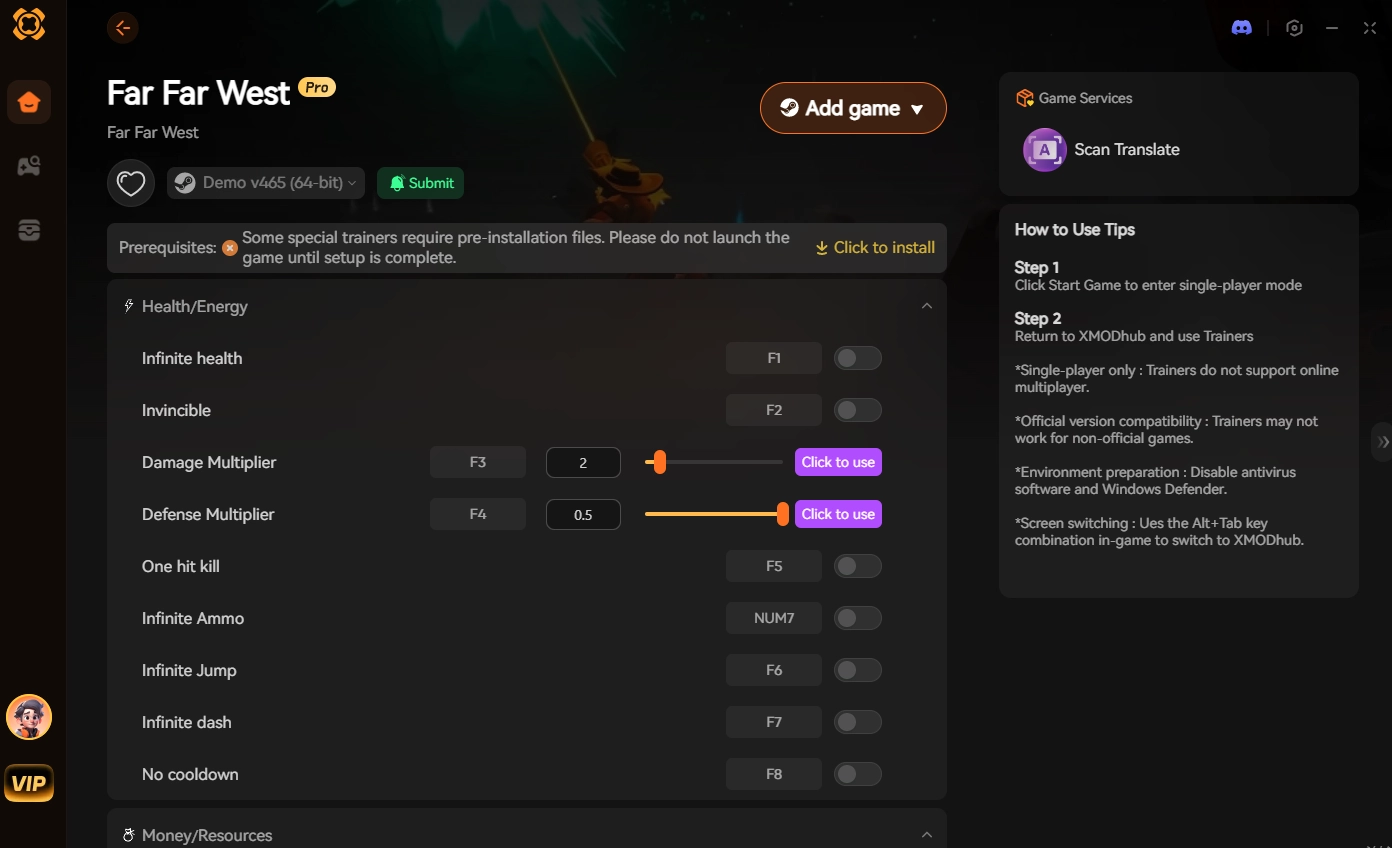
XMODhub supports over 5,000 games, including similar open-world titles like Wasteland Wanderer and Dust & Glory. It is the ultimate tool for players who want to define their own difficulty and pacing. Stop fighting the game mechanics and start playing the way you want.
Troubleshooting and Game Updates
One of the biggest concerns for players modifying game files is what happens when the developer releases a patch. Game updates often overwrite configuration files or break script-heavy mods, leading to potential crashes or “broken” save states. Below is a breakdown of how different methods behave when the game receives an official update:
| Method | Post-Update Risk | Recovery Effort |
|---|---|---|
| Manual Config | High (File Reset) | Manual re-edit required |
| Standard Mods | High (Conflict) | Wait for mod update |
| XMODhub | Low (Dynamic) | Simple re-apply |
If you encounter issues after a game update, always verify your game files through your launcher (Steam/Epic) before attempting to re-apply any modifications. XMODhub users are generally protected from these conflicts as the tool injects memory changes dynamically rather than altering static files.
Pro-Tips for Managing Infinite Loot
Now that you have bypassed the weight limit, you will inevitably end up carrying hundreds of items. While the “over-encumbered” status is gone, inventory clutter can still hinder your gameplay experience. Follow these tips to keep your stash organized:
- ✓Categorize by Type: Use the game’s built-in sorting filters (e.g., Weapons, Armor, Consumables) to quickly find specific items during intense combat.
- ✓Plan Your Vendor Runs: Even with infinite weight, you have a limited number of vendor caps. Keep a “Sell Pile” in a separate container to dump during town visits.
- ✓Keep Your “Go-Bag”: Avoid carrying every single weapon you own. Keep your top 3 primary weapons in your active inventory to keep the UI clean and responsive.
- ✓Lock Your Gear: Use the “Favorite” or “Lock” function on your legendary items to prevent accidentally selling or dropping them while cleaning out your massive inventory.
Frequently Asked Questions
Q: Will increasing my carry weight break my game save?
A: If you use a reputable tool like XMODhub, it is highly unlikely. However, if you manually edit config files, there is always a risk of corruption. Always keep a separate backup of your save folder before attempting any modifications.
Q: Does bypassing the weight limit affect achievements?
A: In most single-player games, including Far Far West, using mods or trainers does not disable achievements. However, always check the specific game’s community forums if you are worried about your achievement progress.
Q: Can I use these methods in multiplayer?
A: Absolutely not. Bypassing inventory limits in multiplayer or online-enabled modes will likely be detected by anti-cheat software, leading to a permanent ban. These methods are strictly for single-player, offline experiences.
Q: What if I want to revert the changes?
A: If you used XMODhub, simply toggle the switch back to OFF. If you edited a config file, replace the modified file with the backup you created before you started. If you forgot to create a backup, you can usually verify your game files via your game launcher (e.g., Steam or Epic) to restore the original settings.
Final Thoughts
Inventory management is a relic of old-school game design that often serves to pad out game length rather than add strategic depth. Whether you choose to manually edit your configuration files, install a community-made mod, or use the seamless power of XMODhub, the goal remains the same: reclaiming your time and enjoyment.
Don’t let a virtual weight limit dictate how you play. Take control of your experience today, clear out those dungeons, and loot everything in sight.

I am a passionate gamer and writer at XMODhub, dedicated to bringing you the latest gaming news, tips, and insights.
Connect with me:
LinkedIn Profile ↗

 Nancy Miller
This guide really hits on the frustration many players feel when dealing with the inventory weight limit in Far Far West. I especially appreciated the breakdown of different methods—especially how the modding approach offers a more sustainable solution than manually editing config files. It’s a great reminder that sometimes the most efficient fixes come from understanding how the game’s systems are designed to work, rather than fighting against them.