
 Catherine Hu
Dying to invisible enemies is the most unfair technical glitch you can experience in a fast-paced action RPG. In AI LIMIT – Eirene’s Furnace of War, this bug is directly tied to how the new Unreal Engine handles real-time asset streaming and memory allocation.
To apply the AI LIMIT – Eirene’s Furnace of War invisible enemies bug fix, you must force Unreal Engine 5 to allocate more VRAM to texture rendering by editing your Engine.ini file. Navigate to %LOCALAPPDATA%\AILimit\Saved\Config\WindowsNoEditor, open Engine.ini, and add r.Streaming.PoolSize=4096 under [SystemSettings].
Invisible enemies occur when your hard drive or GPU cannot load high-poly skeletal meshes fast enough, leaving only their active, invisible hitboxes to attack you. If you are playing on an older hard drive and simply cannot load the textures in time, use the XMODhub PC Client to toggle “Enemies Don’t Attack” (AI Freeze) to safely survive the phantom ambushes.
In this guide, we will break down exactly why your PC is rendering the enemy’s damage hitbox but not their visual body, provide step-by-step configuration fixes, and show you how to use external memory modifiers to freeze these ghosts in their tracks.
You may also like: Fix AI Limit UE4 Fatal Error DX12 Crash at Eirene Region (2026 Guide)
Editor’s View: The Phantom Hitbox Nightmare
“During my playthrough of the Eirene Depths, I kept running into rooms that looked completely safe, only to get instantly staggered by thin air. The Unreal Engine loads an enemy’s collision capsule (their hitbox and AI logic) a split second before it loads their actual 3D texture.”
“Because my graphics card only had 8GB of VRAM and I was running the game on Ultra, the engine just gave up on loading the textures to save memory. I was essentially fighting ghosts. Expanding my texture streaming pool in the game’s configuration files fixed the issue for most standard mobs.”
“But when a massive sub-boss failed to load its textures during a crucial story beat, I booted up a trainer, froze the enemy AI globally, and waited 30 seconds for the engine to finally draw the monster before I re-engaged.”
Why the Invisible Enemies Bug Occurs in UE5
Before diving into the system files, you need to understand why the game is behaving this way. Unreal Engine 5 utilizes an incredibly aggressive asset streaming system to seamlessly load massive environments without loading screens.
When you enter a new room in AI LIMIT – Eirene’s Furnace of War, the engine splits the enemy data into two priorities. Priority 1 is the gameplay logic: the enemy’s AI, their collision capsule (hitbox), and their damage values. Priority 2 is the visual data: the high-polygon skeletal mesh, textures, and dynamic shadows.
If your GPU’s Video RAM (VRAM) is completely full, or if your hard drive cannot fetch the texture files fast enough, the engine will still execute Priority 1 so the game doesn’t crash. The result? The enemy exists, moves, and deals damage in the game’s mathematical logic, but your graphics card hasn’t drawn their body yet, resulting in the invisible enemy bug.
Method 1: Increase the Texture Streaming Pool (Engine.ini)
The most permanent invisible enemies bug fix involves telling the game engine to dedicate more of your graphics card’s memory specifically to loading character models and textures immediately, rather than streaming them in slowly.
How to edit your Unreal Engine settings:
- Close AI LIMIT – Eirene’s Furnace of War completely.
- Press the Windows Key + R to open the Run dialog box.
- Type
%LOCALAPPDATA%\AILimit\Saved\Config\WindowsNoEditorand press Enter. - Locate the file named
Engine.ini, right-click it, and open it with Notepad. - Scroll to the very bottom and create a new line.
- Type the header
[SystemSettings]. - Directly underneath it, type
r.Streaming.PoolSize=4096. (If you have a high-end GPU with 12GB+ of VRAM, you can set this to6144or8192). - Save the file and launch the game. Enemy skeletal meshes will now be forced into your GPU memory cache instantly upon entering a new room.
Method 2: Lower Mesh Quality and Shadows
If increasing your streaming pool size causes your game to stutter or crash, your graphics card physically does not have enough VRAM to hold the uncompressed enemy textures. Your second method is to reduce the size of the files the engine is trying to load.
- Open the in-game Settings menu and navigate to Graphics.
- Find the Mesh Quality or Level of Detail (LOD) setting and drop it to Medium or Low. This forces the game to load lower-polygon versions of the enemies, which render significantly faster.
- Lower your Shadow Quality. High-resolution dynamic shadows tied to invisible models heavily bottleneck the rendering thread. Dropping this to Medium frees up massive amounts of processing headroom, allowing the enemy bodies to load visibly.
Method 3: The SSD Migration Requirement
If you have tried tweaking your settings and are still getting killed by thin air, your third method addresses a hardware bottleneck. Unreal Engine 5 games heavily rely on aggressive data streaming. If you have the game installed on a traditional mechanical Hard Disk Drive (HDD), the spinning disk physically cannot read the enemy texture files fast enough to match your character’s movement speed.
- Open your Steam Library.
- Right-click AI LIMIT – Eirene’s Furnace of War, select Properties, then Installed Files.
- Click Move install folder.
- Select a Steam Library folder located on an NVMe or SATA SSD. The incredibly fast read/write speeds of an SSD will completely eliminate the delay between the enemy’s AI spawning and their visual model appearing.
Method 4: The Developer Console Myth (Unreal Engine Facts)
When getting slaughtered by invisible enemies, many frustrated players try to find a developer console, hoping to type commands like show_meshes 1 or r.ForceLOD 0 to manually make the monsters appear.
Do not waste time looking for this feature. Because AI LIMIT – Eirene’s Furnace of War is a packaged retail build, the developers have stripped out and permanently disabled the native Unreal Engine command console. Pressing the tilde (~) key will not open a prompt, and you cannot inject rendering commands mid-game.
Furthermore, you cannot edit your binary save files in the %LOCALAPPDATA% directory to bypass corrupted areas. Altering your SaveData.sav file with a hex editor will immediately trigger a fatal save corruption error. To manipulate enemy AI safely and survive these rendering bugs, you must use a verified external tool.
The Ultimate Solution: Freeze Invisible AI with XMODhub
If you are playing on an older rig and simply cannot get the game to render enemies before they attack you, you are at a massive, unfair disadvantage.
The XMODhub PC Client gives you the power to halt the game’s combat logic, buying your hardware the exact amount of time it needs to catch up.
How XMODhub Saves You from Ghosts:
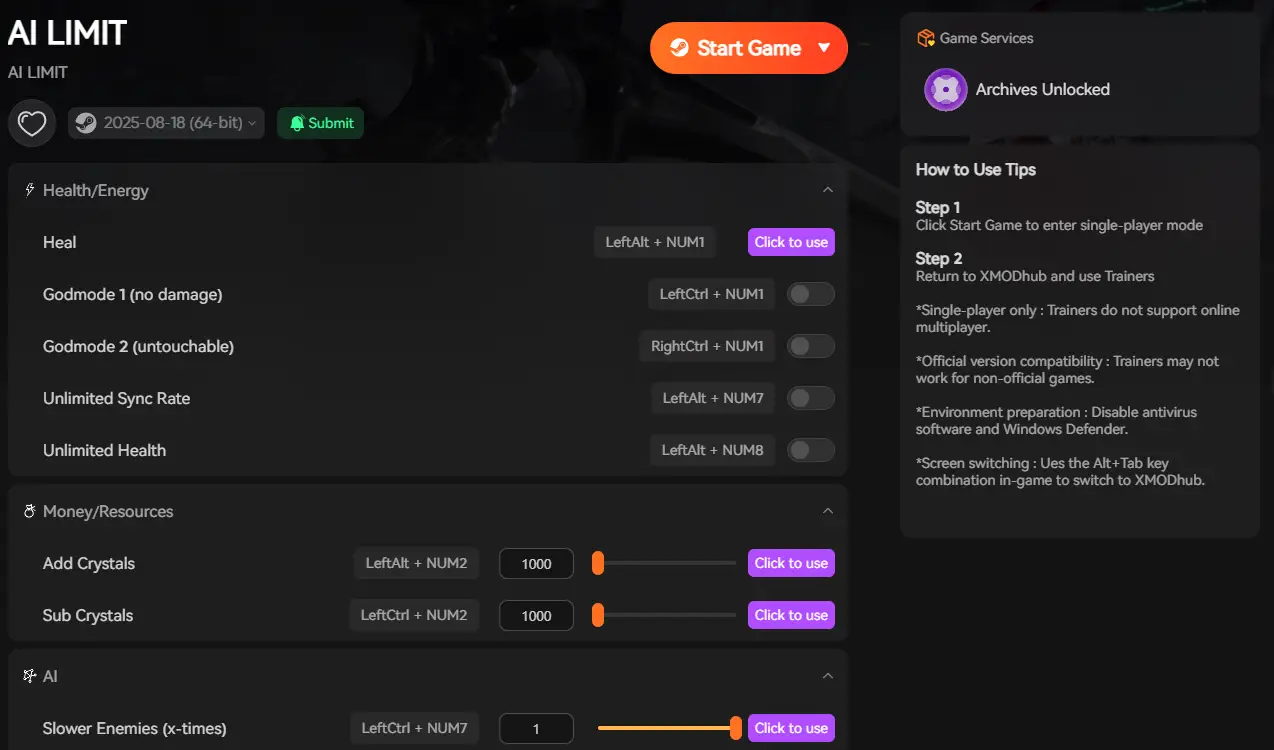
- AI Freeze (Enemies Don’t Attack): If you enter an arena and start taking damage from thin air, instantly tap your XMODhub hotkey to trigger AI Freeze. Every enemy in the game will immediately stop attacking and freeze in place. You can safely wait 10 to 15 seconds for your hard drive to finally load their textures, then turn the AI back on to fight them fairly.
- God Mode: If invisible archers are sniping you from across the Eirene Outskirts, toggle Infinite Health. You can simply ignore the invisible enemies, loot the area, and move on to the next checkpoint without losing your Crimson Cores.
- Visual Spawner: Did an invisible boss unfairly kill you, causing you to lose hours of rare upgrade materials? Open the XMODhub overlay and instantly inject those lost items directly back into your inventory.
How to Get Started:
- Download XMODhub: Grab the secure, ad-free PC client directly from our official website.

- Auto-Detect Game Path: Launch the app. It will instantly map out your AI LIMIT – Eirene’s Furnace of War installation and hook into the engine’s logic safely.
- Activate the Trainer: Launch the game through the XMODhub dashboard. Keep your AI Freeze hotkey ready to ensure you never die to an unloaded texture again.
Frequently Asked Questions (FAQ)
Q: Can I still lock-on to invisible enemies in AI LIMIT – Eirene’s Furnace of War?
A: Yes. The game’s lock-on mechanic targets the enemy’s collision capsule, which loads immediately. If you press the lock-on button and your camera violently snaps to an empty space, an invisible enemy is standing right there. Put your shield up instantly.
Q: Does verifying game files fix the invisible enemies bug?
A: Sometimes. If a specific monster’s texture package (like a .pak file) was corrupted during the initial download, the engine will fail to draw them. Verifying your files via Steam will redownload the missing visual assets.
Q: Will updating my graphics drivers stop the texture streaming issues?
A: It can help. NVIDIA and AMD frequently release “Game Ready” drivers during a new game’s launch week that specifically optimize how their GPUs handle Unreal Engine 5’s memory allocation. Always ensure your drivers are updated.
Conclusion
Dying to an enemy you cannot see breaks the fundamental unwritten rule of action RPGs: combat must be fair. The invisible enemies bug in AI LIMIT – Eirene’s Furnace of War is a frustrating byproduct of modern game engines pushing hardware to its absolute limits. By expanding your texture streaming pool in the Engine.ini file, lowering mesh quality, and ensuring the game is installed on an SSD, you can force your system to render threats instantly.
However, if your hardware simply cannot keep up with the demands of Eirene’s Furnace, you do not have to accept unfair deaths. The XMODhub PC Client provides a seamless bypass, letting you freeze the enemy AI to give your PC time to load, or toggle God Mode to survive the invisible onslaught. Take back control of your rendering environment and play on your own terms.
Think Bigger: XMODhub is the ultimate gaming companion for hardcore PC action gamers. With native support for over 5,000+ games, we provide Safe Save Managers and combat automation. Whether you are battling invisible bugs in AI LIMIT – Eirene’s Furnace of War, perfecting your parry timings in Lies of P, or surviving the dark fantasy world of Lords of the Fallen, XMODhub ensures technical bugs never ruin your gaming experience.

I am a passionate gamer and writer at XMODhub, dedicated to bringing you the latest gaming news, tips, and insights.
Connect with me:
LinkedIn Profile ↗

 Nancy Miller