Guide to Disabling Windows Defender

Windows Defender, now known as Microsoft Defender Antivirus, is an integrated security solution in Windows 10 and Windows 11. While it’s designed to protect your system from threats, there are scenarios where you might need to disable it temporarily or permanently.

Step 1: Access Windows Security Settings

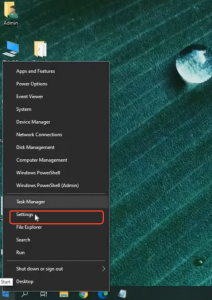
  • Click on the Start button and select the Settings icon.
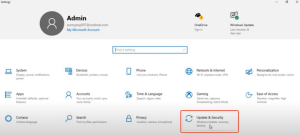
  • In the Settings window, choose Update & Security.
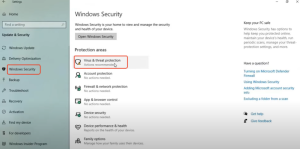
  • 導覽到 Windows Security in the left-hand menu.
  • 按一下 Virus & threat protection.

Step 2: Turn Off Real-Time Protection

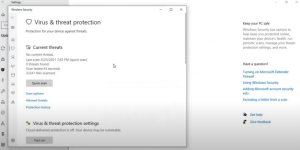
  • In the Virus & threat protection window, select Manage settings under the Virus & threat protection settings section.
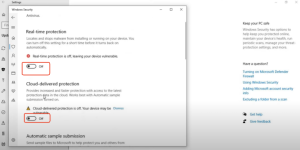
  • Locate the switches for Real-time protectionCloud-provided protection, 以及 Automatic sample submission and toggle them to the Off position.
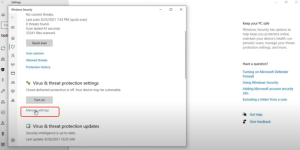
  • A warning will appear indicating that your device may be vulnerable; confirm your choice.
  • Note: Real-time protection will automatically re-enable after a short period or upon system restart.

  • arvin bronw

    相關文章

    Game List & Tutorial for TTSGAME

    How to play games using TTSGAME: Go to the page of the supported games shown below. Click the ‘Start Game’ button and select ‘TTSGAME’ Enjoy Your Game! TTSGAME Support Channel: https://discord.gg/7JK2pdPs Below are…

    Danh sách Trò chơi & Hướng dẫn cho TTSGAME

    Cách chơi game bằng TTSGAME: 1. Truy cập trang của các game được hỗ trợ như hiển thị bên dưới. 2. Nhấp vào nút ‘Start Game’ và chọn ‘TTSGAME’. 3. Tận hưởng trò chơi của bạn!…

    發佈留言

    發佈留言必須填寫的電子郵件地址不會公開。 必填欄位標示為 *

    原色

    次要顏色

    佈局模式

    社交分享按鈕和圖示 由 Ultimatelysocial 提供