胡凱琳
胡凱琳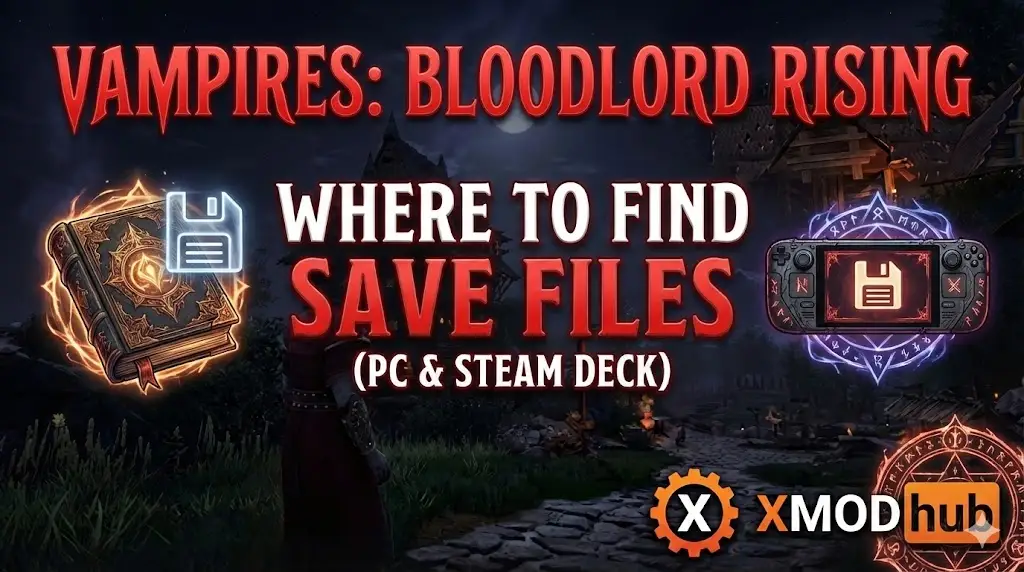
There is nothing worse than sinking 40 hours into designing the perfect gothic castle in Vampires: Bloodlord Rising, only to face a corrupted save file or a cloud sync error. In a survival game where every stone brick and blood essence represents hours of grinding, losing your save isn’t just a glitch—it’s a catastrophe.
Whether you want to manually backup your progress before a major update, transfer your world to a dedicated server, or tweak the config files to increase resource yields, you first need to find where the data lives.
Below is the exact file path for Vampires: Bloodlord Rising on Windows and Steam Deck, along with a safer, automated method to manage your backups.
您可能也會喜歡:
Vampires: Bloodlord Rising Cheat Engine Table vs. XMODhub Trainer: Best Free Alternative (2026)
Editor’s View: Why Manual Backups Matter
“We have all been there. You are deep into Vampires: Bloodlord Rising, you’ve just unlocked Tier 3 technology, and suddenly—a power flicker or a game crash during an auto-save. When you relaunch, your character is gone.
I specifically wrote this guide because this game distinguishes between ‘Local Saves’ and ‘Server Saves.’ If you are hosting a private game for friends, your save file is the only copy of the world. Please backup your SaveGames folder manually right now. Don’t learn this lesson the hard way like I did when I lost my entire server.”
— Catherine Hu, Senior Editor & Survival Game Specialist at XMODhub
Windows PC Save File Location
For the Steam and Epic Games versions of Vampires: Bloodlord Rising, the save files are usually located in the hidden AppData folder, following the standard Unreal Engine directory structure.
C:\Users\[YourUsername]\AppData\Local\VampiresBloodlordRising\Saved\SaveGames\How to navigate there quickly:
- Press Windows Key + R on your keyboard to open the Run dialog.
- Type
%localappdata%and press Enter. - Scroll down and open the folder named VampiresBloodlordRising (or sometimes just VBR).
- 導覽到
Saved > SaveGames. (Note: Inside, you may see a folder with a messy UUID string likev1_642b.... Your actual world data is inside that folder.)
Note: If you cannot see the “AppData” folder, you need to enable “Hidden Items” in the View tab of your File Explorer.
Vampires: Bloodlord Rising Config File Location (Graphics & Server)
If you need to manually tweak graphics settings (like forcing specific resolutions) or adjust private server rules (like CastleDecayRate or InventoryStackSize), you will need to edit the .json or .ini configuration files.
C:\Users\[YourUsername]\AppData\Local\VampiresBloodlordRising\Saved\Config\WindowsNoEditor\Key Files:
- GameUserSettings.ini: Graphics and Controls.
- ServerHostSettings.json: Game rules and difficulty modifiers.
How to Edit: Right-click the file and select Open with Notepad. Warning: Always rename the original file to .bak before editing. A typo in the JSON format will prevent the server from launching.
Steam Deck / Linux Save Location
If you are ruling the night on the Steam Deck, the Windows file structure is emulated within the Proton compatibility layer.
/home/deck/.local/share/Steam/steamapps/compatdata/[SteamAppID]/pfx/提示: You need the Steam App ID for Vampires: Bloodlord Rising (check the store URL, usually a number like 1234560). Once inside the pfx folder, the path continues: drive_c/users/steamuser/AppData/Local/VampiresBloodlordRising/Saved/SaveGames/.
The Smarter Way: One-Click Backup with XMODhub
Navigating through hidden %AppData% folders every time you want to secure your world is tedious. One accidental delete, and your empire falls. XMODhub offers a built-in Save Manager tool designed specifically for survival crafting games.
- Auto-Backup: XMODhub automatically creates a backup zip of your world every time you close the game.
- Version History: Did a griefer ruin your castle? Or did a patch break your save? Roll back to the “Yesterday” version instantly.
- Visual Organization: Name your saves (e.g., “Pre-Boss Fight”, “Fresh Wipe”) directly in the dashboard.
XMODhub: More Than Just a Save Manager
XMODhub is your ultimate all-in-one toolkit for PC gaming. Whether you need powerful Trainers for infinite resources, Mods for better visuals, or Save Management, XMODhub has it covered. Our library supports over 5,000+ games, ensuring that whether you are playing Vampires: Bloodlord Rising, Valheim, or Enshrouded, you always have the best tools at your fingertips.
How to Use XMODhub for Vampires: Bloodlord Rising:
- Download and Install the XMODhub client safely.

- 搜尋 Vampires: Bloodlord Rising.
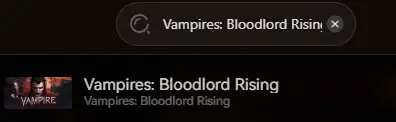
- Launch the game directly from the client.
常見問題
Q: Can I transfer my save to a dedicated server?
Yes. You need to copy the contents of your local SaveGames folder and upload them to the SaveData directory on your dedicated server host via FTP. Ensure the server is stopped before uploading.
Q: What happens if I delete the GameUserSettings.ini file?
The game will regenerate a fresh default file upon the next launch. This is a common fix if you accidentally set a resolution your monitor doesn’t support and get a black screen.
Q: Does modifying save files ban me?
In Single Player or Private Hosted games, absolutely not. You own the data. However, do not attempt to modify files if you are playing on an Official Public Server, as that data is server-side and you may trigger anti-cheat.
總結
Locating your Vampires: Bloodlord Rising save file is essential for any serious player. Whether you are fixing a glitch, moving to a new PC, or setting up a dedicated server, knowing where your data lives gives you control.
However, manual file management is risky. If you prefer a safe, “set it and forget it” solution, we highly recommend the XMODhub Save Manager. It keeps your hard-earned progress secure so you can focus on hunting blood, not hunting folders.
Protect your legacy. Backup smarter.

我是一名熱情的遊戲玩家,也是 XMODhub 的作家,致力於為您帶來最新的遊戲新聞、秘訣和見解。.
與我聯繫:
LinkedIn 個人資料

 南希-米勒
南希-米勒