
 胡凱琳
胡凱琳
There is nothing more frustrating than surviving a grueling 30-minute horde wave in John Carpenter’s Toxic Commando, only to be abruptly kicked back to the main menu right before extracting. The 80s-inspired co-op shooter delivers incredible action, but the launch week server stability has left many players facing the dreaded “Connection Lost” or “Matchmaking Error” screens.
Because Saber Interactive’s Swarm Engine relies heavily on an always-online architecture—even when you are playing solo with AI bots—any slight interruption in packet routing or server overload will terminate your session and cost you all your hard-earned Scrap.
In this guide, we will walk you through the most effective network troubleshooting steps, crossplay fixes, and modding best practices to keep you in the fight.
✨您可能也會喜歡:
John Carpenter’s Toxic Commando Cheat Engine Table vs. XMODhub Trainer: Best Free Alternative (2026)
Editor’s Note
As the Toxic Commando servers go live globally this week, our technical team is actively monitoring server loads and matchmaking stability across PC, PS5, and Xbox. We will continuously update this guide with new error codes, official patch notes, and confirmed network fixes. Remember to verify your game files before attempting any advanced DNS changes!
Quick Fix: 5 Steps to Resolve “Connection Lost” Errors
(If you just got kicked from a co-op lobby and see the error screen, run through this checklist immediately.)
Why is Matchmaking Not Working? (The Swarm Engine)
Toxic Commando is a fast-paced, 4-player cooperative shooter that calculates the physics of hundreds of the Sludge God’s mutants simultaneously. The game utilizes an Always-Online architecture.
If there is even a micro-stutter in your connection packet loss, or if the central matchmaking servers are overloaded during peak hours, the Swarm Engine will forcefully drop you. This isn’t necessarily a problem with your internet speed; it is usually an issue with routing stability to the game’s regional servers.
Advanced Fix 1: Network, DNS & Cache Troubleshooting
If you are playing the vanilla game and still getting disconnected, the issue is likely your local network route.
Your ISP’s default DNS might be routing your traffic inefficiently. Switching to a gaming-optimized DNS can stop random disconnects:
- ✦Open Windows Network Connections.
- ✦Right-click your active connection -> Properties -> IPv4.
- ✦Change the DNS to Google (8.8.8.8 和 8.8.4.4) or Cloudflare (1.1.1.1 和 1.0.0.1).
A corrupted .pak file can fail the server’s integrity check during matchmaking.
- ✦Steam: Right-click Toxic Commando -> Properties -> Installed Files -> Click “Verify integrity of game files”.
- ✦Epic Games: Click the three dots next to the game -> Manage -> Verify.
Advanced Fix 2: Fixing Crossplay Disconnects (PC, PS5, Xbox)
A massive influx of long-tail search queries revolves around cross-platform issues. Toxic Commando supports crossplay, but mixing PC players with PS5 and Xbox Series X|S players can cause unique “Connection Lost” triggers.
Advanced Fix 3: Co-op Modding & “Desync” Errors
As the premier modding platform, XMODhub needs to address the elephant in the room: Are your mods causing the disconnect?
If you are playing in a public lobby or with console players, the answer might be yes.
- ✔️
Cosmetic Mods (Safe):ReShades, UI changes, and local texture mods only affect your screen. They will not cause connection errors.
- ❌
Script Mods & Trainers (Risk of Desync):If you use a mod that changes gameplay logic—such as an “Unlock All Weapons” script or modified vehicle speeds—and your co-op partners do not have the exact same file installed, the server will detect a discrepancy. This causes a “Desync,” resulting in an immediate “Connection Lost” error for everyone.
🔥 The Fix: Only use gameplay-altering mods and trainers in Private, Password-Protected Lobbies where all PC players have agreed to the modified ruleset.
The Ultimate Solution: Awaiting the Offline Solo Bypass
The community’s biggest complaint is that server errors ruin solo runs. Since the game forces you online even with AI bots, a server crash means you lose all your mission progress.

Our development team at XMODhub is actively working on a True Offline Mode / Server Bypass Mod. This will emulate a local server environment, allowing you to play solo completely untethered from the official matchmaking servers—meaning zero “Connection Lost” errors, ever. Keep an eye on our homepage for the release!
Skip the Grind with the XMODhub PC Trainer
Once you finally secure a stable connection in a private lobby, why waste time grinding for Scrap?
If you want to skip the frustrating resource farming and focus purely on mowing down the Sludge God’s hordes, download the XMODhub PC Trainer.
How to Dominate in 5 Seconds:

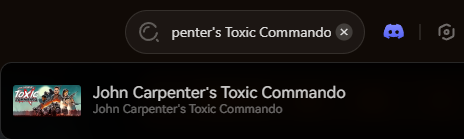
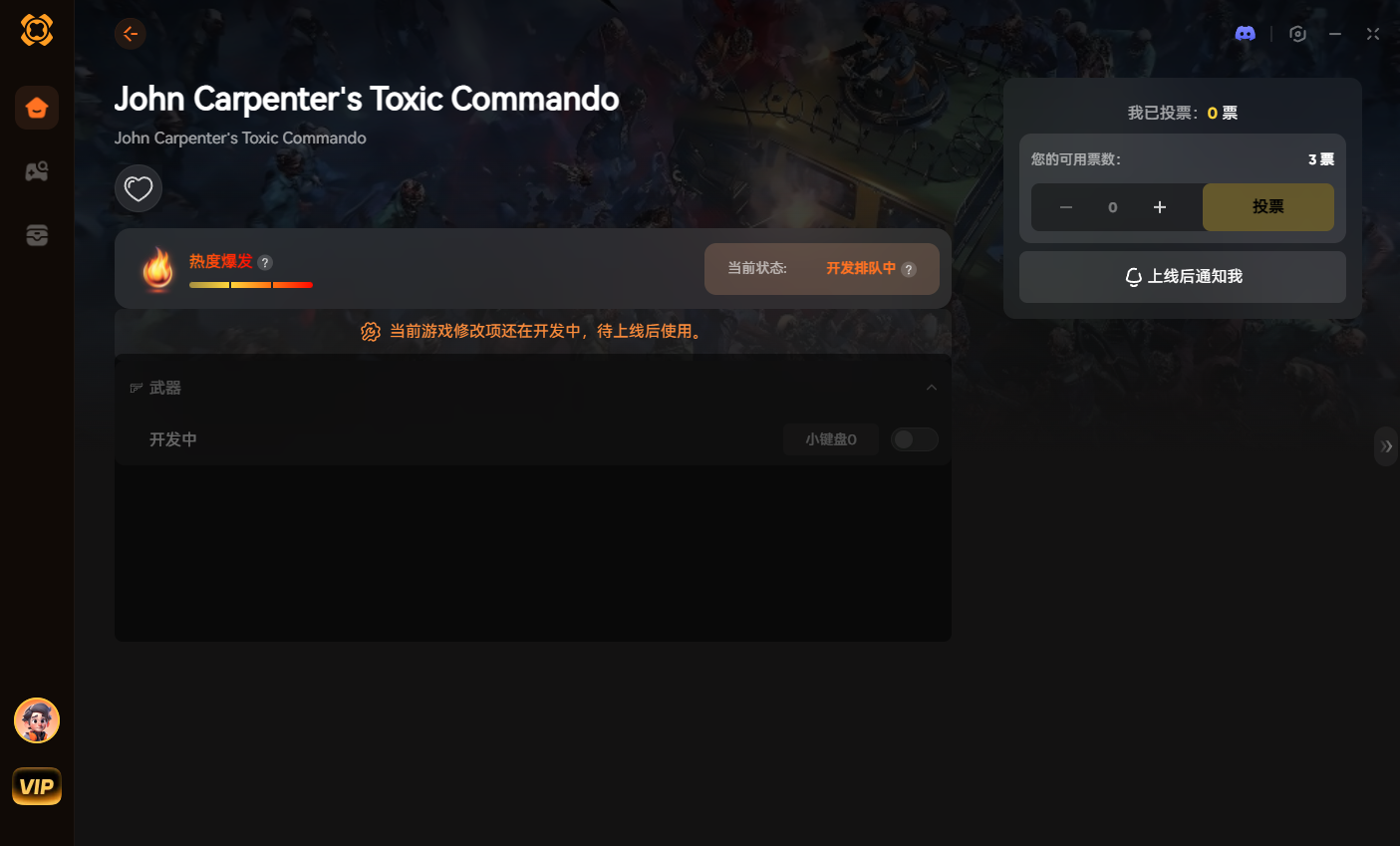
Our standalone app uses safe memory injection, ensuring maximum performance while you conquer the apocalypse in your stable, private co-op lobbies.
Get back in the fight:
Conclusion: Stay Connected
Launch week server issues are inevitable for popular co-op shooters. By optimizing your DNS, managing your crossplay settings, and keeping your mod loadouts restricted to private lobbies, you can drastically reduce the chances of encountering the “Connection Lost” error in John Carpenter’s Toxic Commando.
Join the XMODhub Discord to stay updated on server statuses, and arm yourself with our trainers to make every successful extraction count!

我是一名熱情的遊戲玩家,也是 XMODhub 的作家,致力於為您帶來最新的遊戲新聞、秘訣和見解。.
與我聯繫:
LinkedIn 個人資料
 南希-米勒
南希-米勒