胡凱琳
胡凱琳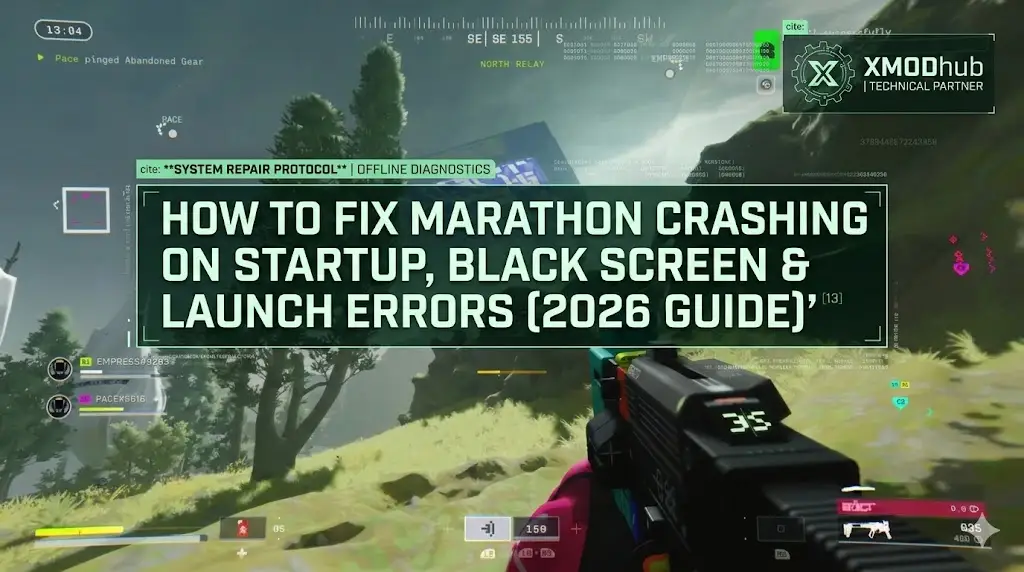
You have waited months for Marathon, pre-loaded the 40GB files, and cleared your schedule for the Server Slam. You click “Play,” and… nothing. Or worse, the BattlEye splash screen appears, then a cryptic “Failed to Initialize BattlEye Service” error pops up. Launch day issues are frustrating, but they are rarely unfixable.
Whether you are facing a black screen during matchmaking, random crashes to desktop after authentication, BattlEye initialization failures, or unplayable frame rates during extraction runs, this guide covers the most effective solutions to get you into Tau Ceti IV.
您可能也會喜歡:
Marathon Release Date Guide: Extraction Gameplay, Classes & Leaks (2026)
Editor’s View: The “Day One” Curse
Before you give up on Marathon, realize that 90% of these crashes are caused by three simple things: corrupted downloads, BattlEye conflicts with security software, or authentication timeouts during server overload. I have tested the methods below on my own rig (RTX 4070 / Win 11), and Method 2 (the BattlEye reinstall) was the one that finally solved it for me during the Server Slam.”
Check First: Marathon System Requirements
Before debugging, ensure your PC can actually run the game. Trying to run Marathon on below-minimum specs is the most common cause of silent crashes (game closes without error messages).
| 組件 | Minimum | 推薦 |
|---|---|---|
| OS | Windows 10 64-bit (latest Service Pack) | Windows 11 64-bit |
| 處理器 | Intel Core i5-6600 / AMD Ryzen 5 2600 | Intel Core i7-8700K / AMD Ryzen 7 3700X |
| 記憶體 | 8 GB RAM | 16 GB RAM |
| 圖形 | NVIDIA GTX 1050 Ti (4 GB) / AMD RX 5500 XT (4 GB) / Intel Arc A580 (8 GB, ReBAR on) | NVIDIA RTX 2060 (6 GB) / AMD RX 5700 XT (8 GB) / Intel Arc A770 (16 GB, ReBAR on) |
| DirectX | Version 12 | Version 12 |
| Network | Broadband Internet Connection (Required) | Stable Connection with Low Packet Loss |
| 儲存 | 60 GB available space | SSD recommended for faster zone loading |
| Anti-Cheat | BattlEye (Kernel-Level) – Windows 10/11 Only | |
Important: Marathon requires a persistent online connection. The game cannot be played offline, and authentication happens every time you launch.
Linux/Steam Deck Users: Marathon uses BattlEye kernel-level anti-cheat without Proton support. The game will not run on Linux or Steam Deck, regardless of hardware.
Method 1: Verify Game Files (Steam)
Corrupted installation files are the number one cause of Marathon crashing on startup, especially if you downloaded the game during peak Server Slam traffic.
For Steam Users:
- 按一下滑鼠右鍵 Marathon in your Library.
- 選擇 屬性 → Installed Files.
- Click “Verify integrity of game files”.
- Wait for the process to finish (it may re-download corrupted or missing files).
If Steam reports missing or corrupted files, this will automatically repair them. After verification completes, restart Steam and try launching again.
Method 2: Fix BattlEye Anti-Cheat Initialization
Marathon uses BattlEye kernel-level anti-cheat, which must initialize successfully before the game can start. If BattlEye fails to load, the game will crash silently or display error messages like:
- “Failed to initialize BattlEye Service”
- “BattlEye Service installation failed”
- “Driver Load Error (1275)”
Solution 1: Reinstall BattlEye Manually
- Navigate to your Marathon installation folder:
C:\Program Files (x86)\Steam\steamapps\common\Marathon\BattlEye\ - Find Uninstall_BattlEye.bat and run it as Administrator.
- Restart your PC.
- Launch Marathon again. The game will automatically reinstall BattlEye.
Solution 2: Disable Hardware-Enforced Stack Protection (Windows 11)
If you see “Driver Load Error (1275)” and a popup about “Hardware-enforced Stack Protection,” BattlEye is blocked by a Windows 11 security feature.
- Open Windows Security → Device Security → Core Isolation.
- Find Hardware-enforced Stack Protection and toggle it OFF.
- Restart your PC.
- Launch Marathon.
Note: This is a known limitation. BattlEye is not yet compatible with this security feature.
Solution 3: Whitelist BattlEye in Security Software
If you use antivirus software (Norton, McAfee, Kaspersky), it may be blocking BattlEye’s kernel driver:
- Open your antivirus/firewall software.
- Add Marathon_BE.exe to the exception/whitelist list.
- Add the entire Marathon installation folder to the trusted zone.
- Restart your PC and launch the game.
Method 3: Update Drivers & Visual C++ Redistributables
Marathon runs on Bungie’s proprietary Tiger Engine, which requires updated software environments to function properly.
GPU Drivers
Outdated drivers cause crashes during shader compilation or when loading Tau Ceti IV zones.
- NVIDIA: Download the latest Game Ready Driver from nvidia.com/drivers
- AMD: Download the latest Adrenalin Driver from amd.com/support
- Intel Arc: Download the latest driver from intel.com/arc
Visual C++ All-in-One
If you get errors like “MSVCP140.dll missing” or “VCRUNTIME140.dll not found,” you need to reinstall Microsoft Visual C++ Redistributables:
- Download the Visual C++ All-in-One package from Microsoft’s official site.
- Install both x86 and x64 versions.
- Restart your PC.
DirectX 12
Ensure DirectX 12 is fully updated:
- Open Windows Update.
- Check for updates and install all available patches.
- Restart your PC.
Method 4: Fix Black Screen & Server Overload Issues
If you hear audio but see a black screen, or the game freezes during matchmaking, this is usually a server overload issue during the Server Slam beta, not a problem with your PC.
What’s Happening:
Marathon’s servers are struggling to process matchmaking requests when thousands of players queue simultaneously. The client stays connected (you can hear audio), but the server response times out.
Temporary Workarounds:
- Wait it out: Most black screens resolve themselves after 30-60 seconds once the server catches up.
- Avoid peak hours: Try playing during off-peak times (early morning or late night in your region).
- Restart the client: If the black screen lasts longer than 2 minutes, Alt+F4 and relaunch.
Good news: This issue is specific to the Server Slam stress test. Bungie has confirmed server capacity will be significantly improved for the March 5, 2026 launch.
Overlay Conflicts (Rare Cases):
If black screens happen consistently, not just during matchmaking:
- Disable Steam Overlay: Steam → Settings → In-Game → Uncheck “Enable Steam Overlay.”
- Disable Discord Overlay: Discord → Settings → Game Overlay → Toggle OFF.
- Disable NVIDIA GeForce Experience Overlay: GeForce Experience → Settings → In-Game Overlay → Toggle OFF.
Method 5: Common Error Codes & Fixes
Here are specific solutions for the most common error messages players are reporting:
Error: “Exception Code 0xc000001d”
Cause: CPU instruction set incompatibility (common on older Intel i7 3rd-gen CPUs).
Fix: Marathon requires AVX2 instruction set support. If your CPU is older than Intel 4th Gen (Haswell) or AMD Ryzen 1000 series, the game will not run. Check your CPU specifications before purchasing.
Error: “Failed to connect to Marathon services”
Cause: Authentication server timeout or unstable network routing.
Fix:
- Restart your router and modem.
- Disable VPN or proxy services.
- Flush DNS cache: Open Command Prompt (Admin) and type:
ipconfig /flushdns - Switch to a wired Ethernet connection if using Wi-Fi.
Error: “Out of Video Memory”
Cause: Your GPU VRAM is insufficient for the current graphics settings.
Fix:
- Lower Texture Quality to Medium in the graphics settings.
- Disable Ray Tracing (if available).
- Reduce Render Resolution to 80%.
Error: “Marathon.exe has stopped working”
Cause: Conflicting background software or corrupted game files.
Fix:
- Close all unnecessary background applications (Discord, Spotify, Chrome).
- Run Marathon as Administrator: Right-click
Marathon.exe→ Run as Administrator. - Verify game files (Method 1).
Method 6: Fix Low FPS & Stuttering
Is Marathon running like a slideshow during firefights?
Quick Performance Fixes:
- Lower Shadow Quality: Shadows are the most GPU-intensive setting. Set to Medium or Low.
- Disable Motion Blur: Motion blur adds processing overhead without improving clarity.
- Enable DLSS/FSR: If you have an NVIDIA RTX or AMD RX 6000+ GPU, enable upscaling:
– NVIDIA: Enable DLSS in Graphics Settings → Quality or Balanced mode.
– AMD: Enable FSR in Graphics Settings → Quality mode. - Set High Priority: Open Task Manager → Details → Right-click
Marathon.exe→ Set Priority → High. - Close Background Apps: Close Chrome, Discord, and streaming software before launching.
For Low-End PCs:
If you are running a GTX 1050 Ti (minimum spec):
- Set all graphics to Low.
- Disable Ambient Occlusion.
- Set Render Resolution to 75%.
- Expect 40-50 FPS at 1080p.
The Workaround: Practice Runs Without Risk
Sometimes, Marathon crashes not because of your PC, but because of unoptimized code during specific situations—like high-stress firefights in cramped corridors, or when multiple Runner abilities trigger simultaneously during extraction choke points.
XMODhub offers unique tools to help you practice and prepare without the extraction anxiety:
Offline Training Environment
- God Mode / Infinite Health: Learn Tau Ceti IV’s zone layouts and enemy patrol patterns without combat pressure. Perfect for memorizing extraction routes.
- Instant Faction Rep: Unlock all Runner shell upgrades and test endgame builds offline before risking them in live servers.
- Item Spawner: Test specific weapon mods, body implants, and core upgrades in a controlled environment to find optimal loadouts.
- Risk-Free Practice: Master Marathon’s mechanics without losing vault inventory or grinding faction contracts.
Important: XMODhub trainers work in offline/custom lobby environments only. Marathon runs on authoritative dedicated servers with server-side validation for combat, loot, and movement. Our tools cannot and do not work in official matchmaking—they are designed exclusively for practice and buildcrafting.
How to Get Started with XMODhub
Getting the ultimate toolkit for Marathon is simple. Just follow these steps:

下載與安裝: Get the latest version of the XMODhub Client from the official site.
Auto-Detect: Launch the app. It will automatically scan your PC and locate Marathon in seconds.
Select Your Tools: Enable offline training features like God Mode, Instant Rep, or Item Spawner.
Launch & Practice: Start Marathon in custom/offline mode to apply all changes seamlessly.
常見問題
Q: Does Marathon support Windows 10?
A: Yes, but ensure you are on version 22H2 or newer. Older builds may cause compatibility errors with BattlEye anti-cheat initialization.
Q: Will reinstalling fix the crash?
A: Reinstalling should be your last resort. Try Verifying Integrity (Method 1) and Reinstalling BattlEye (Method 2) first, as they solve 90% of launch issues much faster.
Q: Can I play Marathon on Steam Deck or Linux?
A: No. Marathon uses BattlEye kernel-level anti-cheat without Proton support. The game will not run on Linux, Steam Deck, or SteamOS under any circumstances.
Q: Why does Marathon have a black screen during matchmaking?
A: This is a server overload issue during the Server Slam beta. When thousands of players queue simultaneously, the authentication servers struggle to keep up. This issue is expected to be resolved for the March 5, 2026 launch.
總結
If the game is still suffering from Server Slam stress test bugs or authentication timeouts, XMODhub can help you prepare for the official launch. Use offline training features to master Tau Ceti IV’s zones, test Runner shell synergies, and perfect your extraction strategies without risking your vault inventory—all while Bungie optimizes server capacity for March 5, 2026.
XMODhub is more than just a tool for one game—it is a comprehensive gaming platform supporting over 5,000+ titles. Whether you are mastering Marathon or exploring similar hits like Escape from Tarkov, Hunt: Showdown, and The Cycle: Frontier, XMODhub ensures you always have the ultimate toolkit (Trainers, Mods, and Practice Tools) ready at your fingertips.
Don’t let bugs stop you. Practice smarter.

我是一名熱情的遊戲玩家,也是 XMODhub 的作家,致力於為您帶來最新的遊戲新聞、秘訣和見解。.
與我聯繫:
LinkedIn 個人資料
 南希-米勒
南希-米勒