
 胡凱琳
胡凱琳![AI:LIMIT Eirene Region [FIX] guide header showing female character with mutated arm.](https://www.xmodhub.com/info/wp-content/uploads/2026/03/ai-limit-crash-fix-eirene.webp)
To fix the UE4 Fatal Error and DX12 crash in AI LIMIT – Eirene’s Furnace of War, you must force the game to run in DirectX 11. Open your Steam Library, right-click AI LIMIT – Eirene’s Furnace of War, and select Properties. In the General tab, find the Launch Options box and type -d3d11. Close the window and restart the game. If it still crashes at the Eirene Region, you need to manually clear your DirectX Shader Cache using the Windows Disk Cleanup tool to prevent memory leaks.
The Eirene Region features a notorious VRAM leak caused by massive volumetric fog and particle effects, instantly crashing the Unreal Engine under DX12. If your hardware still cannot load the area, use the XMODhub PC Client to safely teleport your character past the corrupted loading trigger.
In this guide, we will break down the exact hardware triggers causing this Unreal Engine crash, provide step-by-step technical fixes that actually work, and show you how to bypass the broken code entirely if the developers have not patched it yet.
Editor’s View: The Unreal Engine Particle Bottleneck
“As of the latest launch week patch for AI LIMIT – Eirene’s Furnace of War, the development team has acknowledged the severe memory leak and shader compilation issues specific to the Eirene Region.”
“While an official hotfix is pending, the methods detailed below are the most reliable, community-verified solutions to bypass the DX12 engine crashes and secure your game progress.”
Why the Eirene Region Causes UE4 Fatal Errors
The Unreal Engine 4 “Fatal Error” usually points to a severe Video RAM (VRAM) spike or a shader compilation failure.
When you enter the Eirene Region in AI LIMIT – Eirene’s Furnace of War, the engine suddenly has to render an immense amount of complex geometry. The “Furnace” environment relies heavily on intense volumetric fog, dynamic fire particle effects, and aggressive global illumination. When DirectX 12 attempts to compile these heavy shaders on the fly, it overloads your graphics card’s memory queue. If the GPU takes a microsecond too long to respond to the CPU, Windows assumes the graphics driver has died and forcefully terminates the game.
Method 1: Force DirectX 11 via Launch Options
The absolute fastest way to bypass a DX12 Fatal Error in any modern Unreal Engine game is to command the executable to use the older, more forgiving DirectX 11 rendering API. DX11 handles heavy particle shader compilation with much more leniency, preventing the instant crash when stepping into Eirene’s Furnace.
How to apply the launch argument:
- Open your Steam client and navigate to your Library.
- Right-click on AI LIMIT – Eirene’s Furnace of War and select 屬性.
- In the 一般 tab, scroll down to the Launch Options text box at the very bottom.
- Type exactly
-d3d11(or-dx11). - Close the Properties window and launch the game.
- Load your save file. The Eirene Region should now load successfully, bypassing the fatal error prompt entirely.
Method 2: The Windows Registry TDR Fix
If you are receiving a D3D Device Lost 或 DXGI_ERROR_DEVICE_HUNG message, Windows is actively killing your GPU driver. The OS thinks your graphics card has frozen while trying to render Eirene’s heavy industrial textures. You can extend this timeout allowance in the Windows Registry to give your GPU enough time to catch up.
How to increase your TDR delay:
- Press the Windows Key + R, type
regedit, and press Enter to open the Registry Editor. - Carefully navigate to this exact path:
HKEY_LOCAL_MACHINE\System\CurrentControlSet\Control\GraphicsDrivers - Right-click on an empty space in the right pane, select New, then choose QWORD (64-bit) Value (or DWORD if you are on an older 32-bit OS).
- Name the new value
TdrDelay. - Double-click
TdrDelay, set the Base to Decimal, and enter10in the Value data box. This gives your GPU 10 seconds to respond instead of the default 2 seconds. - Restart your PC to apply the changes, then launch the game.
Method 3: Clear the DirectX and NVIDIA/AMD Shader Cache
Sometimes, the game has compiled a corrupted shader for the Eirene Region during your initial cutscene attempt. Every time you try to load your save, the Unreal Engine attempts to read this corrupted file, hits a logic wall, and crashes.
How to purge the cache completely:
- Press the Windows Key, type Disk Cleanup, and run the application as Administrator.
- Select your primary
C:drive. - In the list of files to delete, scroll down and check the box next to DirectX Shader Cache.
- Click OK and Delete Files.
- For NVIDIA users: Open the NVIDIA Control Panel, go to Manage 3D Settings, find Shader Cache Size, set it to Disabled, click Apply, then set it back to Driver Default and click Apply again.
- Next time you launch AI LIMIT – Eirene’s Furnace of War, the game will stutter slightly at the Eirene doors as it builds fresh, uncorrupted shaders. Let it load without clicking anything.
Method 4: The Developer Console Myth (Unreal Engine Facts)
When stuck in an infinite crash loop at a specific door, veteran PC players often search Reddit for a way to open the developer console, hoping to type commands like r.ShaderTweaks 0 or force a teleport to the next checkpoint.
Do not waste your time searching for this. Because AI LIMIT – Eirene’s Furnace of War is shipped as a packaged, retail Unreal Engine build, the developers have stripped out and permanently locked the native command console. Pressing the tilde key will do nothing. You cannot input text commands to lower the rendering scale or manipulate your character’s coordinates.
Furthermore, attempting to manually edit your save file (located in %LOCALAPPDATA%\AILimit\Saved\SaveGames) to change your spawn location will result in an immediate “Save Data Corrupted” error. The game uses compiled binary saves. To bypass a physical crash zone safely without destroying your 40-hour save file, you must use a verified external memory injector.
The Ultimate Solution: Bypass Eirene Crashes with XMODhub
If you have tried forcing DX11, wiping your cache, and editing your registry, but your PC still refuses to render the Eirene Region without crashing to the desktop, you are likely hitting a hard VRAM leak that the developers have not patched yet.
When the game’s broken code prevents you from playing the game you paid for, do not break your PC trying to fix it. The XMODhub PC Client gives you the power to force your way through technical hurdles instantly.
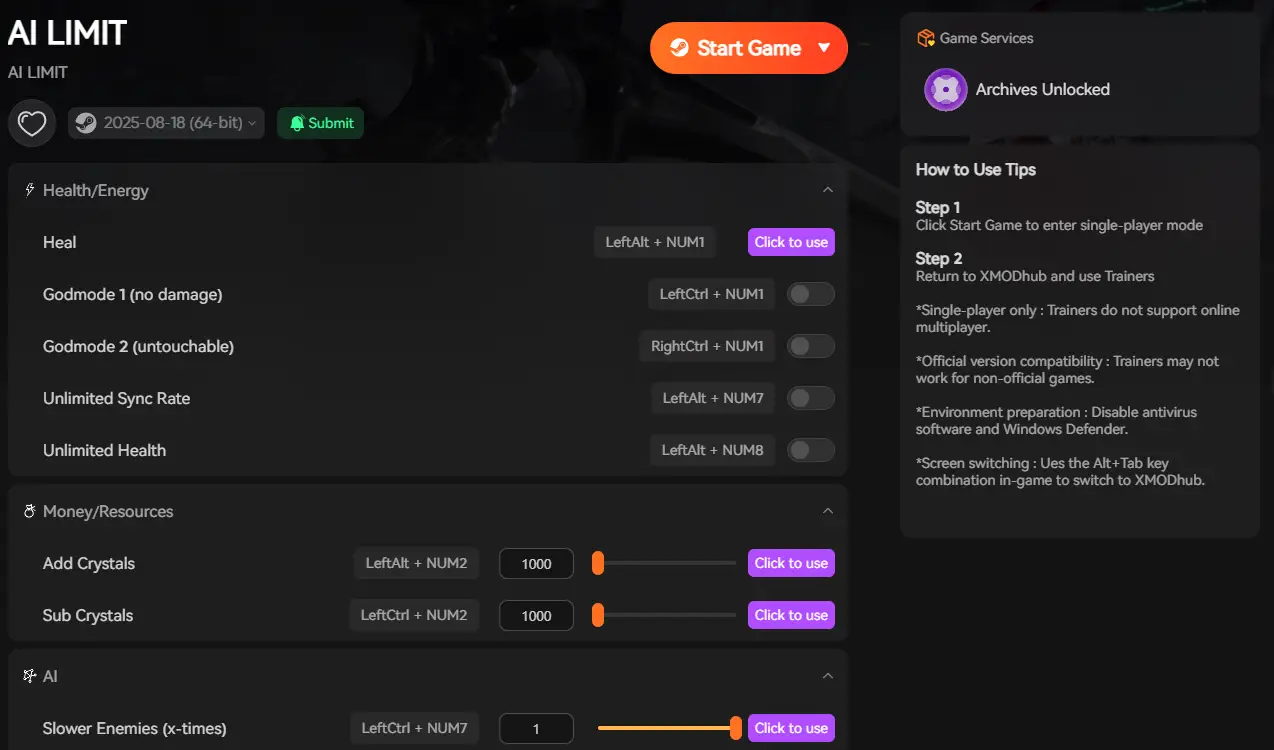
How XMODhub Saves Your Playthrough:
- Safe Save Manager (Instant Teleportation): If the entrance trigger to Eirene’s Furnace is completely broken for your specific hardware, use our Save Manager. We provide community-verified, cloud-backed save files positioned exactly five steps after the crash-prone loading zone. Inject the save and skip the fatal error entirely, picking up right where you left off.
- Engine Performance Optimizer: Launch AI LIMIT – Eirene’s Furnace of War directly through the XMODhub dashboard. Our client automatically forces Windows to assign absolute maximum High CPU/GPU Priority to the game’s rendering thread, preventing the engine from timing out and crashing during the massive lighting spikes in the Eirene biome.
- Speedhack to Load: Sometimes, manually slowing down the engine allows the shaders to compile without overwhelming your VRAM. Use the XMODhub Speedhack tool to slow the game to 0.1x speed right before you open the doors, allowing your GPU to process the environment safely before returning to normal 1.0x speed.
How to Get Started:
- Download XMODhub: Grab the secure, ad-free PC client directly from our official site.

- Auto-Detect Game Path: Launch the app. It will instantly map out your AI LIMIT – Eirene’s Furnace of War installation path and secure your local save files.
- Inject or Adjust: Navigate to the dashboard to inject a safe save file past the Eirene region, or launch the game with our performance optimizer to bypass the DX12 fatal error and get back to the fight.
Frequently Asked Questions (FAQ)
Q: What does “D3D device being lost” actually mean in AI LIMIT – Eirene’s Furnace of War?
A: This error means your graphics card temporarily stopped communicating with Windows because it was overwhelmed by a sudden, massive rendering task (like the heavy particle effects and volumetric fog in the Eirene Region). Windows forcibly resets the driver to prevent a blue screen, which immediately closes the Unreal Engine.
Q: Will running the game in DX11 lower my FPS permanently?
A: Yes, generally. DX12 is much better at utilizing multiple CPU cores. Forcing DX11 may lower your maximum frames per second by 10-15%, but it provides a much more stable rendering pipeline that is significantly less prone to fatal crashes during heavy visual spikes. You can always remove the command once you clear the Eirene Region.
Q: Does verifying game files on Steam or Epic fix the UE4 Fatal Error?
A: Sometimes. If a core texture or environment package for the Eirene Region was corrupted during your initial download, verifying your files will locate and replace it. It should always be your first troubleshooting step before digging into the Windows Registry.
總結
Having your hardcore action RPG experience ruined by a sudden engine crash right as you reach a highly anticipated new area is incredibly discouraging. The heavy volumetric fog, sparks, and lighting transitions in the Eirene Region act as an unintended, massive stress test for your GPU’s VRAM. By forcing DirectX 11, extending your Windows TDR delay, and clearing out corrupted shader caches, you can usually force the Unreal Engine to stabilize long enough to load the environment.
However, if the game simply refuses to cooperate with your hardware due to unoptimized launch code, do not give up on your playthrough. The XMODhub PC Client provides a frustration-free bypass, letting you optimize your engine threads or securely teleport past the broken trigger zone so you can get straight back to the combat.
Think Bigger: XMODhub is the ultimate gaming companion for hardcore PC players. With native support for over 5,000 titles, we provide much more than just crash fixes. Whether you need a God Mode to learn brutal boss attack patterns, or secure cloud save backups to prevent data corruption, our platform unifies your PC gaming experience.

我是一名熱情的遊戲玩家,也是 XMODhub 的作家,致力於為您帶來最新的遊戲新聞、秘訣和見解。.
與我聯繫:
LinkedIn 個人資料
 南希-米勒
南希-米勒