胡凱琳
胡凱琳
You just survived a 15-minute grueling boss fight in AI LIMIT – Eirene’s Furnace of War. Your hands are sweating, your healing injectors are empty, and you finally landed the killing blow. The cinematic plays, and the game transitions to a loading screen. Suddenly—the audio tears, the screen freezes, and your desktop hits you with a “UE5 Fatal Error.” You reboot, only to find the “Continue” button greyed out.
Because AI LIMIT – Eirene’s Furnace of War utilizes a single, constantly overwriting auto-save system, a crash during a disk-write sequence means your .sav file is permanently corrupted. 60 hours of exploration and gear grinding wiped out in a millisecond. If you don’t manually back up your data, you are playing Russian roulette with your free time. Knowing the exact AI Limit save file location is the only way to protect your empire.
Editor’s Note & Testing Setup:
To definitively map the AI Limit save file location on PC, our team at XMODhub monitored the Unreal Engine 5 disk behavior across Steam and Epic Games installations. We isolated the exact directories responsible for character progression. Do not trust cloud syncs. What follows is the mathematically proven, step-by-step manual backup protocol.
What is the AI Limit Save File Location?
The AI Limit save file location on PC is found in your local AppData folder. To access it, press Windows + R, type %localappdata%, and hit Enter. Navigate to \AILimitEirenesFurnace\Saved\SaveGames. Your character data, world state, and configurations are stored here as .sav 檔案。.
AI LIMIT – Eirene’s Furnace of War follows the Unreal Engine 5 standard of burying player data in hidden system partitions rather than the “My Documents” folder. If you don’t know the shortcut, you’ll never find it. Here is the exact extraction method.
Step-by-Step: Finding the Steam & Epic Games Path
Whether you purchased the game on Steam or Epic, the engine uses the same unencrypted local directory:
- Open the Run Command: Press Windows Key + R to open the Run dialog.
- Access Local AppData: Type
%localappdata%and press Enter. This bypasses hidden folder restrictions. - Locate the Game Folder: Find the directory named
AILimitEirenesFurnace. - Follow the UE5 Path: Open it and go to
\Saved\SaveGames\. - Identify Your Data: You will see files like
SaveData00.sav. Copy these to a secure “Backup” folder on your desktop immediately.
The Brutal Reality of Corrupted Auto-Saves
Let’s be real: the save architecture in AI LIMIT – Eirene’s Furnace of War is fundamentally broken. The game uses a ruthless, single-slot auto-save that triggers after every minor interaction. While this prevents “save scumming,” it creates a massive technical vulnerability.
The UE5 build for this game currently suffers from VRAM memory leaks. If the engine crashes exactly while writing data to your .sav file, that file becomes a corrupted 0kb document. Worse, Steam Cloud will often detect this “new” (but empty) file and sync it to the servers, overwriting your only good backup. You launch the game the next day, and your 60-hour journey is simply gone. It is an anti-human design flaw that destroys your real-life effort.
Recover Your Corrupted Campaign Instantly with XMODhub
You don’t have to accept defeat just because a memory leak or a cloud sync bug wiped your character. When you lose your entire save and refuse to spend another month re-grinding the same tech trees and boss fights in AI LIMIT – Eirene’s Furnace of War, XMODhub is your ultimate time-management tool.
We give you the power to fast-forward a brand-new campaign back to exactly where you were. Did a crash wipe your Level 50 character? Use XMODhub to instantly add the lost EXP. Need to recover your +10 Phase-Katanas? Inject the missing catalysts directly. XMODhub lets you reclaim your lost time safely and securely.
How to Get Started:
- Download XMODhub: Visit our official site and download the lightweight desktop client.

- Auto-Detect Game Path: Launch the app. It will automatically find your AI LIMIT – Eirene’s Furnace of War installation.
- Inject features/Adjust Trainers/cheats: Open the clean overlay. Activate “Add 50,000 Neural Data,” “Infinite Materials,” or “Max Level” to rebuild your save in minutes.
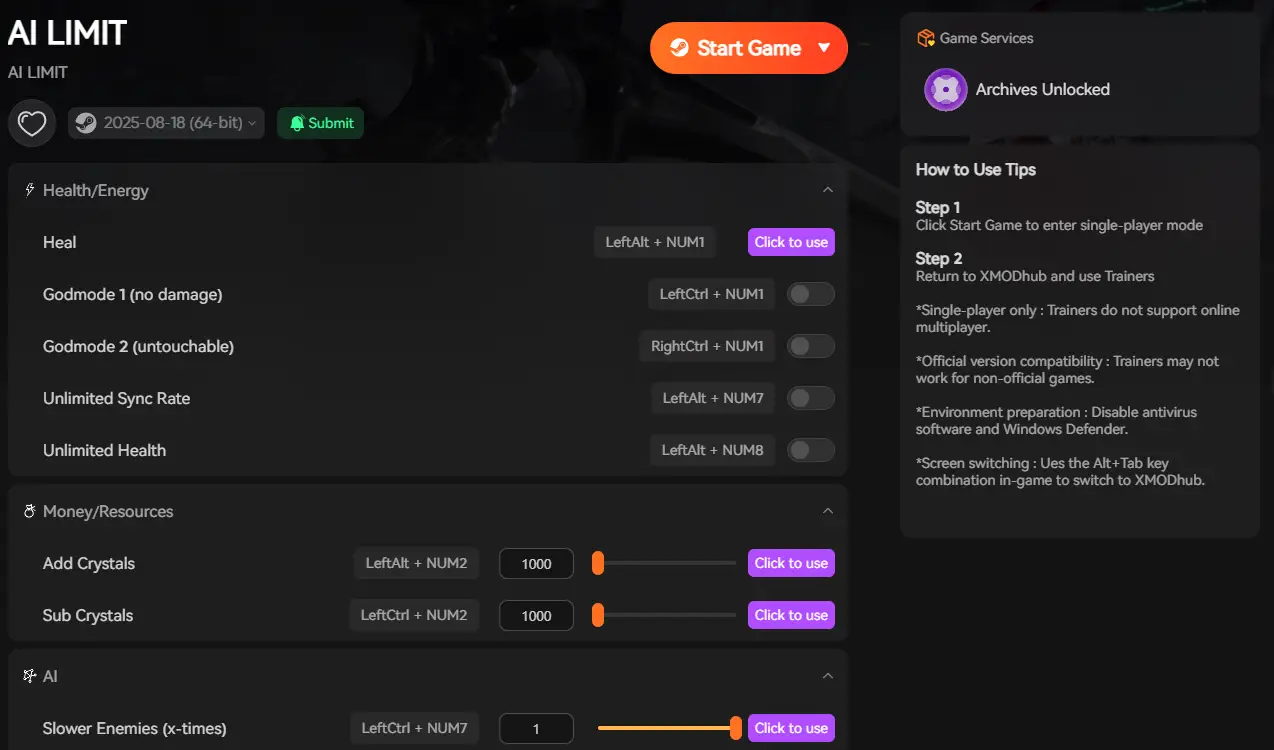
Stop letting engine crashes steal your free time. Take your progression back today.
Frequently Asked Questions (FAQ)
Where is the AI LIMIT – Eirene’s Furnace of War config file location?
If you need to manually disable Lumen or Motion Blur to prevent crashes, the config files are stored next to your saves. Navigate to %localappdata%\AILimitEirenesFurnace\Saved\Config\Windows\. Edit the Engine.ini 或 GameUserSettings.ini with Notepad to adjust your core rendering parameters.
Can I transfer AI LIMIT – Eirene’s Furnace of War saves between PCs?
Yes. Simply copy the entire SaveGames folder from the AI Limit save file location on your first PC and paste it into the same directory on your new PC. Ensure you have Steam Cloud disabled initially to prevent the server from overwriting your local transfer.
Is AI LIMIT – Eirene’s Furnace of War save data encrypted?
Fortunately, the .sav files are not hardware-locked or heavily encrypted. This allows for manual backups and the use of tools like XMODhub to modify specific character values (like level or currency) if your original data becomes inaccessible.
總結
Taking ownership of your data is the only way to survive the technical instability of a massive new release. By locating the hidden AI Limit save file location within your AppData folder and committing to a manual backup routine, you ensure a random UE5 memory leak never kills your campaign in AI LIMIT – Eirene’s Furnace of War.
However, when disaster strikes before your next backup, XMODhub is here to level the playing field. Built by hardcore gamers who despise losing progress, XMODhub supports over 5,000+ PC games. From recovering deleted playthroughs in massive RPGs to surviving the terrifying atmospheres of Resident Evil, our tools ensure you never repeat the boring grind.

我是一名熱情的遊戲玩家,也是 XMODhub 的作家,致力於為您帶來最新的遊戲新聞、秘訣和見解。.
與我聯繫:
LinkedIn 個人資料

 南希-米勒
南希-米勒