
 胡凱琳
胡凱琳
There is nothing more agonizing in PC gaming than having your highly anticipated session ruined by technical failures. When Far Far West crashing issues occur, it completely kills the momentum of your team. Because the game utilizes cutting-edge Unreal Engine 5 technologies like Lumen lighting and complex extraction shooter mechanics, the engine is incredibly sensitive to outdated drivers, corrupted configuration files, and conflicting background applications. If you are stuck staring at your desktop while your friends are already slinging spells and firing revolvers, do not panic.
We have systematically broken down the exact causes of these fatal errors and provided the definitive, step-by-step solutions to get you back into the frontier.
The Agony of Far Far West Crashing on Game Night
When Far Far West refuses to boot properly, the root cause usually lies within the communication between your hardware and the game’s engine. Unreal Engine 5 heavily relies on real-time shader compilation before you even reach the main menu. If your PC interrupts this process, the game will hang indefinitely on a black screen.
Before you begin the advanced troubleshooting steps, you must ensure that your system is not struggling with basic rendering loads. We highly recommend reading our comprehensive breakdown on Best Far Far West PC Settings 2026: Ultimate FPS Optimization Guide. Ensuring your upscaling methods and visual settings are correctly configured outside of the game can preemptively stop rendering crashes before they start.
Common Launch Error Codes Explained
When Far Far West crashes, the Unreal Engine crash reporter will usually provide a string of text. Identifying your specific error is the first step to fixing the launch error.
| Error Code / Symptom | Primary Cause | Immediate Action Required |
|---|---|---|
| Black Screen on Startup | Corrupted Shader Cache or Outdated GPU Drivers. | Clear DirectX cache and update NVIDIA/AMD drivers. |
| Fatal Error: EXCEPTION_ACCESS_VIOLATION | Conflicting background overlays or corrupted game files. | Disable Discord/Steam overlays; Verify Game Integrity. |
| Out of Video Memory (VRAM) | Game settings are pushing your GPU beyond its physical limit. | Delete the GameUserSettings.ini file to force a graphics reset. |
| Crash After Character Select | Corrupted extraction save data or incompatible community mods. | Remove the ~mods folder and disable UE4SS scripts. |
Step 1: Clear the Unreal Engine 5 Shader Cache
The most frequent culprit for a Far Far West black screen on startup is a corrupted shader cache. Every time the developers release a hotfix, the game needs to recompile visual assets. If old data is left behind, the engine freezes.
- Close Steam or the Epic Games Launcher completely.
- Press the Windows Key and search for Disk Cleanup. Open the application.
- Select your primary C: Drive.
- In the list of files to delete, ensure that DirectX Shader Cache is checked.
- Click OK and let Windows permanently delete the old shaders.
- Relaunch Far Far West. The initial boot will take longer than usual (up to 5 minutes) as the game safely rebuilds the UE5 shaders. Do not click anything during this black screen period; just let it load.
Step 2: Delete Corrupted Local Configuration Files
If clearing the shaders did not fix the Far Far West launch error, your internal graphics configuration file might be forcing the game to boot at an unsupported resolution or refresh rate, resulting in a signal loss.
- ✦1. Press Windows Key + R to open the Run dialog box.
- ✦2. Type
%localappdata%and press Enter. - ✦3. Scroll down and open the FarFarWest folder, then navigate to Saved, then Config, and finally Windows.
- ✦4. Locate the file named
GameUserSettings.ini. - ✦5. Right-click the file and delete it.
- ✦6. Relaunch the game. Far Far West will automatically generate a brand new, factory-default configuration file, bypassing any resolution-based black screens.
Step 3: Perform a Clean Graphics Driver Installation
Simply clicking “Update” in your NVIDIA GeForce Experience or AMD Adrenalin software is often not enough. Corrupted registry files from previous driver versions are notorious for causing Unreal Engine 5 titles to crash directly to the desktop.
Follow this checklist to perform a truly clean installation and eradicate the launch error:
| Step | Action Required | Why This Fixes Far Far West Crashing |
|---|---|---|
| 1. Download DDU | Download Display Driver Uninstaller (DDU) from a trusted source like Guru3D. | DDU completely wipes all traces of corrupted graphics registries that standard uninstallers miss. |
| 2. Boot Safe Mode | Restart your PC into Windows Safe Mode. | Prevents Windows from automatically reinstalling generic, outdated display drivers in the background. |
| 3. Wipe Drivers | Run DDU and select Clean and Restart. | Ensures a completely blank slate for the Unreal Engine to interface with. |
| 4. Install Fresh | Download the latest 2026 driver directly from the NVIDIA or AMD website and install it. | Guarantees Far Far West has the exact driver instructions needed to render Lumen lighting without fatal errors. |
Step 4: The Fake Developer Console Fix (Beware)
When desperate players scour forums looking for a fix for Far Far West crashing, they often stumble upon outdated advice claiming you can fix black screens by opening the developer console and typing native rendering commands.
This is a massive, dangerous misconception.
Far Far West is built on Unreal Engine 5, and Evil Raptor has permanently and strictly locked the native developer console in the retail build. There is no simple text box you can open. If you attempt to use third-party script injectors to force the developer backend open to input commands, you will actively make the problem worse. Unreal Engine 5 uses highly specific, case-sensitive Blueprint paths. Trying to force unauthorized rendering commands or spawning items via text will cause massive desynchronization in co-op lobbies, triggering instant fatal errors and potentially corrupting your entire bounty hunter profile. Do not risk your hard-earned progression on fake console command myths.
Reclaim Your Time: Dominate Far Far West with XMODhub
Imagine this: You just spent two exhausting hours troubleshooting graphics drivers, digging through AppData folders, and clearing shader caches. You finally fix the Far Far West launch error, and you load into the Spooky West. But now, your gaming window is almost over. You do not have the time to spend another three hours grinding low-level lockbox routes just to afford the Winchester Repeater or enough Ethereal Dust to upgrade your Magic Cores.
When technical difficulties eat up your precious free time, the artificial resource grind in extraction shooters stops being fun and becomes a punishment. You deserve to jump straight into the best parts of the game.
This is exactly why veteran bounty hunters use XMODhub.
XMODhub is the ultimate memory-based trainer designed specifically for PC gamers who want to bypass the boring grinds and reclaim their gaming sessions safely. It operates silently in the background without modifying a single Unreal Engine 5 game file, ensuring that you never trigger another load-order crash or fatal launch error.
How to Get Started with XMODhub
Skipping the tedious economy grind and becoming an unstoppable force requires zero technical modding skills:
- 1. Download XMODhubHead over to the official website and download the secure desktop client. It is completely safe, cleanly coded, and free from malicious background software.

- 2. Auto-Detect Game PathLaunch the application. XMODhub will automatically detect your Far Far West game directory on your PC. Click the Play button within the app to launch your game with the ultimate safety net.
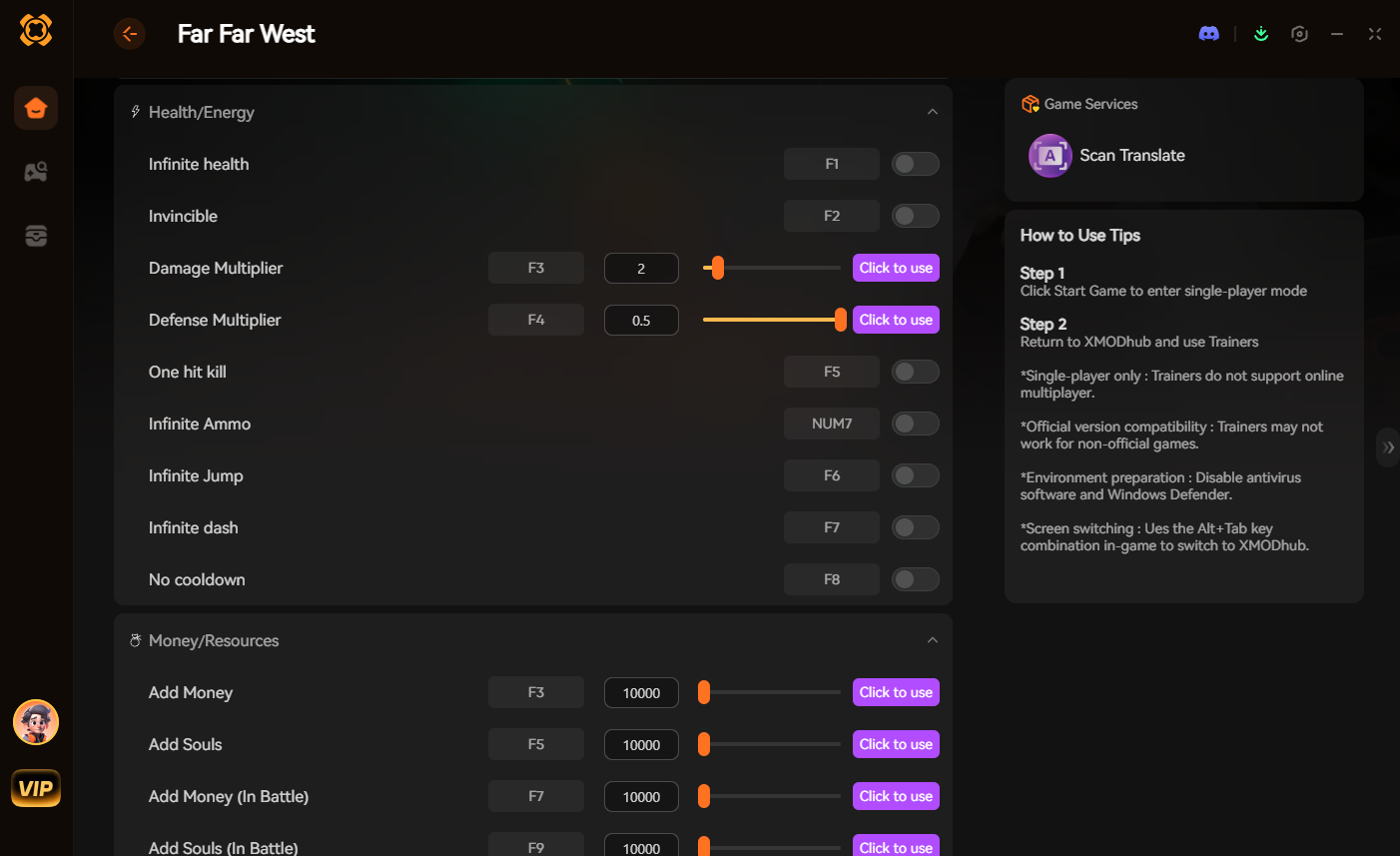
- 3. Toggle Trainers and CheatsOnce your bounty hunter is standing in the town hub, open the elegant XMODhub overlay. With a single click, activate Unlimited Bounty Coins to buy every Legendary weapon instantly. Toggle Undetected God Mode to survive Nightmare-difficulty horde waves, or turn on Infinite Ammo to fire your Hellfire Revolver endlessly without ever needing to reload.
You fixed the game; now it is time to play it exactly how you want.
Frequently Asked Questions (FAQ)
Q: Why does Far Far West crashing happen right after the developer logo?
A: This specific crash is almost always tied to the Unreal Engine 5 shader compilation process. When the game transitions from the pre-rendered video logo to the real-time 3D main menu, it aggressively loads your GPU. If your DirectX shader cache is corrupted, or if your GPU runs out of VRAM trying to load high-resolution textures from a broken GameUserSettings.ini file, the engine will protect your system by instantly shutting down the application.
Q: Will reinstalling my graphics drivers fix the Far Far West launch error?
A: Simply clicking update on your existing drivers often will not fix deep-rooted Unreal Engine crashes. You must perform a clean installation using a tool like Display Driver Uninstaller (DDU) in Windows Safe Mode. This ensures that all conflicting registry files from older driver versions are completely wiped out before the new driver interfaces with Far Far West.
Q: Can corrupted save files cause a black screen in Far Far West?
A: Yes. Because Far Far West is a co-op extraction shooter, it constantly reads and writes your character’s inventory data to your local AppData folder. If the game crashes mid-extraction, that save file can become corrupted. When you try to launch the game again, the engine fails to read your character’s status and hangs on a black screen. Removing the corrupted save from the directory (after backing it up) forces the game to pull a fresh cloud save, usually resolving the issue.
Conclusion: Conquer the Frontier
Dealing with a Far Far West crash on startup is incredibly frustrating, especially when you just want to relax and hunt monsters with your friends. By methodically clearing your shader cache, resetting your graphical configuration files, and ensuring a pristine GPU driver installation, you can permanently eliminate the black screen loop and stabilize your Unreal Engine 5 experience.
However, your gaming time is incredibly valuable. If you spent your entire evening fixing technical issues, you should not be forced to suffer through tedious resource grinding just to catch up.
XMODhub is the definitive PC gaming toolkit, offering secure, crash-free support for over 5,000+ single-player and co-op games like 墜落 4, Starfield, 賽博朋克 2077.

我是一名熱情的遊戲玩家,也是 XMODhub 的作家,致力於為您帶來最新的遊戲新聞、秘訣和見解。.
與我聯繫:
LinkedIn 個人資料