
 胡凱琳
胡凱琳
⚡ Quick Answer
To execute the PRAGMATA FOV slider install, you must bypass the hardcoded RE Engine camera lock.
- [01] Method 1: Extract the REFramework
dinput8.dllfile into your game folder. - [02] Method 2: Force Steam to launch the game with
-d3d11to prevent startup crashes. - [03] Method 3: Press the
Insertkey in-game to manually widen your Field of View.
簡介
You are deep inside the Sector 4 industrial ruins, completely surrounded by a swarm of Corrupted Sentinels. You attempt to dodge a massive kinetic halberd sweep from a Lunar Centurion, but you get clipped and instantly lose half your health.
Why? Because you literally could not see the attack coming. The camera in PRAGMATA is glued so tightly to Hugh’s shoulder that it feels like you are playing the entire game through a toilet paper roll.
There is nothing more infuriating for a seasoned PC gamer than an action-heavy survival game that lacks a basic Field of View (FOV) slider. The claustrophobic 75-degree default FOV does not just ruin your spatial awareness during intense combat; for many players, it triggers severe motion sickness and nausea within an hour of playing.
Capcom’s RE Engine is notorious for this console-first camera design, and once again, PC players are forced to fix the game themselves. This guide will explain exactly why the engine limits your view and provide the step-by-step methods to inject a custom FOV slider so you can finally see the battlefield.
Why the Vanilla Camera Ruins Combat & Causes Nausea
Before we modify the game files, it is crucial to understand why this mod is mandatory for high-level play. Hugh’s exosuit mechanics require rapid situational awareness. When Diana triggers a localized EMP, you need to quickly locate the stunned enemies to execute them before the timer runs out.
With the default 75-degree FOV, your peripheral vision is completely non-existent. You are forced to frantically swing your mouse around to track targets, which destroys your combat pacing and triggers simulator sickness.
The RE Engine intentionally restricts this field of view to optimize the heavy ray-tracing calculations happening just off-screen. By manually pushing the camera back to a comfortable 90 or 100-degree FOV, you gain full visibility of the encounter space, drastically improving your ability to perfect-parry incoming attacks.
To complement your newly enhanced situational awareness, be sure to check out our comprehensive Top 10 Best PRAGMATA Mods to Install on Day One (2026) for further gameplay optimizations.
Method 1: Inject the REFramework DLL
To bypass the game’s hardcoded camera parameters, we must inject a custom Dynamic Link Library (DLL) file that hooks directly into the RE Engine.
- Download the Mod: Navigate to your preferred modding database and download the latest PRAGMATA build of REFramework.
- Locate the Game Directory: Open your Steam Library, right-click PRAGMATA, select Manage, and click
Browse local files. - Extract the File: Open the downloaded
.zipfile and extract thedinput8.dllfile directly into the root game folder (the exact same folder where thePragmata.exefile is located).
Method 2: Force DirectX 11 to Prevent Startup Crashes
The REFramework overlay frequently conflicts with the DirectX 12 renderer, causing a fatal black-screen D3D crash the moment you launch the game. We must force the engine to use the more stable DirectX 11 API.
- Open Launch Options: In your Steam Library, right-click PRAGMATA and select Properties.
- Enter the Command: In the General tab, scroll down to the Launch Options text box.
- Apply the API: Type
-d3d11exactly as written, with no spaces before the dash. Close the properties menu.
Method 3: Configure the FOV in the Overlay Menu
With the engine stabilized and the mod injected, you must now manually set your preferred camera distance inside the game.
- Launch the Game: Start PRAGMATA through Steam. Once you reach the main menu, press the
Insertkey on your keyboard to open the REFramework overlay. - Enable the Override: In the overlay menu, expand the Camera drop-down section and check the box that says Enable FOV Override.
- Adjust the Slider: Drag the FOV slider to your preferred setting. A value of 90 is highly recommended to prevent motion sickness without causing severe texture pop-in on 16:9 monitors. Press
Insertagain to close the menu.
The Reality of Native Console Commands
When a PC port lacks basic accessibility settings like an FOV slider, veteran players instinctively reach for the tilde key (~) to open the developer console. In most classic shooters, typing fov 90 is all it takes to solve the problem instantly.
Capcom completely strips all native command prompts from the retail builds of PRAGMATA. There are no hidden configuration lines in the .ini files that control the camera distance.
Furthermore, if you attempt to use outdated hexadecimal memory editors (like Cheat Engine) to manually stretch the camera values, the game’s anti-tamper protocols will immediately detect the unauthorized memory shift, triggering a fatal crash and potentially corrupting your cloud save.
The Ultimate Shortcut: Unlock the Camera with XMODhub
Let us be completely honest: installing third-party DLL files is an incredibly frustrating hassle. Every time the developers release a minor patch or a hotfix, your dinput8.dll file breaks. The game crashes on startup, and you have to wait days for the mod author to update the framework, leaving you unable to play the game you paid for.
If you are tired of dealing with broken mods, game crashes, and tedious troubleshooting just to get a playable camera angle, the XMODhub PC Client is your ultimate solution.
Instead of fighting the engine with fragile overlay mods, XMODhub utilizes a secure, professionally updated kernel-level memory injector that safely overrides the RE Engine’s camera locks without triggering anti-cheat crashes or breaking after minor updates.
How to Master Your Camera in 3 Simple Steps:
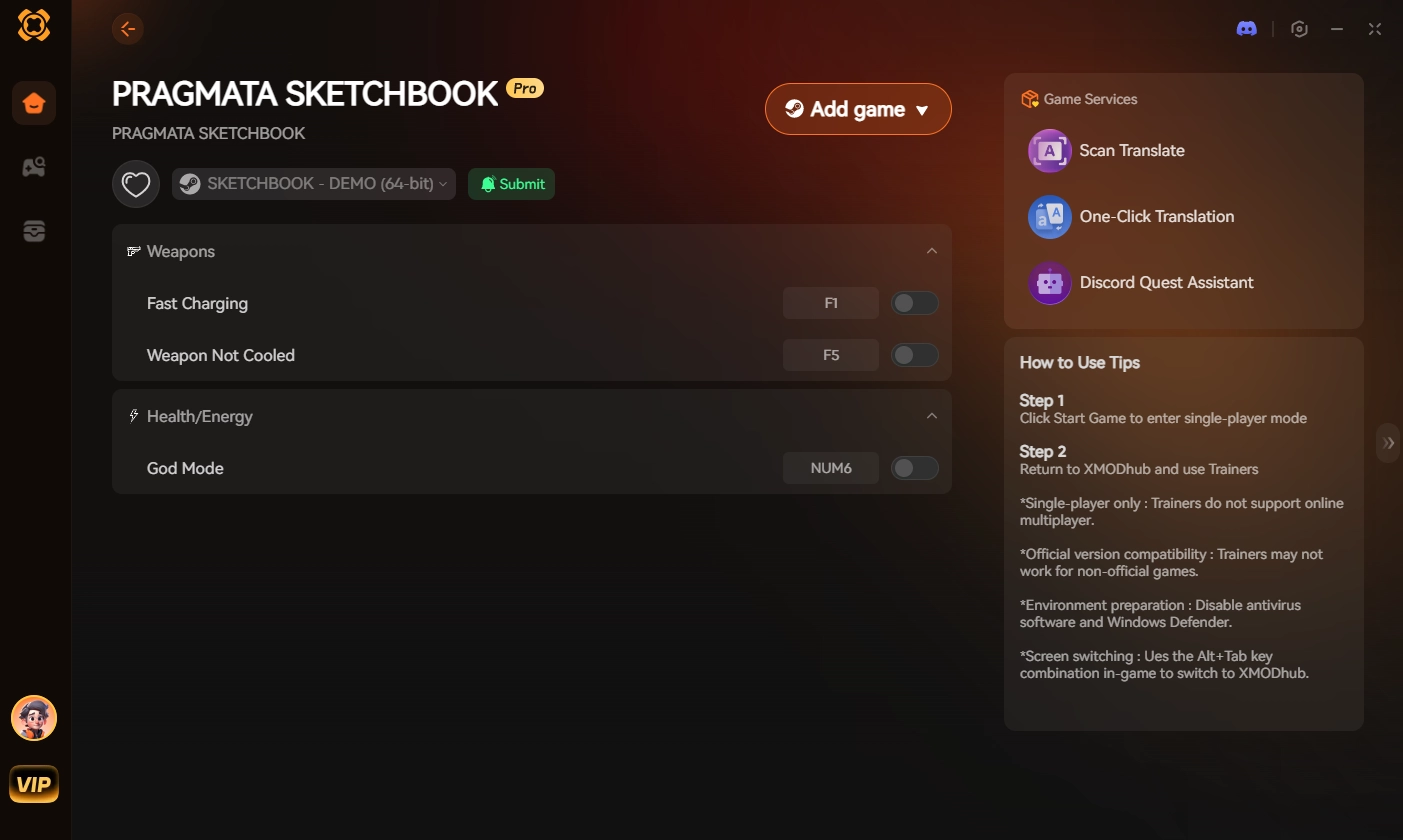
- Download XMODhub: Navigate to our official website and securely download the optimized PC desktop application.

- Auto-Detect Game Path: Launch the software. XMODhub will intelligently scan your drives, safely locate your PRAGMATA installation, and seamlessly hook into the engine.
- Toggle trainers/cheats: Click Play to launch the game smoothly. Open the sleek in-game overlay to instantly activate the Unlocked FOV Slider, Infinite Health, or Unlimited Lunar Credits.
Stop letting motion sickness and bad console ports dictate your PC gaming experience. Take total control of your camera and dominate the lunar facility entirely on your own terms.
Frequently Asked Questions (FAQ)
Q: Will the PRAGMATA FOV slider install cause RE Engine texture pop-in?
A: Yes. Because the engine relies heavily on frustum culling, pushing your FOV past 105 degrees will cause environmental objects at the extreme edges of your screen to visibly pop in and out of existence. Keeping the slider between 90 and 95 minimizes this visual glitch.
Q: Can I change Diana’s FOV during the drone hacking sequences?
A: No. The camera mod only affects Hugh’s primary third-person gameplay state. When you transition to Diana’s remote drone sequences, the engine forces a hardcoded, fixed-perspective camera that cannot be altered without breaking the level geometry.
Q: Does installing the dinput8.dll camera mod disable my Steam achievements?
A: No. The DLL injection operates strictly as a client-side visual hook. It does not alter your save data, gameplay logic, or inventory state, meaning Steam will continue to track and unlock your achievements normally.
總結
Executing the PRAGMATA FOV slider install is practically mandatory if you want to experience the game without suffering from motion sickness or frustrating blind-spot deaths. By understanding why the engine restricts your vision, and explicitly following the troubleshooting methods to inject the DLL and force DirectX 11, you can finally see the breathtaking scale of the Cradle station.
However, gaming should be an escape, not an ongoing technical troubleshooting exercise. If constantly updating broken mods is ruining your immersion, XMODhub is the definitive answer to reclaim your time.
As the premier PC gaming enhancement platform supporting over 5,000 titles, XMODhub provides the ultimate tools for single-player dominance. Whether you need a custom FOV in PRAGMATA, max sharpness in 怪物獵人 Wilds, or infinite health in Dead Space Remake, XMODhub ensures you play by your own rules.

我是一名熱情的遊戲玩家,也是 XMODhub 的作家,致力於為您帶來最新的遊戲新聞、秘訣和見解。.
與我聯繫:
LinkedIn 個人資料

 南希-米勒
南希-米勒