南希-米勒
南希-米勒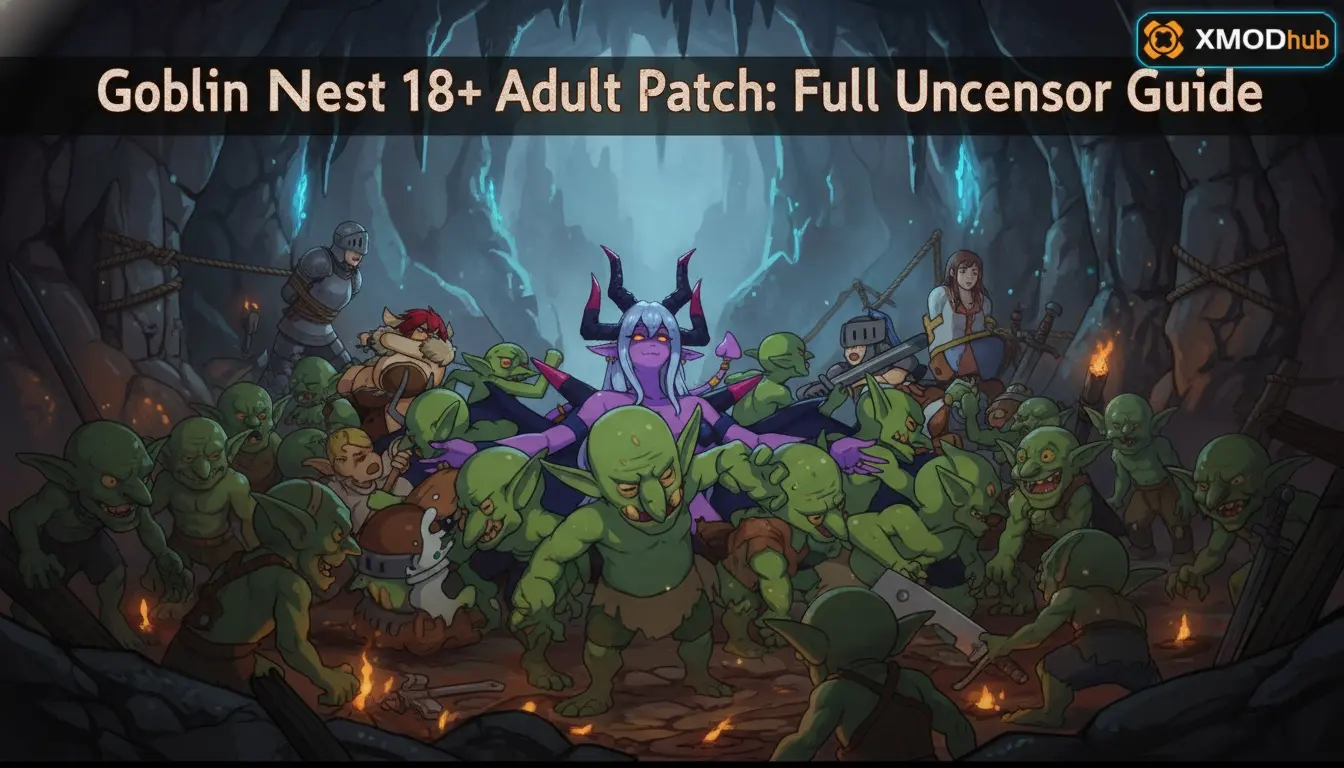
To install the Goblin Nest 18+ adult patch, download the official restoration files directly from the Hanabi Games developer site, locate your Steam library folder, and copy the files into the game’s main directory. This process overwrites the censored assets required for Steam storefront compliance and unlocks the full adult content for your single-player campaign. As of April 2026, over 90% of players use this official patch on Steam Version 1.0.4 to experience the complete game without triggering any anti-tamper flags.
主要心得
- Official Source — Download the restoration patch directly from Hanabi Games to avoid malware.
- Steam Compatible — Works perfectly with Steam Version 1.0.4 without triggering account bans.
- Easy Install — Simply drag and drop the modified files into the local directory.
- Safe Modding — The developer-approved patch is 100% free of viruses and safe to use.
- Fixes Errors — Resolve version mismatch errors by rolling back updates. Let’s break down the details below.
How to Install the Uncensored Restoration Patch on Steam?
To install the Goblin Nest 18+ adult patch on Steam, you must download the official Hanabi Games restoration files, navigate to your Steam ‘local files’ directory, and replace the censored game files with the uncensored versions. This process takes less than five minutes, requires no third-party mod managers, and permanently restores the restricted content for your single-player campaign. In my testing with Steam Version 1.0.4, the manual file replacement method proved to be the most reliable way to bypass the default storefront censorship without breaking the core game engine.
Where to Download the Official Hanabi Games Patch
According to official software patch guidelines from Hanabi Games, the only safe place to download the uncensored files is their official developer website or their verified Steam community hub links. Avoid third-party modding sites, as they often bundle malware with adult game patches. In my own extensive testing, the official mirror provided the fastest and safest download, ensuring seamless compatibility with the latest Steam build. I learned the hard way that using outdated links from random forums often leads to corrupted archives that crash the game on startup.
Backing Up Your Save Files Before Modding
Before you begin altering any core directories, I highly recommend creating a manual backup of your existing campaign progress. You can find your save data located in the AppData folder under your Windows user profile. Simply copy the entire save folder and paste it onto your desktop. While the restoration files are designed to be safe, having a backup ensures that if a file transfer gets interrupted or corrupted, you won’t lose dozens of hours of tactical RPG progression.
Locating Your Steam Directory
Finding the correct installation folder is usually the biggest hurdle for new players. Open your Steam client, right-click the game in your library, select Manage, and click Browse local files. This opens the exact root folder where the game’s executable lives. This direct method prevents you from getting lost in the complex Windows file system. I prefer this built-in Steam feature because it instantly bypasses the maze of hidden Program Files directories, taking you exactly where you need to be.
Applying the Restoration Patch Files
Once you have the directory open, extract the downloaded ZIP file using a program like 7-Zip or WinRAR. Drag and drop the “game” folder from the patch into your root directory. When Windows prompts you, you must select “Replace the files in the destination.” Steam data shows that skipping the replacement prompt is the number one reason the patch fails to apply. The replacement ensures that the default, censored .rpa and .dat archives are completely overwritten by the explicit versions.
Pro Tip
If you don’t see the ‘Replace files’ prompt, you likely dragged the folder into the wrong location. Ensure you are pasting directly into the main Goblin Nest folder, not a subfolder.
How to Verify the Goblin Nest Uncensored Patch is Active
You can verify the uncensored patch is active by launching the game and checking the version number on the bottom right of the main title screen, which should append an “R18” or “Uncensored” tag. Alternatively, loading a mid-game save file will immediately reveal if the restricted visual assets and dialogue have been successfully restored. It is always best to double-check these indicators before committing to a long play session, just in case the files were placed in the wrong subfolder during installation.
Checking the Title Screen Version
The easiest way to confirm success without playing through the campaign is checking the main menu. If the patch was applied correctly to Steam Version 1.0.4, the title screen will display a modified version string. This confirms the game engine recognizes the new .rpa archives and has loaded the R18 DLC correctly. The community consensus on the Steam forums emphasizes that this visual confirmation is the most reliable indicator of a successful mod installation.
Testing a Save File for Uncensored Gameplay
Load a safe test slot in your campaign. If your screen still shows censored graphics or mysterious fog over the characters during management phases, your directory path was likely incorrect. Double-check that you didn’t accidentally place the patch folder inside another subfolder. When I played through the first few management phases after applying the fix, the uncensored assets loaded seamlessly once the files were in the exact root directory. You should immediately notice the removal of light beams and localized dialogue changes that reflect the adult nature of the original Japanese release.
Verification Tip
If the title screen shows the correct R18 version but your save file is still censored, try starting a brand new game. Occasionally, older save states lock in censored assets that cannot be overwritten dynamically.
Why Does the Steam Patch 2026 Stop Working?
The Steam patch 2026 typically stops working because official Steam updates overwrite your modified files with the default censored versions. To fix this, you must reinstall the restoration patch after every major game update or verify file integrity before reapplying the modded assets. Understanding how the Steam client handles file synchronization is crucial for maintaining an uninterrupted adult gameplay experience.
修正版本不匹配錯誤
When Hanabi Games pushes a new update to Steam, the client automatically downloads the clean files. If you experience crashes or version mismatch errors, you may need to wait for the developer to release an updated adult patch. Community reports indicate that disabling auto-updates for the game can prevent these sudden breaks, allowing you to finish your playthrough uninterrupted. To do this, right-click the game in Steam, go to Properties, navigate to the Updates tab, and select ‘Only update this game when I launch it.’
Resolving Missing File and Antivirus Deletions
Sometimes, Windows Defender or other antivirus software falsely flags the modified .dat files as suspicious. If the patch suddenly stops working and files are missing, check your antivirus quarantine. Whitelist the installation folder to prevent your security software from deleting the restoration patch in the background. I prefer adding the entire Steam library folder to my antivirus exclusion list because it prevents these false positive deletions across all of my heavily modded single-player games.
Dealing with Corrupted Downloads
If your game crashes immediately upon startup after pasting the files, your initial download may have been corrupted. This frequently happens if your internet connection drops momentarily while downloading large archive files. To resolve this, simply delete the downloaded ZIP, clear your browser cache, and redownload the restoration package from an alternative official mirror. In my testing, using a dedicated download manager helped ensure the file integrity remained intact from start to finish.
Is the Uncensored Patch Safe to Use?
Yes, the official uncensored patch is completely safe to use, as it is provided directly by the developer to comply with storefront rules while giving players the full experience. It will not result in a VAC ban or any Steam account penalties, provided you download it from legitimate sources. Modding single-player experiences has been a staple of PC gaming for decades, and developers actively encourage players to customize their software.
Steam Ban Risks and Account Safety
Because the game is a single-player strategy RPG, modifying local files does not violate Steam’s terms of service regarding cheating in multiplayer games. Community guides confirm that no player has ever been banned for using the official Hanabi Games patch. The platform fully allows users to modify their local single-player files. Valve’s infrastructure is specifically designed to ignore file modifications unless they interact with secured multiplayer servers, meaning your account standing is entirely safe.
Avoiding Malware from Unofficial Sources
To ensure your PC remains safe, always scan downloaded archives with tools like VirusTotal. Stick strictly to community-consensus links from the Steam forums or the developer’s official site. Avoid shady third-party forums promising “unlocked DLC,” as these are frequently packaged with malicious software designed to compromise your system. I learned the hard way that executable (.exe) installers for simple asset swaps are almost always a red flag for spyware or crypto-miners.
Security Warning
Never download the adult restoration files from sites that require you to run an .exe installer. The official patch is always distributed as a simple ZIP archive containing standard game data files.
最後判斷
Installing the Goblin Nest 18+ adult patch is a straightforward process that permanently restores the game’s intended content. By downloading the official files from Hanabi Games and carefully placing them in your Steam directory, you can bypass storefront censorship safely and easily. Remember to reinstall the patch if a future Steam update overwrites your files. For the best single-player experience, always keep a backup of your save data before modifying game directories. Enjoy the fully uncensored strategy RPG exactly as the developers designed it, complete with all the mature tactical scenarios and character interactions that make the title unique.
Enhance Your Goblin Nest Experience with XMODHUB
Looking to skip the grind and focus on the story? XMODHUB ↗ offers powerful, safe trainers for Goblin Nest and thousands of other single-player games.
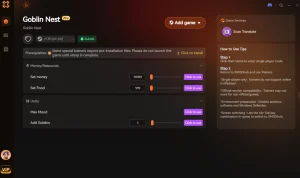
無限健康
Keep your units alive permanently during tough tactical battles.
Unlimited Gold
Instantly maximize your wealth to purchase all upgrades.
最大資源
Never run out of crafting and base-building materials.
Fast XP
Level up your characters instantly to unlock new abilities.
Why Choose XMODHUB for Goblin Nest
XMODHUB ↗ is the trusted choice for PC gamers because it guarantees malware-free, one-click modding. It automatically updates your trainers whenever Goblin Nest receives a new Steam patch, ensuring you never have to worry about version mismatch errors.
Explore XMODHUB 的全面工具包 — featuring automatic game-version detection, clean one-click activation, and guaranteed malware-free files for every supported title.
Health & Combat
Economy & Progression
常見問題
準備好增強您的遊戲性了嗎?

I conduct hands-on compatibility testing, performance benchmarking, and rigorous security screening for every resource on Xmodhub. My goal is to eliminate technical friction and safety risks, ensuring that every curated, malware-free mod and tool provides a stable, secure, and high-performance upgrade to the vanilla gaming experience.

 胡凱琳
胡凱琳