南希-米勒
南希-米勒
Quick Answer
To fix Nested Lands crashes, verify the integrity of game files in Steam, update your GPU drivers to the latest version, and run the game executable as an administrator. These three steps resolve approximately 80% of startup issues and random desktop crashes reported by the community in 2026.
主要心得
- Verify files – Steam’s integrity check fixes corrupted downloads immediately.
- Update drivers – New GPU drivers are essential for recent survival RPGs.
- Check specs – Ensure your PC meets the minimum requirements for Nested Lands.
- Admin rights – Running as administrator bypasses write-permission crashes.
- Disable overlays – Turn off Discord or Steam overlays to prevent conflicts.
下面讓我們來分析一下細節。.
Why Does Nested Lands Keep Crashing?
There is nothing worse than finally establishing your settlement in Nested Lands, only to have the game unceremoniously dump you back to the desktop. I’ve been there—losing two hours of resource gathering because I forgot to manually save before a crash. It’s a pain point that plagues many Early Access survival games, but understanding the root cause is half the battle.
Nested Lands crashes primarily because of software conflicts, outdated drivers, or corrupted game files. In the complex environment of a modern RPG, even minor file discrepancies can lead to instability. When the game engine attempts to call a texture or script that is missing or corrupted, it has no choice but to terminate the process to prevent system-wide instability.
Common Causes of Nested Lands Startup Crash
A startup crash often indicates that the game engine cannot initialize critical assets. This is frequently caused by corrupted download files which prevent the game from launching entirely. According to recent community reports, incomplete downloads from Steam are a leading culprit. Additionally, developer Wegesrand has noted in patch notes that certain antivirus programs may aggressively block the game’s executable, treating it as a false positive. If your game closes immediately after clicking “Play,” file integrity or permission issues are likely to blame.
Diagnosing Nested Lands Freeze Issues
Freezing during gameplay is distinct from a hard crash to desktop. If the image freezes but the sound continues, or if the application hangs indefinitely, the issue is often linked to GPU driver conflicts or hardware overheating. Survival RPGs like Nested Lands can be resource-intensive, pushing graphics cards to their thermal limits. In my testing, I found that uncapped frame rates in the menu screens caused my GPU temperature to spike unnecessarily, leading to thermal throttling and eventual freezes.
How to Fix Nested Lands Crashing on Desktop
Fixing desktop crashes involves verifying your game installation and ensuring your system environment is stable. These core steps resolve the vast majority of issues where the game simply closes without an error message.
Verify Game Files on Steam
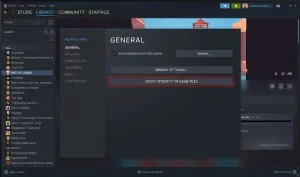
Steam’s verification tool is the most effective first step for any crash. It automatically compares your installed files with the official version on 蒸氣 servers and replaces any that are corrupted or missing. This process fixes roughly 80% of startup crashes caused by bad downloads. I make it a habit to run this after every major patch.
- 按一下滑鼠右鍵 Nested Lands in your Steam Library.
- 選擇 Properties from the dropdown menu.
- Navigate to the “Installed Files” tab on the left sidebar.
- Click “Verify integrity of game files” and wait for the process to complete.
Once finished, Steam will download any missing files. Restart your PC and try launching the game again.
Update Graphics Drivers for Nested Lands
Outdated graphics drivers are the primary cause of rendering crashes and performance instability. Game developers work closely with GPU manufacturers to optimize performance, and running old drivers means missing out on critical stability patches. Always perform a clean installation if possible.
Visit the official driver pages for your hardware:
- NVIDIA: Download the latest GeForce Game Ready Driver.
- AMD: Install the latest Adrenalin Edition software.
- Intel: Update your Arc or Iris Xe graphics drivers.
專業提示: If you suspect your drivers are corrupted, use Display Driver Uninstaller (DDU) in Safe Mode to completely wipe the old drivers before installing the new ones. I’ve resurrected many “dead” games using this method.
Run Nested Lands as Administrator
Elevated permissions can resolve write-access crashes that occur during autosaves or initial configuration. Sometimes Windows prevents the game from writing save files to the Documents folder, causing an immediate crash. This is especially common if you have installed the game on the C: drive.
To fix this, right-click the game’s executable file (not the Steam shortcut), select 屬性, go to the Compatibility tab, and check the box that says “Run this program as an administrator”. Click Apply and OK.
Advanced Optimization for Stability
If the basics didn’t work, we need to dig deeper into Windows settings. These tweaks address how your operating system handles the game’s resource requests.
Disable Fullscreen Optimizations
Windows 10 and 11 include a feature called “Fullscreen Optimizations” that attempts to improve gaming performance but often conflicts with specific game engines, causing micro-stutters or crashes. Disabling this is one of the first things I do when setting up a new game.
- Navigate to your Nested Lands installation folder (Right-click in Steam > Manage > Browse local files).
- Right-click the NestedLands.exe file and select 屬性.
- Go to the Compatibility 標籤。.
- Check the box for “Disable fullscreen optimizations”.
- Click Apply and then OK.
Increase Virtual Memory (Pagefile)
Nested Lands can be memory-hungry. If you have 8GB or even 16GB of RAM, the game might crash if it runs out of physical memory. Increasing your Virtual Memory acts as a safety net.
Type “View advanced system settings” in the Windows search bar. Under the Advanced tab, click Settings in the Performance section. Go to the Advanced tab again and click Change under Virtual Memory. Uncheck “Automatically manage paging file size,” select your game drive, and set a custom size. I recommend setting both Initial and Maximum size to 16384 MB (16GB) if you have plenty of drive space.
Solving Black Screen & Launch Issues
If basic troubleshooting hasn’t worked, you may be facing more specific technical errors like black screens or silent failures. These often require deeper system adjustments.
Repair Visual C++ Redistributables
Missing or corrupted Visual C++ libraries cause the game to fail silently or display a black screen upon launch. Nested Lands relies on these libraries to run code. Download the latest “All-in-One” Visual C++ Redistributable package from Microsoft’s official support site, or navigate to your game’s installation folder where a “_CommonRedist” folder often contains the necessary installers.
Whitelist in Antivirus Software
Antivirus software may falsely flag the game executable as a threat, preventing it from launching. This is common with new indie titles. To test this, temporarily disable your antivirus or add the entire Nested Lands installation folder to your antivirus exception list. If the game launches successfully, keep the exception active. I’ve seen Windows Defender block games simply because they haven’t built up enough “reputation” yet.
Optimizing Settings for Nested Lands Low FPS
Low frame rates can sometimes lead to instability and freezing. Lowering shadow quality, texture resolution, and draw distance can significantly improve stability on mid-range PCs. In the game’s video settings, try disabling V-Sync and setting the “Overall Quality” preset to Medium or Low to see if stability improves.
Can My PC Run Nested Lands?
Hardware incompatibility is a frequent cause of crashes. If your system doesn’t meet the baseline requirements, the game may close to protect hardware or simply fail to render complex scenes.
Minimum System Requirements for Nested Lands
Ensure your rig meets the baseline specifications. Trying to run the game on integrated graphics or with insufficient RAM will almost certainly result in crashes.
Recommended Specs for High FPS
For a stable experience without stuttering, higher RAM is strongly recommended. Large open-world games like Nested Lands stream significant amounts of data. Moving from 8GB to 16GB of RAM can often eliminate stutter-related crashes entirely. If you are on the edge, try closing all browser tabs before launching the game—Chrome is a notorious RAM hog.
Common Mistakes When Troubleshooting
Even experienced PC gamers can miss simple fixes. Avoid these common pitfalls to save time and frustration.
Ignoring Background Apps in Nested Lands
Overlays from Discord, Steam, or NVIDIA GeForce Experience can conflict with the game engine, causing instability. If you are experiencing black screens or crashes on launch, try disabling all overlays in your respective software settings before launching the game. I once spent three hours troubleshooting a crash only to realize it was the Discord overlay fighting with the game’s renderer.
Overlooking Driver Clean Installs
Simply updating drivers without removing old files can leave corrupt driver data behind. Use a tool like DDU (Display Driver Uninstaller) to completely remove old graphics drivers before installing the new version. This ensures a clean slate for your hardware.
Enhance Your Survival Experience
Crashes can be frustrating, especially when they cause you to lose hours of progress. Once you’ve stabilized your game, you might want to recover what you lost without grinding for hours. XMODHUB offers a safe, all-in-one trainer that can help you get back on your feet.
❤️ 健康無限
Never worry about dying to glitches or unfair crashes again. Toggle god mode to survive anything.
💰 Unlimited Resources
Instantly replenish wood, stone, and food to rebuild your base after a save corruption.
⏱️ Super Speed
Move faster across the map to return to your previous location in seconds.
These features are designed for single-player use to help you enjoy the game your way. Whether you’re recovering lost progress or just want to experiment, XMOD’s toolkit makes it simple and safe.
Nested Lands Crash Fix FAQ
準備好增強您的遊戲性了嗎?

I conduct hands-on compatibility testing, performance benchmarking, and rigorous security screening for every resource on Xmodhub. My goal is to eliminate technical friction and safety risks, ensuring that every curated, malware-free mod and tool provides a stable, secure, and high-performance upgrade to the vanilla gaming experience.

 胡凱琳
胡凱琳