Catherine Hu
There is nothing worse than sinking 20 hours into a complex Pacific campaign in Task Force Admiral, carefully managing your pilot rosters and carrier fuel, only to face a corrupted save file or a cloud sync error. In a simulation game where every decision has long-term consequences, losing your progress isn’t just a glitch—it’s a tactical disaster.
Whether you want to manually backup your progress before a decisive battle, transfer your fleet command to another PC, or tweak the configuration files for better performance, you first need to find where the data is hidden.
Below is the exact file path for Task Force Admiral on Windows and Steam Deck, along with a safer, automated method to manage your backups.
You may also like:
Task Force Admiral – Vol.1: Cheat Engine Table vs. XMODhub Trainer (Best Free Alternative)
Editor’s View: The Cost of a Lost Fleet
“We have all been there. You are deep into the Battle of Midway scenario, you’ve just spotted the enemy carrier group, and suddenly—a power flicker or a random crash during an auto-save. When you relaunch, the ‘Resume’ button is gone.
I specifically wrote this guide because Task Force Admiral stores data in a slightly different structure than standard arcade games due to its replay system. Even if you don’t plan on modding, please backup your SaveGames folder manually. Don’t lose a Level 5 Air Group to a hard drive error like I did.”
— Catherine Hu, Senior Editor & Sim Enthusiast at XMODhub
Windows PC Save File Location
For the Steam version of Task Force Admiral – Vol.1, the save files are located in the hidden AppData folder, following the standard Unreal Engine directory structure.
C:\Users\[YourUsername]\AppData\Local\TaskForceAdmiral\Saved\SaveGames\(Note: Depending on the specific build version, the folder might be named TFA instead of TaskForceAdmiral. Check both if unsure.)
How to navigate there quickly:
01
Press Windows Key + R on your keyboard to open the Run dialog.
02
Type %localappdata% and press Enter.
03
Scroll down and look for the folder named TaskForceAdmiral (or TFA). Open it and navigate to Saved > SaveGames.
Inside, you will find files ending in .sav.
Task Force Admiral Config File Location (Graphics & Settings)
If you need to manually tweak graphics settings—such as disabling Motion Blur, adjusting LOD (Level of Detail) distances, or changing FOV beyond the menu limits—you need to edit the .ini configuration file.
C:\Users\[YourUsername]\AppData\Local\TaskForceAdmiral\Saved\Config\WindowsNoEditor\How to Edit: Right-click the GameUserSettings.ini (or Engine.ini) file and select Open with Notepad. Warning: Always create a backup (e.g., GameUserSettings.ini.bak) before changing values, as incorrect settings can cause the game to crash on launch.
Bonus: Where are Replay Files Stored?
Unlike most games, Task Force Admiral generates large replay files so you can watch battles unfold from any perspective later. These files can take up significant space.
C:\Users\[YourUsername]\AppData\Local\TaskForceAdmiral\Saved\Demos\Tip: If your SSD is filling up, check this folder. Deleting old battle replays is a safe way to free up space without losing your campaign progress.
Steam Deck / Linux Save Location
If you are commanding the Pacific fleet from your couch on the Steam Deck, the Windows file structure is emulated within the Proton compatibility layer.
/home/deck/.local/share/Steam/steamapps/compatdata/1281220/pfx/Note: 1281220 is the specific Steam App ID for Task Force Admiral. Once inside the folder, navigate to: drive_c/users/steamuser/AppData/Local/TaskForceAdmiral/Saved/SaveGames/ to find your saves.
The Smarter Way: One-Click Backup with XMODhub
Navigating through hidden %AppData% folders every time you want to secure your campaign is tedious and risky. One accidental delete, and your war effort is over. XMODhub offers a built-in Save Manager tool designed specifically for strategy games like Task Force Admiral.
- Auto-Backup: XMODhub automatically backs up your campaign file every time you exit the game.
- Timeline Rollback: Made a tactical error that sank your carrier? Roll back to a save state from 30 minutes ago instantly.
- Replay Management: Organize your battle demos visually without digging through system folders.
XMODhub: More Than Just a Save Manager
XMODhub is your ultimate all-in-one toolkit for PC single-player gaming. It goes far beyond simple backups—whether you need powerful Trainers to tweak naval resources, real-time Translation Tools, or detailed Interactive Maps, XMODhub has everything covered to customize your command experience.
Our library supports over 5,000 games, ensuring that whether you are playing Task Force Admiral – Vol.1 or similar naval strategy hits like UBOAT and War on the Sea, you always have the best tools at your fingertips.

How to Use XMODhub for Task Force Admiral – Vol.1
Getting started is seamless. Just follow these steps:
- Download and Install the XMODhub client safely.

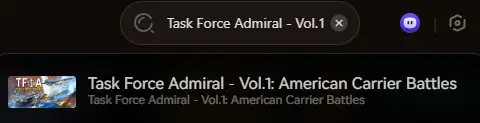
- Search for Task Force Admiral in the client’s library.
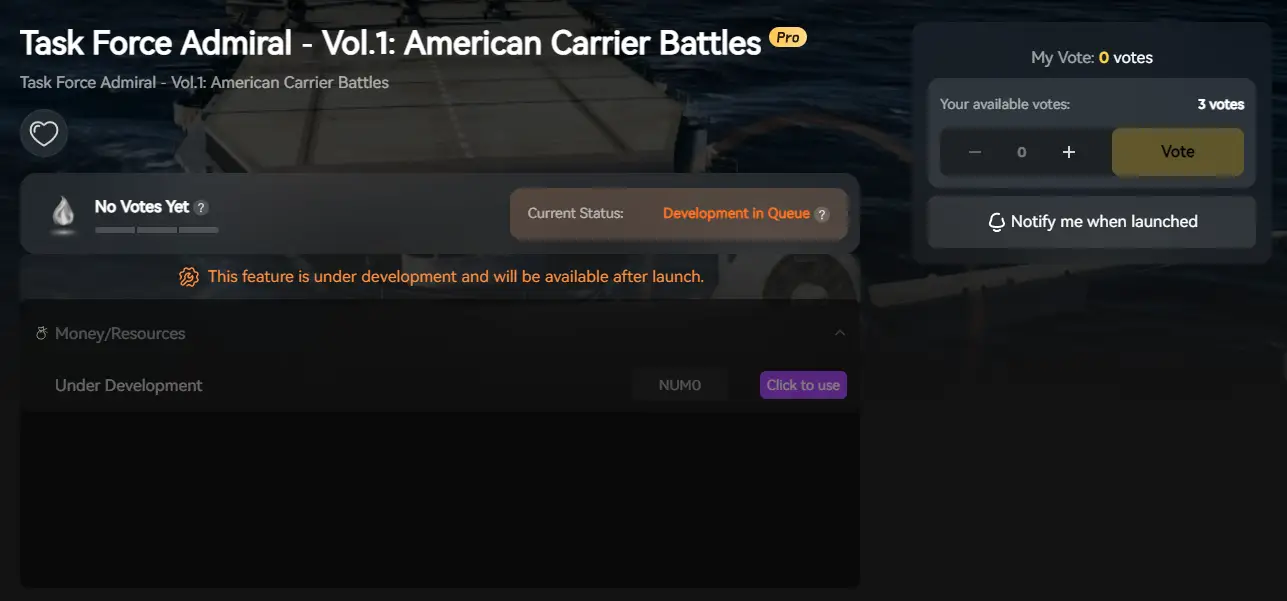
- Launch the game directly from the client and enjoy your enhanced gameplay!
FAQ
Q: Can I transfer my Task Force Admiral save to another PC?
Yes. Simply copy the .sav files from the SaveGames folder mentioned above to the exact same location on the new computer.
Q: What happens if I delete the config file?
If you delete GameUserSettings.ini, the game will regenerate a default version upon the next launch. This is a good way to fix “black screen” issues caused by bad graphics settings.
Q: Why can’t I find the AppData folder?
The AppData folder is hidden by default in Windows. In File Explorer, click the View tab and check the box for “Hidden items”.
Conclusion
Finding the Task Force Admiral save file location is the first step in being a responsible commander. Whether you are fixing a corrupted file, transferring your progress to a Steam Deck, or clearing out old replays, knowing where your data lives is essential.
However, messing with system folders always carries a small risk. If you prefer a “set it and forget it” solution, we highly recommend using the XMODhub Save Manager. It keeps your hard-earned progress safe so you can focus on the horizon, not the files.
Protect your fleet. Backup smarter.

I am a passionate gamer and writer at XMODhub, dedicated to bringing you the latest gaming news, tips, and insights.
Connect with me:
LinkedIn Profile ↗
 Nancy Miller