Nancy Miller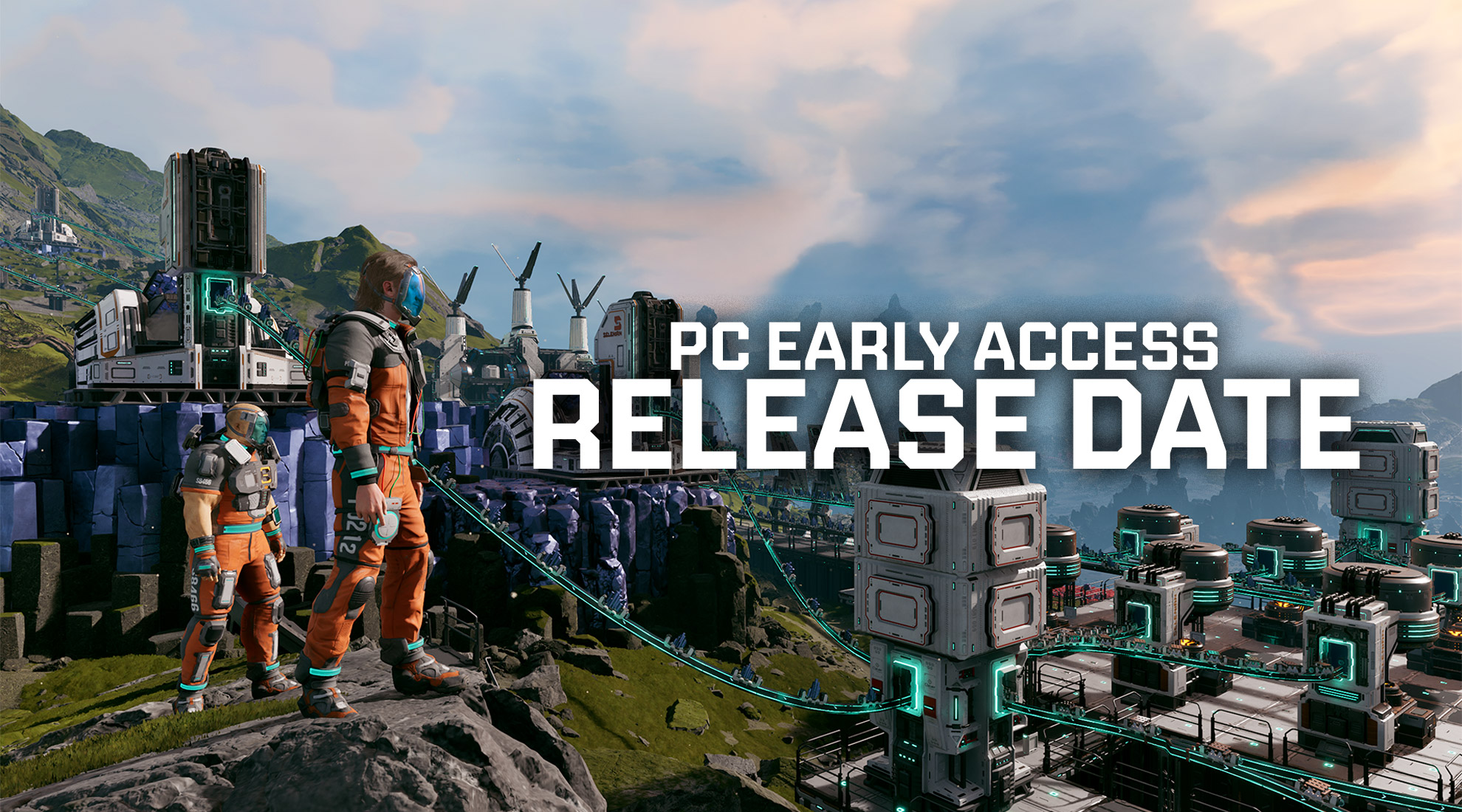
Updated for Latest Patch | PC Optimization Guide
There is nothing worse than spending hours fortifying your industrial complex against waves of alien swarms, only to stare at a frozen screen or a desktop crash. If you are looking for a reliable StarRupture crash fix, you aren’t alone.
One moment you’re managing your energy grid on a volcanic planet, and the next, you’re staring at your desktop wallpaper wondering what went wrong. Whether you are dealing with the game refusing to launch, black screens, or stuttering frame rates, this guide covers the practical steps to stabilize your game. From verifying files to optimizing driver settings, let’s get your PC gaming experience back on track.
Key Takeaways for Stability
- Verify Integrity – Corrupted downloads are the #1 cause of launch failures.
- Update Drivers – Outdated GPU software causes black screens.
- Check Specs – Ensure your hardware meets the minimum requirements.
- Virtual Memory – Prevent memory leaks by increasing your page file.
- Recover Progress – Use XMOD to restore lost resources after a crash.
Let’s break down the details below.
Why Do You Need a StarRupture Crash Fix?
Understanding why the game fails is half the battle. As an early access title, StarRupture is actively being developed, which means optimization can fluctuate between patches.
Does Your PC Meet StarRupture System Requirements?
Before diving into complex software fixes, ensure your rig can handle the volcanic chaos. Trying to run the game on below-minimum specs is a guaranteed recipe for StarRupture freezing.
| Component | Minimum Requirements | Recommended Specs |
|---|---|---|
| OS | Windows 10 (64-bit) | Windows 10/11 (64-bit) |
| Processor | Intel Core i5-6600K / AMD Ryzen 5 1600 | Intel Core i7-8700K / AMD Ryzen 7 2700X |
| Memory | 16 GB RAM | 16 GB RAM |
| Graphics | NVIDIA GTX 1070 / AMD RX 5600 XT | NVIDIA RTX 2070 / AMD RX 5700 XT |
| DirectX | Version 12 | Version 12 |
How Outdated Drivers Cause StarRupture Freezing
Your GPU device driver is the translator between the game code and your hardware. Ignoring these updates is one of the most common reasons for instability.
Complete StarRupture Crash Fix Guide for PC
If your hardware checks out, let’s move to the software solutions. Follow these steps in order.
How to Verify StarRupture Game Files on Steam
This is the “magic button” for PC gaming. It checks every file in your installation against the official server version.
- Open your Steam Library.
- Right-click on StarRupture and select Properties.
- Navigate to the Installed Files tab.
- Click Verify integrity of game files.
- Wait for the process to complete.
Updating Graphics Drivers for StarRupture
Go directly to the source for your graphics processing unit. A “clean install” option is recommended to remove any corrupted legacy files.
Force StarRupture to Run as Administrator
Sometimes Windows security blocks the game from accessing necessary files. Running the game as an Administrator grants it the permissions it needs.
Preventing StarRupture Black Screen on Launch
A black screen usually means the game is struggling to initialize the display mode. In Steam Launch Options, try adding this command:
-windowed -noborderAdvanced Technical Solutions for Hard Crashes
If basic fixes didn’t work, your issue might be related to how the Unity engine interacts with your system’s memory or DirectX version. These advanced steps are for power users experiencing persistent crashes.
Forcing DirectX 11 Mode in Launch Options
Early Access games often struggle with DirectX 12 stability on certain hardware configurations. Forcing the game to run in the older, more stable DirectX 11 mode can eliminate random desktop crashes.
Right-click StarRupture in Steam > Properties > General. In the “Launch Options” box, paste:
-dx11Increasing Windows Virtual Memory (Page File)
StarRupture’s expansive map can consume huge amounts of RAM. If you have 16GB or less, Windows may run out of memory and force-close the game. Increasing your Virtual Memory (Page File) acts as a safety buffer.
How to Configure:
- Search “Advanced System Settings” in Windows.
- Go to Performance > Settings > Advanced Tab.
- Click “Change” under Virtual Memory.
- Uncheck “Automatically manage”, select “Custom size”, and set both Initial and Maximum size to 16000 MB (or higher).
Analyzing the Player.log File for Errors
When StarRupture crashes, it generates a log file that tells you exactly why. Locating this file can help you pinpoint if a specific DLL or mod is causing the issue.
Navigate to this folder to find your logs:
%USERPROFILE%\AppData\LocalLow\StarRupture_Devs\StarRuptureCommon Mistakes That Sabotage Your Fixes
1. Ignoring Windows Updates
Game dependencies often rely on the latest version of Windows.
2. Aggressive Overclocking
Pushing your hardware with overclocking tools might work for some games, but StarRupture’s engine might be sensitive to unstable clock speeds.
3. Running on Integrated Graphics
Force the game to use your high-performance NVIDIA or AMD card via the Windows Graphics Settings menu.
Now that your game is running smoothly, jump back into the action with our StarRupture Survival Guide & Walkthrough.
Why the ‘StarRupture Won’t Launch’ Issue Persists
If the basics didn’t work, we need to look at system dependencies and background conflicts.
Fixing Visual C++ Errors in StarRupture
Games rely on Microsoft Visual C++ redistributables to run. Download the latest “All-in-One” package from Microsoft’s official site.
Recover Lost StarRupture Progress with XMODHUB
Crashes in StarRupture can be devastating. XMODHUB offers a safety net, allowing you to quickly restore what technical errors took away.
💰 Infinite Resources
Instantly replenish materials lost during a crash so you can rebuild your base immediately.
❤️ God Mode
Prevent death during lag spikes or FPS drops by making your character invincible.
⏱️ Game Speed
Speed up the game to quickly get back to the point where you crashed.
⚔️ Infinite Ammo
Never run dry during intense defense waves, ensuring you don’t lose progress to combat failures.
Frequently Asked Questions
Ready to enhance your gameplay and secure your progress?

I create content for Xmodhub, where I curate and share game mods, tools, and other resources. My goal is to help players discover great add-ons, enjoy a smoother experience, and have more fun.


 Catherine Hu