
 Catherine Hu
Want to test out endgame legendary weapons early in the new Early Access build? Or maybe you failed a crucial dice roll, lost your Thieves’ Tools, and now you are stuck in front of a locked chest? Using item spawner tools is a staple of PC CRPG freedom.
Below is the most comprehensive, categorized list of internal Item IDs and codes for Solasta II, updated for the March 2026 Early Access launch.
You may also like: Solasta II Cheat Engine Alternative Guide
Editor’s View: The “Typo” Nightmare in Unity Engines
“In Unity-based CRPGs like Solasta II, typing player.additem Item_Potion_Cure_Wounds_Major 10 is fine once. But if you are stocking up your entire party and need to type that code 50 times? It’s repetitive, the IDs are highly case-sensitive, and one wrong character means a ‘Syntax Error’. While the datamined lists below are verified, I personally switched to the Visual Spawner. Seeing the item icon and just clicking ‘Add to Inventory’ is how modern tweaking should feel.”
— Catherine Hu, Content Lead at XMODhub
Quick Reference: Top 10 Most Wanted Solasta II IDs
Don’t want to scroll? Here are the internal database codes for the most essential items (Gold, Revivify scrolls, and top-tier gear) for your party.
How to Enable Console & Use Commands (Important Engine Note)
Crucial Fact Check: Solasta II runs on the Unity Engine. Tactical Adventures has locked the native developer console in the retail/Early Access release. You cannot simply press the Tilde (~) key to open a command line like you can in Bethesda games.
To use the raw Item IDs listed below, you have two choices:
The Hard Way: Install a third-party modding framework (like Unity Mod Manager or BepInEx), find a working “Developer Console Enabler” mod that is compatible with the latest patch, and type the commands manually. The standard format via these mods is usually spawn [Item ID] [Quantity].
The Easy Way: Bypass the broken console entirely using memory injection.
The Easy Way: XMODhub Visual Spawner
Stop Alt-Tabbing to check tables, and stop waiting for mod frameworks to update every time Solasta II gets a hotfix.
Typing long, case-sensitive Unity ID codes breaks your immersion. XMODhub includes a native Visual Spawner feature specifically built for Solasta II’s engine.
Icon-Based: See exactly what the weapon or armor piece looks like before you spawn it directly into your Paladin’s inventory.
Search Bar: Just type “Longsword” in the overlay and click the exact variant (+1, +2, Flaming, etc.) you want.
Batch Add: Get 999x Rations or Gold with one single button click.
XMODhub: More Than Just a Visual Spawner
XMODhub is your ultimate all-in-one toolkit for PC single-player gaming. Whether you need powerful Trainers to bypass unfair dice rolls, real-time Translation Tools, or detailed Interactive Maps to find secret loot, XMODhub has everything covered.

Our library supports over 5,000+ games, ensuring that whether you are playing Solasta II or returning to the original Crown of the Magister, you always have the best tools at your fingertips.
How to Use XMODhub for Solasta II: Getting started is easy.
Download and Install the XMODhub client safely from our homepage.

Search for “Solasta II” in the client’s search bar.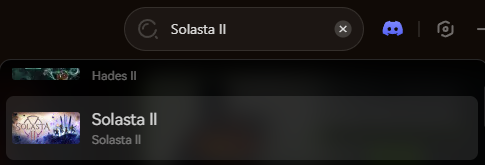
Select the specific tool you need (Trainer, Visual Spawner, or Save Manager).
Launch the game directly from the client and enjoy your enhanced D&D adventure!
Weapon IDs List
Here are the datamined internal codes for popular melee and ranged weapons.
Armor & Clothing IDs List
Ammo & Consumables IDs List
Skills, Feats & Traits IDs
In a strict 5e ruleset game like Solasta II, you cannot simply add “skills” loosely. You must inject Feats or Background traits. Note: Doing this via basic console mods often breaks character sheets. We highly recommend using XMODhub’s character editor to alter stats and feats safely.
Troubleshooting: Why Commands Fail
“Command not found”: Because Solasta II’s native console is locked, this error means your third-party console enabler mod (like Unity Mod Manager) is either outdated or installed incorrectly.
“Item ID invalid”: Unity engine internal IDs are strictly case-sensitive. item_coin_gold will fail; it must be Item_Coin_Gold.
Save Game Corruption: Manually injecting Feats via text commands can sometimes desync your character’s SRD logic, breaking the level-up screen. Always back up your save before using raw text commands.
FAQ
Are these Item IDs case-sensitive?
Yes. Because Solasta II is built on Unity, the internal database queries are strictly case-sensitive. You must capitalize them exactly as shown in the tables above.
Can I spawn items in Multiplayer/Co-op?
Technically yes, if you are the host using a mod injector, but it is highly discouraged. Spawning items via console commands in multiplayer frequently causes inventory desyncs between players, leading to crashes.
How do I find IDs for modded items from the Steam Workshop?
It’s incredibly difficult manually, as modded items use dynamic load order prefixes. We strongly recommend using the XMODhub Visual Spawner, which automatically scans your active mods, detects the custom items, and lets you spawn them with a single click without needing to know the complex ID string.
Conclusion
Having the Solasta II Item IDs on hand is the fastest way to experiment with different party compositions and builds in Early Access. Bookmark this page so you can reference the internal database codes whenever you need them.
However, if you want a significantly smoother, crash-free experience where you don’t need to install mod managers or memorize Item_Weapon_Longsword_Plus2, the XMODhub Visual Spawner is the superior choice.
Browse items visually. Spawn instantly. Get back to the campaign.

I am a passionate gamer and writer at XMODhub, dedicated to bringing you the latest gaming news, tips, and insights.
Connect with me:
LinkedIn Profile ↗
 Nancy Miller