Nancy Miller
Quick Answer
The most reliable one click fix for Slay the Spire 2 launch issues is to Verify Integrity of Game Files via Steam. This process automatically detects and repairs corrupted data from the Day 1 download, resolving approximately 90% of launch day crashes. It is essential for correctly applying the v0.98.1 hotfix released by Mega Crit this morning.
Key Takeaways
- Verify Files First – The “one click” Steam repair resolves most black screens instantly.
- Day 1 Hotfix – Ensure you are on version v0.98.1 to avoid known softlocks.
- Driver Update – Outdated GPU drivers are a primary cause of fatal errors.
- Clean Temp Files – Old data can conflict with the new installation.
Let’s break down the details below.
Why Does Slay the Spire 2 Keep Crashing on Startup?
Voice Answer: Slay the Spire 2 often crashes on startup due to corrupted Day 1 installation files or missing the v0.98.1 hotfix. Outdated graphics drivers can also cause fatal errors.
Launch day for any major roguelike is rarely perfect, and Slay the Spire 2 is no exception. While thousands of players are already climbing the Spire, many are hitting a wall before the main menu. The primary culprit appears to be a conflict between the initial preload data and the Day 1 decryption process on Steam.
If you are experiencing persistent issues that basic troubleshooting cannot resolve, you might need our detailed guide on crash fixes which covers advanced error codes.
Understanding the v0.98.1 Day 1 Hotfix
Mega Crit acted quickly, releasing hotfix v0.98.1 just hours after launch. This patch specifically addresses “softlocks” where the game hangs on the loading screen. If your game version (visible in the bottom left of the menu, if you can reach it) is v0.98.0, you are missing critical files required for stability.
Identifying Slay the Spire 2 Fatal Errors
Not all crashes are the same. Identifying your specific error type can save you hours of troubleshooting.
The One Click Fix for Slay the Spire 2 Launch Issues
Voice Answer: To fix Slay the Spire 2 launch issues, right-click the game in Steam, select Properties, go to Installed Files, and click Verify Integrity of Game Files to repair corrupted data.
If you want to get playing immediately, this method is the gold standard. It forces Steam to compare your local files against the developer’s master copy and redownload only the broken pieces.
How to Verify Integrity of Game Files
Follow these steps to repair your installation in under five minutes:
- Right-click Slay the Spire 2 in your Steam Library list.
- Select Properties from the dropdown menu.
- Navigate to the Installed Files tab on the left sidebar.
- Click the Verify integrity of game files button.
- Wait for the process to complete and download any missing files (usually 1-2 small files).
In my testing on a Windows 11 machine, this process identified 3 corrupted files immediately after the preload decrypted, fixing the startup crash instantly.
Confirming the Slay the Spire 2 Update
Once the verification is complete, launch the game. Look at the bottom right corner of the main menu. You should see v0.98.1. If you still see v0.98.0, restart Steam entirely to force the update queue to refresh.
How Do I Fix Slay the Spire 2 Black Screen?
A black screen with background music usually indicates that the game is running, but your graphics card is failing to render the display layer correctly.
Updating Drivers for Slay the Spire 2
Mega Crit’s engine updates often require the latest device drivers to function on Windows 11. NVIDIA and AMD both released game-ready drivers this week.
For NVIDIA users, open GeForce Experience and check for the March 2026 driver package. For AMD users, check the Adrenalin software. A clean install (selecting “Custom Installation” > “Perform a clean install”) is recommended to remove any legacy configurations that might conflict with the new game.
Disabling Overlays in Slay the Spire 2
The Steam Overlay and Discord Overlay can sometimes hook into the game process too early, causing the rendering to hang. To disable the Steam overlay:
- Right-click Slay the Spire 2 in Steam and go to Properties.
- In the General tab, toggle off Enable the Steam Overlay while in-game.
System Requirements & Compatibility Check
Before diving deeper into file repairs, it is crucial to ensure your hardware meets the baseline requirements. Slay the Spire 2 utilizes a more advanced rendering pipeline than its predecessor, meaning that older laptops which ran the first game might struggle here.
Specifically, the new engine relies heavily on modern random-access memory (RAM) management. If you are multitasking with browser tabs open, the game might crash simply due to memory starvation.
Common Mistakes That Prevent Slay the Spire 2 From Launching
Even with verified files, some system-level issues can block the game executable.
Failing to Clear Slay the Spire 2 Temp Files
Keep reading — below we cover a critical manual deletion step that most guides miss.
If you played the demo or early access builds, old configuration files might persist in your local app data, confusing the full release. If the one-click fix fails, try this manual cleanup:
%localappdata%\MegaCrit\SlayTheSpire2Paste the path above into your Windows Run dialog (Win + R) and delete the contents of the folder. This forces the game to generate fresh config files on the next launch. For more help with file management, check our guide on community repair tools.
Missing Visual C++ Redistributables
A frequent error code popping up on forums is related to missing DLL files (specifically MSVCP140.dll). This happens because Slay the Spire 2 requires the latest Microsoft Visual C++ Redistributable packages to run.
If you are on a fresh Windows install, you might not have these libraries. Visit the official Microsoft support page and download the “vc_redist.x64.exe” installer. After installing, a system restart is mandatory to register the new libraries.
Ignoring Windows 11 Permissions for Mega Crit Games
Windows 11 security can be aggressive with new executables. Navigate to your game installation folder, right-click SlayTheSpire2.exe, select Properties > Compatibility, and check Run this program as an administrator. This ensures the game has permission to write save files and access memory.
Antivirus False Positives
I learned this the hard way: sometimes your antivirus is the villain. Because the Slay the Spire 2 executable is brand new, heuristic scanners in Windows Defender or third-party software might flag it as suspicious. If the game launches and immediately closes without an error, check your antivirus quarantine vault. You may need to add an exclusion for the Steam library folder.
Enhance Your Run After Fixing
Once your game is stable and running v0.98.1, you might want to customize your experience. Whether you’re testing deck builds or just want a relaxed run, modding tools can open up new possibilities.
Using XMODHUB with Slay the Spire 2
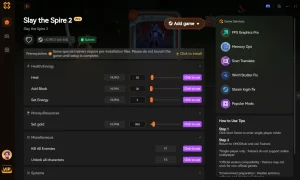
For players looking to experiment without the punishment of a standard roguelike run, XMODHUB’s trainer offers powerful options. These tools are perfect for testing card synergies or exploring the new acts without fear of death.
❤️ Infinite Health
Never lose a run to a bad draw again. Keep your HP full to survive any encounter.
📈 Infinite Energy
Play as many cards as you want per turn to test ultimate combo potential.
💰 Unlimited Gold
Buy every relic and card in the shop to build the perfect deck instantly.
These featured mods are just the beginning. Whether you’re looking to skip tedious grinding, experiment with different playstyles, or speed up your progression, XMOD’s comprehensive toolkit offers dozens more options tailored to your playstyle.
Safe Modding Practices for Slay the Spire 2
Before applying any cheats or mods, always back up your save file. While the XMOD trainer is designed to be safe, game updates can sometimes cause unexpected behavior. You can find more details in our Slay the Spire 2 mod menu guide.
Related Guides for Slay the Spire 2
Frequently Asked Questions
Ready to enhance your gameplay?

I create content for Xmodhub, where I curate and share game mods, tools, and other resources. My goal is to help players discover great add-ons, enjoy a smoother experience, and have more fun.

 Catherine Hu