
 Nancy Miller
Surviving the infected wasteland in Quarantine Zone: The Last Check is challenging enough without battling low frame rates and battery drain. While the game’s dense environments and complex survival mechanics can tax the Steam Deck‘s hardware, the right configuration makes handheld play not just possible, but immersive. Whether you’re scavenging for supplies on a long commute or fighting off hordes from your couch, this guide optimizes your Quarantine Zone Steam Deck performance for the perfect balance of visual clarity and battery life.
Key Takeaways
- Proton Experimental offers the most stable experience with fewer crashes
- Target 10W TDP to extend battery life beyond 2 hours
- Lowering Shadow Resolution provides the biggest FPS boost
- Use the community “Gamepad with Gyro” layout for precise aiming
Let’s break down the details below.
How to Configure Quarantine Zone Steam Deck Best Settings
Achieving a stable framerate in Quarantine Zone: The Last Check requires a careful balance of visual fidelity and system resources. The game defaults to settings that are often too demanding for the Deck’s APU, resulting in stuttering during intense combat or weather effects. By manually adjusting these options, you can secure a smooth experience without sacrificing the game’s gritty atmosphere.
Recommended Graphics Options for Quarantine Zone: The Last Check
Start by setting the global preset to “Low” and then manually tweaking specific values upwards. Texture Quality can safely be set to Medium or even High as the Deck’s 16GB of unified memory handles it well, provided you keep other VRAM-heavy settings in check. Shadow Resolution is the primary performance killer; keep this at Low to gain 10-15% more FPS instantly. Draw Distance should be set to Medium—this maintains immersion in open areas without forcing the CPU to calculate object physics miles away.
Setting the Correct Resolution and Refresh Rate
Always run the game at the Deck’s native 1280×800 resolution. Lowering this to 720p makes text unreadable, while the performance gain is negligible compared to using FSR. For the refresh rate, a locked 40Hz / 40 FPS is the sweet spot for this title. It feels significantly smoother than 30 FPS and doesn’t drain the battery as rapidly as targeting 60 FPS. If you are on the OLED model, the 90Hz screen handles the 45 FPS lock beautifully if you want slightly more fluidity.
Choosing the Right Proton Compatibility Layer
Valve’s default selection often works, but for Quarantine Zone, forcing Proton Experimental fixes several specific issues with video playback and cutscenes. To do this, highlight the game in your library, press the Menu button, go to Properties > Compatibility, check “Force the use of a specific Steam Play compatibility tool,” and select Proton Experimental from the dropdown list. If you encounter audio sync issues later, switching to GE-Proton8-25 (or newer) is a reliable alternative.
Performance vs Battery: Which Preset Should You Choose?
Your ideal settings depend heavily on whether you are tethered to a wall outlet or playing on a flight. Below is a comparison of two distinct configuration profiles to help you decide.

High FPS Configuration for Quarantine Zone
When playing near a charger, you can push the Steam Deck to its limits. Uncap the framerate and allow the TDP to reach its full 15W. In-game, you can bump Post-Processing and Effects to Medium. This makes explosions and atmospheric fog look much denser, though the fan will run audibly loud. This mode is ideal for short, intense sessions where reaction time is critical.
Power Saving Setup for Quarantine Zone: The Last Check
For longer trips, stability takes precedence over raw power. Cap the frame rate to 30 FPS in the Quick Access Menu (QAM). Manually limit the GPU clock frequency to 1100MHz; this prevents the GPU from spiking unnecessarily during simple scenes, saving significant power. Combined with FSR set to Balanced, you can squeeze nearly 3 hours of gameplay out of the OLED model, which is impressive for a game of this visual fidelity.
Can You Improve FPS with Advanced Optimization Tweaks?
Beyond the basic in-game menu, the Steam Deck offers system-level tools that can further refine your experience. These tweaks are for users who want to extract every last frame of performance.
Adjusting TDP Limits for Handheld Optimization
The Thermal Design Power (TDP) limit controls how much power the processor can use. While leaving it on auto is safe, Quarantine Zone often requests more power than it actually needs for simple tasks. By slowly lowering the TDP limit in the QAM until you see the framerate dip, you can find the “sweet spot”—usually around 11W or 12W for this title. This reduces heat generation and prevents the fan from ramping up to maximum speed.
Utilizing FSR and Upscaling Technologies
AMD’s FidelityFX Super Resolution (FSR) is essential for Quarantine Zone. Set the in-game resolution scale to render at lower than native (e.g., roughly 600p internal) and let FSR 2.0 upscale it to 800p. Set the FSR sharpness to 2 or 3; any higher and the image becomes grainy, especially on foliage and hair textures. This technique frees up GPU resources, allowing for higher frame rates without a noticeable drop in image quality on the Deck’s 7-inch screen.
Troubleshooting Quarantine Zone Steam Deck Best Settings Errors
Even with the best settings, you might encounter specific quirks due to the game’s PC-centric design. Here is how to fix the most common annoyances.
Fixing Quarantine Zone Controller Layout Problems
The default controller mapping sometimes fails to register the back buttons or trackpads correctly. Press the Steam button, go to Controller Settings, and browse Community Layouts. Look for the most upvoted layout, usually titled “Optimized with Gyro” or similar. These community configs often map the sprint and inventory keys to the back paddles (L4/R4), allowing you to manage your survival gear without taking your thumbs off the joysticks.
Resolving Text Scaling Issues on Small Screens
Survival games often have dense UI elements that are hard to read on a handheld. Check the game’s Accessibility settings for a “UI Scale” slider. Increasing this to 1.2x or Large makes inventory management much easier. If the game lacks this slider, you can use the Steam Deck’s built-in magnifier tool (Steam Button + L1) to quickly read small text descriptions.
Correcting Audio Glitches and Sync Issues
If you hear crackling audio or notice that sound effects are delayed, it is likely a Proton issue. As mentioned earlier, switching to GE-Proton usually resolves this. Additionally, ensure your Deck isn’t waking from sleep mode repeatedly while the game is running, as this can sometimes desync the audio engine in Quarantine Zone. A fresh restart of the game fixes this immediately.
Why Is Quarantine Zone: The Last Check Crashing?
Crashes can break your immersion and lose unsaved progress. If the game closes unexpectedly, try these stability fixes.
Verifying Game Files and Installation
Corrupted update files are a common culprit. In your Steam Library, go to Properties > Installed Files and click “Verify integrity of game files.” This process checks for missing or broken assets and redownloads them. It’s a simple step that fixes the majority of launch crashes.
Managing Background Apps and RAM Usage
The Steam Deck has shared RAM for both system and graphics. Running Decky Loader plugins or other background applications can eat into this memory pool, causing the game to crash when it tries to load a large new area. If you are experiencing frequent crashes, try disabling non-essential plugins and restarting your Deck to clear the memory cache before launching the game.
Frequently Asked Questions
Is Quarantine Zone: The Last Check Verified on Deck?
The game currently holds a “Playable” status rather than “Verified.” This usually means you may need to manually invoke the keyboard or adjust settings for optimal performance, which is exactly what this guide helps you resolve.
Does Quarantine Zone Support Cloud Saves?
Yes, Steam Cloud support is fully integrated. You can start your survival run on your PC and pick up exactly where you left off on your Steam Deck, provided you have an active internet connection to sync the save files before you leave the house.
Enhance Your Survival Run
Sometimes the grind for resources can get in the way of exploring the story. If you want to customize your difficulty or recover from a glitch that cost you gear, XMODHUB’s trainer offers a suite of tools to tailor the experience to your liking.
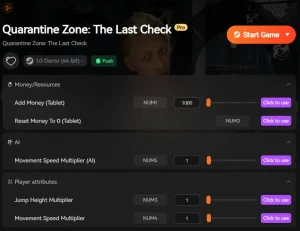
❤️ Infinite Health
Survive the harshest environments and toughest enemies without fear of losing your progress.
❤️ No Hunger/Thirst
Remove the constant need to scavenge for food and water so you can focus on exploration.
💰 Unlimited Resources
Craft any item instantly without spending hours farming for rare components.
📈 Easy Crafting
Unlock crafting recipes and build your base without level restrictions.
These options are perfect for players who want to enjoy the narrative or experiment with base building without the punishing survival mechanics. XMODHUB’s comprehensive toolkit ensures you can play the game your way.
Ready to enhance your gameplay?

I create content for Xmodhub, where I curate and share game mods, tools, and other resources. My goal is to help players discover great add-ons, enjoy a smoother experience, and have more fun.




 Catherine Hu
Anyone tried using these settings for other demanding games on the Steam Deck? Would love to know if the 10W TDP and Proton Experimental tweaks help with other titles too.