Catherine Hu
Let’s be real. You love the punishing combat and dark world of No Rest for the Wicked, but you know what’s truly punishing? The constant fear of losing 50+ hours of progress because of a random crash, a buggy Early Access patch, or a bad Steam Cloud sync.
In a game that refuses to give you manual save slots, trusting the auto-save system with your hard-earned character is a massive gamble. Your journey through Sacrament is hanging by a thread. We’re here to help you secure it before it snaps.
No Rest for the Wicked Cheat Engine Table vs. Trainer: Best Free Alternative
In this guide, we won’t just reveal the hidden location of your save files on your PC; we’ll show you why manual backups are risky and introduce the only foolproof, automated way to protect your progress forever.
Editor’s View
“If you’re playing No Rest for the Wicked, you know the drill: fight, die, learn, repeat. It’s brutal, rewarding, and incredibly time-consuming.
But here’s the thing about Early Access survival RPGs: the biggest boss isn’t in the game; it’s game instability. We’ve heard too many horror stories of corrupted saves wiping out 50+ hours of progress in an instant. In a game without manual save slots, taking control of your own backups isn’t optional—it’s survival.”
— The XMODhub Editorial Team
Quick Answer: The exact PC location of your NRftW saves
To access your No Rest for the Wicked save files on PC, you need to locate the hidden DataStore folder within your AppData directory.
C:\Users\[Your Username]\AppData\LocalLow\Moon Studios\NoRestForTheWicked\DataStoreHow to access it manually:
- Make sure the game is completely closed.
- Open File Explorer. In the address bar, type
%appdata%and press Enter. - Navigate back one level to the main AppData folder, then open LocalLow -> Moon Studios -> NoRestForTheWicked.
!
Warning:
Manually copying and pasting this folder frequently is tedious and prone to human error. We highly recommend the automated method below.
The Steam Cloud Trap: Why You Can’t Rely on It Alone
You might be asking, “Doesn’t Steam Cloud handle backups for me?” Usually, yes. But for an Early Access title like No Rest for the Wicked that lacks manual save slots, relying solely on Steam Cloud is risky.
Steam Cloud can sometimes overwrite valid local saves with corrupted data.
The Danger Scenario
You play for 4 hours. The game crashes or triggers a bug just as it auto-saves, corrupting your local file. You restart the game. Steam sees your local file is “newer” (even though it’s corrupted) and syncs that broken state to the Cloud.
Result: Both your local copy and your cloud copy are now broken. You have lost everything. Having a separate, offline, local backup history is the only 100% secure insurance policy against sync errors.
The Smart Way: Automatic Backups with XMODhub
We built XMODhub because we got tired of the risks involved with manual backups and faulty cloud syncs. Instead of navigating hidden folders every day, XMODhub automates the entire process.
01
It Never Forgets (Auto-Backup)
XMODhub detects when you exit the game to the main menu and instantly creates a compressed, timestamped backup of your DataStore folder. You don’t have to lift a finger.
02
Visual History & One-Click Restore
If an update bricks your game or a bug deletes your gear, you don’t need to panic. XMODhub provides a clean “Save History” timeline. Just find a timestamp from 20 minutes ago, click “Restore,” and you are back in action instantly.
03
Safety Net for Testing
Want to try a risky boss fight or spend resources on a build you aren’t sure about? XMODhub lets you create a quick snapshot before you do it, so you can easily revert if it goes wrong.
How to set it up in 30 seconds:
- Download and install XMODhub.

- Go to the No Rest for the Wicked dashboard.

- In the Save Manager section, toggle “Auto-Backup” to ON.
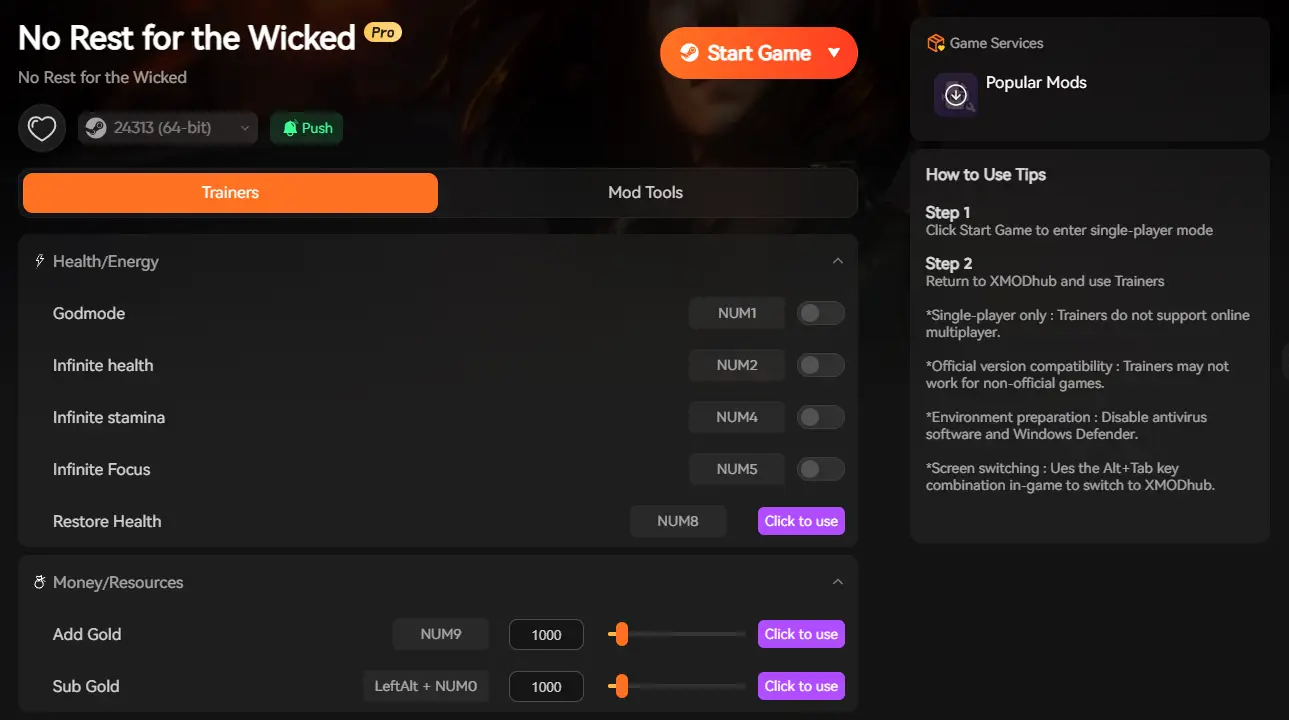
- Play the game. Your Sacrament is now protected.
Frequently Asked Questions
How do I restore a save using XMODhub?
It’s simple. Open XMODhub, go to the No Rest for the Wicked dashboard, click on the “Save History” tab. You will see a list of all your automatic backups. Find the one you want to roll back to, and click the “Restore” button. The tool handles the file replacement safely.
Where is the save location on Steam Deck?
On Steam Deck, switch to Desktop Mode and open the file browser (Dolphin). The path is typically:
/home/deck/.local/share/Steam/steamapps/compatdata/1371980/pfx/drive_c/users/steamuser/AppData/LocalLow/Moon Studios/NoRestForTheWicked/
My save file is corrupted. Can I fix it without a backup?
Unfortunately, no. If you did not have a manual or XMODhub backup before the corruption occurred, there is usually no way to “fix” the corrupted file itself. This scenario is exactly why maintaining independent local backups is critical.
Conclusion: Your All-in-One PC Gaming Companion
In the unforgiving world of No Rest for the Wicked, your save file is your most valuable possession. Don’t leave it unguarded against bugs, crashes, or bad cloud syncs. Stop relying on luck or tedious manual copying. Switch to the automated peace of mind provided by XMODhub today.

XMODhub supports over 5,000 PC games, providing save protection and mod management for titles including:

I am a passionate gamer and writer at XMODhub, dedicated to bringing you the latest gaming news, tips, and insights.
Connect with me:
LinkedIn Profile ↗

 Nancy Miller