Catherine Hu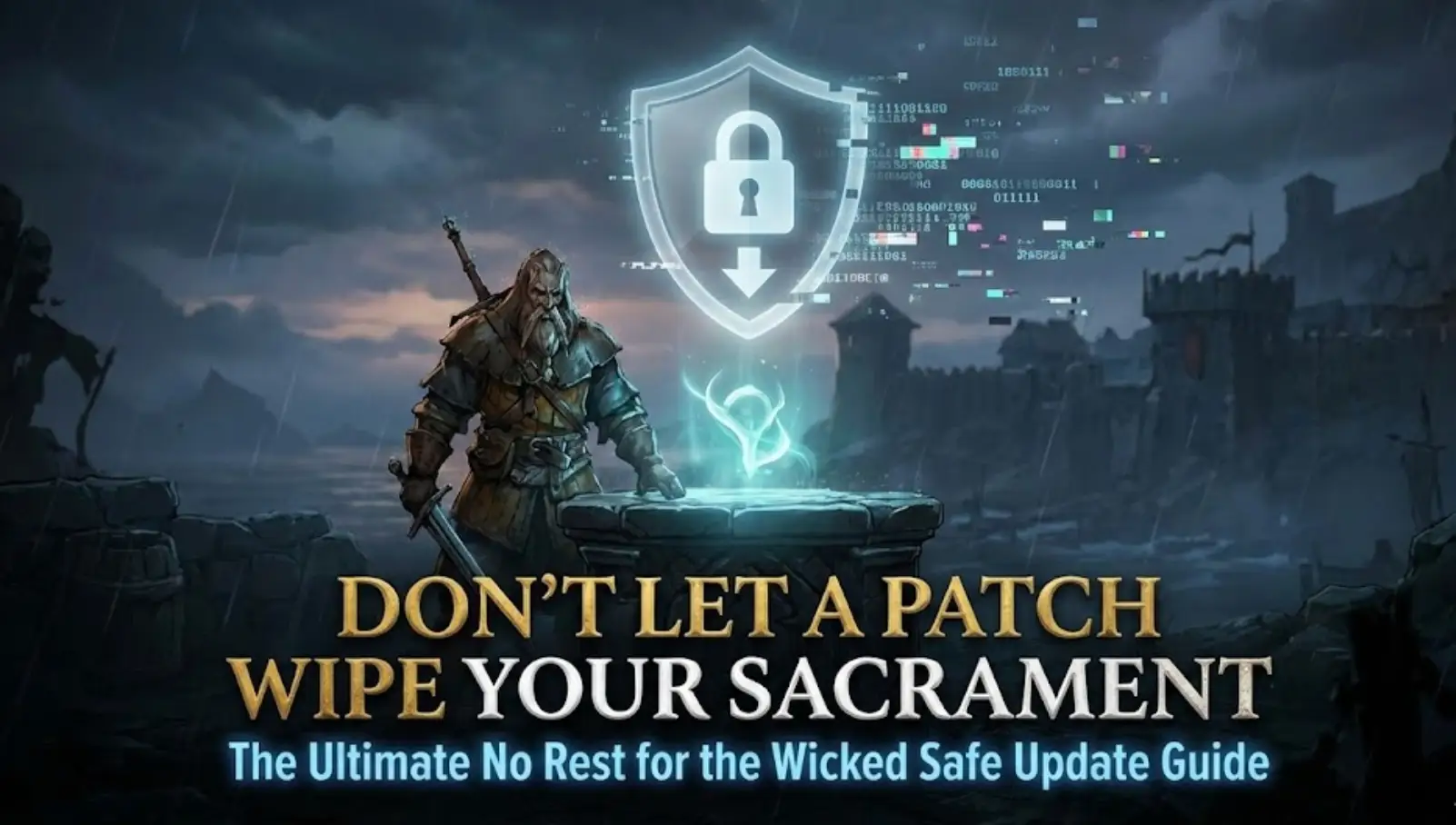
Editor’s View
“Let’s be honest: whenever I see a No Rest for the Wicked update queued in Steam, my palms get a little sweaty.
We all love this game, but we know exactly what “Early Access” means. Every major mechanical shift is a potential death sentence for older save files. Combined with the game’s brutal single-slot auto-save system, playing on patch day feels like a game of Russian Roulette with your progress.
We don’t want to see your dozens of hours building up Sacrament vanish instantly. As fellow Cerim surviving this harsh world, we’ve developed a survival protocol for update days. This isn’t about beating bosses; it’s about surviving the patch.”
— Catherine Hu, from the XMODhub Editorial Team
You may also like:
No Rest for the Wicked Cheat Engine Table vs. Trainer: Best Free Alternative
Quick Look: 4 Critical Steps for a Safe Update
Before you even think about clicking that “Update” button in Steam, perform these steps to guarantee your No Rest for the Wicked progress survives:
- Completely Close the Game & Steam: Ensure absolutely no processes are locking your save files.
- Force a Local Manual Backup (Crucial): Do NOT rely on the cloud. You must physically locate and copy your local save folder to a secure location on your PC.
- Disable Steam Cloud Temporarily (Recommended): This prevents Steam from accidentally overwriting your good local file with a broken cloud file, or uploading a corrupted post-update save.
- Update and Test Run: Apply the update and load your character. Only once you confirm everything is stable should you re-enable Cloud Sync.
Why You MUST Intervene Before Updating
You might be asking: “Doesn’t Steam Cloud handle backups automatically? Why the hassle?” For finished games, the cloud is usually enough. For No Rest for the Wicked, it is absolutely not enough.
Here is why:
- Early Access Volatility: Developer Moon Studios is actively rewriting foundational code. A new patch can change how data is read, instantly rendering old saves “corrupted” upon loading.
- The Ruthless Single-Save System: The game relies on a single, constantly overwriting auto-save slot. You cannot create multiple manual “restore points.” If the game auto-saves a corrupted state once after an update, that corruption is permanent.
- The Cloud Sync Trap: We’ve seen it happen too often: a player updates, launches the game, finds their local save corrupted, and tries to restore from the cloud—only to find Steam has already helpfully synced the new, corrupted save over the good cloud version.
Method 1: The Manual Backup (The Hard Way)
If you prefer doing things manually and don’t mind navigating hidden Windows folders, here is the knowledge you need.
Your Save File Location:
(Note: The AppData folder is hidden by default. You must enable “Show hidden items” in Windows Explorer View options.)
C:\Users\[Your Username]\AppData\LocalLow\Moon Studios\NoRestForTheWicked\DataStore
The Steps:
- Press Win + R on your keyboard, type
%appdata%, and hit Enter. - This usually lands you in AppData\Roaming. You need to go back up one level to the main AppData folder, then enter LocalLow.
- Navigate through Moon Studios -> NoRestForTheWicked.
- Locate the all-important folder named DataStore.
- Copy this entire folder and paste it somewhere safe, like your desktop. Name the folder something like “NRftW_PRE_PATCH_BACKUP”.
!
The Risk:
This method works perfectly, but it relies on your memory. Forget to do it before a surprise patch drops while you’re asleep? You’re out of luck.
Method 2: The XMODhub Auto-Protection (The Smart Way)
If you just want to focus on playing and don’t want to act as an IT administrator every time you quit the game, XMODhub is your safety deposit box.
We developed XMODhub not just as a modding tool, but as a full gaming platform designed to reduce “save anxiety” in challenging games.
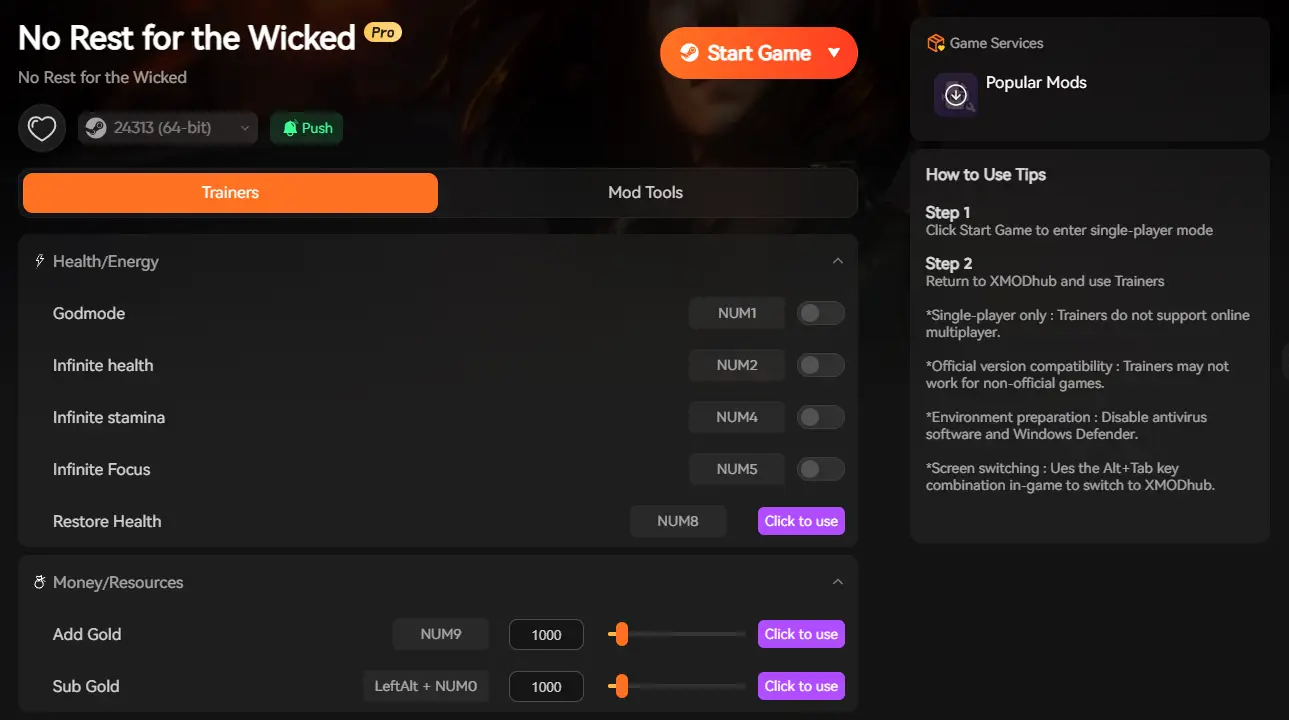
For Early Access players, it acts as a fully automated time machine for your progress.
Why it’s the safest update strategy:
- Set It and Forget It (Auto-Backup): You don’t need to remember to backup. XMODhub monitors the game background. The moment you exit to the main menu, a clean backup is secured automatically.
- Visual Rollback: This is the ultimate weapon against bad updates. If a patch corrupts your save or deletes your legendary gear, you don’t need to dig through folders. Open the XMODhub Save History tab, find a timestamp from 10 minutes before the update, click “Restore,” and you are back in action.
- Pre-Update Snapshots: Before clicking update in Steam, you can open XMODhub and manually click “Create Snapshot” for one final, deliberate line of defense.
Crucial: What About Updating with Mods?
If you are using mods, major updates are doubly terrifying. A new patch will almost certainly break existing code mods, potentially causing instant crashes or save corruption if you try to load in.
Your Safe Mod Update Protocol:
- Disable ALL Mods First: Before launching the new update, use XMODhub’s Mod Manager to disable all active mods.
- Load Vanilla: Launch the game without mods to ensure your base save file works with the new patch.
- Wait for Updates: Do not re-enable complex mods until the mod authors have confirmed compatibility with the new game version. Loading an old mod on a new patch is the fastest way to corrupt a save file.
FAQs: Common Update Anxieties Answered
Q: Steam is showing a Cloud Sync conflict after the update. Which do I choose?
A: This is a classic trap. After a major update, always prioritize your “Local File” (assuming it was the last good state you played). If you are unsure, choose neither: perform a manual backup of your current local folder first (Method 1), then decide.
Q: I forgot to backup and the update corrupted my save. Can I fix it?
A: If you had no manual backups and were not running XMODhub, the situation is grim. If Steam Cloud also synced the corrupted state, recovery is likely impossible. This scenario is exactly why we stress taking action before the disaster. (If you were using XMODhub, just use the Rollback feature).
Q: Will the update reset my building progress in Sacrament?
A: Developers try hard to avoid this, but in Early Access, everything is on the table. If you have invested dozens of hours into your town layout, a pre-update local backup is non-negotiable.
Q: Where is the save file location on Steam Deck for manual backups?
A: It is different from Windows. You need to switch to Desktop Mode on your Steam Deck and navigate to:
/home/deck/.local/share/Steam/steamapps/compatdata/1371980/pfx/drive_c/users/steamuser/AppData/LocalLow/Moon Studios/NoRestForTheWicked/
Conclusion: Your All-in-One PC Gaming Safety Net
Surviving the shores of Isola Sacra is brutally difficult; don’t make it harder by letting a random patch wipe out your existence. Don’t leave it up to chance or unreliable cloud syncs. Whether you choose the discipline of manual copying or the “set it and forget it” ease of XMODhub, take action today to secure your Sacrament.
No Rest for the Wicked
XMODhub is a gaming platform designed to protect your entire gaming life, supporting over 5,000 PC titles.

We provide save protection and mod management for countless other demanding games. If you play any of these high-stakes titles, XMODhub has you covered:

I am a passionate gamer and writer at XMODhub, dedicated to bringing you the latest gaming news, tips, and insights.
Connect with me:
LinkedIn Profile ↗
 Nancy Miller