
 Catherine Hu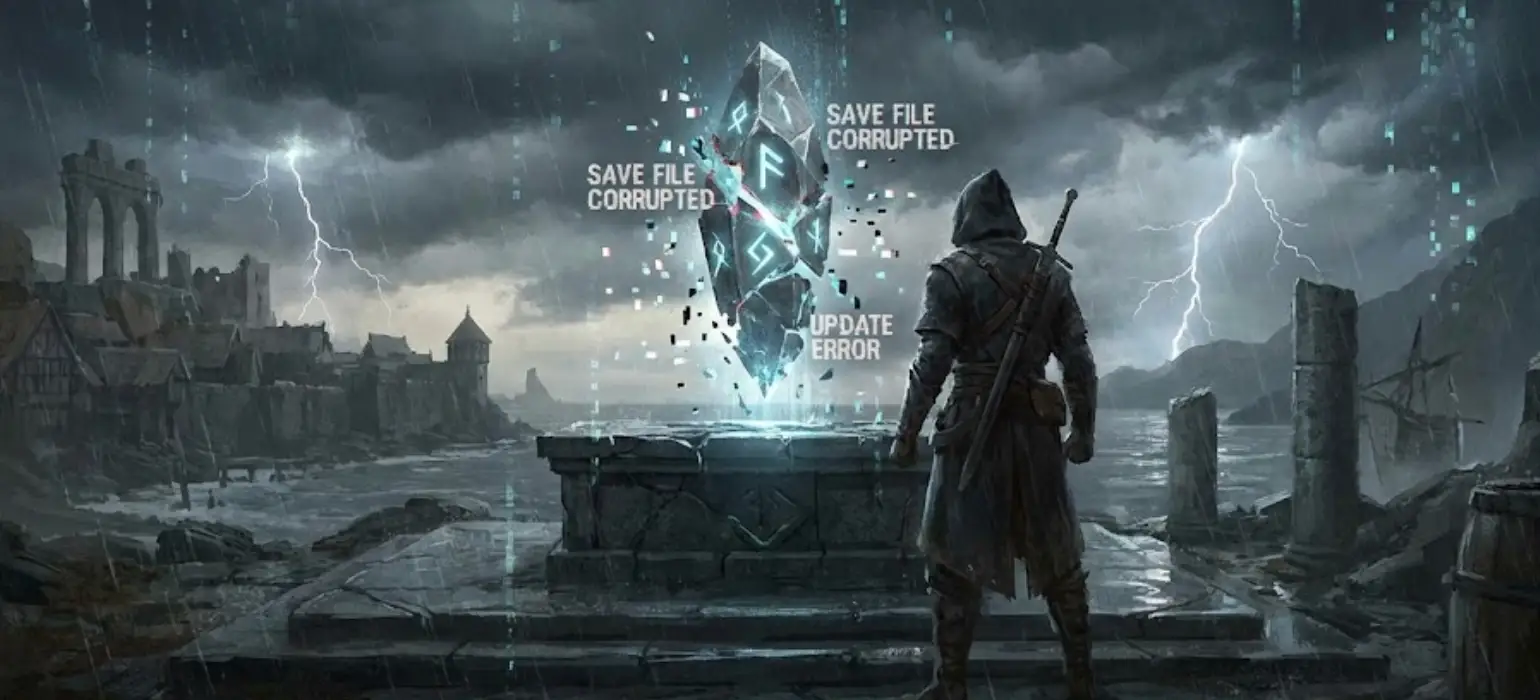
Editor’s View
“There is no worse feeling in gaming. You see a patch download for No Rest for the Wicked, you get excited for bug fixes or balance changes, you launch the game… and your Level 30 Cerim is gone. Or worse, the game crashes the moment you try to load into Sacrament.
That sinking feeling in your stomach? We’ve felt it. In an Early Access soulslike where every inch of progress is earned through blood and sweat, losing a save file to a technical glitch feels like a robbery.
If you are here because your save is corrupted after the latest update, I have some tough truths, some potential Hail Mary solutions, and one crucial lesson about why relying on the base game alone isn’t enough for modern PC gaming.”
— Catherine Hu, the XMODhub Editorial Team
You may also like:
No Rest for the Wicked Console Commands (2026): Cheat Codes & Item IDs List
The Hard Truth: Can a Corrupted Save Be “Fixed”?
If your No Rest for the Wicked local save file has become truly corrupted after an update—meaning the data itself is scrambled or incomplete due to a crash during a write operation—the honest answer is no, the file itself usually cannot be repaired.
Because the game currently utilizes an aggressive auto-save system with a single main live state, once a corrupted state is saved to your disk, the “good” previous data is overwritten.
Your only hope for recovery relies solely on external factors:
- An older, functional version of the save still exists in the Steam Cloud history that hasn’t been overwritten yet.
- You possess a manual backup created before the update was applied.
Warning: Without a pre-existing backup or a lucky Steam Cloud conflict, the corrupted progress is likely lost.
Before You Panic: Is It Definitely Corruption? (Troubleshooting)
Sometimes, what looks like a corrupted save is actually corrupted game installation files caused by a messy patch process. Before you declare your save dead, try this essential Steam troubleshooting step:
Verify Integrity of Game Files:
- Right-click No Rest for the Wicked in your Steam Library.
- Select Properties…
- Go to the Installed Files tab.
- Click “Verify integrity of game files”.
Steam will check if the update downloaded correctly. If it finds broken game files, it will redownload them. Try launching the game again after this process completes. If it still crashes on load, the issue is likely the save file itself.
Why Updates Break Saves in NRftW (The Technical Reality)
Why does this keep happening with this specific game? It’s not just bad luck; it’s the nature of Early Access combined with high-stakes mechanics.
Volatile Codebase
The developers are actively changing fundamental game systems. An update might change how inventory items are coded. If your old save tries to load an item data structure that no longer exists in the new code, the game panics and crashes, potentially corrupting the save file during the crash.
The Single-Slot Risk
Unlike games that let you keep multiple manual save slots, No Rest for the Wicked relies on one main live state. It’s high stakes. If a crash happens during the milliseconds the game is writing to that single folder, the file gets ruined.
Emergency Options: Attempting Recovery via Steam Cloud
If verifying game files didn’t work, you are down to your last “Hail Mary” attempt if you don’t have a manual backup.
The Steam Cloud Conflict Check
Often, when a local file gets corrupted instantly after a patch, Steam notices a mismatch between your local file and the cloud file.
- Fully close the game and restart Steam.
- When you launch the game, watch closely for a “Steam Cloud Conflict” pop-up.
- Crucial Step: If this appears, look at the timestamps carefully. If the “Cloud File” has a timestamp from before the moment you launched the disastrous update, choose to download the Cloud File. You might lose an hour of progress, but it’s better than losing everything.
Warning: If Steam has already silently synced the new, corrupted local file to the cloud, this option will not work.
The Only Real Cure: Essential PC Game Utilities (XMODhub)
If you tried the options above and they didn’t work, my heart goes out to you. Losing a high-level Cerim hurts. You have two choices now: quit in frustration, or ensure this never happens again.
This disaster highlights why relying solely on the base game and Steam Cloud is risky for Early Access titles. Modern PC gaming requires specialized utility tools to manage and protect your experience.

Enter XMODhub: More Than Just Mods
While XMODhub is known for modding, it is fundamentally a comprehensive PC Game Utility Platform designed to solve pain points just like this. We developed XMODhub to act as an essential insurance policy against Early Access instability.
How XMODhub’s Utility Features stop update disasters:
- Automated Save Management: Forget manual copying. XMODhub runs in the background, creating organized, timestamped backups automatically as you play.
- Instant Pre-Update Snapshots: Before you ever click that “Update” button in Steam, open XMODhub and create a snapshot in one second. If the update bricks your save, you just click “Restore” and you are back to the safe pre-update state instantly.
Don’t rely on luck in a punishing game. Use the right tools for the job.
FAQs: Identifying Corruption Symptoms
Q: How do I know if my save is corrupted versus just a game bug?
A: Classic signs of corruption after an update include:
- The main menu “Continue” option is grayed out, as if no save exists.
- Your character slot shows “Empty” or default stats (Level 1) despite having played for hours.
- The game crashes to desktop consistently at the exact moment it tries to load your character into the world.
Q: Why did the update delete my character entirely?
A: This usually means the corruption was severe enough that the game can no longer recognize the basic header data of the save file. The game engine interprets this unrecognizable data as “no save file present,” making it appear as if your character was deleted.
Conclusion: Beyond Modding – Essential Game Protection
Facing a corrupted save in No Rest for the Wicked is a brutal wake-up call. It proves that for volatile Early Access titles, you cannot rely solely on the game developer or Steam Cloud to protect your time investment.
This is why XMODhub exists. We are not just about altering games with mods; we are about securing and enhancing your entire PC gaming experience with essential utilities.
XMODhub provides robustness and peace of mind for over 5,000 PC games.

Our automated save protection and management tools are vital for any title where losing progress is a nightmare, including high-stakes games like:

I am a passionate gamer and writer at XMODhub, dedicated to bringing you the latest gaming news, tips, and insights.
Connect with me:
LinkedIn Profile ↗
 Nancy Miller