Nancy Miller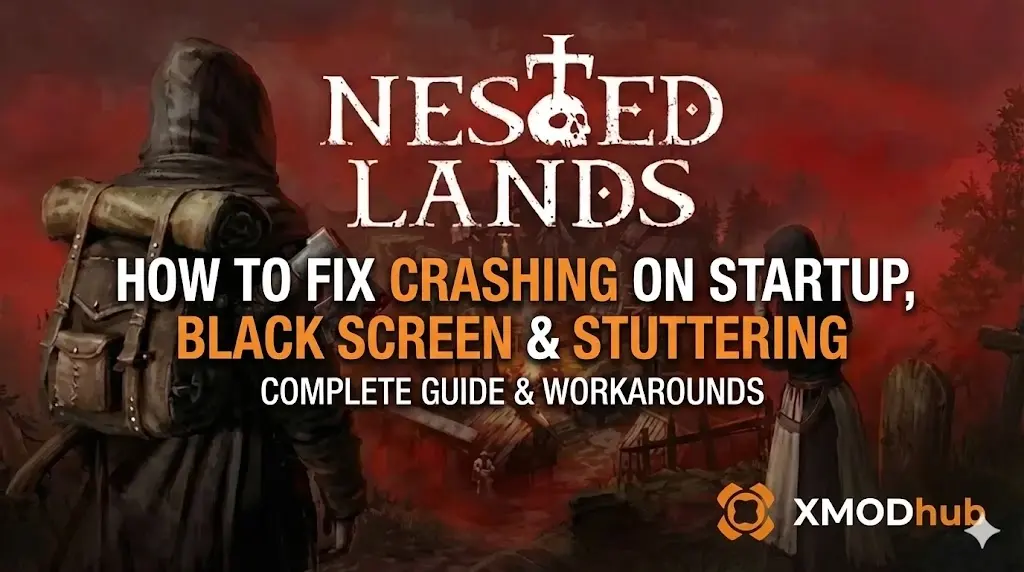
You have waited months for the Early Access release of Nested Lands, pre-loaded the files, and cleared your schedule. You click “Play,” and… nothing happens. Or worse, a cryptic “Fatal Error” dumps you back to the desktop right as you start building your village.
Launch day issues in ambitious survival RPGs are frustrating, but they are rarely unfixable. Whether you are facing a black screen on launch, random crashes to desktop (CTD), missing DLL files, or massive FPS drops during a plague event, this guide covers the exact, community-tested steps to get your medieval settlement running.
You may also like: Nested Lands Cheat Engine Alternative – XMODhub Trainer
Check First: Nested Lands System Requirements
Before spending hours debugging the registry, ensure your PC can handle the game’s complex simulation engine. Trying to run Nested Lands on specs below the minimum is the #1 cause of “silent crashes” (closing instantly with no error).
⚠
Tech Note: Installing this game on an older mechanical Hard Drive (HDD) will cause severe asset-streaming crashes. Ensure it is on an SSD.
Method 1: Verify Files & Clear Shader Cache
Corrupted downloads happen constantly during Early Access patching.
Fix AVerify on Steam:
- Right-click Nested Lands in your Library > Properties > Installed Files.
- Click “Verify integrity of game files“. Steam will replace broken files.
Fix BClear DirectX Shader Cache
(Crucial for Stuttering/Freezing): If the game freezes on the main menu, your shader cache might be corrupted.
- Press
Win + Sand search for Disk Cleanup. - Select your C: drive.
- Check the box for DirectX Shader Cache and click OK to delete it. The game will recompile them cleanly on the next launch.
Method 2: Update Drivers & C++ Runtimes
Nested Lands relies on modern engine architecture. Missing runtimes will stop the .exe from executing.
- GPU Drivers:
Update your NVIDIA or AMD software to the latest version released this month.
Pro Tip: Use Display Driver Uninstaller (DDU) for a clean install if crashes persist. - Visual C++ All-in-One:
If you getMSVCP140.dllmissing orVCRUNTIME140.dllnot found, download the latest Microsoft Visual C++ Redistributables (install both x86 and x64).
Method 3: Fix Black Screen & Overlay Conflicts
Hear the menu music but see a black screen? Background apps are fighting for rendering priority.
- Disable All Overlays: Turn off Steam Overlay, Discord Overlay, and NVIDIA ShadowPlay.
- Disable Fullscreen Optimizations:
- Right-click
NestedLands.exe> Properties > Compatibility tab. - Check “Disable fullscreen optimizations“.
- Check “Run this program as an administrator“.
- Right-click
Method 4: Specific Error Codes & Fixes
(SEO Strategy: Targeting exact error code queries)
Error 0xc0000005 (Access Violation)
Windows Defender or your Antivirus is blocking the game from writing memory. Add the game’s installation folder to your Antivirus Exception/Whitelist.
“Out of Video Memory” (VRAM Crash)
Common on 13th/14th Gen Intel CPUs. Lower your “Texture Quality” in the settings. If you can’t reach the menu, open the GameUserSettings.ini file in your AppData folder and manually change sg.TextureQuality=3 to sg.TextureQuality=1.
“Unhandled Exception: EXCEPTION_ACCESS_VIOLATION”
Disable XMP/EXPO memory overclocking profiles in your motherboard BIOS, as the game’s engine is highly sensitive to RAM instability.
Fix Nested Lands Steam Deck Crashes
If Nested Lands is crashing on your Steam Deck during the initial loading bar:
- Highlight the game > Press the Options (Gear) button > Properties > Compatibility.
- Check “Force the use of a specific Steam Play compatibility tool“.
- Select Proton Experimental or Proton 9.0.
Optional: Use CryoUtilities to increase your Swap file size, as the game uses heavy RAM.
Fix Memory Leaks & 100% CPU Usage
Does the game run fine for an hour and then suddenly crash to the desktop? You are experiencing an Early Access memory leak. Increase Windows Virtual Memory (Pagefile):
- Press
Win + S> type Advanced System Settings. - Go to the Advanced tab > Performance Settings > Advanced > Virtual Memory Change.
- Uncheck “Automatically manage”. Select your SSD, choose Custom size, and set both Initial and Maximum to 16384 (16GB). This gives the game a safety net when RAM fills up.
The Workaround: Recover Lost Saves & Bypass Lag with XMODhub
The most devastating part of a crash is booting back up to find your save file corrupted and your village gone. When official optimization patches are weeks away, XMODhub provides the ultimate safety net.
- Save File Protection:
Use XMODhub’s Save Manager to easily backup your progress before entering unstable, heavy-weather biomes. - Recover Lost Progress:
Did a crash wipe out 5 hours of resource grinding? Use the XMODhub Trainer to temporarily enable “Infinite Items” and instantly rebuild your lost settlement. - Speedhack Engine:
If a specific cutscene or massive horde attack consistently crashes your GPU, use the XMODhub Speedhack to slow the game down (0.5x speed) during that sequence to prevent processor spikes.
Take Control of Your Game
Getting the ultimate technical toolkit for Nested Lands is simple:
Download & Install: Get the latest XMODhub Client safely from the official site.

Auto-Detect: Launch the app. It automatically locates your Steam/Epic game.
Launch & Play: Start the game directly from XMODhub and apply stable, tested mods instantly.

(XMODhub supports over 5,000+ PC titles, including similar survival hits like Enshrouded, Valheim, and Medieval Dynasty!)
FAQ
Q: Where are the Nested Lands save files located so I can back them up?
A: You can find your local saves at %LOCALAPPDATA%\NestedLands\Saved\SaveGames\. Copy this entire folder to your desktop before applying major updates.
Q: Will reinstalling completely fix the crash?
A: Reinstalling should be your last resort. Try “Verifying Integrity of Game Files” first (Method 1), as it accomplishes the same thing but much faster.
Q: Does forcing DirectX 11 improve stability?
A: Yes. If you have an older GTX 10-series or RX 500-series GPU, go to Steam Launch Options and type -dx11. It lowers graphical fidelity slightly but drastically reduces DXGI_ERROR device crashes.
Conclusion
Launch issues are painful, especially in unforgiving survival games, but they are usually temporary. By verifying your Steam files, updating your C++ libraries, and optimizing your GPU drivers, you should be able to permanently fix the Nested Lands crash on startup error.
If the game is still suffering from poor Early Access optimization or engine-level memory leaks, XMODhub can help bridge the gap. Use the Game Speed adjustments to bypass sluggish rendering sections and the Save Manager’s Auto-Backups to secure your village’s progress until the official patch arrives from the developers.
Think Bigger: XMODhub is more than just a troubleshooting tool for one game—it is a comprehensive PC gaming platform supporting over 5,000+ titles. Whether you are mastering the harsh winters of Nested Lands or exploring similar survival hits like Medieval Dynasty, Valheim, and Enshrouded, XMODhub ensures you always have the ultimate toolkit (Trainers, Mods, and Tools) ready at your fingertips.
Don’t let bugs stop you from building your medieval empire. Play smarter.

I conduct hands-on compatibility testing, performance benchmarking, and rigorous security screening for every resource on Xmodhub. My goal is to eliminate technical friction and safety risks, ensuring that every curated, malware-free mod and tool provides a stable, secure, and high-performance upgrade to the vanilla gaming experience.

 Catherine Hu