
 Catherine Hu
Editor’s View: The “Early Access” Curse
“I remember trying to launch Battle Brothers (Overhype’s previous game) on release day. It had its quirks, but MENACE’s shift to 3D and the Unity Engine brings a new set of headaches.
Before you give up on MENACE, realize that 90% of Unity engine crashes are caused by three simple things: corrupted asset downloads, missing C++ libraries, or virtual display driver conflicts (like Citrix). I’ve tested the methods below on my own rig (RTX 3060 / Win 10), and Method 3 was the hidden culprit that finally solved the startup crash for me.”
You have waited months to lead your squad of marines and mechs in MENACE, pre-loaded the files, and cleared your schedule. You click “Play,” and… nothing. Just a spinning blue circle, or worse, a cryptic “Unity Fatal Error” pops up.
Launch day issues are frustrating, especially for Early Access titles running on the Unity Engine, but they are rarely unfixable. Whether you are facing a black screen, random crashes to desktop (CTD), or the infamous Unity Crash Handler loop, this guide covers the most effective solutions to get you into the game.
You may also like:
MENACE Cheat Engine Table vs. XMODhub Trainer: Best Free Alternative (2026)
Check First: MENACE System Requirements
Before debugging, ensure your PC can actually run the game. Trying to run MENACE’s procedural 3D battles on integrated graphics is the most common cause of “silent crashes” (game closes without error).
| Component | Minimum Requirements | Recommended Specifications |
|---|---|---|
| OS | Windows 10 (64-bit) | Windows 11 (64-bit) |
| CPU | Intel Core i5-4590 | Intel Core i7-8700K |
| RAM | 8 GB RAM | 16 GB RAM |
| GPU | NVIDIA GeForce GTX 970 | NVIDIA GeForce RTX 2060 |
| DirectX | Version 11 | Version 12 |
| Storage | 10 GB Available Space | SSD Recommended |
Method 1: Verify Game Files (Steam)
Corrupted installation files are the #1 cause of MENACE crashing on startup. Unity games are sensitive to missing .assets or .resS files.
For Steam Users:
- Right-click MENACE in your Library.
- Select Properties > Installed Files.
- Click “Verify integrity of game files”.
- Wait for the process to finish (it may re-download some small files).
Method 2: Update Drivers & Visual C++ Redistributables
MENACE runs on the Unity Engine, which strictly requires updated software environments to load shaders correctly.
- GPU Drivers: Update your NVIDIA (Game Ready Driver) or AMD (Adrenalin) drivers. Old drivers often cause the “Pink Screen” glitch.
- Visual C++ All-in-One: If you get errors like
MSVCP140.dll missingorUnityPlayer.dll not found, you need to reinstall the Microsoft Visual C++ Redistributables (install both x86 and x64 versions). - DirectX: Ensure DirectX 11 is fully updated via Windows Update.
Method 3: Fix Unity Crash Handler & Citrix Conflict
The “Citrix” Issue (Important)
This is a specific, known bug with Unity games like MENACE. If you have Citrix Workspace installed for work, its “Virtual Display Adapter” drivers conflict with Unity, causing the game to crash instantly on launch.
Fix: Uninstall Citrix Workspace, or go to Device Manager > Display Adapters and disable the “Citrix Virtual Adapter”.
Disable Overlays: If you hear audio but see a black screen, turn off Discord Overlay and Steam Overlay. They often fight for control over the rendering window in Unity titles.
Method 4: Common Error Codes & Fixes
Here are specific solutions for the most common error messages players are reporting:
Pink Screen (Missing Textures)
- Cause: Your GPU is struggling to load the shaders, or files are corrupt.
- Fix: Force DirectX 11 mode. Right-click the game in Steam > Properties > Launch Options and type
-force-d3d11.
Error 0xc0000005 (Access Violation)
- Cause: Usually caused by strict antivirus software blocking Menace.exe from accessing memory.
- Fix: Whitelist the MENACE installation folder in Windows Defender or run the game as Administrator.
“Unity Crash Handler” Loop
- Cause: Often a result of plugging in a controller after the game starts.
- Fix: Plug in your controller before launching the game, or unplug it entirely to test.
Method 5: Fix Low FPS & Stuttering
Is your tactical map running like a slideshow?
- Laptop Power Mode: Ensure your laptop is plugged in and set to “High Performance” mode. Unity games often default to the integrated GPU on laptops by mistake.
- Lower Shadows: In the graphics settings, turn Shadows to “Low”. This is the biggest performance killer in MENACE due to real-time lighting calculations on 3D terrain.
- Set High Priority: Open Task Manager > Details > Right-click Menace.exe > Set Priority > High.
The Workaround: Skip Laggy Areas with XMODhub
Sometimes, MENACE crashes not because of your PC, but because of unoptimized code in specific procedural maps.
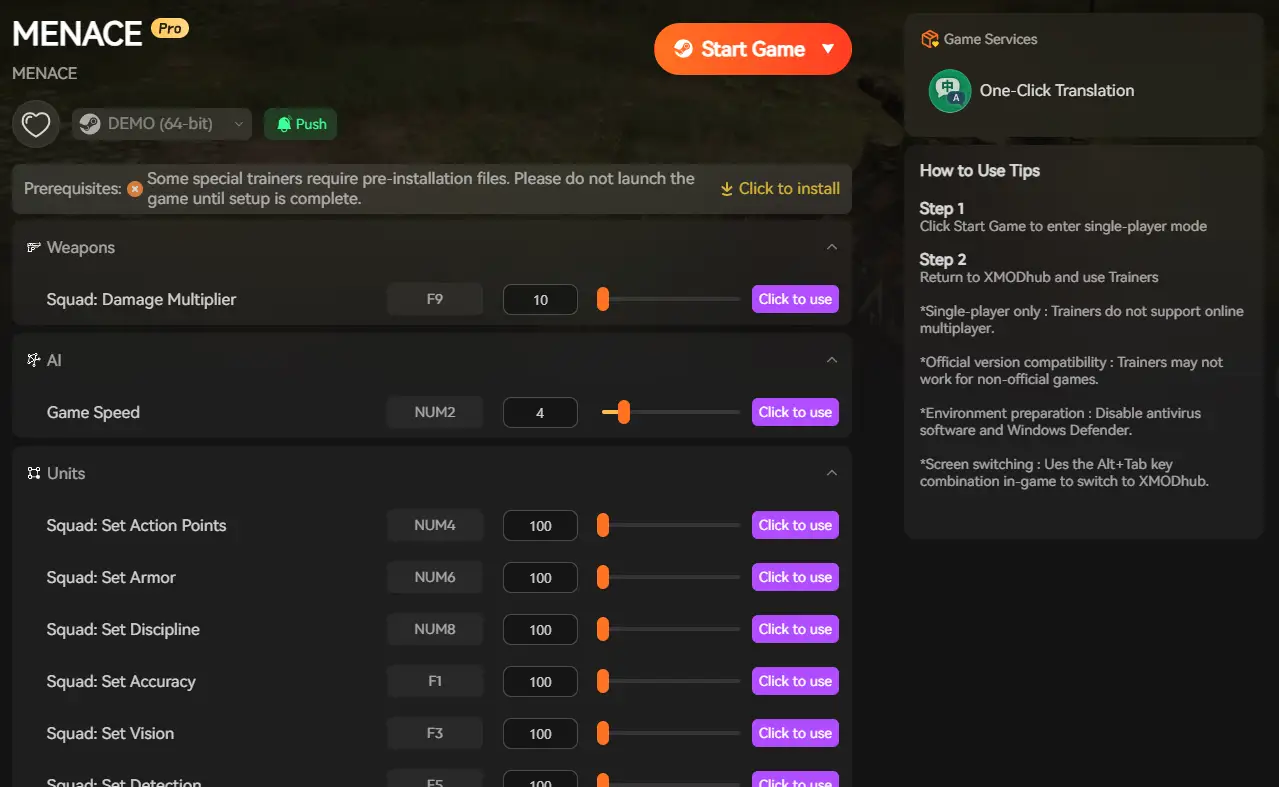
- Speedhack: Use the trainer to slow down the game (0.5x speed) during high-load enemy turns to prevent CPU spikes and crashes.
- Save Manager: Automatically backup your Ironman save before entering a mission, so you never lose your campaign to a random crash.
How to Get Started with XMODhub
- Download & Install: Get the latest version of the XMODhub Client

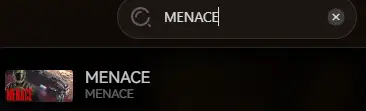
- Auto-Detect: Launch the app. It will automatically scan your PC and locate MENACE.
- Launch & Play: Start the game directly from XMODhub to apply optimization fixes seamlessly.
FAQ
Q: Does MENACE support Windows 7?
A: Officially, no. The modern Unity engine versions used by MENACE generally require Windows 10 (64-bit) or newer. Windows 7 may cause missing DLL errors.
Q: Will reinstalling fix the crash?
A: Reinstalling should be your last resort. Try Method 1 (Verifying Integrity) first, as it does the same thing but much faster.
Q: Is there a patch coming?
A: The developers are active. Check the XMODhub news section or the Steam Community Hub for updates on Early Access patches.
Conclusion
Launch issues are painful, but they are temporary. By verifying your files, updating your C++ libraries, and checking for software conflicts (like Citrix), you should be able to fix the MENACE crash on startup error.
If the game is still suffering from poor optimization or Early Access bugs, XMODhub can help bridge the gap. Use Game Speed adjustments to bypass sluggish sections and Auto-Backups to secure your progress.
Don’t let bugs stop you. Play smarter.

I am a passionate gamer and writer at XMODhub, dedicated to bringing you the latest gaming news, tips, and insights.
Connect with me:
LinkedIn Profile ↗
 Nancy Miller
I’ve run into Unity crashes before, and it’s always a pain. The troubleshooting steps you laid out make a lot of sense, especially the part about Citrix causing virtual display conflicts. That was something I never thought of before.