
 Nancy Miller
A Game Trainer can make single-player PC games more enjoyable: less grind, more experimentation, and easier accessibility for players who don’t have time to “git gud” every night. But a Game Trainer is still a third-party tool that runs alongside your game—so the way you download it, install it, and troubleshoot it matters.
This guide is designed for casual gamers who want a Game Trainer experience that is safer on Windows 11, stable with Steam updates, and less likely to cause save or Steam Cloud headaches. I’ll also show how XMODHUB’s Xmod approach—automatic game detection, one-click trainers, and compatibility checks—maps well to a “safety first” workflow for trainers.
What is a Game Trainer (and why Windows 11 treats it as “suspicious”)?
A Game Trainer is a program that modifies game behavior during runtime—commonly by changing in-game variables (health, currency, cooldowns) while the game is running. Many trainers do this by interacting with a game process in memory, which can look similar to how some malicious software behaves. That’s why Windows 11 sometimes warns you even when your intention is harmless single-player customization.

Windows 11’s security stack is explicitly built to block untrusted or potentially dangerous code, including apps that are unsigned or unfamiliar. Microsoft’s Smart App Control is designed to block malicious, untrusted, or potentially unwanted apps based on cloud intelligence and code integrity signals. Microsoft Learn+1
The takeaway: using a Game Trainer safely is less about “finding one magic file that never triggers antivirus,” and more about having a repeatable system for provenance, verification, and containment.
The “Safe Game Trainer” mindset: provenance, verification, containment, recovery
If you want to use a Game Trainer safely, adopt four non-negotiables:
- Provenance (source trust): Only download from a site you can identify and revisit.
- Verification (reduce unknowns): Scan files and validate what you downloaded before running it.
- Containment (limit blast radius): Keep trainers isolated in a dedicated folder; don’t weaken Windows security globally.
- Recovery (protect saves): Back up saves and understand Steam Cloud conflict behavior.
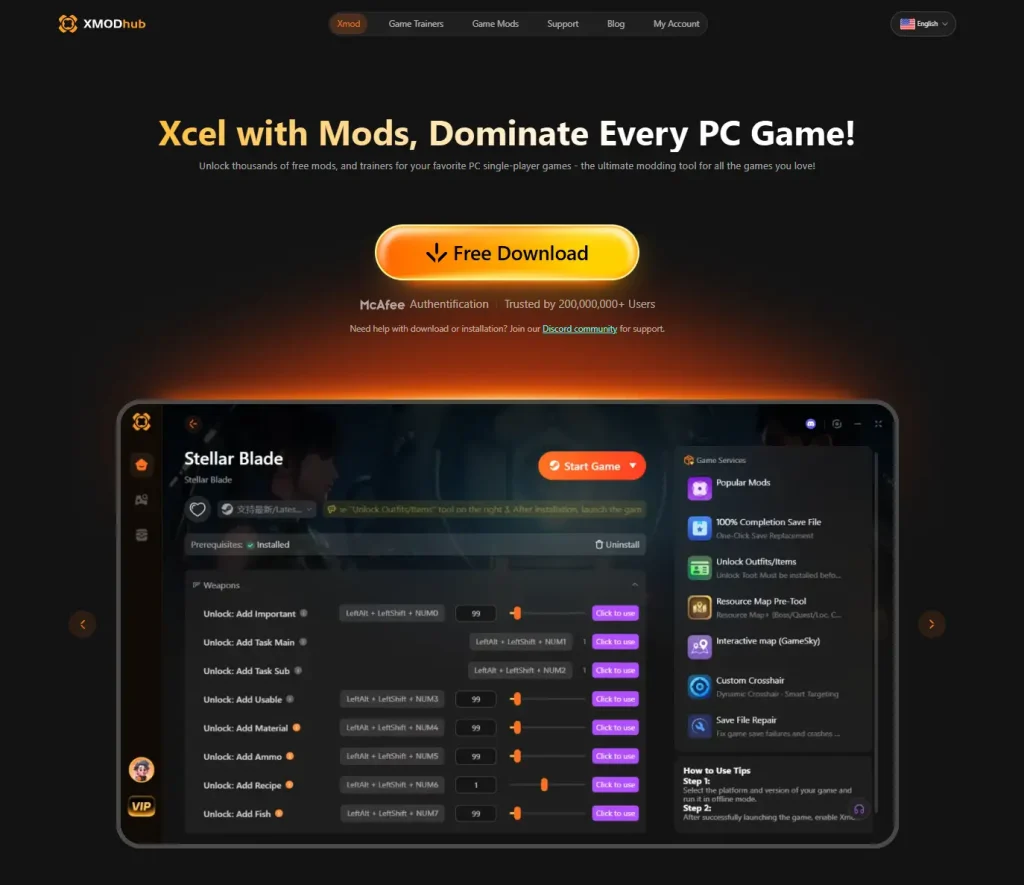
XMODHUB positions Xmod as a single app that organizes trainers and mods with automatic game detection and compatibility checks—features that align with containment and reliability (less “random files from random places”).
Choosing a Game Trainer safely: what to look for (and what to avoid)
Good signs
- Clear publisher identity and a stable “home” for downloads (an official site + support channel).
- Frequent updates and visible compatibility information.
- A predictable install flow and support documentation.
On XMODHUB, for example, Xmod emphasizes broad single-player coverage (5,000+ games) and multi-platform scanning (Steam, Xbox Game Pass, Epic, Microsoft Store, etc.), which reduces the typical “which file do I need?” confusion that drives users into risky mirror sites.
Red flags
- Reupload sites with no clear publisher
- Bundled installers that push unrelated software
- Passworded archives for no legitimate reason
- Instructions that begin with “disable your antivirus completely”
If a Game Trainer requires you to turn off protections broadly before you can even verify it, treat that as a deal-breaker.
Safe Game Trainer download checklist (how to avoid viruses)
Here is a practical, beginner-friendly workflow you can repeat.
Step 1: Create a dedicated “Game Trainer” folder
Example:
C:\Games\Trainers\- Subfolder per game and per trainer version
This helps you remove everything cleanly later and enables narrow security exceptions (if needed) instead of risky global changes.
Step 2: Scan before you run
Before opening any Game Trainer executable:
- Run a Microsoft Defender scan (or your AV of choice)
- Confirm it’s the file you intended to download (not a “setup manager”)
Microsoft explicitly notes you can manage protection settings—including excluding trusted files/folders from repeated scanning—inside the Windows Security “Virus & threat protection” experience.
Step 3: Avoid blanket antivirus exclusions
Yes, some Game Trainer tools are false-positive magnets. But exclusions reduce protection—so keep them narrow.
Microsoft documents that Defender supports excluding files, folders, processes, and process-opened files (custom exclusions). That capability is useful, but it should be applied carefully and minimally.
Safer rule: exclude one dedicated folder you control—not Downloads, not your Steam library, not your entire drive.
How to install a Game Trainer safely on Windows 11 (Smart App Control + SmartScreen)
If Windows 11 blocks your Game Trainer, you’re usually dealing with one (or more) of these:
- Smart App Control (blocks untrusted or potentially unwanted apps)
- Microsoft Defender SmartScreen / reputation-based protection (warns on unknown or low-reputation apps and downloads)
Microsoft’s App & browser control documentation explains where these controls live and how they protect you from potentially dangerous apps, files, and downloads.
Safe response pattern when Windows blocks a Game Trainer
- Stop and verify the source (don’t override warnings impulsively).
- Rescan and check Windows Security protection history.
- Confirm compatibility (trainer version vs game version).
- Only then consider a narrow allow/exclusion—ideally limited to your trainer folder.
If you find yourself repeatedly fighting Windows protections, that’s a signal to switch to a more managed trainer ecosystem (one app, consistent updates, predictable downloads) rather than collecting loose executables.
A safer Game Trainer approach: using XMODHUB’s Xmod as an example workflow
A lot of trainer risk comes from fragmentation: different sites, different download buttons, different “required runtimes,” and no consistent update flow. XMODHUB’s Xmod is structured more like a “trainer platform”:
- Pre-configured trainer scripts you activate during gameplay Xmodhub
- One-click trainers for real-time adjustments (difficulty, speed, inventory) Xmodhub
- Automatic game detection across popular launchers Xmodhub
- Compatibility checker and auto-updating mods to reduce version conflicts Xmodhub
- Game Trainers directory listing platforms and “updated” status per title Xmodhub
XMODHUB also highlights “Trusted by 200,000,000+ Users” prominently—useful as a social trust cue, though you should still follow verification basics.
Step-by-step: the “managed app” Game Trainer setup
XMODHUB’s game pages outline a straightforward model you can reuse:
- Download and install the app
- Launch Xmod and find your game
- Launch the game via Steam / MS-Store / Epic
- Activate selected trainers/mods
This flow reduces risky behavior like hunting for multiple trainer builds across unknown sources.
Game Trainer setup guide for Steam: avoid broken saves and Steam Cloud conflicts
1) Back up saves (before your first trainer session)
If you only adopt one habit, make it this:
- Back up your save folder before you test a new Game Trainer or new trainer settings.
2) Understand Steam Cloud conflict prompts
Steam Support explains that the Steam Cloud conflict window appears when the local files differ from the cloud versions, and the correct resolution depends on choosing the right file set (often by timestamps).
3) Know where Steam logs Cloud activity
Steam Support notes that Steam Cloud activity is logged in cloud_log.txt, including default locations by OS.
Steamworks documentation also directs you to %Steam Install%\logs\cloud_log.txt for Steam Cloud troubleshooting.
Practical safe rule: When testing a Game Trainer, do a short session, exit normally, then confirm Steam sync completes before you start another device or force-close Steam.
Are Game Trainers safe for cloud saves (Steam Cloud, Xbox app)?
Steam Cloud: Generally safe if the trainer only affects runtime variables, but your risk is not “the trainer deletes your saves”—your risk is sync confusion (local vs cloud divergence). Steam’s conflict window exists specifically for that scenario.
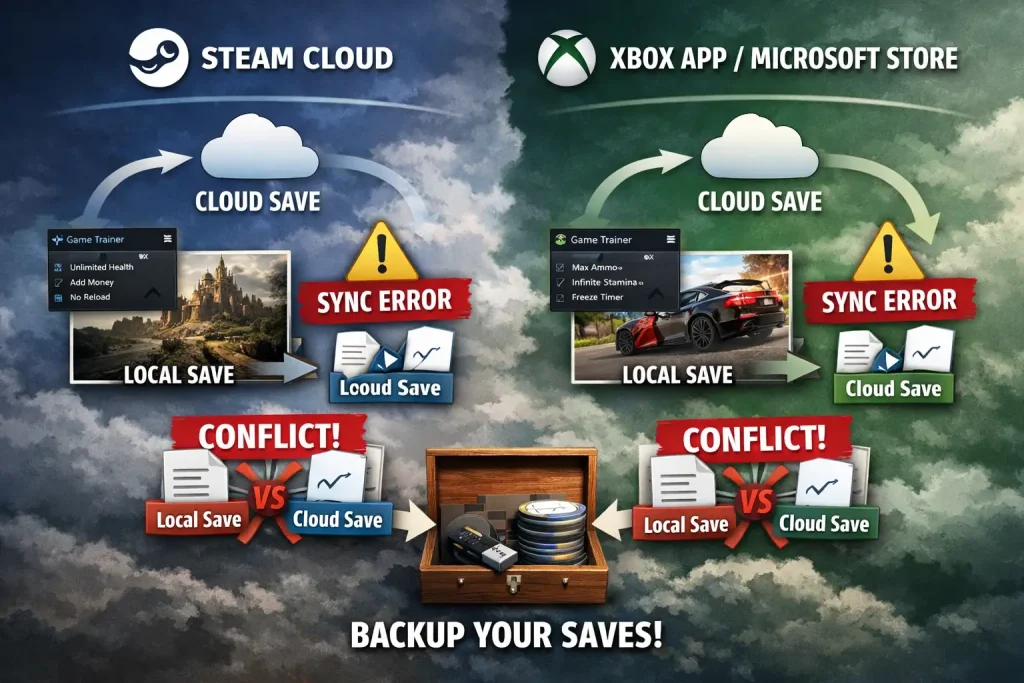
Xbox app / Microsoft Store: The same principle applies. Cloud systems are excellent until local state and remote state disagree. Your safety net is always a manual backup before experimentation.
“My Game Trainer stopped working after the latest game update” (and how to prevent it)
This is the most common complaint among Game Trainer users, and it has a simple cause: game patches change internal behavior and can break trainer scripts or hooks.
Prevention: control Steam auto-updates
Steam Support explains you can reduce surprise updates by setting a game to “Only update this game when I launch it” (Library → Properties → Updates).
This matters because Game Trainer compatibility is often version-specific.
Faster recovery: choose trainers with an update/compatibility system
XMODHUB highlights:
- Auto-updating mods (compatibility with patches and expansions) Xmodhub
- Compatibility checker that flags conflicts/outdated mods before installation Xmodhub
- Game listing pages that show “Updated” dates and platforms per title Xmodhub
That combination reduces downtime after patches—especially for casual players who just want things to work.
Troubleshooting Game Trainer issues (Windows 11 + Steam)
1) Game Trainer hotkeys not working
Common causes:
- Overlay conflicts (Steam overlay, GPU overlays, recorders)
- Fullscreen vs borderless differences
- Admin privilege mismatch (trainer is admin; game is not—or vice versa)
Fix sequence:
- Disable overlays one by one
- Switch to borderless windowed
- Run game + Game Trainer at the same privilege level
- Confirm the trainer matches your game build
2) Game Trainer closes itself after a few minutes
Most likely:
- Version mismatch (game updated)
- Windows security terminated/quarantined it
- Anti-tamper behavior in certain titles
What to do:
- Check Windows Security “Protection history”
- Revalidate the trainer’s compatibility/version notes
- Re-test with minimal variables changed
3) Game Trainer using too much CPU
Usually indicates:
- High-frequency polling
- A stuck attach loop
- Conflicts with overlays
Mitigation:
- Disable unnecessary trainer features
- Close the trainer when you’re done
- If CPU remains high at idle, re-check your download source and scan status
Can a Game Trainer get you banned in “single-player only” games?
If a game is truly offline-only, ban risk is typically low. The danger is that many games include online services, anti-cheat drivers, or multiplayer modes—even if you personally only play solo.
Steam Support’s VAC documentation is blunt:
- VAC bans are permanent, non-negotiable, and can’t be removed by Steam Support (except if the system later determines the ban was incorrect, in which case it is automatically removed).
Safety standard: Never run a Game Trainer when launching VAC-secured multiplayer or any competitive online mode. Keep trainers strictly for offline single-player sessions.
Game Trainer vs in-game accessibility options (the safer alternative sometimes)
Before installing a Game Trainer, check the game’s own settings:
- difficulty modifiers, aim assist, timing windows, resource multipliers, QTE assists
Accessibility options have two major safety advantages:
- They survive patches better than trainers
- They don’t trigger Windows security heuristics the way third-party executables can
A Game Trainer is most appropriate when accessibility settings don’t cover what you need—or when you’re experimenting in a sandbox/post-game context.
Why XMODHUB’s “one app” model can be safer than traditional loose trainers
XMODHUB’s messaging repeatedly emphasizes safety, ease of use, and consistency:
- “Personalize your games safely” Xmodhub
- “Safer than Traditional Trainers” and “No viruses, no risky file changes”
- Frequent updates and compatibility with the latest versions
- Centralized browsing of Game Trainers with platform coverage and update dates
To be precise: no platform can meaningfully guarantee “100% clean” in the abstract. What matters for a safety-first player is the combination of official distribution, consistent update cadence, predictable install flow, and community support channels—like the Discord support prompt shown across pages.
FAQ (SEO-focused, long-tail Game Trainer queries)
How to install a Game Trainer safely on Windows 11?
Use a dedicated trainer folder, scan before running, keep Windows protections enabled, and only create narrow Defender exclusions if absolutely necessary. Microsoft documents both Virus & threat protection settings and App & browser control (SmartScreen / Smart App Control) as the key surfaces to manage.
What is the safest way to download a Game Trainer with no virus?
Download from a reputable official source, avoid mirror sites, scan the file, and don’t run unknown installers. If you must allowlist a trainer, do it narrowly (single folder).
Is a Game Trainer safe for Steam Cloud saves?
Usually yes, but you must manage Cloud conflicts. Steam describes the conflict window behavior and points to cloud_log.txt for troubleshooting when local and cloud files diverge.
Why did my Game Trainer stop working after a game update?
Because patches can break trainer compatibility. Reduce surprise updates by setting Steam to “Only update this game when I launch it,” and prefer trainers/mod platforms that advertise auto-updating and compatibility checking.
Can a Game Trainer get me banned if I only play single-player?
Avoid using a Game Trainer in any online/VAC-secured context. Steam’s VAC policy emphasizes that VAC bans are permanent and not removable by support (except automatic reversals if issued incorrectly).
Conclusion: A safe, repeatable Game Trainer workflow
If you remember nothing else, remember this:
- Keep your Game Trainer sources reputable and consistent.
- Don’t “fix” trainer warnings by disabling security globally—use Windows 11 security controls responsibly.
- Back up saves and respect Steam Cloud conflict prompts.
- Expect updates to break trainers sometimes—control Steam updates and prefer systems with compatibility checks and auto-updates.
👑 Stay Ahead. Play Without Limits.
Follow us for continuous updates and instant access to 5,000+ trainers & mods. Unlock resources, test builds, and try everything free right now.
👉 Try 5,000+ Mods & Trainers for FreeFor players who want a more managed approach, XMODHUB’s Xmod positions itself around automatic detection, one-click trainers, compatibility checking, and frequent updates—features that align closely with the safest way to use a Game Trainer in 2025.

I create content for Xmodhub, where I curate and share game mods, tools, and other resources. My goal is to help players discover great add-ons, enjoy a smoother experience, and have more fun.


 Catherine Hu