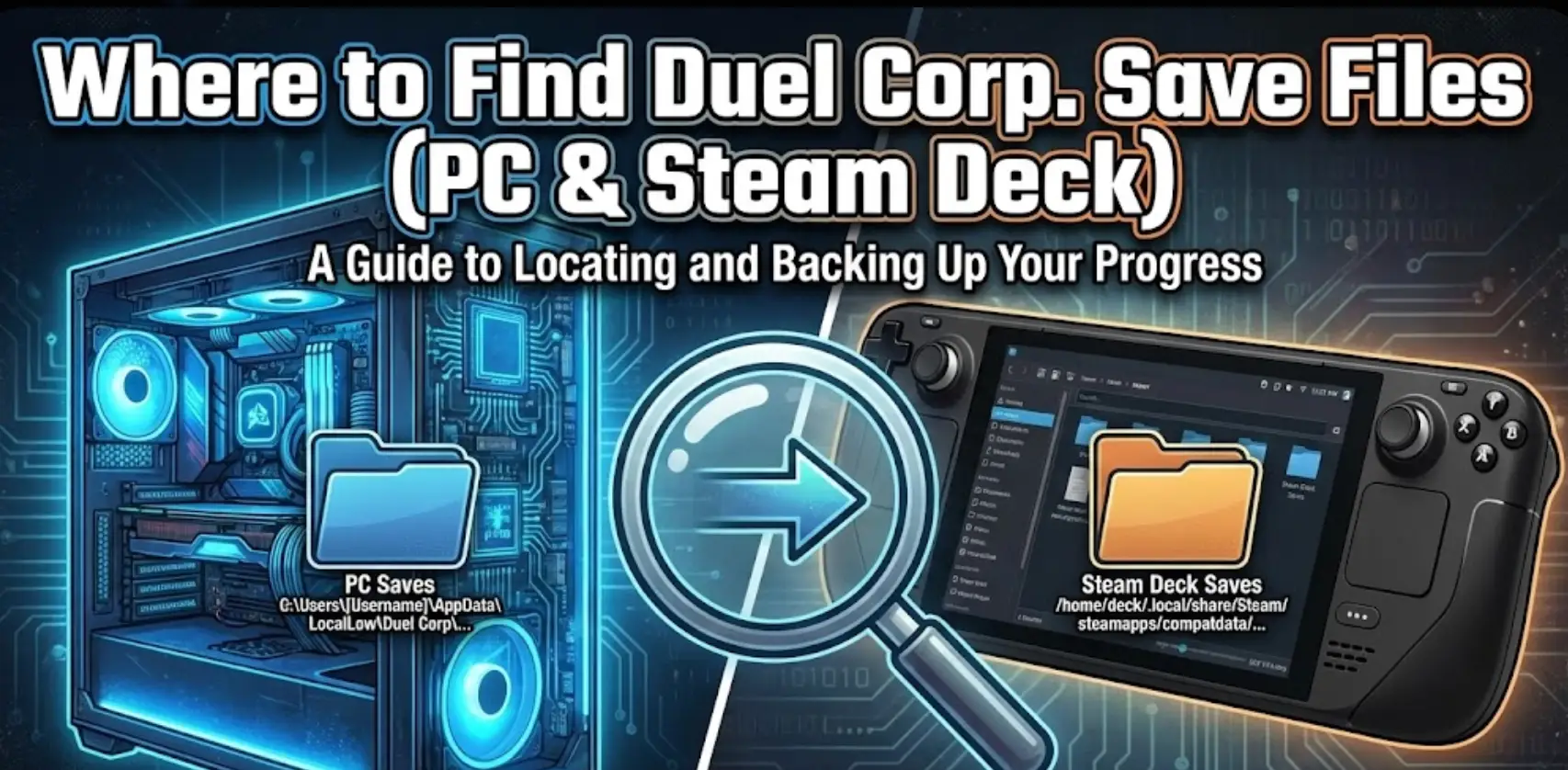
Duel Corp. is unforgiving. Between the procedural dungeons and the souls-like combat, every level gained feels like a victory. But because the game is in active Early Access, your progress is vulnerable. A buggy update or a Steam Cloud sync error can wipe out a 40-hour character in seconds.
Whether you need to manually backup your world, fix a corrupted config file, or transfer your progress to a Steam Deck, you first need to locate the data.
Below is the verified file path for Duel Corp. on Windows and Linux, along with a failsafe method to automate your backups.
You may also like:
Duel Corp. Console Commands (2026): Cheat Codes & Item IDs List
Table of Contents
- Editor’s View: The “LocalLow” Trap
- Windows PC Save File Location
- Duel Corp. Config & Settings Location
- Steam Deck / Linux Save Location
- Critical: Steam Cloud Sync Conflicts
- The Smarter Way: One-Click Backup
- FAQ
Editor’s View: Why This Matters
“I’ve spent dozens of hours testing builds in Duel Corp., and I’ve learned one thing the hard way: Unity games behave differently.
Most guides will tell you to look in your ‘Local’ AppData folder. They are wrong. Duel Corp. stores data in ‘LocalLow’. If you are looking in the wrong folder, you’ll think your data is gone. I wrote this guide to make sure you find the actual files, specifically to help players who want to experiment with different builds without losing their main save.” — Catherine Hu, Senior Editor & RPG Enthusiast at XMODhub
Windows PC Save File Location
For the Steam version of Duel Corp., the save files are located in the LocalLow directory (standard for Unity Engine games).
The direct path is:
Plaintext
C:\Users\[YourUsername]\AppData\LocalLow\Dreambakers\DuelCorp\
How to navigate there quickly:
- Press Windows Key + R on your keyboard.
- Type
%userprofile%\AppData\LocalLow and press Enter. (Note: Do not just type %appdata% or you will end up in the Roaming folder).
- Open the Dreambakers folder.
- Open the DuelCorp folder.
What to look for: Inside, you will see a folder with a long string of numbers (this is your Steam ID). Your actual character data is inside that folder, usually named SaveData or similar .dat / .json files.
Duel Corp. Config File Location
If you have a black screen on startup or need to reset your resolution manually, you need the configuration file.
Path:
Plaintext
C:\Users\[YourUsername]\AppData\LocalLow\Dreambakers\DuelCorp\
File Name: Look for Settings.json or Player.log.
- Fixing Crashes: If your game won’t launch after an update, deleting
Settings.json will force the game to generate a fresh one with default settings next time you launch. This is a common fix for Early Access bugs.
Steam Deck / Linux Save Location
Duel Corp. runs on the Steam Deck via Proton. You need to access the internal Proton prefix folder.
Path:
Plaintext
/home/deck/.local/share/Steam/steamapps/compatdata/1804470/pfx/drive_c/users/steamuser/AppData/LocalLow/Dreambakers/DuelCorp/
Important Details:
- Steam App ID:1804470 (You must memorize this to find the right folder in
compatdata).
- Transferring Saves: You can copy the contents of the
DuelCorp folder from your PC to this location on your Deck (or vice versa) to manually sync your progress if Steam Cloud fails.
Critical: Steam Cloud Sync Conflicts
A very common search query for Duel Corp. involves Steam Cloud overwriting local saves. If you play on multiple devices, Steam may ask you to choose between “Local Save” and “Cloud Save.”
- The Risk: If you choose “Cloud Save” by mistake when your local progress is actually newer, Steam will overwrite your file with old data.
- The Solution: We strongly recommend keeping a manual backup of the
Dreambakers folder on your desktop before switching PCs. Or, use a tool to handle versioning for you.
The Smarter Way: One-Click Backup with XMODhub
Navigating deep into hidden system folders like LocalLow is risky. If you accidentally delete the wrong .json file, your character could be corrupted forever.
XMODhub will offer a specialized Save Manager for Early Access games like Duel Corp..
- Auto-Backup : XMODhub detects when you close Duel Corp. and instantly zips your save folder.
- Conflict Protection: Before Steam Cloud has a chance to sync a bad file, XMODhub has already secured your local copy.
- Visual Rollback: Died due to a glitch? Right-click and restore your save from 15 minutes ago.
How to Use XMODhub: Instant Security in 3 Steps
XMOD will provide full trainer support upon the game’s official release, ensuring compatibility and stability from day one.
XMODhub is not only a modding tool but also streamlines backup and recovery into three easy steps:
Step 1: Select Your Game Launch XMODhub. It automatically detects supported games on your system. Just select the game you want to protect from the library sidebar.

Step 2: Click “Create Backup” On the game’s dashboard, click the prominent “Create Backup” button once. XMODhub automatically locates, compresses, timestamps, and secures your save data instantly.
Step 3: Restore Anytime Need to recover a save? Go to the game’s “Save History” tab, select a timestamped backup from the list, and click “Restore”. Your game is immediately rolled back to that point.
Smarter Tip: Want it fully automated? Enable “Smart Auto-Backup” in the settings. XMODhub will create a new restore point every time you exit the game.
FAQ
Q: Can I share my Duel Corp. world with a friend?
Yes. You can zip the folder inside AppData\LocalLow\Dreambakers\DuelCorp\ and send it to your friend. They must place it in the exact same directory on their PC. Note: This will overwrite their existing characters, so tell them to backup first!
Q: I don’t see the “AppData” folder?
This is a hidden Windows folder. In File Explorer, go to the View tab and check the box for “Hidden items”.
Q: What is the file extension for Duel Corp. saves?
The game typically uses .json or .dat files for player data and settings, located within the numeric Steam ID folder.
Conclusion
Finding the Duel Corp. save file location in LocalLow is the first step to securing your gameplay. Whether you are tweaking Settings.json for better FPS or manually transferring files to a Steam Deck, knowing your way around the Dreambakers folder is a necessary skill for this game.
However, for total peace of mind—especially during Early Access updates—we recommend the XMODhub Save Manager. Don’t let a sync error erase your grind.
Backup smarter. Play harder.
[Download XMODhub Now]
I am a passionate gamer and writer at XMODhub, dedicated to bringing you the latest gaming news, tips, and insights.
Connect with me:
LinkedIn Profile ↗

 Catherine Hu
 Nancy Miller