
 Catherine Hu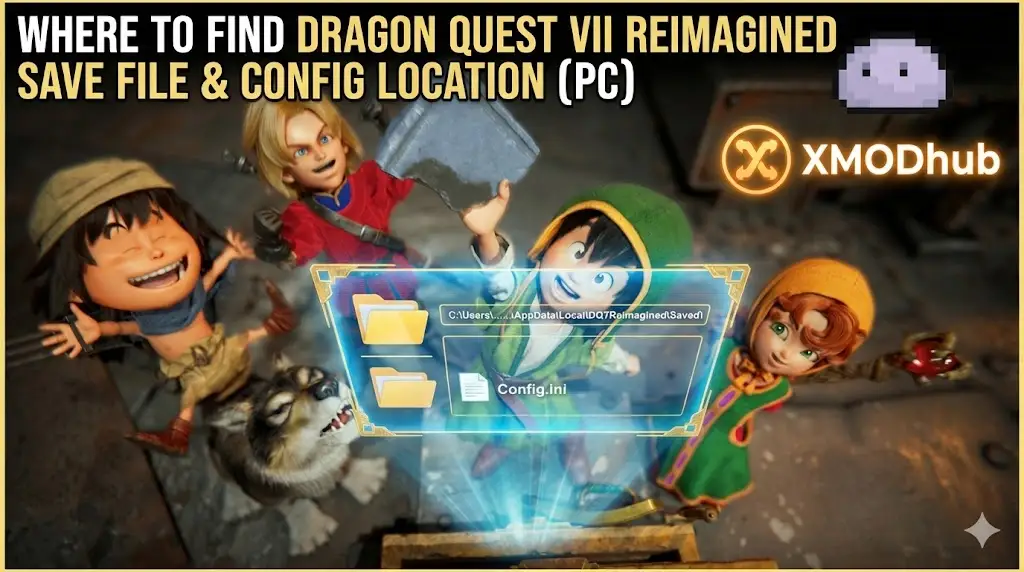
Editor’s View: Why This Matters
There is nothing worse than sinking 80 hours into Dragon Quest VII Reimagined, collecting nearly every Lithograph Shard and mastering the Hero vocation, only to worry about a corrupted save file or a cloud sync error.
In a massive JRPG like this, a lost save isn’t just a setback; it’s a tragedy. Whether you want to manually backup your progress before the final boss, transfer your save to a Steam Deck for grinding on the go, or modify the config file to unlock the framerate, you first need to find where the data is hidden.
Below is the exact file path for Dragon Quest VII Reimagined on Windows and Steam Deck, along with a safer, automated method to protect your legacy.
You may also like:
DRAGON QUEST VII Reimagined Cheat Engine Table vs. Trainer: Best Free Alternative (2026)
Windows PC Save File Location
For the Steam version of Dragon Quest VII Reimagined, the save files are usually located in the hidden AppData folder. Assuming the remake uses Unreal Engine (standard for modern SE titles), the path is as follows:
C:\Users\%USERNAME%\AppData\Local\DQ7Reimagined\Saved\SaveGames\How to navigate there quickly:
- Press Windows Key + R on your keyboard to open the Run dialog.
- Type
%localappdata%and press Enter. - Scroll down and look for a folder named DQ7Reimagined (or sometimes DragonQuestVII).
- Navigate to Saved > SaveGames.
Note: You will see files like SaveSlot01.sav. If the folder is empty, check C:\Users\%USERNAME%\Documents\My Games\, as some Square Enix titles still use the legacy Documents folder.
Dragon Quest VII Reimagined Config File Location
If you need to manually tweak graphics settings—like disabling the 60 FPS cap, adjusting resolution scaling, or turning off motion blur—you will need to edit the engine configuration file.
C:\Users\%USERNAME%\AppData\Local\DQ7Reimagined\Saved\Config\WindowsNoEditor\How to Edit:
- Right-click the
GameUserSettings.ini(or Engine.ini) file. - Select Open with Notepad.
Warning: Be careful when modifying values. Incorrect settings can cause the game to crash on the “Square Enix” logo screen.
Steam Deck / Linux Save Location
Dragon Quest VII is the perfect “couch game” for the Steam Deck. If you need to find your saves on Linux (SteamOS), they are inside the Proton prefix.
/home/deck/.local/share/Steam/steamapps/compatdata/[Your_Steam_App_ID]/pfx/drive_c/users/steamuser/AppData/Local/DQ7Reimagined/Saved/SaveGames/Tip: You must replace [Your_Steam_App_ID] with the game’s unique ID number. You can find this by right-clicking Dragon Quest VII in your Steam Library, selecting Properties > Updates, and looking for the “App ID” at the bottom.
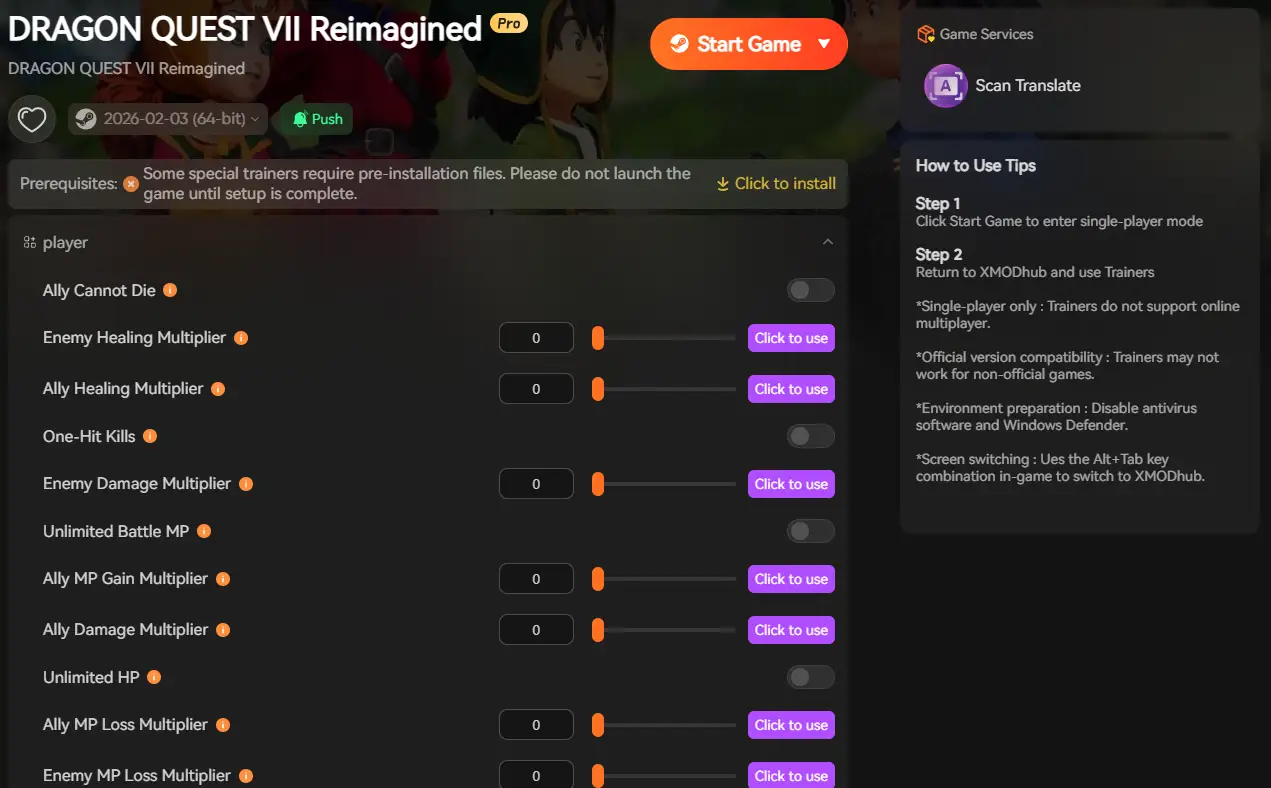
The Smarter Way: One-Click Backup with XMODhub
Navigating through hidden %AppData% folders every time you find a rare Shard is tedious. One accidental delete, and your 100-hour journey is over. XMODhub offers a built-in Save Manager tool designed specifically for JRPGs.
01
Auto-Backup
XMODhub can automatically backup your save file every time you exit the game.
02
Checkpoint Rollback
Did you make a bad choice in a quest line? Roll back to a previous save version from yesterday instantly.
03
Visual Management
Organize your saves by “Chapter” or “Island” with a single click.
How to Use XMODhub for DQ7:
1. Download and Install the XMODhub client safely.

2. Search for “Dragon Quest VII” in the client.

3. Launch the game directly from the client.
FAQ
Q: Can I transfer my DQ7 save to another PC?
A: Yes. Simply copy the entire contents of the SaveGames folder mentioned above to the exact same location on the new computer. Ensure you verify the file integrity on Steam first.
Q: What happens if I delete the config file?
A: Usually, the game will regenerate a default GameUserSettings.ini file upon the next launch, resetting your graphics settings to default. This is a good fix if your game refuses to launch after tweaking settings.
Q: Does modifying save files ban me?
A: No. Dragon Quest VII Reimagined is a single-player experience. Modifying your save file (e.g., to add Gold or Casino Tokens) will not get you banned.
Conclusion
Locating your Dragon Quest VII Reimagined save file is a crucial skill, whether you are recovering from a glitch, migrating your progress to a Steam Deck, or manually tweaking config files for better visuals.

However, digging through hidden system folders always carries a risk. One wrong deletion can wipe out hundreds of hours of progress. If you prefer a safer, “set it and forget it” solution, we highly recommend the XMODhub Save Manager. It automates your backups, keeping your hard-earned progress secure so you can focus on the adventure, not the file directory.

I am a passionate gamer and writer at XMODhub, dedicated to bringing you the latest gaming news, tips, and insights.
Connect with me:
LinkedIn Profile ↗
 Nancy Miller