
 Catherine Hu
Editor’s View: The “PC Port” Curse
You have waited years for the return of the legendary Dragon Quest VII Reimagined. You pre-loaded the game, cleared your weekend schedule, and clicked “Play”—only to be greeted by a black screen or a sudden crash to desktop right after the Square Enix logo.
Launch day issues are frustrating, especially for massive JRPGs. Whether you are facing a black screen (often shader compilation), random Fatal Errors, or the game refusing to launch due to Denuvo, this guide covers the most effective solutions to get you into the adventure.
You may also like:
DRAGON QUEST VII Reimagined Cheat Engine Table vs. Trainer: Best Free Alternative (2026)
Check First: System Requirements
Before debugging, ensure your PC can actually run the game. Modern remakes are more demanding than they look.
| Component | Minimum Requirements | Recommended Specifications |
|---|---|---|
| OS | Windows 10 (64-bit) | Windows 11 (64-bit) |
| CPU | Intel Core i5-8400 | Intel Core i7-10700K |
| RAM | 8 GB RAM | 16 GB RAM |
| GPU | GTX 1060 (6GB) | RTX 3060 Ti / RX 6700 XT |
| Storage | 40 GB SSD | NVMe SSD |
Method 1: Verify Game Files (The #1 Fix)
Corrupted installation files are the #1 cause of crashes. If your internet fluctuated during the pre-load, a critical texture file might be broken.
For Steam Users:
- Right-click Dragon Quest VII Reimagined in your Library.
- Select Properties > Installed Files.
- Click “Verify integrity of game files”.
- Wait for the process to finish. Steam will re-download any corrupted data.
Method 2: Update Visual C++ & GPU Drivers
JRPGs rely heavily on specific Microsoft libraries.
- Visual C++ All-in-One: If you get errors like MSVCP140.dll missing or UE4-FatalError, you need to reinstall the Microsoft Visual C++ Redistributable 2015-2022. Make sure to install both x86 and x64 versions.
- GPU Drivers: Update to the latest NVIDIA (Game Ready) or AMD drivers. Old drivers often crash when trying to render the game’s particle effects.
Method 3: Fix Black Screen (Shader Compilation)
The “Fake” Crash Warning
If you launch the game and see a black screen with a spinning icon (or nothing at all), DO NOT CLOSE IT.
- Cause: The game is compiling shaders for your specific GPU. This can take 5-10 minutes on the first launch.
- Fix: Wait. If you force close it via Task Manager, the corruption might require a file verification.
Anti-Tamper Delay: Sometimes, Denuvo takes a moment to “phone home” to verify your license. Ensure you have an active internet connection for the first launch.
Method 4: Fix Controller & Audio Conflicts
Dragon Quest games often crash if they detect multiple input devices.
- Unplug Peripherals: Unplug any flight sticks, steering wheels, or secondary controllers. Only keep your Mouse/Keyboard and one Gamepad connected.
- Disable Steam Input: Right-click the game > Properties > Controller > “Disable Steam Input”. Sometimes the game handles the controller natively, and Steam interferes.
- Audio Drivers: If the game crashes on the opening movie, change your Windows Sound Format to 48000Hz (DVD Quality). Higher bitrates can crash older audio middleware used in JRPGs.
Method 5: Fix Low FPS & Stuttering
Is the game running in slow motion?
- Laptop Power Mode: Ensure your laptop is plugged in. JRPGs often default to the integrated GPU on battery power.
- V-Sync: Turn V-Sync OFF in-game and force it ON in your NVIDIA Control Panel. This often fixes the “micro-stutter” issues in Square Enix ports.
- Set High Priority: Open Task Manager > Details > Right-click the game .exe > Set Priority > High.
The Workaround: Save Manager & Speedhacks with XMODhub
Nothing is worse than a crash after 2 hours of grinding without a save point. XMODhub offers tools to mitigate PC port issues.
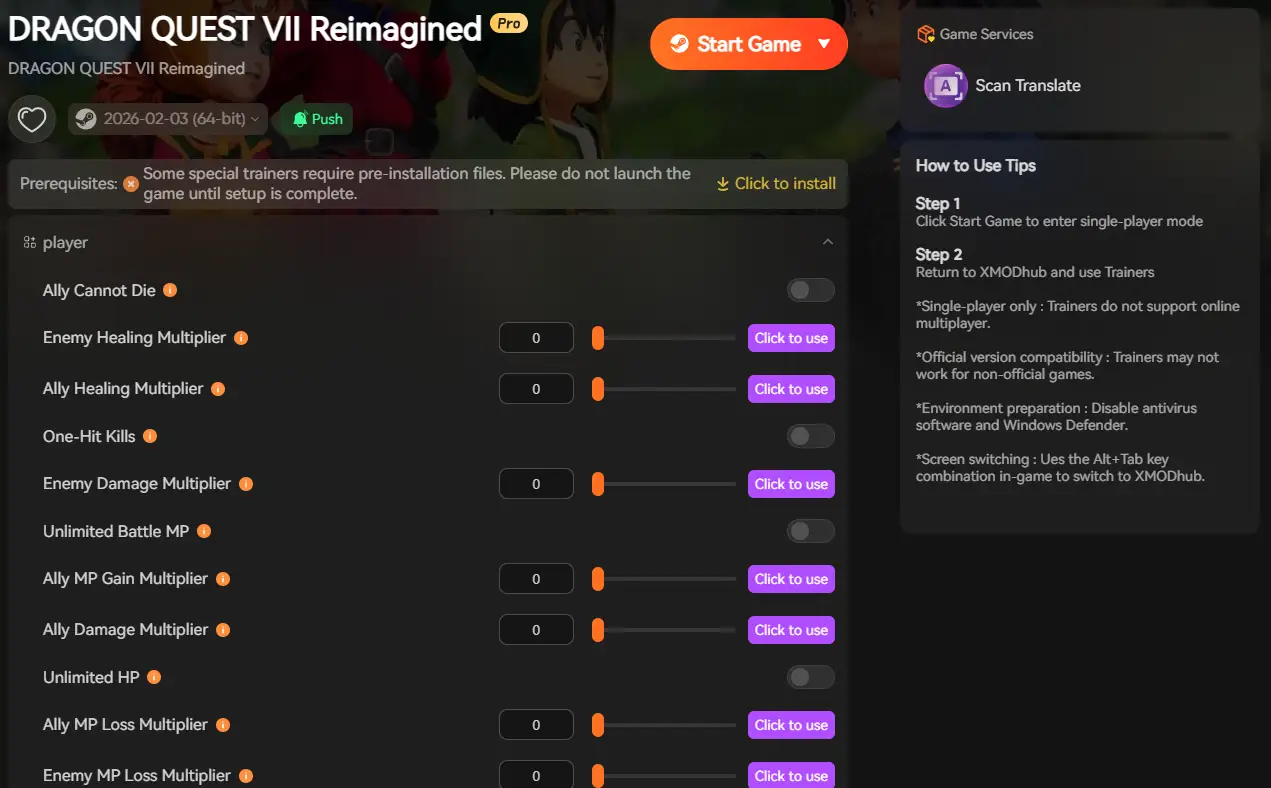
- Game Speed: Use the Speedhack to fast-forward through slow animations or unskippable cutscenes if you need to replay a section after a crash.
- Save Manager: Automatically backup your save file periodically. If a “Fatal Error” corrupts your slot, roll back instantly.
How to Get Started with XMODhub
- Download & Install: Get the XMODhub Client.

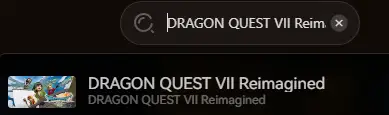
- Auto-Detect: Launch the app to scan for Dragon Quest VII.
- Launch & Play: Start the game via XMODhub to ensure your saves are protected.
FAQ
Q: Does Dragon Quest VII Reimagined support Ultrawide monitors?
A: Native support is often spotty in JRPGs. You may see black bars during cutscenes. XMODhub mods can often force ultrawide resolution.
Q: “Sorry, something went wrong” Denuvo error?
A: This means the Denuvo servers are unreachable or you have changed hardware too many times in 24 hours. Wait 24 hours and try again.
Q: Will reinstalling fix the “Fatal Error”?
A: Usually no. Fatal Errors are typically C++ or Driver conflicts. Try Method 2 first.
Conclusion
Launch issues are painful, but they are temporary. By verifying your files, updating your C++ libraries, and ensuring your controller settings are correct, you should be able to fix the Dragon Quest VII Reimagined crash on startup.
If the game is still unstable, XMODhub can help secure your progress with automated save backups. Don’t let the crash stop the adventure. Play smarter.

I am a passionate gamer and writer at XMODhub, dedicated to bringing you the latest gaming news, tips, and insights.
Connect with me:
LinkedIn Profile ↗
 Nancy Miller
The clarification that the black screen on first launch is often just Unreal Engine shader compilation is really helpful—so many people assume it’s a hard crash and force quit too early. I’d also add that letting the game sit for a few minutes after major driver updates can save a lot of frustration. The note about controller and audio conflicts feels especially spot-on for Square Enix PC ports.