Summary: Discover all Dragon Age: Origins console commands and cheats for 2025. Learn how to enable the console, spawn items, and enhance gameplay with powerful tools and mods.
Dragon Age: Origins is a legendary RPG that defined a generation of fantasy gaming. With its deep storytelling, tactical combat, and memorable characters, it remains a fan favorite over a decade later. But sometimes even the Grey Wardens need a little help — whether you’re testing builds, replaying the story, or simply want to experience Ferelden without grinding. That’s where console commands come in.
Before exploring the full list of cheats, it’s worth mentioning that Xmod is a powerful PC tool designed to enhance your single-player gaming experience.
With Xmod, you can manage mods, activate cheats more easily, and use built-in features for RPGs like Dragon Age: Origins — all without manually editing files or risking your save data.
This comprehensive guide covers everything you need: how to enable the developer console, the most useful Dragon Age: Origins commands, item spawning codes, and safe ways to customize your Grey Warden’s journey.

Table of Contents
- What Are Dragon Age: Origins Console Commands?
- How to Enable the Console in Dragon Age: Origins
- Most Useful Dragon Age: Origins Console Commands
- Full Dragon Age: Origins Console Commands List:Updated
- How to Enhance Dragon Age: Origins with Xmod
- Conclusion
What Are Dragon Age: Origins Console Commands?
Console commands in Dragon Age: Origins are developer tools that let players modify gameplay, character stats, and world settings in real time. By accessing the developer console, you can spawn legendary items, gain experience instantly, unlock specializations, adjust companion approval, or even become immortal. These commands are especially popular among players who want to experiment with builds, test different story paths, or replay the game without restrictions — offering complete control over your adventure through Ferelden.
How to Enable the Console in Dragon Age: Origins
Enabling the developer console in Dragon Age: Origins requires a few simple steps. The process varies slightly depending on which version you’re playing, but once activated, you’ll have access to all console commands. Here’s how to get started:
For Standard Edition (Steam, GOG, Origin/EA App):
1: Add the Launch Parameter
- Steam: Right-click Dragon Age: Origins in your Library → Properties → Set Launch Options → Type
-enabledeveloperconsole → Click OK
- GOG: Right-click the game → Properties → Set Launch Options → Add
-enabledeveloperconsole
- Origin/EA App: Right-click the game → Game Properties → Advanced Launch Options → Add
-enabledeveloperconsole to Command Line Arguments
2: Configure the Console Key
- Navigate to
Documents\BioWare\Dragon Age\Settings
- Open
KeyBindings.ini with Notepad
- Find the line
OpenConsole_0=Keyboard::Button_GRAVE
- Change it to
OpenConsole_0=Keyboard::Button_TILDE (recommended) or another unused key
- Save the file and close
3: Launch and Use
Start the game and press ~ (tilde) to open the console. You won’t see the console window, and you won’t see what you’re typing — this is normal. Just type your command and press Enter to execute it.
For Ultimate Edition (Additional Step):
If you’re playing the Ultimate Edition, you may also need to edit the DAOriginsLauncher.xml file:
- Go to
[Install Directory]\data\
- Open
DAOriginsLauncher.xml with Notepad
- Find the line with
autoquit="true"
- Add
arguments="-enabledeveloperconsole" after it (with a space)
- The line should look like:
autoquit="true" arguments="-enabledeveloperconsole"
- Save and launch the game
Important Notes:
- Always backup your saves before using console commands
- Using the console disables synchronization with Dragon Age Keep
- You won’t see the console window or your typing — this is normal behavior
- Press Backspace once before typing to clear any stray characters
Most Useful Dragon Age: Origins Console Commands
Here are the essential commands every Grey Warden should know, organized by function.
Basic Cheats & God Mode
pc_immortal — Grants immortality. You take damage but cannot die.
healplayer — Fully heals your entire party instantly.
killallhostiles — Defeats all enemy creatures on screen.
zz_supercrit player — Adds 1,000 health, mana, and stamina to your character.
Experience & Gold Commands
runscript addxp [number] — Adds experience points to your character.
Example: runscript addxp 10000 gives 10,000 XP
runscript zz_money [number] — Adds gold (multiply number by 100).
Example: runscript zz_money 10 gives 1,000 gold
Example: runscript zz_money 100 gives 10,000 gold
Companion & Party Commands
runscript zz_addparty [NPC name] — Adds a companion to your party instantly.
Example: runscript zz_addparty dog summons your War Hound
runscript zz_addapproval [companion] [number] — Changes companion approval rating.
Example: runscript zz_addapproval alistair 50 increases Alistair’s approval by 50
Example: runscript zz_addapproval morrigan -25 decreases Morrigan’s approval by 25
Common NPC names: alistair, dog, leliana, morrigan, shale, sten, wynne, zevran, oghren
Item Spawning Commands
runscript additem [item code] [quantity] — Spawns items directly into your inventory.
Example: runscript additem gen_im_qck_health_401 20 gives 20 Potent Health Poultices
runscript zz_givearmor — Spawns all Dragonbone Legion armor pieces.
Note: Item spawning requires the AddItem mod for best results. See the full command list section for item codes.
Specialization & Skills
runscript addtalent [talent ID] — Teaches your character a specific talent or skill.
runscript removetalent [talent ID] — Removes a talent from your character.
Utility Commands
ai off — Disables party AI (useful for tactical positioning).
ai on — Re-enables party AI.
injury remall — Removes all injuries from your character.
injury remparty — Heals all party injuries.
Full Dragon Age: Origins Console Commands List: Updated
Below is a comprehensive list of console commands available in Dragon Age: Origins, organized by category.
Combat & Survival Commands
pc_immortal — Become immortal (take damage but never die)
healplayer — Heal entire party to full health
killallhostiles — Kill all hostile enemies in area
zz_supercrit player — Gain 1,000 health, mana, and stamina
injury remall — Remove all injuries from your character
injury remparty — Remove all injuries from entire party
Character Progression
runscript addxp [number] — Add experience points
runscript zz_money [number] — Add gold (multiply by 100)
Example: runscript zz_money 50 gives 5,000 gold
runscript addtalent [ID] — Learn a specific talent or spell
runscript removetalent [ID] — Remove a learned talent
Party Management
runscript zz_addparty [NPC] — Add companion to party
Available NPCs: alistair, dog, leliana, morrigan, shale, sten, wynne, zevran, oghren
runscript zz_addapproval [companion] [number] — Change approval rating
Positive numbers increase approval, negative numbers decrease it
runscript zz_party_summon — Teleport all party members to your location
Item Commands
runscript additem [item code] [count] — Spawn items into inventory
Example: runscript additem gen_im_arm_chst_mas_ava 1 spawns Armor of the Legion
runscript zz_givearmor — Receive all Dragonbone Legion armor pieces
Note: For a complete list of item codes, visit the Dragon Age Wiki or use the AddItem Console Improved mod from NexusMods for easier item spawning.
AI & Gameplay Commands
runscript ai off — Disable party AI
ai on — Enable party AI
appearance [number] — Change character appearance model
Achievement Command
runscript cheater — Unlocks all achievements (use with caution)
Advanced Item Spawning
For players who want precise control over items, install the “AddItem with Console Improved” mod from NexusMods. This allows better item spawning with the following syntax:
runscript additem [item_code] [quantity]
Some useful item codes:
- Health Poultices:
gen_im_qck_health_401 (Potent)
- Lyrium Potions:
gen_im_qck_lyrium_401 (Potent)
- Injury Kits:
gen_im_qck_injury_standard
Material-Specific Items:
runscript additemwmat [item code] [count] [material tier]
Example: runscript additemwmat gen_im_arm_chst_mas_tem 1 7 spawns Templar armor in tier 7 material
Material tiers:
- 1 = Iron
- 2 = Grey Iron
- 3 = Steel
- 4 = Veridium
- 5 = Red Steel
- 6 = Silverite
- 7 = Dragonbone
Plot & Quest Commands
runscript zz_ori_debug — Opens debug menu with plot flags and quest states
Warning: Modifying plot flags can break your game. Use with extreme caution and always backup saves first.
How to Enhance Dragon Age: Origins with Xmod

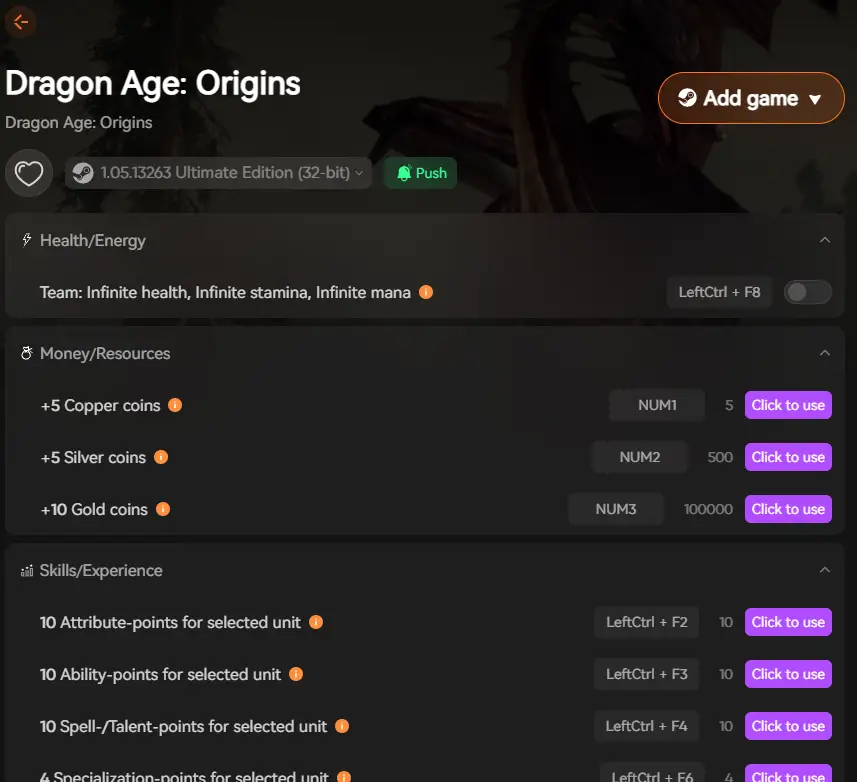
To take your Dragon Age: Origins experience even further, Xmod offers powerful tools that go beyond standard console commands. With Xmod, you can easily install mods, activate cheats, and optimize your gameplay — all from one convenient platform.
Xmod provides:
- One-click mod installation for graphics improvements, new quests, and companion enhancements
- Built-in trainers that let you adjust gold, experience, stats, and approval instantly
- Performance optimization tools to boost FPS and stability on modern systems
- Safe experimentation without risking your game files or save data
- Automatic updates to keep all mods compatible with the latest game patches
Whether you want to enhance visuals, customize combat difficulty, or explore every story branch without multiple playthroughs, Xmod gives you complete control over how you experience Dragon Age: Origins. It’s the perfect companion tool for both new players and veterans revisiting Ferelden in 2025.
Conclusion
Console commands in Dragon Age: Origins unlock limitless possibilities for customizing your Grey Warden’s journey. From gaining experience and gold to spawning legendary items and managing companion approval, these commands give you total control over every aspect of the game. Whether you’re testing different builds, exploring alternative storylines, or simply want to experience the game without grinding, console commands make it all possible.
Combined with Xmod, you can take your gameplay even further — installing quality-of-life mods, optimizing performance, and tailoring every element to your preferences. Together, console commands and Xmod transform Dragon Age: Origins into the ultimate customizable RPG experience, perfect for both new players discovering Ferelden for the first time and veteran Grey Wardens embarking on yet another journey to save Thedas.
I am a passionate gamer and writer at XMODhub, dedicated to bringing you the latest gaming news, tips, and insights.
Connect with me:
LinkedIn Profile ↗

 Catherine Hu

 Nancy Miller