Guide to Disabling Windows Defender

Windows Defender, now known as Microsoft Defender Antivirus, is an integrated security solution in Windows 10 and Windows 11. While it’s designed to protect your system from threats, there are scenarios where you might need to disable it temporarily or permanently.

Step 1: Access Windows Security Settings

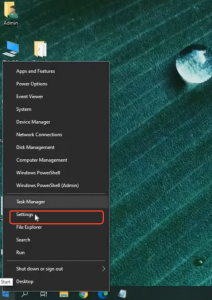
  • Click on the Start button and select the Settings icon.
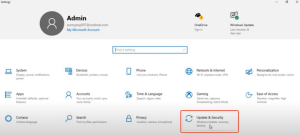
  • In the Settings window, choose Update & Security.
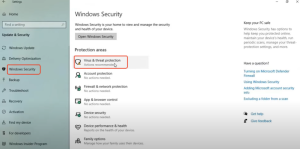
  • ไปที่ Windows Security in the left-hand menu.
  • คลิกที่ Virus & threat protection.

Step 2: Turn Off Real-Time Protection

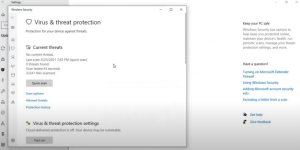
  • In the Virus & threat protection window, select Manage settings under the Virus & threat protection settings section.
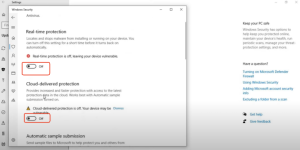
  • Locate the switches for Real-time protectionCloud-provided protection, and Automatic sample submission and toggle them to the Off position.
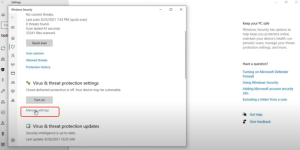
  • A warning will appear indicating that your device may be vulnerable; confirm your choice.
  • Note: Real-time protection will automatically re-enable after a short period or upon system restart.

  • arvin bronw

    โพสต์ที่เกี่ยวข้อง

    รายการเกมและบทช่วยสอนสำหรับ TTSGAME

    วิธีเล่นเกมโดยใช้ TTSGAME: ไปที่หน้าของเกมที่ได้รับการสนับสนุนตามที่แสดงด้านล่าง คลิกที่ปุ่ม ‘เริ่มเกม’ และเลือก ‘TTSGAME’ สนุกกับเกมของคุณ! ช่องสนับสนุน TTSGAME: https://discord.gg/7JK2pdPs ด้านล่างนี้คือ…

    รายชื่อเกมและคำแนะนำสำหรับ TTSGAME

    วิธีเล่นเกมด้วย TTSGAME: 1. เข้าชมหน้าของเกมที่ได้รับการสนับสนุนตามที่แสดงไว้ด้านล่าง 2. คลิกที่ปุ่ม ‘Start Game’ และเลือก ‘TTSGAME’ 3. สนุกกับเกมของคุณ!…

    ใส่ความเห็น

    อีเมลของคุณจะไม่แสดงให้คนอื่นเห็น ช่องข้อมูลจำเป็นถูกทำเครื่องหมาย *

    สีหลัก

    สีรอง

    โหมดเค้าโครง

    ปุ่มและไอคอนแชร์ทางสังคม ขับเคลื่อนโดย Ultimatelysocial