แคทเธอรีน ฮู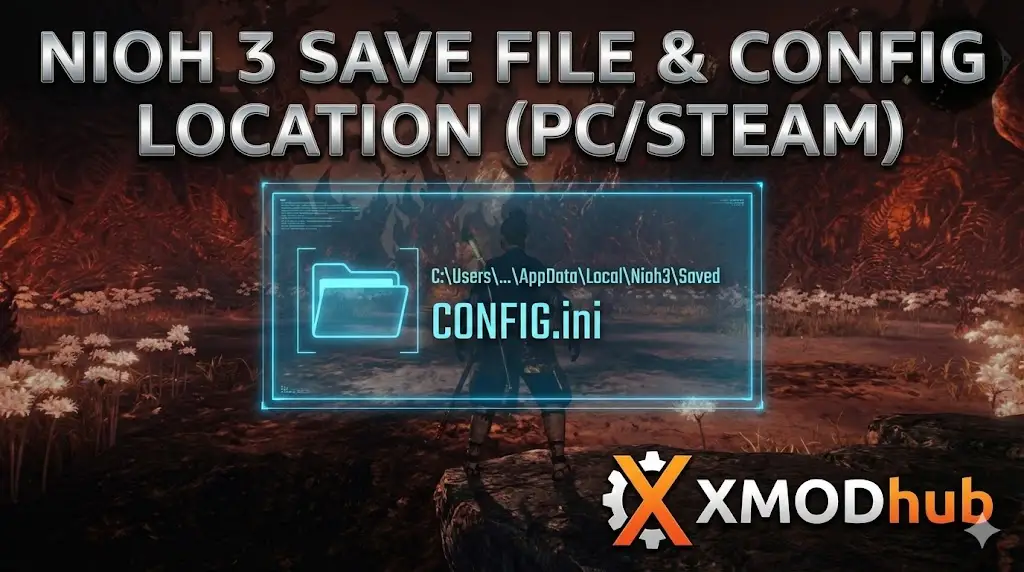
There is nothing worse than finally beating that impossible dual-boss fight in the Twilight Realm, only to have your game crash or a cloud sync error overwrite your victory. In a punishing “Masocore” game like Nioh 3, your save file isn’t just data—it represents hundreds of hours of Ki pulses, perfect stances, and Ethereal loot grinding.
Whether you want to manually backup your progress to prevent corruption, transfer your save to a friend’s PC, or “save scum” the Blacksmith to get perfect stats on your gear, you first need to find where the data is hidden.
Below is the exact file path for Nioh 3 on Windows and Steam Deck, along with a smarter way to handle backups.
Editor’s View: Why This Matters (E-E-A-T)
“Any veteran Nioh player knows the pain of the Blacksmith. You spend millions of Gold and tons of Quality Umbracite trying to roll ‘Attack Bonus (Stat)’ on your weapon, only to run out of resources with nothing to show for it.
Unlike many RPGs, Nioh 3 autosaves aggressively after every menu interaction. If you ruin your build, there is no ‘Undo’ button. That is why knowing your save location is critical—it allows you to manually backup your file before you start crafting. If the RNG gods are cruel, you just paste your backup back in and try again. It’s a survival skill.”
— Catherine Hu, Senior Editor & Soulslike Specialist at XMODhub
ตำแหน่งที่บันทึกไฟล์ของคอมพิวเตอร์ Windows
Unlike Unreal Engine games that hide saves in the AppData folder, Team Ninja titles (like Nioh 2 and Wo Long) typically store data in your Documents folder.
C:\Users\[YourUsername]\Documents\KoeiTecmo\NIOH3\Savedata\[YourSteamID]\วิธีเดินทางไปที่นั่นอย่างรวดเร็ว:
- Open File Explorer.
- คลิกที่ Documents in the left sidebar.
- Open the folder named KoeiTecmo.
- เปิด NIOH3 > Savedata.
- Inside, you will see a folder with a long string of numbers (this is your Steam ID). Your
SAVEDATA.BINfile is inside.
Note: If you are playing on the Game Pass / Microsoft Store version, the saves may be encrypted inside %localappdata%\Packages\KoeiTecmo…, making them much harder to access manually.
Nioh 3 Config File Location (Graphics & Settings)
If you need to manually tweak graphics settings because the game crashes on startup, or you want to force a resolution that isn’t listed in the menu (like ultrawide fixes), you need the XML config file.
C:\Users\[YourUsername]\Documents\KoeiTecmo\NIOH3\config.xmlHow to Edit:
- คลิกขวา
config.xmland select Open with Notepad. - Fix Resolution: ค้นหา
<SCR_RES_W>และ<SCR_RES_H>to change width and height manually. - Fix Launch Crashes: Try changing
<FULLSCREEN>from 1 to 0 to force Windowed Mode if the game won’t launch.
Steam Deck / ตำแหน่งที่บันทึกบน Linux
Nioh 3 plays beautifully on the Steam Deck, but finding the save files requires digging through the Proton compatibility layers.
/home/deck/.local/share/Steam/steamapps/compatdata/[SteamAppID]/pfx/เคล็ดลับ: You need to find the specific Steam App ID for Nioh 3 (Check the Steam Store URL, it’s the number at the end). Once inside the pfx folder, follow the emulated Windows path: drive_c/users/steamuser/Documents/KoeiTecmo/NIOH3/Savedata/
วิธีที่ฉลาดกว่า: สำรองข้อมูลด้วยคลิกเดียวด้วย XMODhub
Navigating through folders every time you want to reroll stats at the Blacksmith is tedious. One accidental delete or paste error, and your 200-hour character is gone. XMODhub offers a built-in Save Manager tool designed specifically for “Save Scumming” in loot-heavy games.
- Instant Restore Point: Create a “Before Crafting” backup with one click. If your crafting rolls are bad, hit “Restore” to get your gold and Umbracite back instantly.
- สำรองข้อมูลอัตโนมัติ: Automatically backup your save every time you exit the game, protecting you from corruption crashes.
- Visual Management: Label your saves (e.g., “Kusarigama Build”, “Pre-Boss”, “New Game Plus”) and switch between them easily.
XMODhub: More Than Just a Save Manager
XMODhub is your ultimate all-in-one toolkit for PC gaming. Whether you need powerful Trainers for Infinite Ki, Mods for outfits, or tools to bypass the grind, XMODhub has it covered. Our library supports over 5,000+ games, ensuring that whether you are playing Wo Long: Fallen DynastyRise of the Roninเซกิโระ: เงาตายสองครั้ง, you always have the best tools at your fingertips.
คำถามที่พบบ่อย
Q: Can I transfer my save file to another PC?
A: Yes. Copy the folder with your Steam ID numbers inside Documents\KoeiTecmo\NIOH3\Savedata\ to the same location on the new PC. Important: You usually must be logged into the same Steam account for the save to load, as Team Ninja saves are often account-locked.
Q: What do I do if my save is corrupted?
A: If the game says “Load Failed,” go to the save folder. You might see a file named SAVEDATA.BIN.BAK (created by the game automatically). Rename your corrupted SAVEDATA.BIN to something else, and remove the .BAK extension from the backup file to restore the previous auto-save.
Q: Will I get banned for swapping save files?
A: In offline mode, no. However, Nioh 3 has strict checks for modified stats online. If you download someone else’s “Level 750” save file and try to play Co-op, you may be shadow-banned due to mismatched progression data. Use XMODhub to manage your own saves safely.
สรุป
Locating your Nioh 3 save file is a crucial skill for any serious samurai. Whether you are recovering from a crash or trying to outsmart the Blacksmith’s RNG, knowing where your data lives gives you control.
However, manual file management is risky. If you prefer a safe, “set it and forget it” solution, we highly recommend the XMODhub ผู้จัดการการบันทึก. It keeps your hard-earned progress secure so you can focus on mastering the blade, not the file explorer.
Don’t let RNG defeat you. Backup smarter.

ฉันเป็นเกมเมอร์และนักเขียนที่มีความหลงใหลที่ XMODhub มุ่งมั่นที่จะนำเสนอข่าวสารเกมล่าสุด เคล็ดลับ และข้อมูลเชิงลึกให้กับคุณ.
ติดต่อฉัน:
โปรไฟล์ LinkedIn ↗

 แนนซี่ มิลเลอร์