Imagine this: You just spent 40 minutes slaying the endgame boss Arkveld. You finally got the rare Arkveld Heart. The game tries to auto-save, but your PC crashes.
When you reboot, you are greeted by the nightmare text: “Failed to load save data. Save data is corrupted.”
Your 200 hours of progress? Gone.
Monster Hunter Wilds uses a specific Steam Userdata folder structure that is different from older games. In this guide, we provide the verified App ID, the specific file paths for PC and Steam Deck, and a recovery method for when things go wrong.
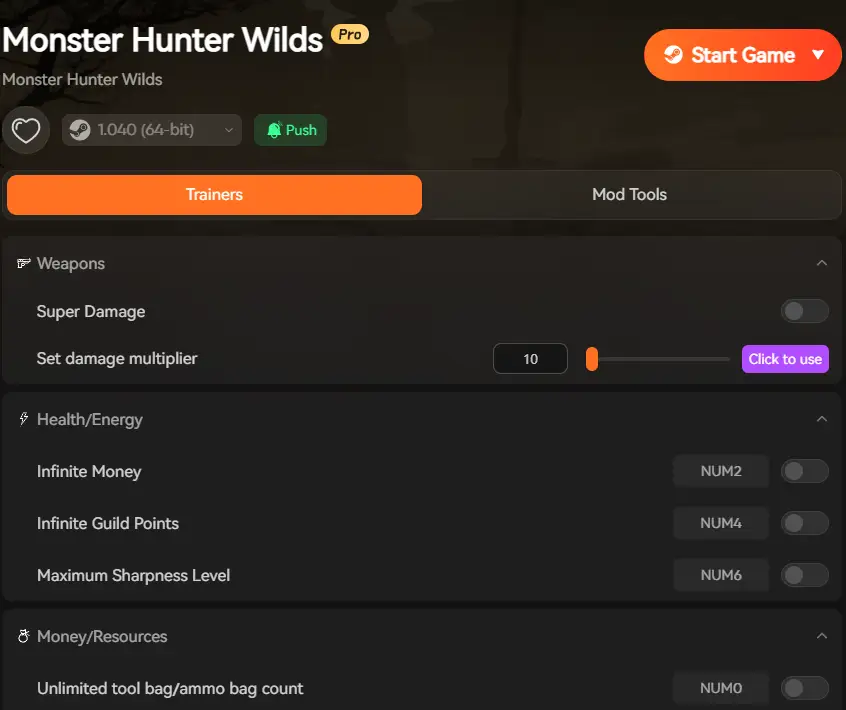
The Safe Way to Mod: ใช้ XMODhub, which modifies RAM (Memory) instead of rewriting your save file on the disk, significantly reducing corruption risks.
สารบัญ
Editor’s View: The Day I Lost Everything
Where is the Monster Hunter Wilds Save File Location? (PC)
Steam Deck & Linux Save Location
How to Backup Your Save Data (Step-by-Step)
Emergency: How to Fix “Save Data Corrupted” Error
Why XMODhub is Safer for Your Save File
Optimize Your Entire Library with XMODhub
Frequently Asked Questions (FAQ)
สรุป
Editor’s View
“Back Up Your Save. Do It Now.”
แคทเธอรีน ฮู | Gamer and Writer at XMODhub
“In มอนสเตอร์ ฮันเตอร์ เวิลด์, I lost a 600-hour save file because I installed a ‘Shop Mod’ that conflicted with a Title Update. I stared at the screen for 20 minutes in disbelief. There was no cloud backup because I had played offline.
Since then, I have become paranoid. For มอนสเตอร์ ฮันเตอร์ ไวลด์ส, I keep a folder on my desktop called ‘MH Backups’. Before I even launch XMODhub or install a texture pack, I drag-and-drop my save. It takes 5 seconds, but it saves 500 hours.”
Where is the Monster Hunter Wilds Save File Location? (PC)
Finding your save file isn’t as simple as looking in “My Documents”. มอนสเตอร์ ฮันเตอร์ ไวลด์ส uses Steam’s specific userdata structure.
The Correct Path:C:\Program Files (x86)\Steam\userdata\[YOUR_STEAM_ID]\2246340\remote\
How to find it easily:
Open your Steam installation folder.
เปิด ข้อมูลผู้ใช้ โฟลเดอร์.
You will see a folder with a long number (this is your Steam ID). Open it.
Look for folder 2246340. (This is the specific App ID for มอนสเตอร์ ฮันเตอร์ ไวลด์ส).
เปิด remote.
The file named win64_save is your character data.
(Note: If you see a folder named 3065170, that is the Beta version. Do not use that one.)
Steam Deck & Linux Save Location
For the handheld hunters, the file path is slightly different because SteamOS is based on Linux.
The Steam Deck Path:/home/deck/.local/share/Steam/userdata/[YOUR_STEAM_ID]/2246340/remote/
How to access it:
Switch your Steam Deck to Desktop Mode.
Open the “Dolphin” file explorer.
Enable “Show Hidden Files” (Click the hamburger menu in the top right).
Navigate the path above to find your win64_save.
How to Backup Your Save Data (Step-by-Step)
We recommend doing this manually rather than relying solely on Steam Cloud, as Steam Cloud can sometimes sync the corrupted file, overwriting your good backup.
The “5-Second” Backup Method:
คลิกขวา ของคุณ win64_save file.
เลือก คัดลอก (Ctrl+C).
Create a folder on your Desktop named MH_Wilds_Backup.
วาง (Ctrl+V) the file there.
Optional: Rename it with the date (e.g., win64_save_2026_05_20) so you have a history.
When to Backup:
Before installing any Mods or Trainers (even XMODhub).
Before a major Capcom Title Update.
After getting a super rare drop (like an Arkveld Heart).
Emergency: How to Fix “Save Data Corrupted” Error
If you launch the game and see the dreaded corruption message, DO NOT create a new character. This will overwrite your slot.
Try these steps first:
Disable Steam Cloud: Go to Steam Library -> Right-click MH Wilds -> Properties -> General -> Uncheck “Keep games saves in the Steam Cloud”.
Delete the Corrupted File: Go to the save location (.../2246340/remote/) and delete the active win64_save.
Restore Backup: Drag your manual backup copy into the folder.
Launch Game: Start the game. If it loads, you are safe.
Re-enable Cloud: Turn Steam Cloud back on. Steam will detect a conflict and ask which file to keep—choose “Local File” (the one you just fixed).
What if I don’t have a backup? If you have no backup, your options are limited. However, you can use XMODhub to rebuild your progress quickly:
ใช้ “One Hit Kill” to rush through the story missions back to your previous Rank.
ใช้ “Item Spawner” to give yourself back the armor/weapons you lost.
ใช้ “Edit XP / Hunter Rank” to restore your MR instantly.
Why XMODhub is Safer for Your Save File
Many mods on Nexus (like nativePC mods or stracker's loader) physically change the game’s files on your hard drive. If the game updates and the mod doesn’t, the game crashes and corrupts the data.
The XMODhub Difference:
Memory Injection: XMODhub operates in the RAM (Temporary Memory). We do not touch your win64_save file on the disk.
No Permanent File Changes: When you close XMODhub, the game reverts to its original state.
ความปลอดภัยต้องมาก่อน While no tool is 0% risk, our method significantly reduces the chance of “Save Corruption” compared to traditional file modding.
Optimize Your Entire Library with XMODhub
XMODhub is not just for มอนสเตอร์ ฮันเตอร์ ไวลด์ส. Our all-in-one client supports the biggest performance-heavy hits on PC. Protect your progress in other massive RPGs with the same safe technology:
ตำนานดำ: วุยกง: Includes a Save Backup Manager for key boss fights, plus โหมดพระเจ้า for when the difficulty spikes.
เอลเดน ริง: Safely experiment with different builds using Infinite Runes without corrupting your main save.
ไซเบอร์พังก์ 2077: Bypass the grind with เงินไม่จำกัด and fix common performance bugs on the fly.
Dragon’s Dogma 2: Manage inventory weight and stamina without editing core game files.
One client. Every game. Zero headaches.
Frequently Asked Questions (FAQ)
Q: Does Steam Cloud protect me from corruption?
A: Not always. If your game crashes and saves a 0kb “corrupted” file, Steam Cloud might instantly upload that empty file, overwriting your good cloud backup. Manual local backups are the only 100% safe method.
Q: Can I share my save file with a friend?
A: ไม่. มอนสเตอร์ ฮันเตอร์ ไวลด์ส save files are encrypted with your specific Steam ID. You cannot load someone else’s save without using advanced hex-editing tools to change the Steam ID header.
Q: I lost my save. Can XMODhub unlock my Hunter Rank?
A: Yes. XMODhub includes an “Edit XP / Hunter Rank” feature. You can restore your HR/MR to where it was before the crash.
สรุป
Your save file is the most valuable file on your computer. After surviving hundreds of hunts in the Forbidden Lands, losing it to a random crash is a tragedy that is easily preventable.
By taking 10 seconds to create a manual backup and using XMODhub for a safer, RAM-based modding experience, you can ensure your Hunter lives to fight another day. Don’t let a technical glitch become the true final boss.
Where to Find DarkSwitch Save File & Config Location (PC/Steam)
There is nothing worse than sinking 50 hours into DarkSwitch, perfecting your light-and-dark stance switching, gathering thousands of Lumens, only to worry about a corrupted save file or a Steam Cloud sync error.…
Slay the Spire 2 Steam Launch Fix Tool: Complete Guide
Look, there is nothing—and I mean nothing—worse than finally booting up your PC to play a few rounds of your favorite deckbuilder, only to have the game instantly crash to the desktop. I’ve…

 แคทเธอรีน ฮู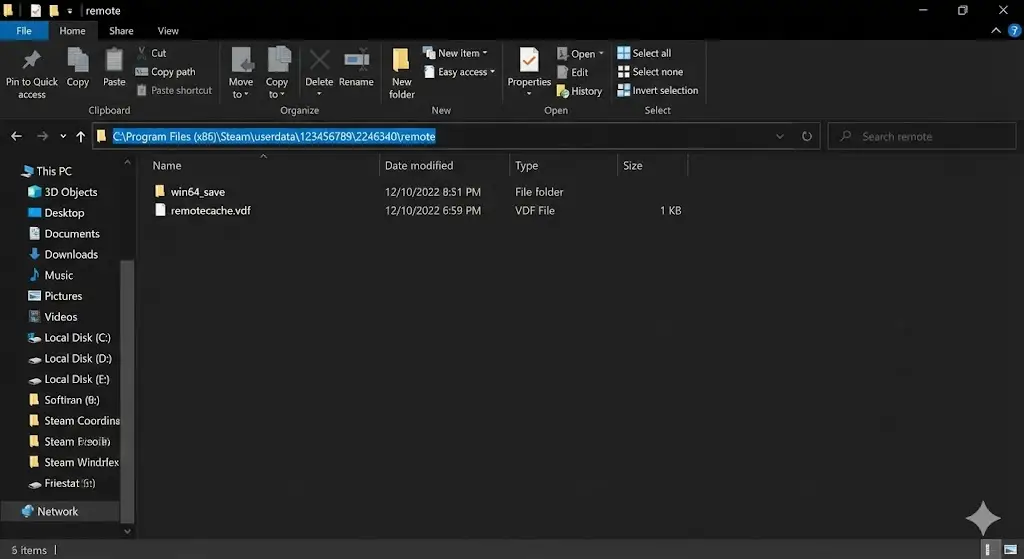

 แนนซี่ มิลเลอร์