แคทเธอรีน ฮู
Let’s be brutally honest: Capcom’s RE Engine usually runs like butter, but the PC port of Monster Hunter Stories 3: Twisted Reflection has some serious growing pains.
There is nothing more infuriating than executing a flawless Double Attack, watching your Rider and Monstie leap into the air for a cinematic Synchro Rush… and having your game suddenly turn into a PowerPoint presentation. You are playing a tactical, turn-based RPG; you shouldn’t need an RTX 4090 just to walk through the bustling streets of Vermeil City without your CPU hitting 100% usage.
If you are experiencing micro-stuttering, massive frame drops during combat, or audio desync during cutscenes, your settings are likely bottlenecking your hardware.
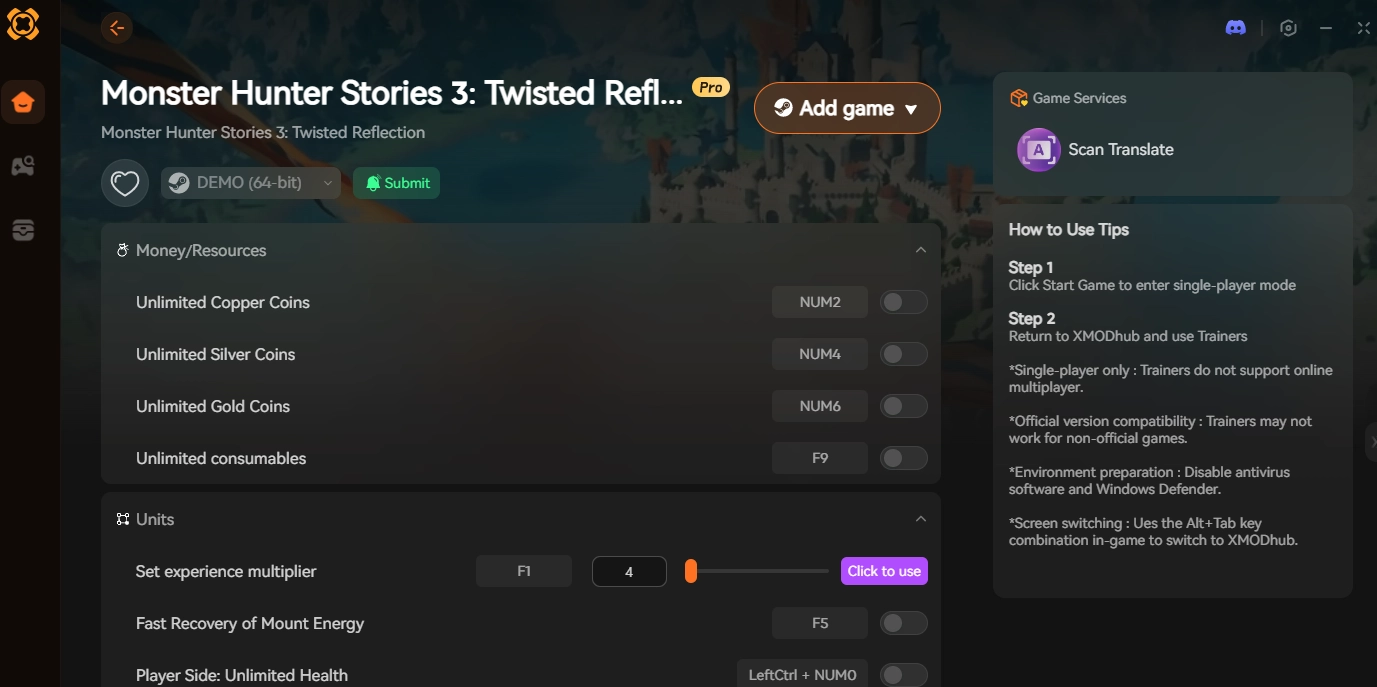
In this hardcore optimization guide, we are going to bypass the confusing in-game menus. We will give you the exact settings to copy for 60 FPS, the golden rules for Steam Deck players, and show you how to use the XMODhub PC Trainer to artificially reduce your CPU load.
Monster Hunter Stories 3: Twisted Reflection Cheat Engine Table vs. XMODhub Trainer: Best Free Alternative (2026)
Editor’s Note
Quick Answer: Best Settings for 60 FPS (Copy These)
(Tired of tweaking sliders and just want the game to run smoothly? Apply these exact settings in the Display Menu right now.)
✨
Display Mode: Full Screen (Critical: Windowed mode introduces Windows DWM input lag).
✨
FidelityFX Super Resolution (FSR) / DLSS: Set to Quality. (Only use ‘Balanced’ if you are playing at 4K).
✨
Image Quality: 100% (Never raise this above 100%; it acts as supersampling and will instantly kill your FPS).
✨
Texture Quality: High (0.5 GB). Do not select 3GB or 8GB unless you have a card with 12GB+ VRAM.
✨
Shadow Quality: Medium (Saves up to 15% GPU load compared to High, looks identical in motion).
✨
Volumetric Fog Quality: Low (The #1 biggest FPS killer in the Permafrost Caverns).
✨
Dynamic Reflections: Off (Screen Space Reflections destroy framerates near water).
✨
Pre-Compile Shaders: ON (Fixes the massive 1-second freeze when a monster uses a new attack for the first time).
The VRAM Trap: Why Texture Quality is Crashing Your Game
If you are suffering from the dreaded “Fatal D3D Error” or your game frequently crashes to the desktop when transitioning into a Shadow Den, you have fallen into the VRAM trap.
The RE Engine’s options menu is highly misleading. When you select Texture Quality: High (3GB), you might think, “My RTX 3060 has 8GB of VRAM, I’ll be fine!” Wrong. That 3GB refers to the budget allocation limit, not the total usage. Monster Hunter Stories 3 aggressively streams high-res scale and fur textures. If your GPU memory overflows, the engine panic-swaps assets to your significantly slower system RAM.
This creates a massive “hitch” or traversal stutter.
💡 The Fix: Lower your Texture Quality to High (0.5GB) or Medium (1GB). You will eliminate the traversal stutter completely without sacrificing noticeable texture clarity on your Monsties.
CPU Bottlenecking: Fixing 100% Usage in Vermeil City
Does your game run at 90 FPS in the wild, but drop to 35 FPS the moment you walk into Vermeil City? This is not a GPU issue; this is a CPU Bottleneck.
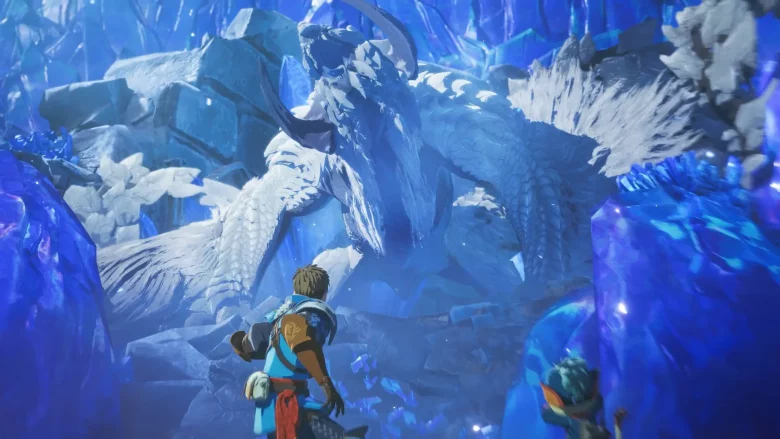
Monster Hunter Stories 3 simulates hundreds of NPCs, bustling market stalls, and complex pathfinding AI for wild monsters. All of this math is dumped onto your processor.
⚡ The Fix: Lowering your graphics won’t help here. You must lower Mesh Quality to Medium (which reduces the draw distance of complex geometry) and turn NPC Density to Low (if available in the current patch). If you are still struggling, see our XMODhub fix below.
Steam Deck & Handhelds: The 40FPS Golden Rule
Monster Hunter Stories 3 looks incredible on the Steam Deck OLED, but aiming for 60 FPS is a fool’s errand that will drain your battery in 45 minutes and cause your APU to thermal throttle.
SteamOS Settings: Press the Quick Access (QAM) button, go to the Battery icon, and set your Refresh Rate/Framerate limit to 40Hz / 40FPS. A locked 40 FPS provides incredibly smooth frame pacing compared to a wildly fluctuating 45-55 FPS.
🎮
UMA Frame Buffer: Boot your Steam Deck into the BIOS and change the UMA Frame Buffer Size from 1G to 4G. This provides the RE Engine with the VRAM it desperately needs, preventing crashes.
🎮
Proton GE: If your cutscene audio is lagging behind the video (Audio Desync), force the game to use the latest version of Proton GE via the compatibility tab.
Advanced Fix: Editing the Monster Hunter Stories 3 config.ini (DX11 Downgrade)
If you are on an older graphics card (like a GTX 1060 or RX 580) and nothing is fixing your crashes, the modern DirectX 12 API might be failing to handshake with your drivers.
Close the game. Navigate to your Steam installation folder:
SteamLibrary\steamapps\common\MonsterHunterStories3\Open the file named config.ini using Notepad.
Locate the line that says
TargetPlatform=DirectX12.Change it exactly to
TargetPlatform=DirectX11.Save the file. DX11 handles shader caching entirely differently and is often a magic bullet for older PC rigs.
Skip the Grind: XMODhub Performance & FPS Optimizer
Tweaking .ini files, sacrificing texture quality, and messing with BIOS settings just to play a turn-based RPG is exhausting. What if you could keep your graphics looking beautiful but forcefully disable the background AI that is choking your CPU?
That is the hidden superpower of the XMODhub PC Trainer.
How to Unlock Maximum Performance Instantly:

Launch your game via Steam and load into your save file.

Click “Play” in the XMODhub app to safely hook into the RE Engine’s memory.

- ✦
Stealth Mode (The CPU Saver): This is normally used to avoid fights, but it has a massive performance benefit. Stealth Mode disables the aggro and pathfinding AI of every wild monster on the map. By turning off their brains, you free up massive amounts of CPU overhead, instantly boosting your FPS in dense areas. - ✦
FPS Unlocker: Bypasses the hard-coded engine frame caps, allowing you to fully utilize your 144Hz monitor without downloading sketchy Hex-edited files. - ✦
Particle Optimizer: Dynamically limits the maximum particle count during ultimate Kinship Skills. You get the epic cinematic explosions without your framerate tanking to single digits.
Our client-side memory injection is perfectly safe and doesn’t permanently alter your game files. It simply cleans up the engine’s inefficiencies so you can focus on the hunt.
Frequently Asked Questions (FAQ)
Q: Why is my FPS capped at 60 even though V-Sync is off?
A: If you are playing in Borderless Windowed mode, the Windows Desktop Window Manager (DWM) forces its own V-Sync. You must switch to Full Screen in the options menu to natively uncap your framerate, or use the XMODhub FPS Unlocker.
Q: Do I need to restart the game after changing Texture Quality?
A: Yes. On the RE Engine, changing Texture Quality or Mesh Quality requires a full restart to flush and reallocate the VRAM cache properly. Do not skip this step!
Q: Will the XMODhub Performance Optimizer get me banned in Co-op?
A: No. The performance features (FPS Unlocker, Stealth, Particle Optimizer) are purely client-side modifications. They do not alter player stats or damage values, meaning they are completely invisible to Capcom’s anti-cheat telemetry in Co-op lobbies.
Conclusion: Smooth Hunting
Monster Hunter Stories 3: Twisted Reflection is a technical marvel, but you shouldn’t have to battle your framerate while trying to battle a Deviant monster. By respecting your VRAM limits, dropping Volumetric Fog to Low, and following the Steam Deck 40FPS golden rule, you can easily stabilize your performance.
But if you want the absolute smoothest experience without compromising visual fidelity
[Download the XMODhub Monster Hunter Stories 3 PC Trainer today]
activate the Stealth Mode CPU optimizer, and experience Azuria exactly as it was meant to be seen!

ฉันเป็นเกมเมอร์และนักเขียนที่มีความหลงใหลที่ XMODhub มุ่งมั่นที่จะนำเสนอข่าวสารเกมล่าสุด เคล็ดลับ และข้อมูลเชิงลึกให้กับคุณ.
ติดต่อฉัน:
โปรไฟล์ LinkedIn ↗
 แนนซี่ มิลเลอร์