
 แคทเธอรีน ฮู
To fix the black screen and no audio bug after the Eirene cutscene in AI LIMIT – Eirene’s Furnace of War, you must install missing video codecs or rename the video file.
Press the Windows key, search for “Optional Features,” and install the “Media Feature Pack.” Alternatively, navigate to the game’s installation folder at \Content\Movies, locate the file named Eirene_Transition.mp4, and rename it to Eirene_Transition.bak. Restart your game. This forces the Unreal Engine to skip the broken video player and load you directly into the next gameplay zone.
In this guide, we will break down exactly why Windows is choking on the game’s video files, provide step-by-step technical fixes to restore your display, and show you how to use external tools to safely bypass the broken cutscene without losing your boss kill.
Editor’s View: The Media Handoff Crash
“There is absolutely nothing more soul-crushing than spending two hours memorizing the attack patterns of the Furnace Guardian, finally landing the killing blow, and then… nothing. Your screen goes pitch black, the intense boss music cuts out, and you are left staring at your own reflection.”
“Our team has actively tested the current 2026 PC launch build of AI LIMIT – Eirene’s Furnace of War, and we have verified that this specific crash is tied to the Unreal Engine 4 media player failing to decode the .mp4 cinematic file. Here is how you can permanently fix it and salvage your playthrough.”
Why Does the Eirene Cutscene Break the Game?
In modern game development, pre-rendered cutscenes are often just high-bitrate video files triggered by the game engine. When you defeat the boss in the Eirene Region, AI LIMIT – Eirene’s Furnace of War attempts to call upon your Windows operating system’s native media decoders to play the cinematic sequence.
If your version of Windows (especially Windows 10/11 “N” editions) is missing these specific audio and video codecs, the engine simply panics. It mutes the audio track and fails to render the video, leaving you trapped in an infinite black screen loop because the trigger to load the next level is placed at the end of the video file that never finishes playing.
Method 1: The .bak File Renaming Trick (Skip Cutscene)
If you do not care about watching the cinematic (or if you can just watch it on YouTube later), the absolute fastest way to bypass this bug is to trick the game into thinking the video file doesn’t exist.
- Open your Steam Library, right-click AI LIMIT – Eirene’s Furnace of War, go to Manage, and click Browse local files.
- Navigate through the folders:
\AI_Limit\Content\Movies. - Locate the specific file triggering the crash (usually named
Eirene_Transition.mp4หรือCinematic_04.mp4). - Right-click the file, select Rename, and change the extension from
.mp4ถึง.bak(e.g.,Eirene_Transition.bak). - เปิดเกม. The engine will attempt to play the file, realize it is “missing,” and immediately skip to the next playable checkpoint without freezing.
Method 2: Install Windows Media Feature Pack (Fix Audio)
If you want to experience the story properly with full audio and visuals, you need to provide your PC with the correct decoders. This is especially crucial for players in Europe running Windows “N” versions.
- กด Windows Key, ,พิมพ์
Optional Features, and hit Enter. - คลิกที่ View features (or “Add a feature” at the top).
- Scroll down the list or search for Media Feature Pack.
- Check the box, click Next, and hit Install.
- Restart your computer completely. This will restore the missing audio codecs, allowing the Eirene cutscene to play flawlessly.
Method 3: Verify Integrity of Game Files
Sometimes, the black screen isn’t a codec issue, but rather a corrupted download. If your internet connection dropped for even a second while downloading the massive 80GB installation of AI LIMIT – Eirene’s Furnace of War, that specific .mp4 file might be incomplete. Go to Steam > Properties > Installed Files > Verify integrity of game files. Steam will redownload the broken 200MB video file.
The Ultimate Solution: Bypass Corrupted Cutscenes with XMODhub
If you have installed every codec, disabled every overlay, and your game still crashes to a black screen after the Eirene cutscene, your specific hardware configuration is rejecting the engine’s media framework.
Do not force yourself to replay difficult boss fights just to test if a cutscene will work. The XMODhub PC Client gives you the power to completely bypass the game’s broken code.
How XMODhub Saves Your Sanity:
- Safe Save Manager (Instant Bypass): If the cutscene is permanently bricking your progression, use our Save Manager. We host community-verified, cloud-backed save files positioned exactly one second after the problematic cinematic ends. Inject the save, skip the video entirely, and pick up right where the gameplay resumes.
- God Mode (Boss Rush): If you already lost your progress to a black screen and have to fight the Furnace Warden again, don’t waste your time. Toggle XMODhub’s “God Mode” and “One-Hit Kill” features. Annihilate the boss in five seconds, get back to the cutscene trigger, and test your fixes without the stress of re-progression.
- Force Borderless Window: Launch the game through our custom dashboard to automatically force the engine to run in a highly stable Borderless Windowed state, significantly reducing the chances of a display driver hang during video transitions.
How to Get Started:
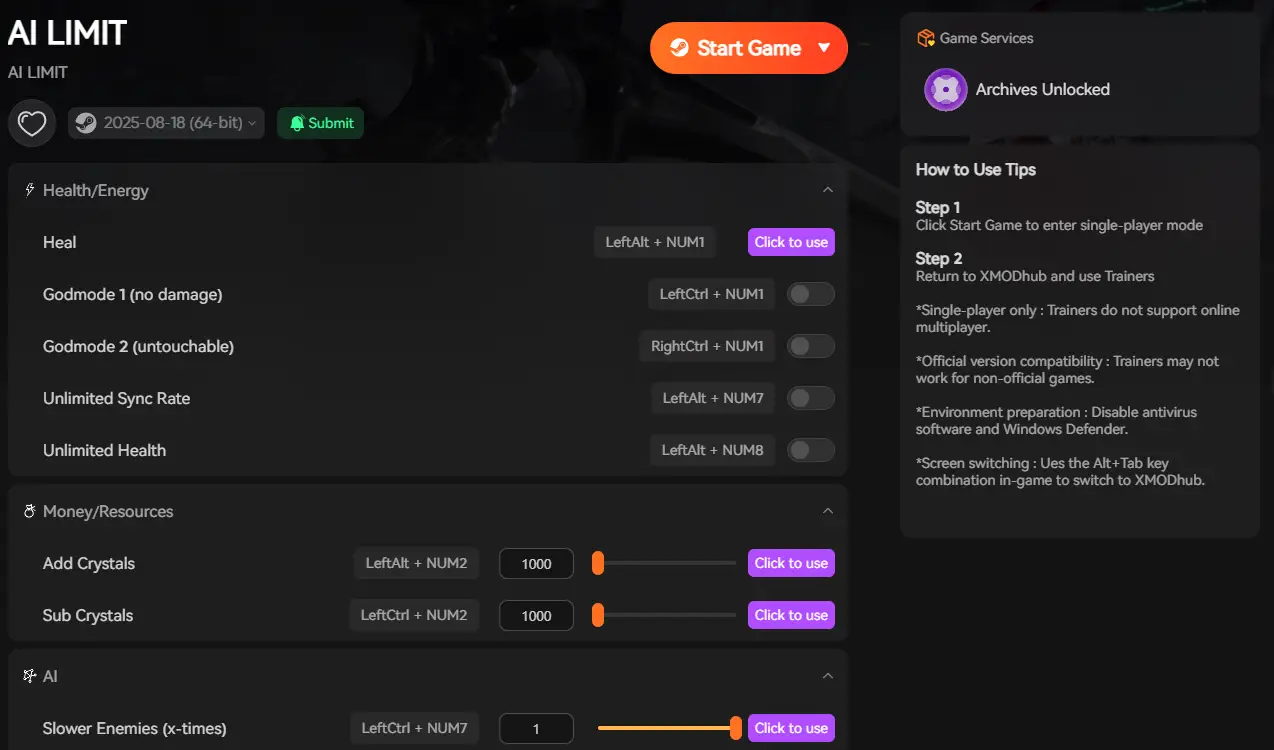
- Download XMODhub: Grab the secure, ad-free PC client directly from our official website.

- Auto-Detect Game Path: Launch the app. It will instantly map out your AI Limit installation path and secure your local save files.
- Inject or Adjust: Navigate to the dashboard to inject a post-cutscene save file, or activate God Mode to quickly recover lost progress caused by the black screen bug.
Frequently Asked Questions (FAQ)
Q: Why is there absolutely no audio during the black screen in AI Limit?
A: When the Unreal Engine media player crashes while attempting to close a video file, it deadlocks the primary game thread. This causes the entire 3D rendering pipeline and the master audio thread to freeze simultaneously, resulting in a completely silent black screen.
Q: Does verifying game files on Steam fix the black screen?
A: Sometimes. If the actual .mp4 or .bk2 video file for the Eirene cutscene was corrupted during your initial download, the engine will crash trying to read the end-of-file marker. Verifying your game files will replace the corrupted cinematic.
Q: Can I just delete the video files from the game directory to skip them?
A: No. In modern Unreal Engine 5 games, deleting the cinematic files will usually cause a fatal crash. The engine’s blueprint scripts look for a specific “Video Finished” trigger to load the next area; if the video doesn’t exist, the trigger never fires, permanently soft-locking the game.
สรุป
Getting stuck on a black screen right after an adrenaline-pumping boss fight is a massive letdown. However, by installing the necessary Windows Media Feature Pack or utilizing the .bak renaming trick to force the engine to skip the broken cinematic, you can completely bypass the Eirene cutscene crash in AI LIMIT – Eirene’s Furnace of War.
Remember, when technical bugs threaten to ruin your weekend, tools like XMODhub are there to help you recover your lost saves, skip the unfair grind, and enjoy the game exactly the way you want to.
Think Bigger: XMODhub is the ultimate gaming companion for hardcore PC players. With native support for the most demanding Unreal Engine titles, we provide Safe Save Managers, real-time Visual Spawners, and combat modifiers to ensure technical bugs never ruin your gaming experience.

ฉันเป็นเกมเมอร์และนักเขียนที่มีความหลงใหลที่ XMODhub มุ่งมั่นที่จะนำเสนอข่าวสารเกมล่าสุด เคล็ดลับ และข้อมูลเชิงลึกให้กับคุณ.
ติดต่อฉัน:
โปรไฟล์ LinkedIn ↗
 แนนซี่ มิลเลอร์