แคทเธอรีน ฮู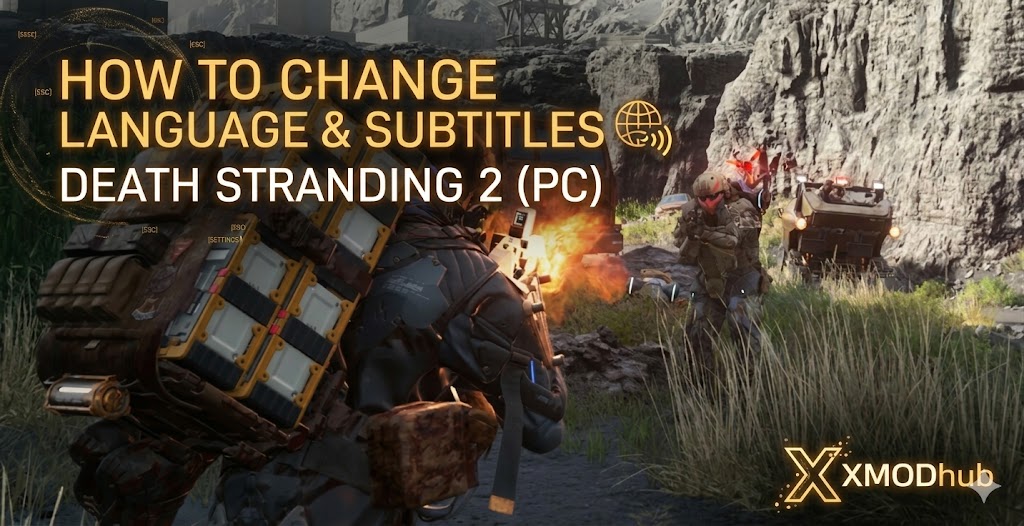
Hideo Kojima’s DEATH STRANDING 2: ON THE BEACH is a massive, story-heavy cinematic experience. With Hollywood actors driving the complex narrative, understanding every piece of dialogue and reading the intricate Cuff Links menus is absolutely critical to enjoying the game.
However, many PC players launching the game for the first time find themselves completely stuck. The game might boot in the wrong language, subtitles might refuse to show up, or the language options in the settings menu are completely greyed out and unclickable.
Editor’s Take: The Translation Barrier
“There is nothing worse than waiting months for Death Stranding 2, finally booting it up, and realizing the epic 20-minute opening cinematic is playing in a language you don’t understand. I spent 15 minutes fighting the UI before realizing how the Decima Engine actually handles audio files.”
“I have outlined the exact fixes below. And if your native language isn’t officially supported by Kojima Productions, check out the XMODhub translation workaround at the bottom so you don’t miss out on the lore.”
Quick Answer: How to Change the Language
If you want to change your text, subtitles, or voice-over language, you cannot do it while playing. Follow these exact steps:
- Quit to the Title Screen: Save your progress and exit to the Main Menu. The game engine locks language files while a save is loaded.
- Open Options: From the main title screen, select Options.
- Language Settings: Scroll right to the Language Settings tab.
- Adjust Text and Voice: Change the Text Language (UI/Subtitles) and Voice Language (Audio) to your preference and ensure Display Subtitles is set to On.
Fix: Language Settings Greyed Out (Locked)
If your desired language is locked or missing from the in-game list, it’s likely your storefront did not download the regional audio pack.
The Steam Properties Fix:
- Close the game and open your ห้องสมุดเกมสตีม.
- คลิกขวา DEATH STRANDING 2 และเลือก คุณสมบัติ.
- ไปที่ ทั่วไป tab and locate the Language drop-down menu.
- Select your language; Steam will initiate a small download (1-3GB) for the audio pack.
How to Fix Subtitles Not Showing / Disappearing
If subtitles are getting cut off or are hard to see, try these display adjustments:
- Adjust Size & Background: Go to Options > Display Settings. Set Subtitle Size to Large and turn the Subtitle Background ON to combat bright environments.
- Check Aspect Ratio: Ensure your display resolution matches your monitor’s native aspect ratio (e.g., 21:9 for Ultrawide) to prevent text from rendering off-screen.
Supported Languages & Unsupported Workarounds
DEATH STRANDING 2 officially supports major languages like English, Japanese, and French. However, highly requested localizations like Turkish, Arabic, or Thai are frequently missing. Playing a narrative-heavy game without proper localization ruins the cinematic immersion.
The Ultimate Fix: XMODhub Real-Time Translation
Beyond QoL features like Zero Cargo Weight, the XMODhub PC Trainer features a powerful, built-in Real-Time Auto-Translation tool.
- •Instant Screen Translation: XMODhub uses a lightweight overlay to detect and translate cutscene subtitles into your native language in real-time.
- •Zero Performance Hit: The translation overlay runs independently and will not cause frame drops during intense BT boss fights.
- •All-in-One Modding: Simultaneously toggle features like Infinite Materials to bypass the offline grind while enjoying the localized story.
How to Use XMODhub (3 Simple Steps)

- ดาวน์โหลด: Get the verified XMODhub client from the official site.
- Launch & Activate: Open the app and click “Play” on the DS2 module.
- Translate: Select the Translation Feature from the in-game overlay, choose your native language, and enjoy Kojima’s masterpiece.
Frequently Asked Questions (FAQ)
Q: Can I play DS2 with Japanese voices and English text?
A: Yes. From the Main Menu, go to Language Settings, set Voice Language to Japanese and Text Language to English.
Q: Why is the audio out of sync with subtitles?
A: This is usually a framerate issue. Try enabling DLSS/FSR in the graphics menu to stabilize your performance during heavy cinematic moments.
Q: Does changing language require a restart?
A: Changing natively from the Title Screen does not require a restart. Changing via Steam Properties does require a restart to download new files.
Conclusion: Don’t Let the Language Barrier Ruin the Story
Death Stranding 2: On the Beach is a narrative masterpiece. You shouldn’t compromise your playthrough due to locked settings or missing localizations. Use the XMODhub PC Utility to instantly shatter the language barrier and enjoy the journey.
Think Bigger: XMODhub supports 5,000+ titles including massive hits like Horizon Forbidden West และ ผีแห่งจิมูสะ.

ฉันเป็นเกมเมอร์และนักเขียนที่มีความหลงใหลที่ XMODhub มุ่งมั่นที่จะนำเสนอข่าวสารเกมล่าสุด เคล็ดลับ และข้อมูลเชิงลึกให้กับคุณ.
ติดต่อฉัน:
โปรไฟล์ LinkedIn ↗
 แนนซี่ มิลเลอร์