
 แคทเธอรีน ฮู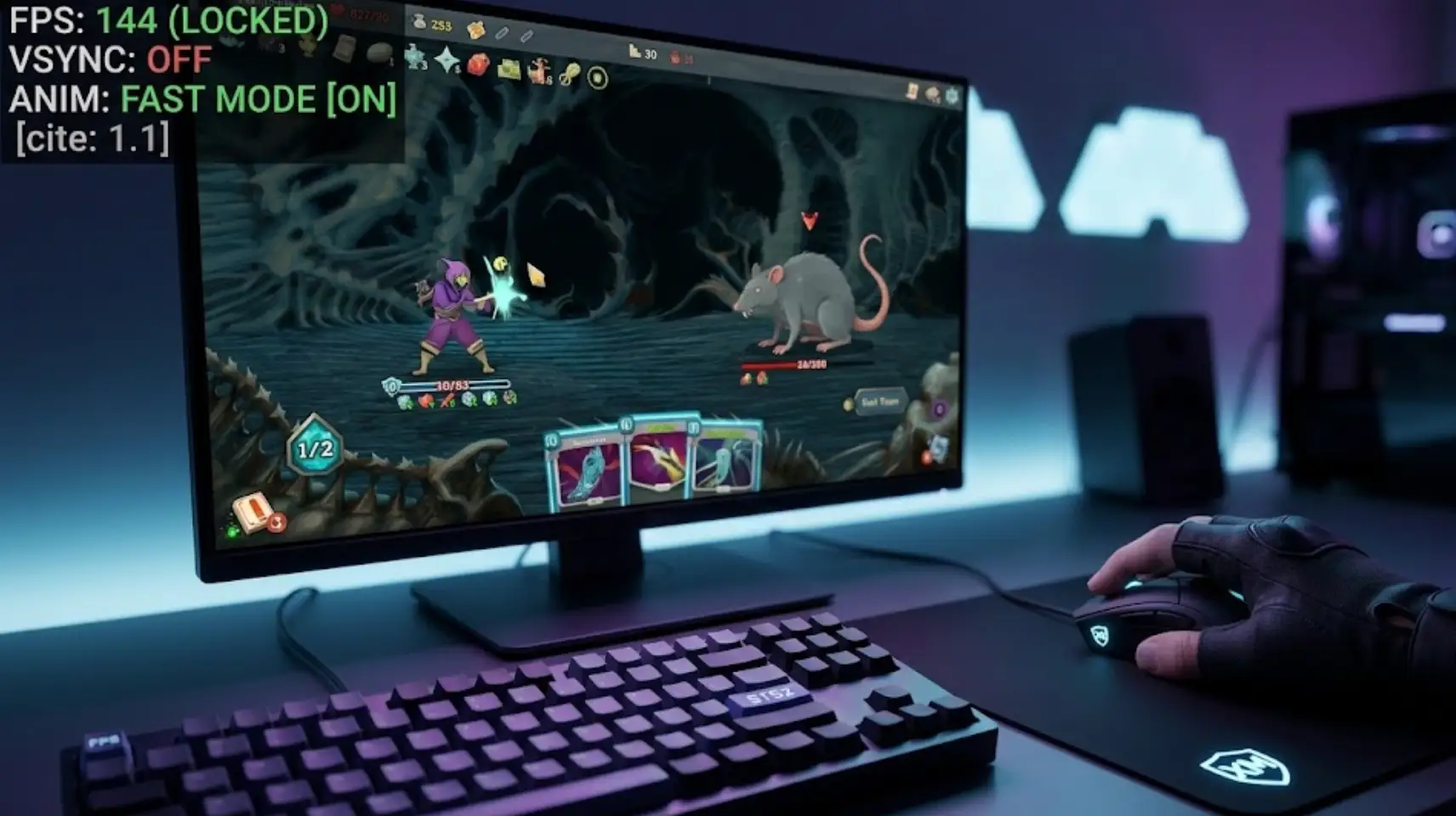
Slay the Spire 2 Early Access officially drops on March 5, 2026. As we prepare to face the Spire once again with the new Necrobinder class and 4-player co-op mode, having your PC optimized for day one is crucial.
There is nothing more frustrating than experiencing micro-stutters or mouse input delay right as you are about to play a game-winning card. Because Mega Crit completely rebuilt this sequel using the open-source Godot engine instead of Unity, the underlying architecture has changed.
As hardcore deckbuilders at XMODhub, we have prepared the ultimate settings guide to eliminate frame drops and make your card plays buttery smooth from the moment the game launches.
คุณอาจสนใจ:
Slay the Spire 2: Cheat Engine Table vs. XMODhub Trainer (Best Free Alternative)
1. Quick Answer: Best FPS & Graphics Settings
If you want to ensure your game runs perfectly as soon as you hit “Play” on Steam, apply these exact parameters in the game’s Graphics menu:
| Best PC FPS Settings for Slay the Spire 2 | |
|---|---|
| Display Mode | Exclusive Fullscreen (Crucial for reducing background Windows interference). |
| Framerate Limit | Match your monitor’s native refresh rate (e.g., 60, 144, or 240 FPS). |
| V-Sync | Off (This is the primary cause of mouse input delay when dragging cards). |
| Particle Effects | Medium (Turn to Low if your older GPU struggles during intense boss animations). |
| Fast Mode | ใน (Located in the Gameplay settings, this drastically speeds up turn animations). |
(Pro Tip: After changing your V-Sync or Display Mode, restart the game to ensure the Godot engine fully applies the changes.)
2. What You Actually Need: Turn On “Fast Mode”
There is a classic misconception in the deckbuilding community. Every day, players search for Slay the Spire 2 low fps, but their computers are actually rendering the game perfectly fine. What they are experiencing is slow animation speed.
The default animation pacing is intentionally slow so that new players can read what buffs, debuffs, and relics are doing. If you are a returning veteran and the game feels sluggish:
- สื่อมวลชน Esc to open the Settings.
- ไปที่ Gameplay แท็บ.
- Check the box for Fast Mode.
Once enabled, enemy attacks, card shuffling, and damage numbers will process at double speed. Your perceived “FPS” and gameplay fluidity will instantly skyrocket.
3. Godot Engine Optimization: Fixing Micro-Stuttering
Many players with high-end gaming rigs report feeling a slight “micro-stutter” when playing multiple attack cards in rapid succession. This is usually an engine rendering quirk rather than a hardware limitation.
The Godot engine is incredibly efficient, but running the game in Borderless Windowed mode can cause the Windows Desktop Window Manager (DWM) to force its own V-Sync over the game, leading to frame pacing issues.
วิธีแก้ไข: Force the game into “Exclusive Fullscreen” and disable in-game V-Sync. If disabling V-Sync causes screen tearing on your monitor, open your NVIDIA Control Panel or AMD Adrenalin software and force “Fast Sync” or “Enhanced Sync” specifically for the Slay the Spire 2 executable.
4. Fixing Mouse & Controller Input Lag
Whether you are playing with a gaming mouse or a controller, input lag can ruin a perfect run. If your cursor feels heavy or floaty when dragging a card to an enemy:
- Turn off V-Sync:
As mentioned above, standard V-Sync buffers frames, which creates an inherent delay between your hand movement and the screen. - Disable Steam Overlay:
Sometimes, the Steam Overlay can conflict with the Godot engine. Right-click Slay the Spire 2 in your Steam Library, go to Properties, and toggle off “Enable the Steam Overlay while in-game.”
5. High Refresh Rate (144Hz+) Monitor Setup
Slay the Spire 2 features beautifully hand-drawn 2D art. To make the most of it on a 144Hz or 240Hz monitor: Do not leave the framerate “Uncapped.” Because the game’s rendering pressure is so low, an uncapped framerate will cause your GPU to render 500+ frames per second, leading to massive overheating and fan noise for no visual benefit. Always cap your framerate to match your exact monitor refresh rate (e.g., 144 FPS).
6. Break the Speed Limit with XMODhub
If the official “Fast Mode” still isn’t fast enough for you, or if you want to skip the Early Access grind to immediately test max-level synergies on day one, XMODhub is your best friend.
How to dominate the Spire with XMODhub:
Head over to XMODhub and download our lightweight, secure trainer optimized for Slay the Spire 2.
Our client features a deep-level game speed modifier. You can crank the entire game speed to 3x or 5x, achieving true lightning-fast runs.
Instantly grant yourself Infinite Gold, Choose Any Relic, or Infinite Health to thoroughly test out the new Necrobinder mechanics without the frustration of dying in Act 1.
7. Conclusion
The transition to the Godot engine is a massive leap forward for Slay the Spire 2, offering faster load times and excellent optimization. By ensuring you are in Fullscreen mode, capping your framerate responsibly, disabling V-Sync to cure input lag, and turning on Fast Mode, you will experience the absolute best version of the game this March.
Dial in your settings, fire up XMODhub if you want to bend the rules, and get ready to climb the Spire once again!

ฉันเป็นเกมเมอร์และนักเขียนที่มีความหลงใหลที่ XMODhub มุ่งมั่นที่จะนำเสนอข่าวสารเกมล่าสุด เคล็ดลับ และข้อมูลเชิงลึกให้กับคุณ.
ติดต่อฉัน:
โปรไฟล์ LinkedIn ↗
 แนนซี่ มิลเลอร์