
 แนนซี่ มิลเลอร์
ไม่มีอะไรแย่ไปกว่าการฝ่าฟันศัตรูนับพันในความวุ่นวาย ฟันและฟัน สนามรบเพียงเพื่อสูญเสียความก้าวหน้าของคุณเนื่องจากไฟล์ที่เสียหายหรือการซิงค์คลาวด์ที่ไม่สมบูรณ์ ไม่ว่าคุณจะต้องการโอนเซฟไปยังพีซีเครื่องใหม่ สร้างสำรองข้อมูลด้วยตนเองก่อนการติดตั้งม็อด หรือเพียงแค่ต้องการให้แน่ใจว่าสิ่งที่คุณปลดล็อกมาอย่างยากลำบากนั้นปลอดภัย การรู้ตำแหน่งที่แน่นอนของข้อมูลของคุณเป็นขั้นตอนแรกที่จำเป็น จริงๆ แล้ว การหาโฟลเดอร์ที่ถูกต้องอาจเป็นเรื่องยากเพราะ Windows มักซ่อนไดเรกทอรีเหล่านี้ไว้โดยค่าเริ่มต้น.
ประเด็นสำคัญ
- เส้นทางตรง – ไฟล์บันทึกมักจะอยู่ในโฟลเดอร์ข้อมูลผู้ใช้หรือโฟลเดอร์ AppData.
- ไฟล์ที่ซ่อนอยู่ – คุณต้องเปิดใช้งาน “แสดงรายการที่ซ่อนอยู่” ใน Windows เพื่อดูไดเรกทอรี AppData.
- การสำรองข้อมูลด้วยตนเอง – ให้คัดลอกโฟลเดอร์บันทึกเกมของคุณไว้เสมอ ก่อนติดตั้งม็อดหรือเทรนเนอร์.
- Steam Cloud – การปิดการซิงค์บนคลาวด์ชั่วคราวสามารถป้องกันไม่ให้ไฟล์ที่บันทึกไว้เก่าทับไฟล์ท้องถิ่นใหม่ได้.
นี่คือข้อมูลที่คุณต้องการเพื่อรักษาความก้าวหน้าของคุณ.
ตำแหน่งไฟล์บันทึกเกม Dynasty Warriors: Origins อยู่ที่ไหน?
การรู้ตำแหน่งที่ไฟล์เซฟของคุณเก็บไว้นั้นช่วยชีวิตได้เมื่อคุณต้องการเปลี่ยนคอมพิวเตอร์หรือทดลองใช้ม็อดต่างๆ ขึ้นอยู่กับเวอร์ชันและการตั้งค่าการติดตั้งของคุณ เส้นทางไฟล์อาจแตกต่างกันเล็กน้อย ด้านล่างนี้คือตำแหน่งที่พบบ่อยที่สุดสำหรับ ไอน้ำ เวอร์ชันบน Windows.
ค้นหาเส้นทางบันทึกเกม Dynasty Warriors: Origins บน Steam
ตำแหน่งบันทึกหลักสำหรับผู้ใช้ Steam มักจะอยู่ในไดเรกทอรีการติดตั้ง Steam ภายใต้ User ID เฉพาะของคุณ ไดเรกทอรีนี้ประกอบด้วยไฟล์ข้อมูลบันทึกจริงที่ซิงค์กับคลาวด์.
C:\Program Files (x86)\Steam\userdata\[YOUR_STEAM_ID]\[GAME_ID]\remote\คุณจะต้องเปลี่ยน [YOUR_STEAM_ID] ด้วยหมายเลขบัญชี Steam ส่วนตัวของคุณ. [GAME_ID] สำหรับ Dynasty Warriors: Origins จะเป็นหมายเลขเฉพาะที่กำหนดโดย Steam; หากคุณเพิ่งเล่นเกม ให้มองหาโฟลเดอร์ที่มีเวลา “วันที่แก้ไข” ล่าสุด.
การเข้าถึงโฟลเดอร์ AppData ที่ซ่อนอยู่สำหรับ Dynasty Warriors: Origins
การตั้งค่าบางอย่างหรือเวอร์ชันที่ไม่ใช่ Steam อาจจัดเก็บข้อมูลไว้ในไดเรกทอรี Windows AppData โฟลเดอร์นี้ถูกซ่อนไว้โดยค่าเริ่มต้นเพื่อปกป้องไฟล์ระบบ.
C:\Users\[ชื่อผู้ใช้ของคุณ]\AppData\Roaming\KoeiTecmo\DynastyWarriorsOrigins\Savedata\เพื่อเข้าถึงสิ่งนี้อย่างรวดเร็วโดยไม่ต้องเปลี่ยนการตั้งค่ามุมมอง คุณสามารถกด ปุ่ม Windows + R บนแป้นพิมพ์ของคุณ ให้พิมพ์ %appdata%, แล้วกด Enter จะเปิดโฟลเดอร์ Roaming ขึ้นมาโดยตรง.
Dynasty Warriors: Origins ตำแหน่งการตั้งค่าและการตั้งค่า
หากคุณต้องการปรับแต่งการตั้งค่ากราฟิกหรือแก้ไขไฟล์การกำหนดค่าด้วยตนเอง ไฟล์เหล่านี้มักจะถูกเก็บแยกต่างหากจากความคืบหน้าในเกมของคุณ ตรวจสอบโฟลเดอร์เอกสารมาตรฐานของคุณ:
C:\Users\[ชื่อผู้ใช้ของคุณ]\เอกสาร\KoeiTecmo\DynastyWarriorsOrigins\ภายในโฟลเดอร์นี้ คุณจะพบไฟล์ชื่อ system_config.ini หรือ กราฟิก_ตัวเลือก.ini. คุณสามารถเปิดไฟล์เหล่านี้ได้ด้วยโปรแกรมแก้ไขข้อความเช่น Notepad เพื่อบังคับใช้ความละเอียดที่กำหนดเองหรือปิดการใช้งานเอฟเฟ็กต์การประมวลผลหลังที่อาจไม่มีในเมนูในเกม.
วิธีสำรองข้อมูลเซฟเกม Dynasty Warriors: Origins ด้วยตนเอง
การสร้างสำรองข้อมูลแบบแมนนวลเป็นการประกันที่ดีที่สุดต่อการเสียหายของไฟล์ โดยเฉพาะอย่างยิ่งหากคุณวางแผนที่จะใช้โมดหรือเทรนเนอร์ มันใช้เวลาไม่ถึงหนึ่งนาทีและสามารถช่วยคุณประหยัดเวลาการเล่นซ้ำได้หลายสิบชั่วโมง.

การสร้างไฟล์บันทึกสำรองเกม Dynasty Warriors: Origins
เมื่อคุณได้ค้นหาโฟลเดอร์โดยใช้ขั้นตอนข้างต้นแล้ว ให้คุณคลิกขวาที่โฟลเดอร์ทั้งหมด และเลือก คัดลอก. ไปยังตำแหน่งที่ปลอดภัย เช่น เดสก์ท็อปของคุณ หรือโฟลเดอร์ที่จัดไว้สำหรับ “สำรองเกม” และ วาง มันอยู่ที่นั่น เพื่อความเป็นระเบียบมากขึ้น ผมขอแนะนำให้เปลี่ยนชื่อโฟลเดอร์สำรองข้อมูลเป็นวันที่ปัจจุบัน เช่น DWO_สำรองข้อมูล_ม.ค.2026.
หากคุณมีพื้นที่จัดเก็บจำกัด ให้คลิกขวาที่โฟลเดอร์แล้วเลือก “ส่งไปยัง > โฟลเดอร์ที่ถูกบีบอัด (ซิป)” วิธีนี้จะลดขนาดไฟล์ลงอย่างมาก ซึ่งสะดวกมากหากคุณต้องการเก็บสำรองสถานะเซฟหลายรายการก่อนการต่อสู้กับบอสใหญ่.
การกู้คืนไฟล์บันทึกเกมที่เสียหายของ Dynasty Warriors: Origins
หากข้อมูลเกมของคุณเสียหายหรือคุณต้องการย้อนกลับไปยังสถานะก่อนหน้า เพียงลบเนื้อหาทั้งหมดในโฟลเดอร์บันทึกปัจจุบันออก แล้วคัดลอกไฟล์จากข้อมูลสำรองของคุณเข้าไปแทนที่ อย่าลืมตรวจสอบให้แน่ใจว่าเกมและ ไอน้ำ ลูกค้าต้องปิดโปรแกรมทั้งหมดให้สมบูรณ์ก่อนที่จะทำการแทนที่ไฟล์เพื่อหลีกเลี่ยงการเกิดความขัดแย้ง.
ทำไมฉันถึงหาตำแหน่งไฟล์ที่บันทึกไม่เจอ?
หากคุณได้นำทางไปยังเส้นทางข้างต้นแล้วและยังคงเห็นโฟลเดอร์ว่างเปล่า อาจมีสาเหตุมาจากหนึ่งในหลายการตั้งค่าทั่วไปของ Windows.
โฟลเดอร์บันทึกเกม Dynasty Warriors: Origins ถูกซ่อนอยู่หรือไม่?
The AppData โฟลเดอร์ เป็น ไดเรกทอรีที่ซ่อนอยู่ โดยค่าเริ่มต้นใน Windows เพื่อยืนยันสิ่งนี้ ให้เปิด ไฟล์ เอ็กซ์พลอเรอร์, คลิกที่ มุมมอง แท็บที่ด้านบน และตรวจสอบให้แน่ใจว่าได้ทำเครื่องหมายในช่อง รายการที่ซ่อนอยู่ ถูกเลือกไว้แล้ว เมื่อเปิดใช้งานแล้ว คุณจะเห็นโฟลเดอร์ AppData ปรากฏในไดเรกทอรีผู้ใช้ของคุณ.
คุณได้ตรวจสอบไดเรกทอรีผู้ใช้ผิดหรือไม่?
หากมีหลายคนที่ใช้คอมพิวเตอร์ของคุณ ให้ตรวจสอบให้แน่ใจว่าคุณกำลังดูโฟลเดอร์ของผู้ใช้ Windows ที่กำลังเข้าสู่ระบบอยู่ในขณะนี้ นอกจากนี้ ภายในโฟลเดอร์ Steam ข้อมูลผู้ใช้ โฟลเดอร์, คุณอาจเห็นโฟลเดอร์ที่มีหมายเลขหลายโฟลเดอร์หากมีบัญชี Steam หลายบัญชีได้เข้าสู่ระบบไว้ ตรวจสอบภายในแต่ละโฟลเดอร์เพื่อค้นหาโฟลเดอร์ที่ตรงกับ Dynasty Warriors: Origins.
การบันทึกข้อมูลบน Steam Cloud กำลังเขียนทับไฟล์ในเครื่องหรือไม่?
Steam Cloud จะซิงค์ข้อมูลที่บันทึกไว้ของคุณกับอินเทอร์เน็ตโดยอัตโนมัติ บางครั้ง หากคุณแทนที่ไฟล์บันทึกด้วยตนเอง Steam อาจตรวจพบความไม่ตรงกันและดาวน์โหลดไฟล์เก่าจาก คลาวด์, ทำให้การทำงานของคุณเป็นโมฆะโดยสิ้นเชิง เพื่อป้องกันปัญหานี้ระหว่างการจัดการไฟล์ด้วยตนเอง ให้คลิกขวาที่เกมใน Steam แล้วไปที่ คุณสมบัติ > ทั่วไป, และปิด “เก็บการบันทึกเกมไว้ใน Steam Cloud” ชั่วคราว.
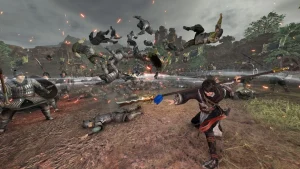
เพิ่มประสบการณ์ของคุณใน Dynasty Warriors
เมื่อข้อมูลการบันทึกของคุณได้รับการสำรองไว้อย่างปลอดภัยแล้ว คุณสามารถสำรวจม็อดและเทรนเนอร์ได้โดยไม่ต้องกังวล XMODHUB มอบโซลูชันที่ปลอดภัยและครบวงจรสำหรับผู้เล่นที่ต้องการข้ามการเก็บเลเวลหรือทดลองใช้พลังเหนือมนุษย์.
การใช้ XMODHUB สำหรับ Dynasty Warriors: Origins Mods
The XMODhub เทรนเนอร์ มอบเครื่องมือที่จำเป็นสำหรับการปรับแต่งการเล่นเกมของคุณ ไม่ว่าคุณจะติดอยู่ในด่านที่ยากหรือแค่อยากรู้สึกเหมือนเป็นนักรบมุโซตัวจริง คุณสมบัติเหล่านี้จะช่วยให้คุณควบคุมสนามรบได้.
❤️ สุขภาพที่ไร้ขีดจำกัด
อย่าล้มในสงครามอีกต่อไป. โมดนี้ทำให้แถบพลังชีวิตของคุณเต็มอยู่เสมอไม่ว่าจะได้รับความเสียหายจากศัตรูก็ตาม.
⚔️ อินฟินิตี มูโซ
รักษาเกจการโจมตีพิเศษของคุณให้เต็มอยู่เสมอเพื่อปลดปล่อยการโจมตีมุโซที่รุนแรงซ้ำแล้วซ้ำเล่า.
💰 ทองคำสูงสุด
เติมคลังสมบัติของคุณทันทีเพื่อซื้ออาวุธและอัปเกรดที่ดีที่สุดโดยไม่ต้องเสียเวลาเล่นซ้ำ.
📈 แม็กซ์คอมโบ
รักษาจำนวนคอมโบให้สูงอย่างง่ายดายเพื่อเพิ่มคะแนนและประสบการณ์ของคุณให้สูงสุด.
ม็อดที่แนะนำเหล่านี้เป็นเพียงจุดเริ่มต้นเท่านั้น ไม่ว่าคุณจะต้องการข้ามการเก็บเลเวลที่ซ้ำซาก ทดลองเล่นสไตล์การเล่นใหม่ๆ หรือเร่งความก้าวหน้าของคุณ, ชุดเครื่องมือที่ครอบคลุมของ XMODhub มีตัวเลือกเพิ่มเติมอีกหลายสิบแบบที่ปรับให้เหมาะกับสไตล์การเล่นของคุณ.
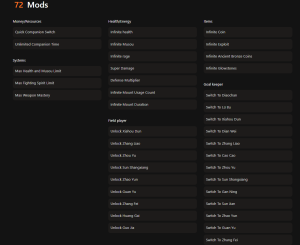
การต่อสู้
- การโจมตีครั้งเดียวตาย – เอาชนะศัตรูได้ทันที
- ความอดทนไม่สิ้นสุด – ไม่มีวันหมดพลัง
ทรัพยากร
- ไอเท็มไม่จำกัด – ใช้งานวัสดุสิ้นเปลืองได้ไม่จำกัด
- วัสดุอัปเกรดสูงสุด – สร้างสรรค์สิ่งใดก็ได้ในทันที
คำถามที่พบบ่อยเกี่ยวกับข้อมูลบันทึกเกม Dynasty Warriors: Origins
คำถามที่พบบ่อยเกี่ยวกับ Dynasty Warriors: Origins ข้อมูล
พร้อมที่จะยกระดับการเล่นเกมของคุณหรือยัง?

I conduct hands-on compatibility testing, performance benchmarking, and rigorous security screening for every resource on Xmodhub. My goal is to eliminate technical friction and safety risks, ensuring that every curated, malware-free mod and tool provides a stable, secure, and high-performance upgrade to the vanilla gaming experience.

 แคทเธอรีน ฮู