ดังนั้น คุณและทีมของคุณต้องการสร้างโรงงานขนาดใหญ่บนอาร์คاديอา-7 แต่คุณต้องการให้โลกออนไลน์อยู่ได้แม้เมื่อโฮสต์หลับไป.
ในเกมอัตโนมัติเช่น สตาร์รัพเจอร์ , เวลาทำงานต่อเนื่องเป็นสิ่งสำคัญ คุณต้องการให้การขุดของคุณดำเนินการสกัดทรัพยากรอย่างต่อเนื่องในขณะที่คุณกำลังทำงาน.
อย่างไรก็ตาม ณ เปิดตัว Early Access มกราคม 2026 , การตั้งค่าเซิร์ฟเวอร์เฉพาะทางได้รับการระบุอย่างเป็นทางการว่า “คุณสมบัติทดลอง” . จำเป็นต้องมีการกำหนดค่าพอร์ตเครือข่ายอย่างแม่นยำและ .bat ไฟล์.
ในคู่มือนี้ เราจะแยกขั้นตอนการตั้งค่าออกเป็นส่วน ๆ พร้อมให้รหัสการตั้งค่าที่คุณต้องการอย่างถูกต้อง และอธิบายว่าทำไมสิ่งใหม่ ๆ SaveSync คุณลักษณะนี้อาจทำให้เซิร์ฟเวอร์เฉพาะไม่จำเป็นสำหรับบางกลุ่ม.
คุณอาจสนใจ:
คำสั่งคอนโซลของ StarRupture (2026): คู่มือรหัสโกงและรหัสไอเทม
สารบัญ
หมายเหตุจากบรรณาธิการ: คุณต้องการเซิร์ฟเวอร์เฉพาะจริงหรือ? ข้อกำหนดเบื้องต้นและฮาร์ดแวร์ที่ต้องการ วิธี 1: วิธีใช้เครื่องมือ Steam (ง่ายที่สุด) วิธี 2: การตั้งค่า SteamCMD แบบไม่มีหน้าต่าง (ขั้นสูง) การกำหนดค่าเครือข่าย: ตารางการส่งต่อพอร์ต ขั้นสูง: ไฟล์การกำหนดค่าเซิร์ฟเวอร์ (Game.ini) การจัดการเซิร์ฟเวอร์ของคุณด้วย XMODhub คำถามที่พบบ่อย สรุป
หมายเหตุจากบรรณาธิการ: คุณต้องการเซิร์ฟเวอร์เฉพาะจริงหรือ? ก่อนที่คุณจะใช้เวลาหลายชั่วโมงในการตั้งค่าพอร์ตเราเตอร์ โปรดอ่านสิ่งนี้ก่อน.
ใน 7 มกราคม 2569 , นักพัฒนาได้ปล่อยอัปเดตที่สำคัญซึ่งแนะนำ SaveSync พร้อมการย้ายโฮสต์ .
วิถีเดิม: หากโฮสต์ออกจากเกม เซิร์ฟเวอร์จะปิดตัวลงและทุกคนจะถูกเตะออก. วิธีใหม่: เกมจะทำการโอนไฟล์เซฟล่าสุดไปยังผู้เล่นที่เชื่อมต่ออยู่โดยอัตโนมัติ หากโฮสต์ต้นฉบับออกจากระบบ ผู้เล่นคนอื่นสามารถกลายเป็นโฮสต์ใหม่ได้ทันที และดำเนินการต่อในเซสชั่นได้อย่างราบรื่น.
คำแนะนำของเรา:
ใช้ระบบเพียร์ทูเพียร์ (ร่วมมือ): หากคุณเล่นเฉพาะเมื่อเพื่อนของคุณออนไลน์อยู่เท่านั้น มันฟรี ไม่ต้องตั้งค่า และตอนนี้รองรับการย้ายโฮสต์แล้ว. ใช้เซิร์ฟเวอร์เฉพาะ เฉพาะในกรณีที่คุณต้องการ โลกที่คงอยู่ตลอด 24/7 ซึ่งโรงงานต้องดำเนินการอยู่ ไม่มีใคร ออนไลน์ หรือหากคุณต้องการถ่ายโอนภาระการจำลอง CPU ไปยังเครื่องอื่นแยกต่างหาก.
ข้อกำหนดเบื้องต้นและฮาร์ดแวร์ที่ต้องการ การรันเกมที่มีการจำลองสถานการณ์อย่างหนักเช่น สตาร์รัพเจอร์ ต้องการพลังงาน CPU อย่างมาก แม้ไม่มีการเรนเดอร์กราฟิกก็ตาม.
องค์ประกอบ ข้อกำหนดขั้นต่ำ แนะนำ
ซีพียู ควอดคอร์ (3.0 GHz ขึ้นไป) Hexa Core (ประสิทธิภาพสูงในโหมดการทำงานเดียว)
RAM 8 GB 16 GB (โรงงานช่วงท้ายเกม)
การจัดเก็บ 10 GB SSD NVMe SSD (บันทึกอัตโนมัติที่เร็วขึ้น)
ระบบปฏิบัติการ Windows 10/11 (64 บิต) วินโดวส์ เซิร์ฟเวอร์ 2022
หมายเหตุ: เซิร์ฟเวอร์นี้ทำงานหนักในแบบเธรดเดียว การเลือกใช้ซีพียูที่มีความเร็วสัญญาณนาฬิกาสูงจะดีกว่าซีพียูที่มีหลายคอร์.
วิธี 1: วิธีใช้เครื่องมือ Steam (ง่ายที่สุด) หากคุณมีคอมพิวเตอร์สำรองและต้องการใช้งานเซิร์ฟเวอร์โดยไม่ต้องใช้คำสั่งผ่านบรรทัดคำสั่ง ให้ใช้เครื่องมืออย่างเป็นทางการที่มาพร้อมกับการซื้อเกมของคุณ.
เปิดของคุณ ห้องสมุดเกมสตีม . คลิกที่ตัวกรองแบบดรอปดาวน์ (โดยปกติจะเขียนว่า “เกม”) แล้วทำเครื่องหมาย “เครื่องมือ” . ค้นหา “StarRupture เซิร์ฟเวอร์เฉพาะ” . ติดตั้งแอปพลิเคชัน. อย่าเพิ่งเปิดมัน. คุณต้องตรวจสอบพอร์ตเครือข่ายของคุณก่อน (ดูส่วนการกำหนดค่าระบบเครือข่ายด้านล่าง). เปิดเครื่องมือ. หน้าต่างคอนโซลจะปรากฏขึ้นพร้อมแสดงสถานะของเซิร์ฟเวอร์.
วิธี 2: การตั้งค่า SteamCMD แบบไม่มีหน้าต่าง (ขั้นสูง) สำหรับผู้ที่เช่า VPS หรือใช้เครื่อง Linux, SteamCMD เป็นมาตรฐานของอุตสาหกรรม.
ดาวน์โหลด SteamCMD และแตกไฟล์ไปยังโฟลเดอร์เฉพาะ (เช่น, C:\StarRuptureServer). สร้างสคริปต์อัปเดต: สร้างไฟล์ใหม่ชื่อ UpdateServer.bat และวางโค้ดต่อไปนี้:
โค้ดตัวอย่าง
@echo off start "" steamcmd.exe +login anonymous +force_install_dir "C:\StarRuptureServer" +app_update 3809400 validate +quit
รันสคริปต์อัปเดต: ดับเบิลคลิกที่ไฟล์เพื่อดาวน์โหลดไฟล์เซิร์ฟเวอร์.
สร้างสคริปต์เริ่มต้น ภายในโฟลเดอร์ติดตั้ง, สร้าง StartServer.bat:
โค้ดตัวอย่าง
@echo off StarRuptureServerEOS.exe -Log -MULTIHOME=0.0.0.0 -Port=7777 -QueryPort=27015 -ServerName="XMODhub Factory" -MaxPlayers=4
การกำหนดค่าเครือข่าย: ตารางการส่งต่อพอร์ต หากเซิร์ฟเวอร์ของคุณกำลังทำงานอยู่แต่เพื่อนไม่สามารถเข้าร่วมได้ อาจเกิดจากปัญหาไฟร์วอลล์หรือเราเตอร์เกือบแน่นอน คุณต้องส่งต่อพอร์ตต่อไปนี้ไปยังเครื่องที่โฮสต์เซิร์ฟเวอร์.
หมายเลขพอร์ต ระเบียบปฏิบัติ วัตถุประสงค์
7777 UDP การจราจรในเกม (การเล่นเกม)
27015 UDP Steam Query (เซิร์ฟเวอร์บราวเซอร์)
27031-27036 UDP ตัวเลือก (บริการออนไลน์ของ Epic)
เคล็ดลับ: โปรดตรวจสอบให้แน่ใจว่าคุณได้เพิ่มกฎขาเข้าสำหรับพอร์ตเหล่านี้ใน ไฟร์วอลล์ของ Windows บนเครื่องเซิร์ฟเวอร์ด้วยเช่นกัน.
ขั้นสูง: ไฟล์การกำหนดค่าเซิร์ฟเวอร์ (Game.ini) หากต้องการเปลี่ยนการตั้งค่า เช่น รหัสผ่าน ช่วงเวลาการบันทึกอัตโนมัติ หรือระดับความยาก คุณจำเป็นต้องแก้ไขไฟล์การกำหนดค่า.
สถานที่: ...\StarRuptureServer\Saved\Config\WindowsServer\Game.ini
การตั้งค่าทั่วไป: เพิ่มบรรทัดเหล่านี้ลงใน Game.ini ไฟล์เพื่อปรับแต่งเซิร์ฟเวอร์ของคุณ:
นี่, TOML
[/Script/StarRupture.ServerSettings] ServerName=My Factory ServerPassword=SecretPassword123 MaxPlayers=4 AutoSaveInterval=300 DifficultyMultiplier=1.0
AutoSaveInterval: ค่าเป็นวินาที (300 = 5 นาที). ตัวคูณความยาก: ตั้งค่าเป็น 0.5 สำหรับประสบการณ์ที่ง่ายขึ้น หรือ 2.0 สำหรับคลื่นศัตรูที่ยากขึ้น.
การจัดการเซิร์ฟเวอร์ของคุณด้วย XMODhub การดูแลเซิร์ฟเวอร์อาจวุ่นวายได้ บางครั้งอาจมีบั๊กที่ทำให้ทรัพยากรของคุณขัดข้อง หรือผู้เล่นที่ก่อกวนทำลายโรงไฟฟ้าที่สำคัญ.
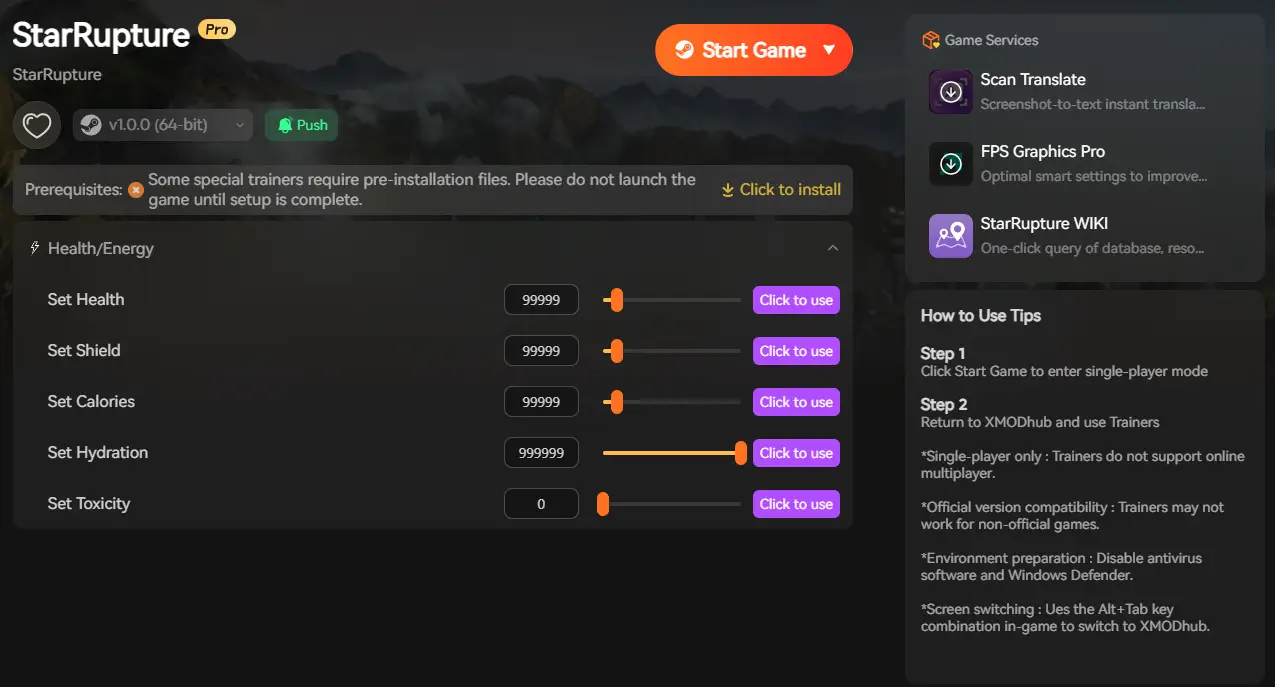
แม้ว่าคอนโซลของเซิร์ฟเวอร์เฉพาะจะมีข้อจำกัด, XMODhub ให้คุณจัดการสถานะของเกมจากฝั่งไคลเอนต์.
การกู้คืนฉุกเฉิน: หากบั๊กของเซิร์ฟเวอร์ทำให้กล่องเก็บของของคุณหายไป ให้ใช้ ทรัพยากรที่ไม่มีที่สิ้นสุด เพื่อเติมสินค้าทันทีเพื่อให้โรงงานของคุณไม่หยุดชะงัก. การทำความสะอาด: ใช้ สร้าง/ลบทันที เพื่อกำจัดโครงสร้างที่ถูกทำลายหรือเคลียร์พื้นที่สำหรับศูนย์กลางชุมชนใหม่อย่างรวดเร็ว.
หมายเหตุ: การใช้ XMODhub อย่างมีความรับผิดชอบสามารถช่วยรักษาการเล่น 50 ชั่วโมงจากการถูกทำลายโดยข้อผิดพลาดในช่วง Early Access.
คำถามที่พบบ่อย ถาม: ทำไมเซิร์ฟเวอร์ของฉันถึงแสดงข้อความว่า “การตรวจสอบความถูกต้องของ Steam ล้มเหลว”?
A: โดยปกติแล้วนี่หมายความว่าไฟล์เซิร์ฟเวอร์ของคุณล้าสมัย ให้คุณ UpdateServer.bat ให้รันสคริปต์อีกครั้งเพื่อตรวจสอบไฟล์ติดตั้ง.
ถาม: ฉันสามารถเพิ่มจำนวนผู้เล่นเกิน 4 คนได้หรือไม่?
A: อย่างเป็นทางการ เกมถูกจำกัดผู้เล่นไว้ที่ 4 คนเพื่อความเสถียร แม้ว่าคุณจะสามารถบังคับให้ จำนวนผู้เล่นสูงสุด=8 ในไฟล์คอนฟิก มักนำไปสู่การไม่ซิงค์และเกิดการล่มในเวอร์ชันปัจจุบัน.
ถาม: ไฟล์บันทึกเกมอยู่ที่ไหน?
ไฟล์ที่บันทึกไว้มักจะพบได้ใน ...\บันทึก\บันทึกเกม\. เราขอแนะนำอย่างยิ่งให้ตั้งค่าการสำรองข้อมูลอัตโนมัติสำหรับโฟลเดอร์นี้.
สรุป การตั้งค่า เซิร์ฟเวอร์เฉพาะของ StarRupture ต้องใช้ความอดทน แต่รางวัลคือโรงงานที่มีชีวิตและทำงานตลอดเวลา ตรวจสอบให้แน่ใจว่าพอร์ตของคุณเปิดอยู่ ซีพียูของคุณพร้อม และ Game.ini ได้รับการกำหนดค่าอย่างถูกต้อง.
การเดินทางสู่ระบบอัตโนมัติของคุณยังไม่จบเพียงเท่านี้. XMODhub รองรับเกมมากกว่า 5,000+ เกม , เพื่อให้คุณมีเครื่องมือควบคุมที่ดีที่สุดสำหรับโรงงานทุกแห่งที่คุณสร้าง.
เมื่อเซิร์ฟเวอร์ของคุณเสถียรแล้ว ให้เพิ่มประสิทธิภาพของคุณกับเกมยอดนิยมเหล่านี้:
น่าพอใจ : ปลดล็อกโหมดบินและไม่มีค่าใช้จ่ายพลังงานเพื่อสร้างอย่างไม่มีขีดจำกัด. ผู้สร้างดาวเคราะห์ : การสร้างพื้นผิวโลกใหม่ทันทีและออกซิเจนไม่จำกัด. เทคโทนิกา : การวิจัยและขุดค้นข้อมูลแบบทันทีที่รวดเร็วขึ้น. Factorio : โหมดพระเจ้าและไอเท็มไม่จำกัดสำหรับเมกะเบสที่ซับซ้อน.
หากปัญหาทางเทคนิคหรือบั๊กคุกคามความก้าวหน้าของเซิร์ฟเวอร์ของคุณ โปรดจำไว้ว่า XMODhub พร้อมช่วยเหลือคุณแก้ไขสิ่งที่ไม่สามารถแก้ไขได้.
>> ดาวน์โหลด StarRupture Server Admin Tools (Trainer) <<
ฉันเป็นเกมเมอร์และนักเขียนที่มีความหลงใหลที่ XMODhub มุ่งมั่นที่จะนำเสนอข่าวสารเกมล่าสุด เคล็ดลับ และข้อมูลเชิงลึกให้กับคุณ.
ติดต่อฉัน:

 แคทเธอรีน ฮู