Summary: Learn why Fallout 4 crashes on startup and how to fix it with 10 proven solutions that restore stability and get you back in the game.
Nothing’s more frustrating than launching Fallout 4 only to have it crash before the game even starts. Whether you’re dealing with mod conflicts, missing files, or hardware compatibility issues, startup crashes are a common problem for PC players.
In this ultimate guide, we’ll explain why Fallout 4 crashes on startup, walk you through the 10 best solutions to fix it, and offer tips to prevent future issues.
Plus, discover how to enhance your post-fix gameplay experience with tools like Xmod for smoother performance and better customization.
Now, let’s get started.
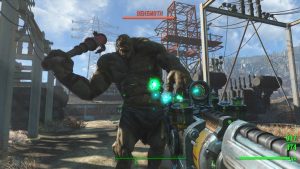
fallout 4 crash on startup
Оглавление
Why Is Fallout 4 Crashing on Startup
How to Fix Fallout 4 Crashing PC: Best 10 Solutions
How to Enhance Fallout 4 Gaming with Xmod?
Заключение
Why Is Fallout 4 Crashing on Startup?
Fallout 4 crashing on startup is a common issue that many players experience, often leading to frustration. Whether you’re returning to the game with a high-end setup or launching it for the first time, sudden crashes can disrupt your experience. Many users report similar problems on gaming forums and Reddit, where crashes occur without error messages or clear explanations.
To troubleshoot this issue, it’s essential to understand the possible causes and solutions.
Common Causes of Fallout 4 Crashing on Startup
System Requirements Not Met If your PC doesn’t meet Fallout 4’s minimum system requirements, the game may struggle to run properly, leading to crashes.
Outdated Graphics Drivers Running outdated GPU drivers can create compatibility issues with Fallout 4, resulting in crashes. Keeping your drivers up to date is essential for smooth gameplay.
Improper Video Resolution or Settings Selecting an incompatible video resolution or tweaking graphics settings beyond your system’s capabilities can cause Fallout 4 to crash immediately upon launch.
Corrupted Game Files Damaged or missing game files can lead to startup crashes. Verifying the integrity of your game files through Steam can help resolve this issue.
Mod Conflicts Mods can enhance the game, but incompatible or outdated mods often cause crashes. If you recently installed a mod, it might be responsible for the startup issue.
Interference from Antivirus Software Some antivirus programs mistakenly flag Fallout 4 files as threats, causing them to be blocked or deleted, leading to crashes. Temporarily disabling your antivirus while launching the game may help.
Issues with the Current Fallout 4 Version Sometimes, a bug in the latest update of Fallout 4 can cause startup crashes. Checking for patches or rolling back to a previous version might resolve the issue.
By identifying the root cause, you can take appropriate steps to fix Fallout 4 crashing on startup and get back to enjoying the game.
Now that we’ve explored the common causes of Fallout 4 crashing on startup, let’s look at some of the best solutions to fix the issue and get you back into the game smoothly. Here are 10 effective methods to troubleshoot and resolve Fallout 4’s startup crashes on PC.
How to Fix Fallout 4 Crashing PC: Best 10 Solutions
If Fallout 4 keeps crashing on startup, don’t worry. This guide covers the best solutions to fix the issue and get you back into the game. Before proceeding, make sure to back up your save data to avoid any potential loss.
1. Check System Requirements
First, ensure your PC meets the минимальные системные требования for Fallout 4. Running the game on low-end hardware is a common cause of crashes.
If none of the solutions work, reinstalling the game may resolve any deeply rooted issues.
Открыть Пар and go to Библиотека.
Щелкните правой кнопкой мыши на . Fallout 4 > Управление > Uninstall.
After the game is removed, click Установите to reinstall a fresh copy.
Following these steps should help resolve Fallout 4 crashing on startup.
How to Enhance Fallout 4 Gaming with Xmod?
If you’re looking to take your Fallout 4 experience to the next level, Xmod offers a powerful way to enhance gameplay with cheats, trainers, and other customization options. Whether you’re aiming to unlock new abilities, modify game mechanics, or simply make the game more immersive, Xmod provides an easy and user-friendly way to upgrade your adventure in the Wasteland.
1.Download Xmod
Visit the official Xmod website or a trusted source to download the application.
Install it on your PC following the on-screen instructions.
xmod скачать
2.Launch Xmod and Search for Fallout 4
Open the Xmod app and search for “Fallout 4” in the game library.
Select the game to access available mods and enhancement options.
Fallout 4
3.Customize Your Gaming Experience
Browse through the list of mods, cheats, and trainers available within Xmod.
Enable the ones you want to use, such as god mode, infinite resources, or visual improvements.
4.Launch Fallout 4 from Xmod
Start the game directly from the Xmod interface to ensure all modifications load properly.
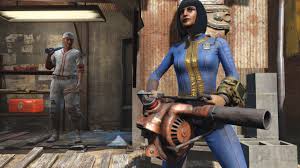
fallout 4 mods
Заключение
Fallout 4 is an incredible RPG with limitless customization options, but technical issues like crashes on startup can hinder the experience. By following the troubleshooting steps outlined above, players can resolve these crashes and enjoy seamless gameplay. Additionally, integrating Xmod can further enhance the game with cheats, mods, and performance tweaks, ensuring a truly personalized Wasteland adventure. Whether you’re fixing startup issues or customizing your playthrough, these solutions will help you get the most out of Fallout 4.
Я страстный геймер и писатель XMODhub, который стремится предоставить вам самые свежие игровые новости, советы и мнения.
Свяжитесь со мной:
Профиль LinkedIn
Quick Answer A REPLACED Walkthrough cheat is a PC tool, like a trainer, designed to make the game easier by enabling features such as god mode or infinite health. For the anticipated April…
How to Change Matchmaking Region in Toxic Commando | XMODhub
John Carpenter’s Toxic Commando is a blast when you have a full squad of four, but fighting the Sludge God alone with AI bots because your regional server is empty can ruin the…

 Кэтрин Ху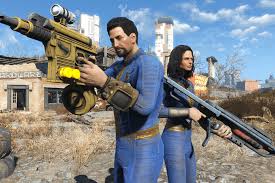






 Нэнси Миллер