Вайлды Охотника на монстров is an exhilarating adventure that immerses players in a world of epic hunts and breathtaking landscapes. However, like many modern games, it comes with its share of technical challenges. One of the most frustrating issues players encounter is the Anti-Tamper Error, which can prevent the game from launching on Steam. This error, often tied to the game’s Denuvo Anti-Tamper technology, can stem from various causes, such as corrupted files, outdated drivers, or conflicts with antivirus software.
But don’t worry — this guide is here to help! We’ll walk you through the possible causes of the Anti-Tamper Error and provide step-by-step solutions to get you back into the game as quickly as possible. Additionally, we’ll explore how tools like Xmod can not only help resolve such issues but also enhance your overall Вайлды Охотника на монстров experience with advanced customization and performance improvements.
Whether you’re a seasoned hunter or new to the series, this guide will equip you with the knowledge to overcome the Anti-Tamper Error and make the most of your time in the wilds.
Let’s dive in and get your hunt back on track!
mhw anti tamper
Table of Contents:
What Is the Anti-Tamper Error?
Possible Causes for Monster Hunter Wilds Anti-Tamper Error
How to Fix the Anti-Tamper Error: Best Solutions
How to Enhance Monster Hunter Wilds Gaming with Xmod
What Is the Anti-Tamper Error?
Сайт Anti-Tamper Error is a common issue that occurs when launching Вайлды Охотника на монстров on Steam. This error is often triggered by the game’s use of Denuvo Anti-Tamper technology. When the system detects suspicious activity or conflicts, it may block the game from running, resulting in the error code 88500020. This issue can be frustrating, but it is often fixable with the right steps.
Possible Causes for Monster Hunter Wilds Anti-Tamper Error
Several factors can trigger the Anti-Tamper Error in Вайлды Охотника на монстров. Understanding these causes can help you identify and resolve the issue more effectively:
Corrupted Game Files: Incomplete installation or damaged game files can cause the anti-tamper system to malfunction.
Outdated GPU Drivers: Running outdated graphics drivers can lead to compatibility issues, triggering the error.
Antivirus or Firewall Interference: Security software may mistakenly flag Вайлды Охотника на монстров as a threat, blocking its access to necessary system resources.
Lack of Administrative Privileges: If the game does not have the required permissions, it may fail to access critical files or processes.
Conflicting Software: Background applications, such as overlays or modding tools, can interfere with the game and trigger the error.
How to Fix the Anti-Tamper Error: Best Solutions
Here are the most effective methods to resolve the Anti-Tamper Error in Вайлды Охотника на монстров:
1. Disable Antivirus Software Temporarily
Why It Helps: Antivirus programs may mistakenly identify the game as a threat, causing the Anti-Tamper system to block it.
Steps:
Open your antivirus software.
Locate the option to disable real-time protection temporarily.
Запуск Вайлды Охотника на монстров to see if the error persists.
Re-enable your antivirus after gaming.
2. Adjust Firewall Settings
Why It Helps: Firewalls can block the game’s communication with servers, triggering the error.
Steps:
Open your firewall settings (via Control Panel or antivirus software).
Add Вайлды Охотника на монстров as an exception to allow it through the firewall.
Save changes and restart the game.
3. Verify Integrity of Game Files
Why It Helps: Corrupted or missing files can cause the Anti-Tamper system to malfunction.
Steps:
Open Steam and go to your Library.
Щелкните правой кнопкой мыши на . Вайлды Охотника на монстров и выберите Свойства.
Перейдите в раздел Local Files tab and click Verify Integrity of Game Files.
Wait for the process to complete, then relaunch the game.
4. Update GPU Drivers
Why It Helps: Outdated drivers can cause compatibility issues with the game.
Steps:
Visit your GPU manufacturer’s website (NVIDIA, AMD, or Intel).
Download and install the latest drivers for your graphics card.
Restart your PC and launch the game.
5. Restart Your PC and Launch the Game First
Why It Helps: Restarting your PC ensures no conflicting software is running in the background.
Steps:
Restart your computer.
Запуск Вайлды Охотника на монстров immediately after startup, before opening other applications.
6. Run the Game as Administrator
Why It Helps: Administrative privileges ensure the game has access to necessary system resources.
Steps:
Locate the Вайлды Охотника на монстров executable file (usually in the Steam installation folder).
Right-click the file and select Свойства.
Перейдите к Совместимость tab and check Run this program as an administrator.
Apply changes and launch the game.
How to Enhance Monster Hunter Wilds Gaming with Xmod?
While resolving the Anti-Tamper Error is crucial, you can also enhance your Вайлды Охотника на монстров опыт работы с Xmod, a powerful modding tool designed to streamline customization and gameplay.
Here’s how Xmod can help:
Seamless Character Customization:
Import pre-made character and Palico designs using design codes.
Access advanced customization options not available in the base game.
Improved Performance:
Optimize game settings for better performance on your system.
Resolve conflicts that may trigger errors like the Anti-Tamper issue.
Community Sharing:
Share your custom designs with the community.
Download and apply designs created by other players.
Hassle-Free Modding:
Safely install моды and enhancements without triggering anti-tamper systems.
Enjoy a more personalized and immersive gaming experience.
Заключение
Сайт Anti-Tamper Error в Вайлды Охотника на монстров can be frustrating, but it is often caused by common issues like corrupted files, outdated drivers, or security software conflicts. By following the solutions outlined above, you can resolve the error and get back to hunting in no time. Additionally, tools like Xmod can enhance your gaming experience by offering advanced customization options and performance improvements. With these tips and tools, you’ll be ready to tackle the wilds and create the ultimate hunter!
Я страстный геймер и писатель XMODhub, который стремится предоставить вам самые свежие игровые новости, советы и мнения.
Свяжитесь со мной:
Профиль LinkedIn
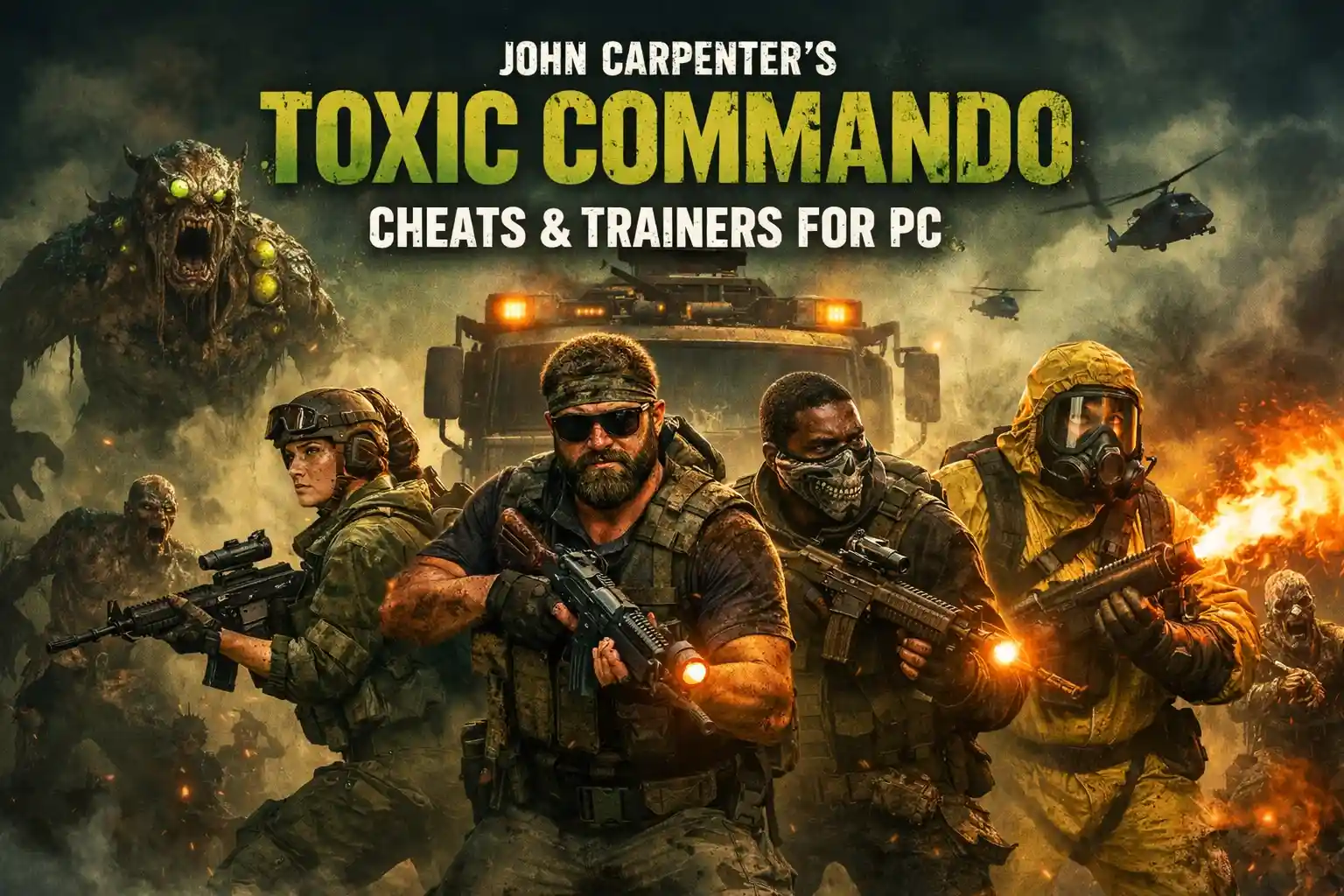
John Carpenter’s Toxic Commando Cheats & Trainers for PC
Quick Answer The best John Carpenter’s Toxic Commando Cheats & Trainers for PC provide infinite ammo, god mode, and custom game speed for offline solo play. By downloading a verified trainer from XMODHUB,…
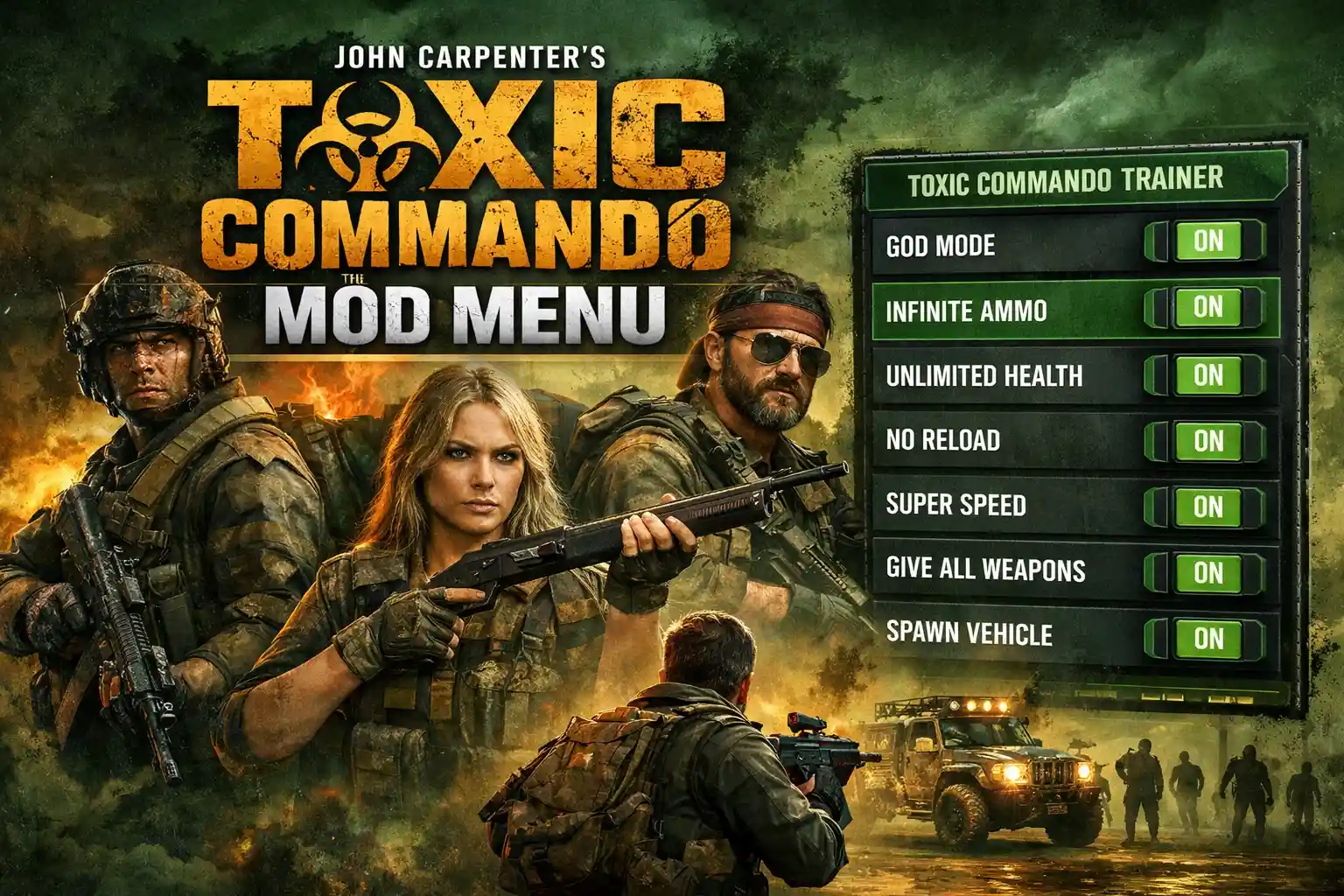
John Carpenter’s Toxic Commando Mod Menu: The Ultimate Trainer Guide
Quick Answer A John Carpenter’s Toxic Commando mod menu is a third-party software tool that injects custom scripts into the game, allowing players to enable features like god mode, unlimited ammo, and infinite…

 Кэтрин Ху

 Нэнси Миллер