
 Кэтрин Ху
 To fix the AI LIMIT – Eirene’s Furnace of War controller not working PC issue, you must right-click the game in your Steam Library, navigate to Properties, select Controller, and select Disable Steam Input to force the Unreal Engine 5 native controller drivers to take over.
If you are using an Xbox controller that is not being detected, unplug all other USB peripherals like steering wheels, HOTAS flight sticks, or virtual joypads that hijack the primary XInput channel. If your controller suffers from severe input lag and you are missing critical parries, use the XMODhub PC Client to remap your controls instantly or activate combat assists to survive.
Playing a hardcore action RPG like AI LIMIT – Eirene’s Furnace of War with a mouse and keyboard is practically a death sentence. The game’s dodge timings and directional parries are explicitly designed around the analog precision of a gamepad.
In this guide, we will break down exactly why Unreal Engine 5 is rejecting your hardware, how to resolve the conflicting Steam Input settings, and how to use external tools to regain total control over your character.
Вам также может понравиться: AI LIMIT – Eirene’s Furnace of War Black Screen After Eirene Cutscene Fix (No Audio)
Editor’s View: The DualSense Disconnect
“I spent my first two hours with AI LIMIT – Eirene’s Furnace of War fighting my controller instead of fighting the monsters in Eirene’s Furnace. I plugged in my PS5 DualSense, but the game kept showing me Xbox button prompts, and my heavy attack button simply refused to register.”
“It turns out, Steam Input was creating a ‘virtual’ Xbox controller over my physical PS5 controller, and the two inputs were actively fighting each other inside the Unreal Engine. Once I disabled Steam Input and let the game natively read my DualSense, everything worked perfectly, including the haptic feedback.”
“However, the Bluetooth input lag was still causing me to miss perfect parries against the Furnace Warden. I eventually used a trainer to slightly slow down the game speed so my controller inputs would actually register in time.”
Why is My Controller Not Working in AI LIMIT – Eirene’s Furnace of War?
The “Controller Not Working” bug in AI LIMIT – Eirene’s Furnace of War usually stems from an API handshake failure.
While Xbox controllers use the native XInput standard, PS5 (DualSense) and 3rd-party gamepads often rely on DirectInput. If the game engine’s input layer is set to exclusive keyboard mode by default, it will ignore any “DirectInput” device to prevent input lag. Additionally, having multiple HID (Human Interface Device) drivers installed—such as flight sticks, racing wheels, or virtual joystick software—can confuse the engine, causing it to assign “Player 1” to an inactive device instead of your gamepad.
Method 1: The Steam Input Override (PS5 & PS4 Controllers)
Unreal Engine 5 games like AI LIMIT – Eirene’s Furnace of War actually feature native support for PlayStation controllers. However, Steam often assumes games do not have this support and tries to “translate” your PS5/PS4 controller into an Xbox controller. This double-translation causes the game to reject the inputs entirely.
How to fix the PlayStation controller conflict:
- Close AI LIMIT – Eirene’s Furnace of War completely.
- Open your Steam client and go to your Library.
- Щелкните правой кнопкой мыши на . on AI LIMIT – Eirene’s Furnace of War and select Свойства.
- Click on the Контроллер tab on the left menu.
- Look for the drop-down menu under “Override for AI LIMIT – Eirene’s Furnace of War” and change it from
Use default settingsна Disable Steam Input. - Plug your DualSense or DualShock 4 directly into your PC using a USB-C cable. (Native PS5 support in UE5 rarely works flawlessly over Bluetooth).
- Launch the game. Your controller will now be recognized, and you should see the correct PlayStation button prompts on your screen.
Method 2: Disconnect Conflicting USB XInput Devices
If your official Xbox controller is turned on, connected, and vibrating, but AI LIMIT – Eirene’s Furnace of War still completely ignores your button presses, your PC’s XInput channels are clogged. Windows only prioritizes one primary controller at a time.
How to clear the XInput channel:
- Check your computer’s USB ports. Do you have a racing wheel, a flight stick (HOTAS), or foot pedals plugged in?
- Unreal Engine 5 will often mistake these peripherals for “Player 1,” pushing your actual Xbox controller to the “Player 2” slot, which the game ignores.
- Unplug every single USB device except your mouse, keyboard, and your Xbox controller.
- If you have software like vJoy (virtual joystick) installed, disable it in your Windows Device Manager. Restart the game.
Method 3: Xbox Controller Firmware & Bluetooth Latency
If your Xbox controller works but the inputs feel sluggish, causing you to take damage during fast-paced Bladework combos, you are likely dealing with a firmware mismatch or Bluetooth interference.
- Откройте Microsoft Store on your PC and download the free Xbox Accessories app.
- Connect your Xbox controller to your PC using a wired USB cable.
- Open the app. If a firmware update is available, it will prompt you immediately. Click Update.
- Pro-Tip: Ditch standard Bluetooth and either use a direct USB-C cable or purchase the official Xbox Wireless Adapter for Windows, which uses a dedicated 2.4GHz connection with zero input lag.
Method 4: The Input Config Myth (Unreal Engine Facts)
When a controller refuses to connect, many PC gamers will dive into their local AppData folders looking for an Input config file to manually type in their controller’s hardware ID or edit the deadzones.
Because AI LIMIT – Eirene’s Furnace of War is a packaged retail build of Unreal Engine 5, the core input handling system is securely locked away inside compressed binary files. You cannot manually open a text file in your WindowsNoEditor folder and type a command to force the game to read a generic third-party gamepad.
Furthermore, there is no native developer console in the release build of the game. Modifying your system save files to force custom bindings will just result in a corrupted save error. To remap your controls or fix unplayable input lag safely, you must rely on a verified external application.
The Ultimate Solution: Custom Mapping & Combat Assists with XMODhub
If you have tweaked your Steam settings and updated your firmware, but your third-party controller is still not recognized—or if the combat is just too fast for your wireless gamepad’s latency—you do not have to struggle.
The XMODhub PC Client provides total control over your game, regardless of what hardware you are holding in your hands.
How XMODhub Restores Your Control:
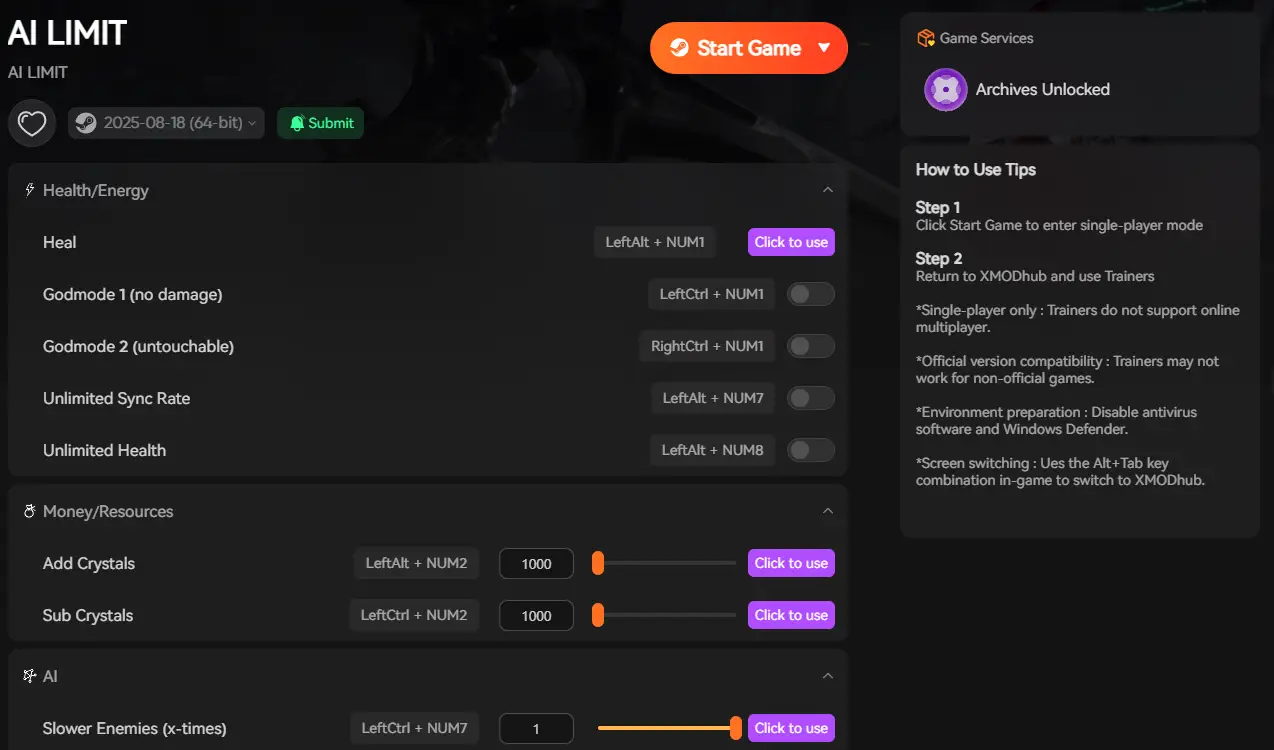
- Game Speed Adjustment (Input Lag Fix): If Bluetooth latency is causing you to miss every single dodge roll, use the XMODhub Speedhack tool. Slow the overall game speed down to 0.8x during brutal boss fights. This extra fraction of a second completely negates controller input lag.
- Auto-Parry & God Mode: Is a broken shoulder bumper preventing you from blocking? Don’t buy a new controller just yet. Open our in-game overlay and activate Auto-Parry или God Mode. You can enjoy the exploration and story without worrying about flawless mechanical execution.
- Instant Resource Generation: If your controller disconnected right as you died and you lost all your rare upgrade materials, use our Visual Spawner to instantly inject 999 Crimson Cores back into your inventory.
How to Get Started:
- Download XMODhub: Grab the secure, ad-free PC client directly from our official website.

- Auto-Detect Game Path: Launch the app to instantly map out your AI LIMIT – Eirene’s Furnace of War installation.
- Activate the Trainer: Launch the game through the XMODhub dashboard. Press the hotkey to open the overlay and activate the combat assists that fit your playstyle, totally bypassing any controller frustrations.
Frequently Asked Questions (FAQ)
Q: Why is AI LIMIT – Eirene’s Furnace of War showing Xbox button prompts when I am using a PS5 controller?
A: This happens when Steam Input is enabled. Steam translates your PS5 inputs into Xbox inputs so the game can read them, which forces the game to display Xbox icons (A, B, X, Y). Disabling Steam Input and playing wired will restore the native PlayStation square and triangle icons.
Q: Can I play AI LIMIT – Eirene’s Furnace of War on PC with a Nintendo Switch Pro Controller?
A: Yes, but native support is practically non-existent in Unreal Engine 5. You MUST leave Steam Input Enabled for a Switch Pro controller, and you will have to mentally translate the on-screen Xbox prompts to your Switch layout.
Q: Does XMODhub fix controller stick drift in AI LIMIT – Eirene’s Furnace of War?
A: XMODhub does not alter your physical hardware’s deadzones, but if stick drift is ruining your combat precision, you can use XMODhub’s God Mode or Infinite Health modifiers so that accidental movement does not result in a frustrating death.
Заключение
Tackling the punishing world of Eirene’s Furnace of War is impossible if your character refuses to respond to your commands. By forcing Steam to back off your PlayStation controller, clearing out conflicting USB devices, and ensuring your Xbox firmware is up to date, you can quickly resolve the AI LIMIT – Eirene’s Furnace of War controller not working PC bug and get back to mastering your Bladeworks.
However, if your generic gamepad simply isn’t supported, or if wireless latency is making the game unfairly difficult, you do not have to suffer through the clunky controls. The XMODhub PC Client provides a seamless bypass, letting you adjust the game speed to match your inputs, or activate combat modifiers to ignore hardware limitations entirely.
Think Bigger: XMODhub is the ultimate gaming companion for hardcore PC players. With native support for the most demanding Unreal Engine titles, we provide performance optimizers, real-time Visual Spawners, and combat modifiers to ensure you conquer every game in your library, regardless of your hardware.

Я страстный геймер и писатель XMODhub, который стремится предоставить вам самые свежие игровые новости, советы и мнения.
Свяжитесь со мной:
Профиль LinkedIn
 Нэнси Миллер