Guide to Disabling Windows Defender

Windows Defender, now known as Microsoft Defender Antivirus, is an integrated security solution in Windows 10 and Windows 11. While it’s designed to protect your system from threats, there are scenarios where you might need to disable it temporarily or permanently.

Step 1: Access Windows Security Settings

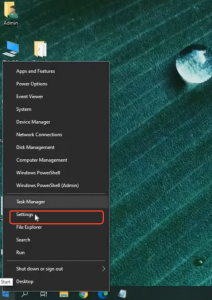
  • Click on the Início button and select the Settings icon.
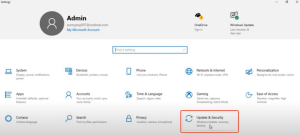
  • In the Settings window, choose Update & Security.
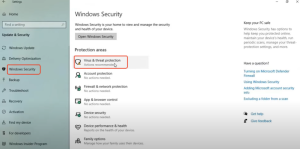
  • Navigate to Windows Security in the left-hand menu.
  • Click on Virus & threat protection.

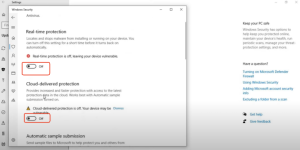
Step 2: Turn Off Real-Time Protection

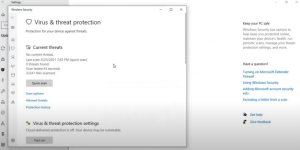
  • In the Virus & threat protection window, select Manage settings under the Virus & threat protection settings section.
  • Locate the switches for Real-time protectionCloud-provided protection, and Automatic sample submission and toggle them to the Off position.
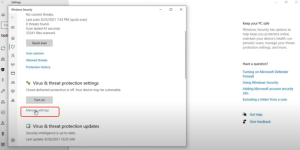
  • A warning will appear indicating that your device may be vulnerable; confirm your choice.
  • Note: Real-time protection will automatically re-enable after a short period or upon system restart.

  • arvin bronw

    Publicações relacionadas

    Lista de jogos e tutorial para TTSGAME

    Como jogar jogos utilizando o TTSGAME: Aceda à página dos jogos suportados apresentada abaixo. Clique no botão ‘Iniciar jogo’ e selecione ‘TTSGAME’ Desfrute do seu jogo! Canal de suporte do TTSGAME: https://discord.gg/7JK2pdPs Abaixo estão...

    Danh sách Trò chơi & Hướng dẫn cho TTSGAME

    Cách chơi game bằng TTSGAME: 1. Truy cập trang của các game được hỗ trợ như hiển thị bên dưới. 2. Nhấp vào nút ‘Start Game’ và chọn ‘TTSGAME’. 3. Tận hưởng trò chơi của bạn!...

    Deixe um comentário

    O seu endereço de email não será publicado. Campos obrigatórios marcados com *

    Cor primária

    Cor secundária

    Modo de apresentação

    Botões e ícones de partilha social powered by Ultimatelysocial