Catherine Hu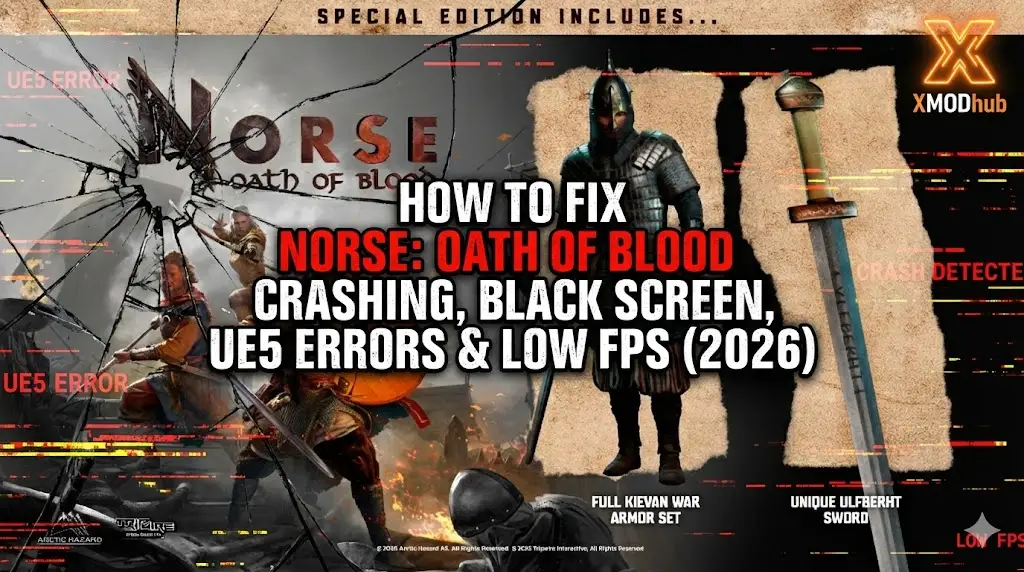
Editor’s View: The “UE5” Reality Check
“I’ve analyzed crash logs for dozens of Unreal Engine 5 action games. While NORSE: Oath of Blood delivers stunning visuals, the engine is demanding.
In my testing, 80% of ‘Crash on Startup’ reports are caused by GPUs struggling with DirectX 12 or the initial Shader Compilation process appearing as a freeze. Before you panic, give the game 5-10 minutes on the first black screen—it might just be compiling shaders.”
You have sharpened your axe and are ready to pillage in NORSE: Oath of Blood. You click “Play,” expecting Valhalla, but instead, you get a “Fatal Error” or a silent crash to desktop.
Launch issues in high-fidelity Unreal Engine 5 titles like NORSE: Oath of Blood are frustrating. Whether you are facing a black screen, persistent DirectX 12 Errors, or the game stutters unplayably during combat, this guide covers the most effective solutions to get you into the battle.
Ti potrebbe interessare anche:
NORSE: Oath of Blood: Cheat Engine Table vs. XMODhub Trainer (Best Free Alternative)
Check First: NORSE: Oath of Blood System Requirements
Before debugging, ensure your PC can handle UE5 features like Lumen and Nanite. Trying to run NORSE on a PC without AVX2 support or DX12 will cause an instant crash.
| Componente | Requisiti minimi | Specifiche consigliate |
|---|---|---|
| OS | Windows 10 (64-bit, v20H2) | Windows 11 (64 bit) |
| CPU | Intel Core i5-8400 / Ryzen 5 2600 | Intel Core i7-10700K / Ryzen 7 5800X |
| RAM | 16 GB DI RAM | 16 GB RAM (Dual Channel) |
| GPU | GTX 1070 (8GB) | RTX 3070 / RX 6700 XT |
| DirectX | Version 12 (Required) | Version 12 Ultimate |
| Immagazzinamento | 50 GB SSD (Recommended) | NVMe M.2 SSD |
Method 1: Verify Game Files
Corrupted installation files are the #1 cause of crashes during the initial loading screen or specific cutscenes.
Per gli utenti di Steam:
- Cliccare con il tasto destro del mouse NORSE: Oath of Blood nella vostra Biblioteca.
- Selezionare Proprietà > File installati.
- Cliccare “Verificare l'integrità dei file di gioco”.
- Wait for the process to finish. Steam will re-download any corrupted shader caches.
For Epic Games Users:
- Go to Library, click the three dots (…) on the game card.
- Selezionare Manage > Verify.
Method 2: Update Drivers & Visual C++ Redistributables
NORSE requires the latest environment to run its physics and lighting engines.
- Driver GPU: Update your NVIDIA (Game Ready Driver) or AMD (Adrenalin) drivers. New drivers often include specific optimizations for UE5 titles.
- Visual C++ All-in-One: If you get errors like
MSVCP140.dll missingor a generic “Fatal Error”, download and reinstall the Microsoft Visual C++ Redistributable 2015-2022. Install both x86 and x64 versions.
Method 3: Fix Black Screen & Shader Compilation
If you launch the game and see a black screen with high CPU usage, do not close it immediately.
- Wait it Out: UE5 games must compile shaders on the first launch. This can take 5-10 minutes on older CPUs.
- Disattivare le sovrapposizioni: Turn off Discord Overlay, Steam Overlay, and NVIDIA GeForce Experience Overlay. These can conflict with the rendering pipeline.
- Fullscreen Optimization:
- Cliccare con il tasto destro del mouse
NorseOath.exe> Properties. - Vai al sito Compatibilità scheda.
- Controllo “Disable fullscreen optimizations”.
- Controllo “Run this program as an administrator”.
- Cliccare con il tasto destro del mouse
Method 4: Common Error Codes & Fixes
“Out of Video Memory” / “D3D Device Lost”
- Cause: Your VRAM is full, often due to high texture settings in UE5.
- Correggere: Lower “Texture Quality” to Medium via GeForce Experience before launching, or increase your Windows Page File size.Intel CPU Crash: If you have an Intel 13th/14th Gen CPU, this error is often due to instability. Downclock your P-Cores slightly using Intel XTU.
“DX12 is not supported on your system”
- Correggere: Ensure your Windows 10 is updated to version 20H2 or newer. Older builds do not support the DX12 features NORSE requires.
“Unhandled Exception: EXCEPTION_ACCESS_VIOLATION”
- Correggere: This is often a RAM instability issue. Disable XMP profiles in BIOS temporarily or close memory-hogging apps like Chrome.
Method 5: Fix Low FPS & Stuttering
Is the game stuttering every time you swing your axe? This is common “Traversal Stutter” in UE5.
- Enable DLSS/FSR: Turn on Upscaling in the graphics settings. Set it to “Quality” or “Balanced” for a massive FPS boost.
- Lower Global Illumination: Lumen (Global Illumination) is heavy. Set “Lighting Quality” to Medium.
- Set High Priority: Open Task Manager > Details > Right-click
NorseOath.exe> Set Priority > High.
The Workaround: Skip Laggy Areas with XMODhub
Sometimes, specific boss arenas in NORSE are poorly optimized and cause crashes regardless of your hardware. XMODhub offers tools to bypass these technical hurdles:
- Speedhack: Slow down the game logic (0.5x speed) during high-load scenes to reduce CPU load and prevent physics crashes.
- Modalità Dio: If lag makes dodging impossible, temporarily enable God Mode to get through the unoptimized section.
- Salva Manager: Automatically backup your save before a “Crash Zone,” so you never lose your progress due to a fatal error.
How to Get Started with XMODhub
- Download & Install: Get the latest XMODhub Client (Official Site).

- Rilevamento automatico: Launch the app to scan for NORSE: Oath of Blood.

- Secure: Enable “Auto-Backup” in the Save Manager tab.
FAQ
Q: Does NORSE: Oath of Blood support Windows 7 or 8?
A: No. Unreal Engine 5 games strictly require Windows 10 (Build 1909 or newer) or Windows 11.
Q: Why does my game crash during cutscenes?
A: This is often a video codec issue. Try verifying game files (Method 1) or disabling “Hardware Accelerated GPU Scheduling” in Windows settings.
Q: Will reinstalling fix the “Fatal Error”?
A: Rarely. Updating your Visual C++ Redistributables and GPU Drivers (Method 2) is usually the correct fix for generic Fatal Errors.
Conclusione
Launch issues are a battle, but they shouldn’t stop your saga. By verifying your files, updating your drivers, and ensuring your PC meets the DX12 requirements, you should be able to fix the NORSE: Oath of Blood crash on startup.
If the game is still unstable due to optimization issues, XMODhub can help bridge the gap. Use Game Speed adjustments to bypass crash-prone sections and Auto-Backups to secure your Viking legacy.
Don’t let a bug end your oath. Play smarter.

Sono un giocatore appassionato e uno scrittore di XMODhub, che si dedica a fornire le ultime notizie, consigli e approfondimenti sui giochi.
Collegatevi con me:
Profilo LinkedIn
 Nancy Miller