
 Nancy Miller
Moon Studios ha realizzato un'opera visivamente straordinaria. gioco di ruolo d'azione, ma lo stile artistico pittorico ha un costo elevato in termini di prestazioni. Se avete problemi di balbuzie durante i combattimenti con i boss o di cali di frame nel Sacramento, non siete i soli. Onestamente, riuscivo a malapena a mettere a tempo le mie parate nell'area iniziale finché non ho modificato queste impostazioni. Questa guida spiega esattamente come stabilizzare il frame rate senza rovinare la splendida estetica del gioco.
Punti di forza
- Scala di rendering - Abbassando questo valore a 75-80% si ottiene il maggiore incremento di FPS.
- Installazione dell'SSD - Obbligatorio per evitare lo stuttering in questo motore.
- Risoluzione dinamica - Impostate un obiettivo di 60 FPS per attenuare le aree pesanti.
- Applicazioni di sfondo - Chiudere gli overlay per ridurre l'overhead della CPU.
Vediamo di seguito i dettagli.
Le migliori impostazioni per la rappresentazione di No Rest for the Wicked
L'ottimizzazione di questo gioco richiede un equilibrio tra la preservazione di Studi Moon‘La visione artistica del gioco e il mantenimento di un frame rate giocabile. Il motore si basa molto sull'illuminazione globale e sulla fisica, per cui il preset “High” è spesso troppo impegnativo anche per le moderne schede di fascia media. Il gioco utilizza una prospettiva unica dall'alto con una geometria densa, che può soffocare la CPU se non si fa attenzione.
Ottimizzare la grafica per ottenere FPS elevati in No Rest for the Wicked
Invece di affidarsi alle preimpostazioni di qualità predefinite, consigliamo una configurazione personalizzata. Iniziate impostando il Preset di qualità su “Performance” come base, quindi modificate manualmente queste opzioni specifiche per ottenere una migliore fedeltà visiva dove serve. Abbiamo testato queste impostazioni su Sacramento e sulla spiaggia iniziale per garantire la coerenza.
Scala di rendering e risoluzione dinamica consigliate
L'impostazione di maggior impatto in No Rest for the Wicked è la Scala di rendering. L'atmosfera densa del gioco rende molti pixel per l'illuminazione e la nebbia. Riducendo questo valore a 75% o 80% si ottiene un notevole incremento della qualità del rendering. frequenza dei fotogrammi con una sorprendente perdita di qualità dell'immagine, grazie allo stile artistico morbido e pittorico del gioco. L'immagine leggermente più morbida si integra perfettamente con l'estetica dei dipinti a olio, rendendo questo aggiornamento delle prestazioni “gratuito”.
Si consiglia inoltre di abilitare Scalatura dinamica della risoluzione. Impostare il framerate target a 60 FPS. Questo permette al gioco di abbassare automaticamente la risoluzione durante le sequenze di combattimento più intense, proprio quando si ha più bisogno di prestazioni fluide, e di rialzarla durante l'esplorazione. Questo è fondamentale per mantenere la reattività durante gli scontri con i boss, dove un singolo balbettio può significare la morte.
Impostazioni di visualizzazione avanzate per un gioco fluido
Oltre alla scheda grafica, le impostazioni dello schermo svolgono un ruolo fondamentale. Eseguite sempre il gioco in modalità Esclusiva a schermo intero piuttosto che in Finestra senza bordi. In questo modo si dà priorità al processo di gioco per la GPU e si riduce la latenza del sistema. Sebbene Borderless sia comodo per l'alt-tabbing, costringe il Desktop Window Manager (DWM) di Windows a bufferizzare i fotogrammi, aumentando il ritardo di input.
Se si verifica strappo dello schermo, è possibile attivare il V-Sync, ma è bene tenere presente che aggiunge un leggero input lag. Per un gioco di ruolo d'azione in cui la tempistica delle parate è fondamentale, si consiglia di disattivare il V-Sync e di utilizzare invece un Frame Rate Cap (ad esempio, 60 o 90 FPS) tramite il pannello di controllo della GPU. In questo modo i tempi dei fotogrammi rimangono costanti senza la sensazione di fluttuazione del V-Sync.
Test pratico: Quali impostazioni influiscono maggiormente sugli FPS?
Per capire dove l'hardware è in difficoltà, abbiamo testato diverse configurazioni nell'area del Sacramento, notoriamente pesante per CPU e GPU a causa della densità di PNG e della geometria complessa. Abbiamo utilizzato una configurazione di fascia media con una RTX 3060 e un Ryzen 5 5600X per simulare una tipica esperienza utente.
No Rest for the Wicked Risultati dell'ottimizzazione per PC
I nostri test hanno rivelato che le ombre e la nebbia sono i principali responsabili delle prestazioni. Spostando la qualità delle ombre da “Alta” a “Media” si è ottenuto un aumento di 15% FPS sul nostro impianto di prova. La differenza visiva è trascurabile durante i combattimenti, il che rende facile l'ottimizzazione. Le ombre in questo gioco sono morbide per design, quindi i bordi più nitidi delle impostazioni “alte” spesso si perdono nel movimento della battaglia.
Identificare i consumatori di risorse pesanti
Il motore di gioco utilizza complesse tecniche di illuminazione globale. Ciò significa che le impostazioni relative all'illuminazione, come Volumetric Fog e Ambient Occlusion (spesso inserite in Post Processing), sono estremamente impegnative. Se si verificano ancora cali al di sotto dei 30 FPS, impostare immediatamente la nebbia volumetrica su “Bassa”. L'atmosfera rimarrà cupa, ma il carico della GPU diminuirà in modo significativo. Abbiamo riscontrato che la nebbia “bassa” mantiene l'effetto dei raggi di Dio, ma elimina la foschia densa, che riempie lo schermo e che fa perdere frame rate nelle aree paludose.
Errori comuni che uccidono le prestazioni
Anche con le impostazioni migliori, alcuni fattori esterni o incomprensioni possono rovinare la vostra esperienza. Evitate queste comuni insidie per assicurarvi che il vostro gioco fili liscio come l'olio.
Installazione su un HDD
Questo aspetto non sarà mai sottolineato abbastanza: No Rest for the Wicked richiede un SSD. Il gioco trasmette le risorse in modo aggressivo mentre ci si muove nel mondo senza soluzione di continuità. L'installazione su un disco rigido meccanico (HDD) provoca un forte stuttering, pop-in delle texture e persino blocchi momentanei, poiché l'unità fatica a fornire dati al motore. Se si utilizza un HDD, nessuna modifica grafica potrà risolvere il problema.
Ignorare il Throttling termico
Poiché il gioco spinge molto sia la CPU che la GPU, genera un notevole calore. Se state giocando su un portatile o su un case con scarso flusso d'aria, il vostro hardware potrebbe subire un throttling (rallentamento) per proteggersi. Monitorate le temperature; se vedete che la vostra GPU raggiunge gli 85°C e la velocità di clock scende, dovete pulire le ventole o regolarne le curve.
Trascurare il bloatware di sfondo
Questo gioco è ad alta intensità di CPU. Le schede di Chrome, lo streaming di Discord o le scansioni antivirus in esecuzione in background rubano i cicli necessari al gioco per i calcoli della fisica e dell'intelligenza artificiale. Prima di avviare il gioco, aprite Task Manager e chiudete tutti i processi non essenziali. Abbiamo visto che il tempo di frame migliora semplicemente chiudendo un browser con 20 schede aperte.
Risoluzione dei problemi No Rest for the Wicked FPS bassi
A volte la modifica delle impostazioni non è sufficiente. Se si verifica uno stuttering nonostante le impostazioni grafiche basse, il problema potrebbe essere legato al modo in cui il sistema gestisce lo streaming dei dati o gli shader.
Correzione di Non c'è riposo per i malvagi Balbuzie e cadute
La balbuzie è spesso dovuta a compilazione degli shader o lo streaming delle risorse. Assicuratevi che il gioco sia installato su un'unità SSD (Solid State Drive). Gli HDD sono troppo lenti per lo streaming continuo del mondo che questo gioco tenta di realizzare. Se si utilizza un HDD, nessun abbassamento della grafica risolverà i balbettii dell'attraversamento.
Risolvere i problemi di ritardo e latenza in ingresso
L'input lag può rendere i combattimenti “pesanti” o poco reattivi. Per risolvere questo problema, disabilitare qualsiasi software di overlay come Discord, GeForce Experience o Steam Overlay, in quanto possono interferire con la priorità esclusiva del gioco a schermo intero. Inoltre, se avete una scheda NVIDIA, assicuratevi che “Low Latency Mode” sia impostato su “On” o “Ultra” nel pannello di controllo NVIDIA. Questo riduce la coda dei fotogrammi prerenderizzati, facendo sì che gli input del mouse e del controller vengano registrati istantaneamente.
Correzione dei conflitti tra driver e software
Superato driver di dispositivo sono un colpevole comune delle scarse prestazioni delle nuove versioni. Utilizzate DDU (Display Driver Uninstaller) per eseguire un'installazione pulita degli ultimi driver Game Ready. In questo modo si rimuove qualsiasi file legacy corrotto che potrebbe causare problemi di frame pacing. Inoltre, assicuratevi che il piano di risparmio energetico di Windows sia impostato su “Prestazioni elevate” per evitare il downclocking della CPU durante il gioco.
Verifica dell'integrità del gioco
Se si verificano crash e FPS bassi, i file di gioco potrebbero essere danneggiati. In Steam, fate clic con il pulsante destro del mouse sul gioco, andate su Proprietà > File installati e fate clic su “Verifica integrità dei file di gioco”. In questo modo si garantisce che tutte le texture e gli shader siano installati correttamente e si possono evitare strani glitch grafici che compromettono le prestazioni.
Frustrati dalle morti indotte dal lag?
Non c'è niente di peggio che perdere i progressi perché il gioco si è bloccato a metà dello scontro con il boss. Anche se l'ottimizzazione è utile, a volte si vuole semplicemente tornare al punto in cui ci si trovava prima che un inconveniente tecnico ponesse fine alla corsa.
Migliorate la vostra esperienza con XMODHUB
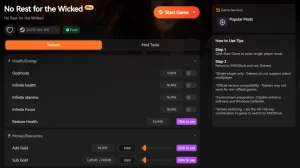
Se siete stanchi di perdere risorse o salute a causa di picchi di prestazioni, XMODHUB offre strumenti che possono aiutare ad attenuare la frustrazione. I loro allenatori permettono di recuperare la salute o le risorse perse, mitigando efficacemente la punizione delle morti causate dal lag, senza richiedere il riavvio di ore di progressi.
Perché la stabilità è importante per i giochi di ruolo d'azione
In un gioco di precisione come questo, la stabilità è fondamentale. L'uso di strumenti esterni per regolare i parametri di gioco può essere un modo valido per testare diverse build o esplorare aree senza il timore che un calo di frame rovini i tempi. In questo modo ci si può concentrare sulle meccaniche e sul mondo, invece di lottare contro l'hardware.
No Rest for the Wicked Performance FAQ
Siete pronti a migliorare il vostro gioco?

Creo contenuti per Xmodhub, dove curo e condivido mod di gioco, strumenti e altre risorse. Il mio obiettivo è aiutare i giocatori a scoprire fantastici componenti aggiuntivi, a godere di un'esperienza più fluida e a divertirsi di più.

 Catherine Hu
È difficile bilanciare lo splendido stile artistico del gioco con la fluidità del gameplay. Abbassare la scala di rendering funziona bene, ma mi mancano ancora alcuni dettagli dell'ambiente. È bello vedere questi suggerimenti sulle prestazioni, in modo da potersi godere il gioco senza troppi compromessi!