
 Catherine Hu
Editor’s View: Why This Matters
“We have all been there. You just spent hours organizing your stash, modding your weapons, and preparing for the ultimate raid. Then, a sudden power outage or a ‘Fatal Error’ on launch wipes your local profile.
I specifically wrote this guide because Escape from Duckov relies heavily on local data for offline raids and stash organization. Even if you trust the cloud, please backup your Saved folder manually right now. Don’t lose your Level 6 Armor to a glitch.”
There is nothing worse than completing a high-stakes raid in Escape from Duckov, extracting with a backpack full of legendary loot and keycards, only to have your game crash or your local save file corrupt.
In a tactical extraction shooter like this, “Gear Fear” is real. A lost save doesn’t just mean losing progress; it means losing your entire stash. Whether you want to manually backup your inventory before a risky update, transfer your profile to a Steam Deck for offline raids, or tweak the Unreal Engine 5 config files for better visibility, you first need to find where the data is hidden.
Below is the exact file path for Escape from Duckov on Windows and Steam Deck, along with a safer, automated method to protect your hard-earned gear.
Ti potrebbe interessare anche:
Escape From Duckov Best Mods Tool From XMOD
Windows PC Save File Location
For the Steam version of Escape from Duckov, the save files are usually located in the hidden AppData folder. Since the game runs on Unreal Engine 5, it uses the standard Local directory structure (unlike Unity games which use LocalLow).
C:\Users\%USERNAME%\AppData\Local\Duckov\Saved\SaveGames\How to navigate there quickly:
- Stampa Windows Key + R on your keyboard to open the Run dialog.
- Type
%localappdata%and press Enter. - Scroll down and look for a folder named Duckov (or sometimes EscapeFromDuckov).
- Andare a Saved > SaveGames.
Nota: You will see files ending in .sav. Your player profile is typically named PlayerProfile.sav o SaveSlot_01.sav. Do not modify these files directly while the game is running.
Escape from Duckov Config File Location
If you need to manually tweak graphics settings—like disabling Motion Blur, adjusting Lumen lighting, or fixing your Field of View (FOV) beyond the menu limits—you will need to edit the engine configuration file.
C:\Users\%USERNAME%\AppData\Local\Duckov\Saved\Config\WindowsNoEditor\How to Edit:
- Cliccare con il tasto destro del mouse the
GameUserSettings.ini(or Engine.ini) file. - Selezionare Open with Notepad.
Warning: Be careful when modifying values. Incorrect settings can cause the game to crash or trigger anti-cheat warnings if you modify protected variables.
Steam Deck / Linux Save Location
If you are playing Escape from Duckov on the Steam Deck, the Windows file structure is emulated within the Proton compatibility layer.
/home/deck/.local/share/Steam/steamapps/compatdata/[Your_Steam_App_ID]/pfx/drive_c/users/steamuser/AppData/Local/Duckov/Saved/SaveGames/Tip: You must replace [Your_Steam_App_ID] with the game’s unique ID number. You can find this by right-clicking Escape from Duckov in your Steam Library, selecting Properties > Updates, and looking for the “App ID” at the bottom.
The Smarter Way: One-Click Backup with XMODhub
Navigating through hidden %AppData% folders every time you extract is tedious. One accidental delete, and your stash is gone forever. XMODhub offers a built-in Save Manager tool designed specifically for extraction shooters.
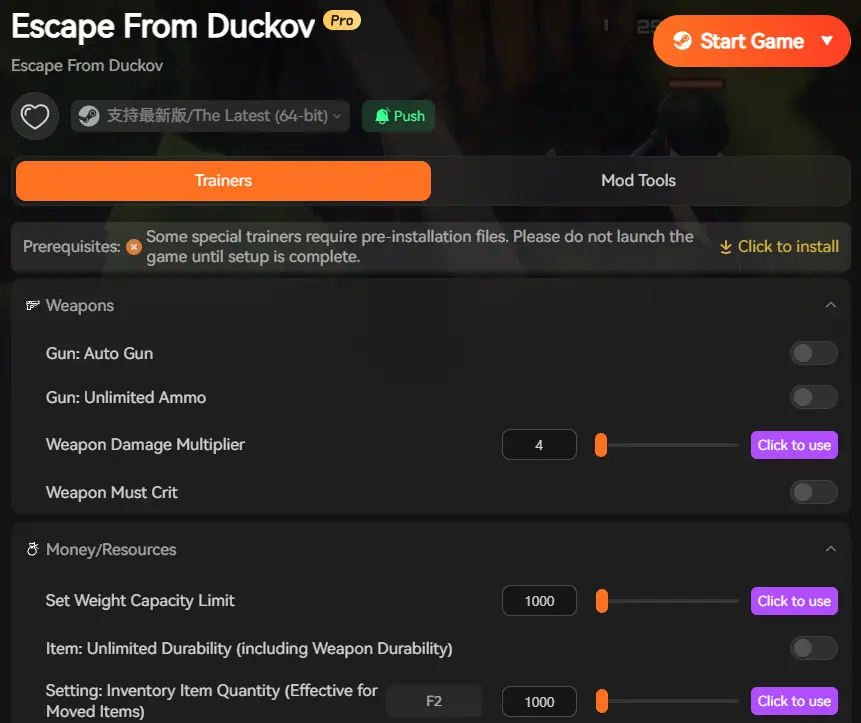
01
Auto-Backup
XMODhub can automatically backup your stash file every time you exit the game.
02
Stash Rollback
Did a bug delete your best weapon? Roll back to a previous save version from yesterday instantly.
03
Visual Management
Organize your saves by “Wipe Cycle” or “Raid” with a single click.
XMODhub: More Than Just a Save Manager
XMODhub is your ultimate all-in-one toolkit for PC single-player gaming. Whether you need powerful Trainers to practice offline, real-time Translation Tools, or detailed Interactive Maps for finding exits, XMODhub has everything covered.
How to Use XMODhub for Escape from Duckov:
- 1. Download and Install the XMODhub client safely.

- 2. Search for “Escape from Duckov” in the client.
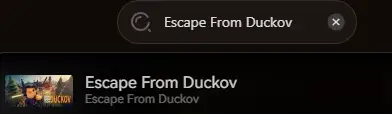
- 3. Launch the game directly from the client.
FAQ
Q: Can I transfer my Escape from Duckov save to another PC?
A: Yes. Simply copy the entire contents of the SaveGames folder mentioned above to the exact same location on the new computer. This allows you to keep your stash progression.
Q: What happens if I delete the config file?
A: Usually, the game will regenerate a default GameUserSettings.ini file upon the next launch, resetting your graphics settings to default. This is a good fix if your game refuses to launch after tweaking settings.
Q: Does modifying save files ban me?
A: In offline single-player mode, modifying your save file is generally safe. However, do not attempt to use modified save files in online multiplayer servers, as BattleEye or EAC will likely flag your account and issue a ban.
Conclusione
Locating your Escape from Duckov save file is a crucial skill, whether you are recovering from a glitch, migrating your progress to a Steam Deck, or manually tweaking config files for better visibility.
However, digging through hidden system folders always carries a risk. One wrong deletion can wipe out your entire stash. If you prefer a safer, “set it and forget it” solution, we highly recommend the XMODhub Save Manager. It automates your backups, keeping your hard-earned progress secure so you can focus on the raid, not the file directory.

Sono un giocatore appassionato e uno scrittore di XMODhub, che si dedica a fornire le ultime notizie, consigli e approfondimenti sui giochi.
Collegatevi con me:
Profilo LinkedIn
 Nancy Miller
I appreciate the reminder about how important it is to back up data. Losing progress like that in a tactical shooter is frustrating, especially when it’s something you can’t control like a glitch.