
 Catherine Hu
Editor’s View: The “Unreal Engine 5” Tax
“Extraction shooters are notoriously unoptimized in Early Access. Escape from Duckov pushes Unreal Engine 5 to its limits with global illumination (Lumen), but this comes at a cost.
The most common cause of crashes I’ve seen isn’t the game code—it’s RAM stability. This game eats memory for breakfast. If you are crashing while loading into a map, check your Pagefile settings immediately (Method 4). I’ve lost too many kits to ignore this.”
You have spent 20 minutes organizing your stash, equipping your best Level 6 Armor and a fully modded M4. You click “Deploy,” the loading screen hits 100%, and then—Crash to Desktop.
In extraction shooters like Escape from Duckov, a crash isn’t just an annoyance; it’s a disaster. It often means losing your entire loadout to the void. Whether you are facing a black screen on launch, random Fatal Errors during a raid, or Anti-Cheat conflicts, this guide covers the most effective solutions to get you back into the raid safely.
Ti potrebbe interessare anche:
Escape From Duckov Best Mods Tool From XMOD
Check First: Escape from Duckov System Requirements
Before debugging, ensure your PC can actually run the game. UE5 shooters are heavy on CPU and RAM.
| Componente | Requisiti minimi | Specifiche consigliate |
|---|---|---|
| OS | Windows 10 (64-bit) 22H2 | Windows 11 (64 bit) |
| CPU | Intel Core i5-9600K | Intel Core i7-12700K |
| RAM | 16 GB DI RAM | 32 GB RAM (Crucial) |
| GPU | RTX 2060 (6GB) | RTX 4070 / RX 7800 XT |
| DirectX | Versione 12 | Versione 12 |
| Immagazzinamento | 60 GB SSD | NVMe M.2 SSD |
Method 1: Verify Game Files (Steam)
Corrupted map files are the #1 cause of crashes when loading into a raid.
Per gli utenti di Steam:
- Cliccare con il tasto destro del mouse Escape from Duckov nella vostra Biblioteca.
- Selezionare Proprietà > File installati.
- Cliccare “Verificare l'integrità dei file di gioco”.
- Wait for the process to finish. If Steam finds a corrupted file (e.g.,
pak_chunk01), it will re-download it, saving you from a mid-raid crash.
Method 2: Update Visual C++ & GPU Drivers
Unreal Engine 5 requires the latest environment libraries to function.
- Visual C++ All-in-One: If you get errors like
UE5-ShooterGame has crashedoMSVCP140.dll missing, reinstall the Microsoft Visual C++ Redistributable 2015-2022. Install both x86 and x64 versions. - Driver GPU: Update to the latest NVIDIA (Game Ready) or AMD drivers. Escape from Duckov often releases hotfixes that require specific driver support for DLSS.
Method 3: Fix Black Screen
The “Waiting” Game
If you launch the game and see a black screen, DO NOT CLOSE IT immediately.
- Cause: The game is compiling shaders. On a mid-range CPU, this can take 5-10 minutes on the first launch.
- Correggere: Wait it out. If it persists for over 15 minutes, try deleting the Shader Cache in
%localappdata%\Duckov\Saved\Config\.
Disable Fullscreen Optimizations: Right-click the game .exe file -> Go to Compatibility -> Check “Disable fullscreen optimizations”. This helps with Alt-Tab stability.
Method 4: Fix Anti-Cheat Errors
If the game launches but closes instantly or kicks you from a server:
- Run as Admin: Go to the game folder and run the
Install_BattlEye.bat(or EAC setup) as Administrator to repair the service. - Software Conflict: Close any software that uses “Overlay” or “Hooking” techniques, such as MSI Afterburner, RivaTuner, or obscure macro software. Anti-Cheat often flags these as threats.
Method 5: Fix Low FPS & Stuttering
Is the game running like a slideshow on “Streets”?
- Increase Pagefile (Virtual Memory): Since the game demands high RAM, set your Windows Pagefile to at least 20GB on your SSD. This prevents crashes when your physical RAM fills up.
- Enable DLSS: In Graphics Settings, set Upscaling to Quality or Balanced. UE5 games are designed to run with upscaling enabled.
- Lower Volumetrics: Set “Volumetric Fog” to Low. This is the biggest FPS killer in Duckov.
The Workaround: Save Manager & Offline Tools with XMODhub
Sometimes, the servers are just broken. If you are playing the Single-Player mod of Escape from Duckov, crashes are still a threat to your local profile.
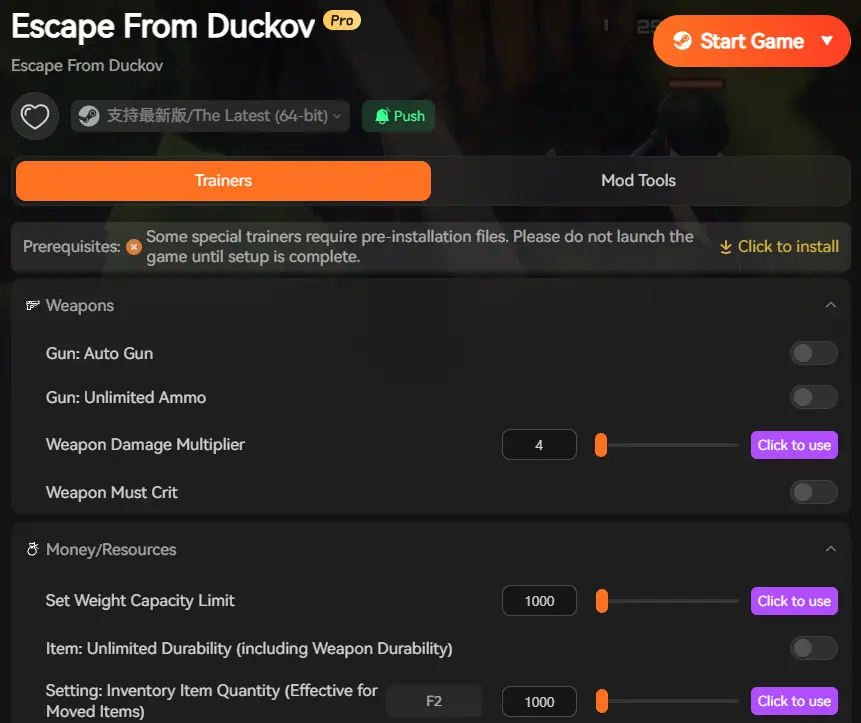
XMODhub offers tools to mitigate data loss:
- Salva Manager: Automatically backup your
PlayerProfile.savbefore every raid. If the game crashes and corrupts your profile, restore it instantly. - Stash Organizer: Use external tools to manage your inventory without launching the heavy game client.
How to Get Started with XMODhub
- Download & Install: Get the Cliente XMODhub.

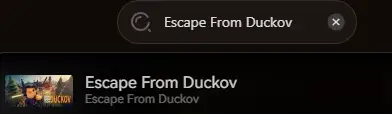
- Rilevamento automatico: Launch the app to scan for Escape from Duckov.
- Secure: Enable “Auto-Backup” in the Save Manager tab.
FAQ
Q: “Out of Video Memory” error on a high-end GPU?
A: This is a known issue with Intel 13th Gen CPUs. Download “Intel XTU” and lower your “Performance Core Ratio” by 1x or 2x to stabilize the UE5 engine.
Q: Can I rejoin a raid after crashing?
A: In online mode, yes, if your character hasn’t died. In offline mode, a crash usually means the raid is reset unless you have a mod that saves state.
Q: Will reinstalling fix the “Fatal Error”?
A: Usually no. Fatal Errors are typically C++ or RAM conflicts. Try Method 2 and Method 5 (Pagefile) first.
Conclusione
Launch issues are frustrating, but most Escape from Duckov crashes are solvable. By ensuring your RAM file is sufficient, updating your C++ libraries, and repairing Anti-Cheat services, you should be able to deploy without fear of the desktop.
If you play offline, don’t forget to use XMODhub to backup your profile. Don’t let a crash wipe your stash. Deploy safely. Extract successfully.

Sono un giocatore appassionato e uno scrittore di XMODhub, che si dedica a fornire le ultime notizie, consigli e approfondimenti sui giochi.
Collegatevi con me:
Profilo LinkedIn
 Nancy Miller
I’ve noticed that the game runs fine once you adjust those memory settings, but it still feels like Escape from Duckov isn’t fully optimized for the engine. Do you think it will improve with future updates?